Where to find it
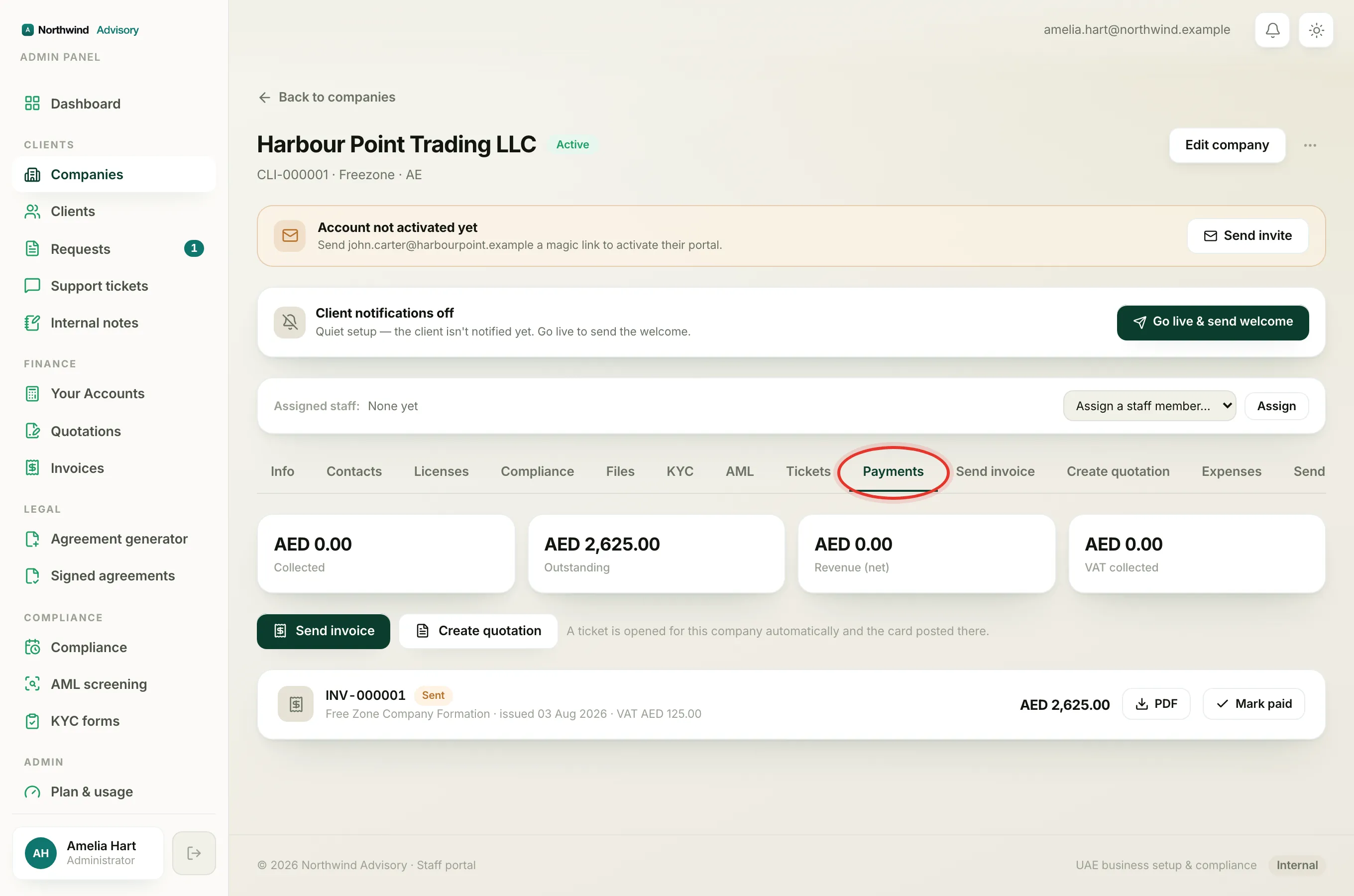
Every company has its own billing view that covers only that one client. To open it:
- Log in to your workspace.
- In the left menu, under Clients, click Companies.
- Open the company you want.
- Click the Payments tab.
Unlike the firm-wide reports in Your Accounts, this tab is available to any staff member who can see the company, because it only ever shows this one client's invoices.
The four tiles
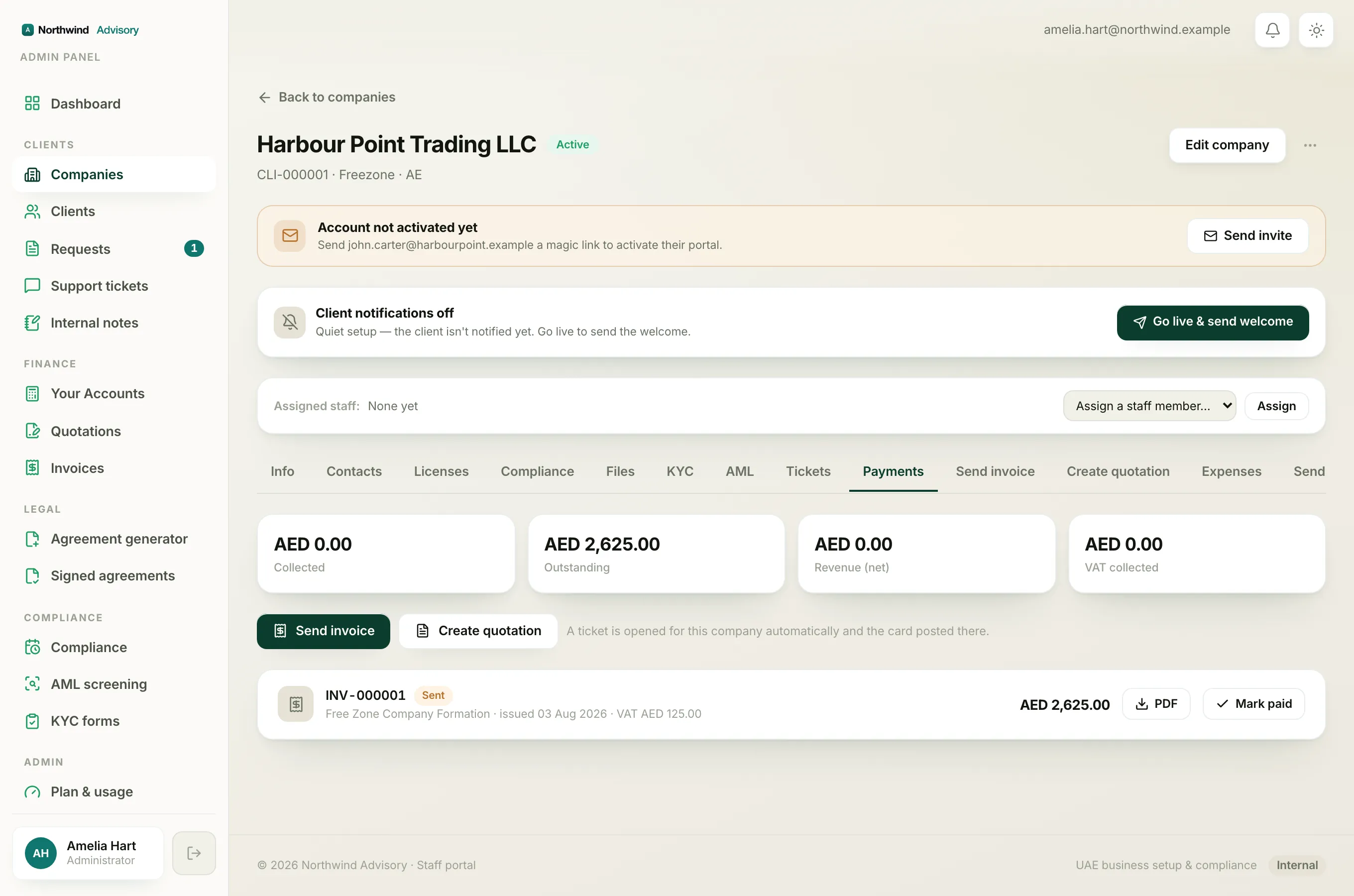
At the top of the tab are four totals for this company:
- Collected is every payment you have received from this client, added up. This includes part-payments, so a client who has paid half of one invoice still adds that half here.
- Outstanding is the balance still owed across all of this client's invoices that are not cancelled.
- Revenue (net) is your income from this client, excluding VAT, counting only invoices that are fully paid.
- VAT collected is the VAT portion of this client's fully paid invoices.
Note
Cancelled invoices are left out of every total. Revenue and VAT only count invoices that are fully paid, while Collected and Outstanding count part-payments as they come in. That is why Collected can be higher than Revenue: it includes VAT and part-paid amounts.
The invoice list
Below the tiles is every invoice raised for this company, each with a coloured status chip:
- paid is green.
- sent is amber, meaning issued and waiting for payment.
- overdue is red.
- partially paid is shown when some but not all of an invoice has been paid, with the remaining balance noted on the line.
- cancelled and draft are grey.
Each line also shows the service it relates to, the issue date, the VAT amount, the total, and a PDF button to download the invoice exactly as the client sees it. For an invoice that is not yet paid or cancelled, a Mark paid button appears so you can record a payment right there. See how to record a payment and record a part payment for the details.
Raise new billing from here
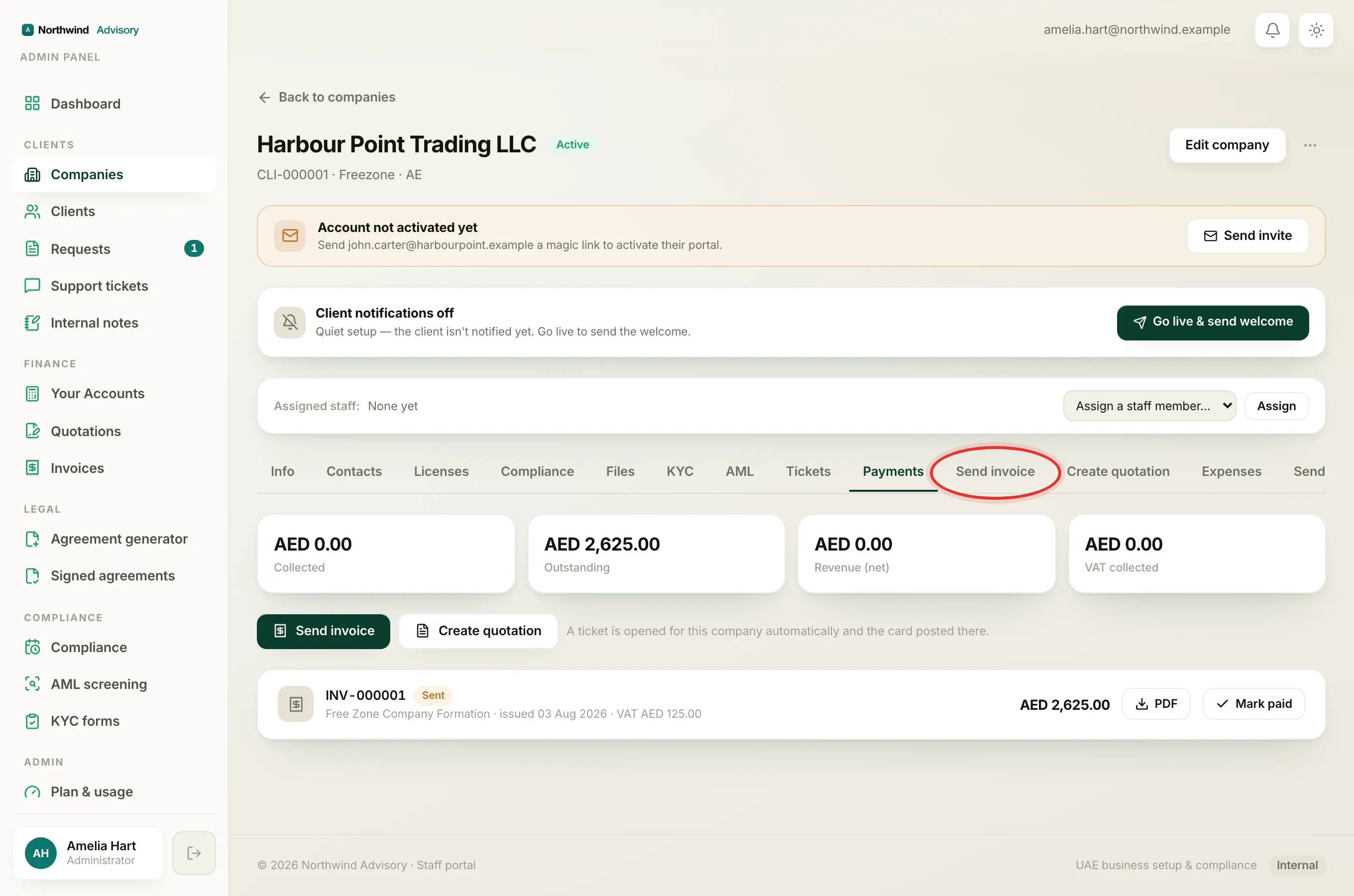
At the top of the invoice list are two buttons, Send invoice and Create quotation. Each opens the matching tab for this company and automatically opens a support ticket, posting the invoice or quotation card into that thread so the client sees it in one place.
Tip
To see what this same client still owes you across a chase-friendly, aged view, use the firm-wide Receivables report. This tab is the single-company picture.