The menu matches your role
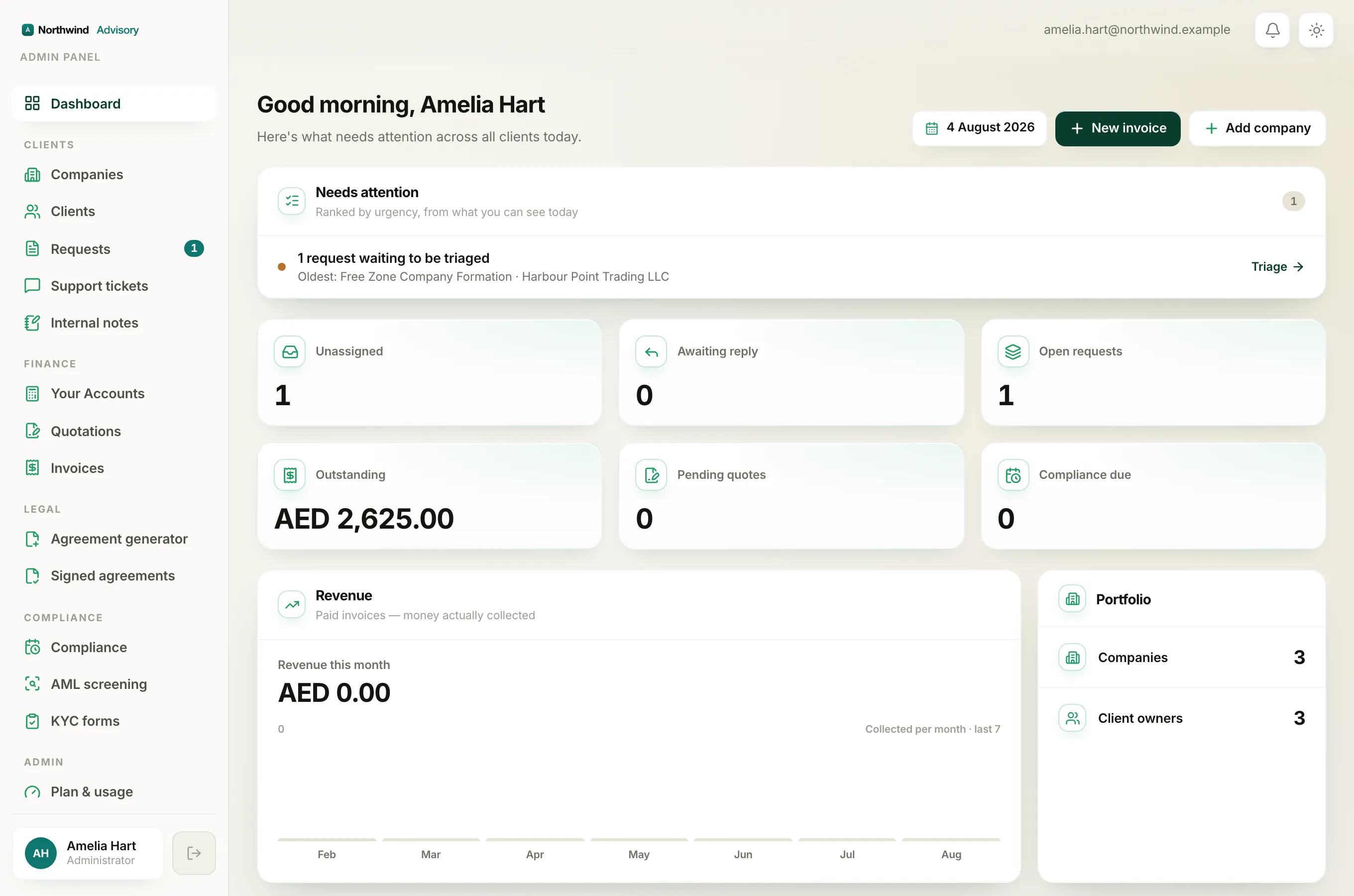
If a teammate has a menu item, or a whole section, that you do not have, nothing is broken. The menu is built to match your role. Each item can carry a permission, and if your role does not include that permission, the item simply does not appear for you.
There is one more rule that makes a whole heading vanish: if every item inside a group is hidden for your role, the group label disappears too. So a Billing officer, for example, will not see the Legal or Compliance headings at all, because they cannot use anything inside them.
Note
This is about safety, not a glitch. Hiding a section also blocks it. Even if you typed the web address by hand, the system would still stop you from opening a screen your role does not allow.
What each role can see
These items are visible to every staff member:
- Dashboard
- Companies
- Requests
- Internal notes
- Compliance
- Plan & usage
- Help Centre
These items only appear if your role includes the matching permission:
- Clients needs the manage-clients permission.
- Support tickets needs the ticket-chat permission.
- Your Accounts needs the view-revenue permission. This is usually the Administrator only, because it shows money totals.
- Quotations, Invoices, Agreement generator and Signed agreements all need the create-invoices permission.
- AML screening and KYC forms need the manage-KYC permission.
- Brand and Staff need the manage-staff permission.
- Subscriptions needs the manage-subscriptions permission.
So, as an example, a Support agent sees a short menu: Dashboard, Companies, Requests, Support tickets, Internal notes, Compliance, Plan & usage and Help Centre. The Finance, Legal and most of the Compliance and Admin items are hidden, because that role is not meant to touch billing, agreements or firm settings.
Who can turn access on
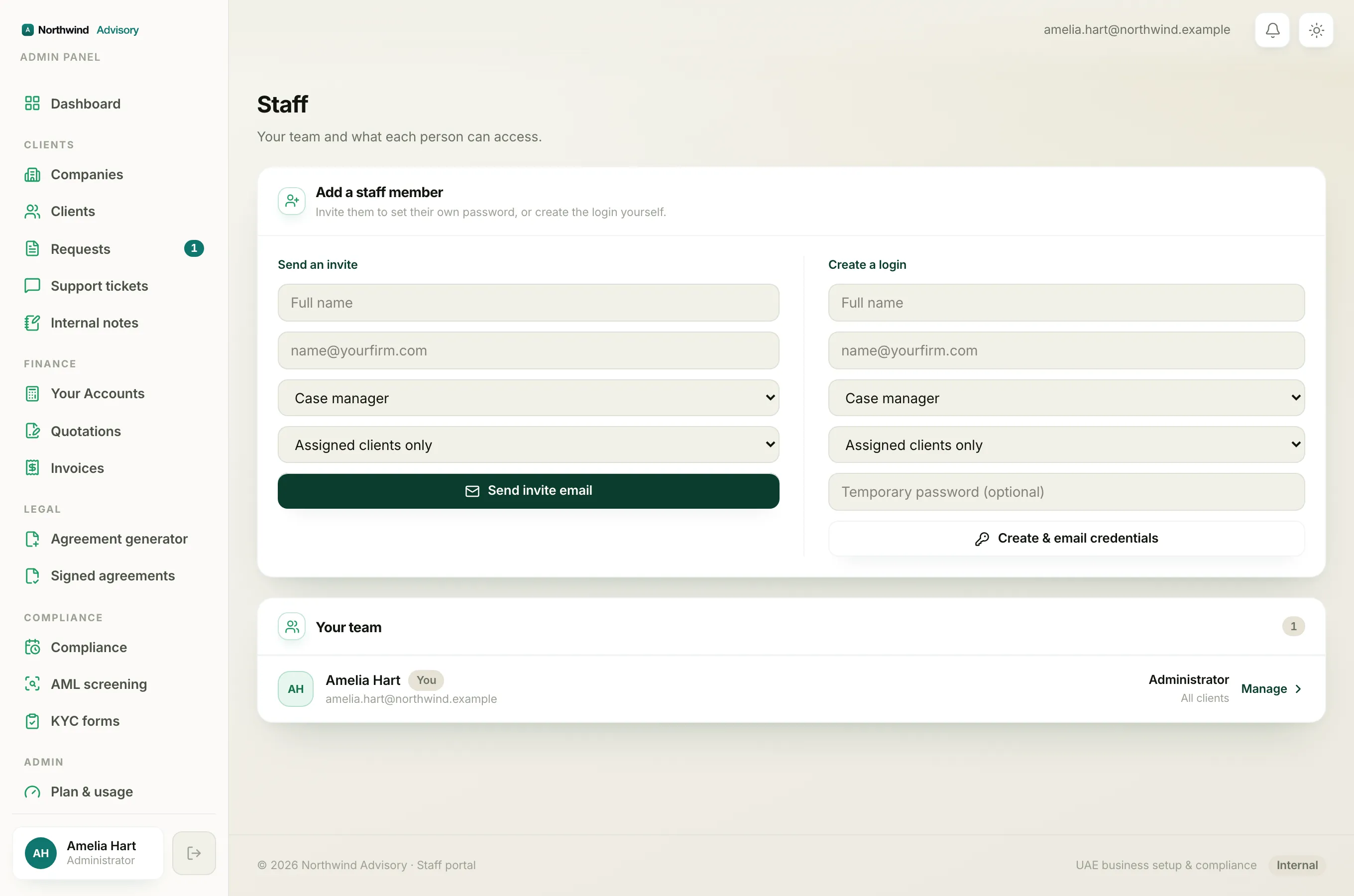
Only an Administrator can change roles and permissions. If you need access to a section you cannot see:
- Ask an Administrator at your firm to review your role.
- They open Staff under the Admin group and change your role, or add a teammate with the right role.
To understand what each role is allowed to do, see Staff roles and Add a team member.
Tip
Seeing a menu item is not the same as seeing every client. Even within a section you can open, your view may be limited to your own assigned clients. That is a separate setting, explained in Why your dashboard differs from a teammate's.
A section can also be locked by your plan
There is a second reason a section can be missing, and it has nothing to do with your role. IzzyTap is built from modules, and your firm chooses which ones it pays for. If a feature belongs to a module your firm has not added, that feature is off for everyone at the firm, whatever their role.
A plan lock looks different from a role hide, and that difference tells you which one you are looking at:
- If your role hides an item, the item is gone. You never see it in the menu.
- If your plan does not include a feature, you still see the item, but it looks faded and has a small padlock beside it. Clicking it does not open the screen. It opens a small window that shows what the feature does and lets you add it.
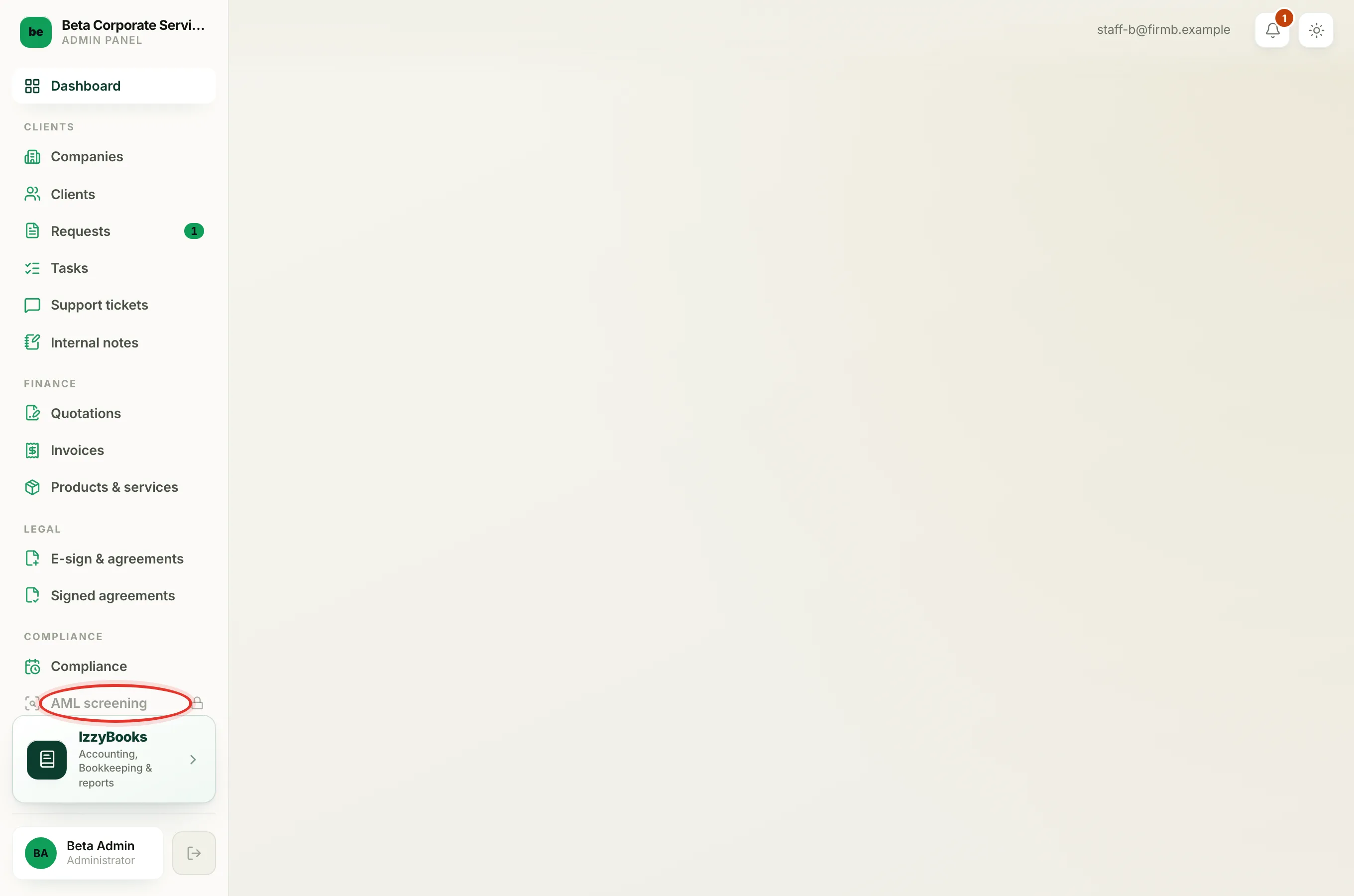
The same padlock can show on a tab inside a client company, not only in the left menu. Wherever it appears, it works the same way. The padlock is a door to add the feature, not an error.
Note
This is not a fault and nothing is broken. Your firm has not added that module yet. Adding it turns the feature on for the whole firm right away.
Each module turns on its own menu items:
- izzybooks (Invoice & accounting) turns on Quotations, Invoices and Products & services.
- izzysign (E-signatures & agreements) turns on E-sign & agreements and Signed agreements.
- izzykyc (KYC & onboarding) turns on KYC forms.
- izzycheck (AML screening) turns on AML screening.
- izzycompliance (Compliance & renewals) turns on Compliance.
- izzytask (Work) turns on Tasks.
Clients and Documents are always included, so those never lock.
How to add a feature that is locked by your plan
Only an Administrator can change the plan. If you are one, you can add a module yourself:
- Log in to your workspace.
- In the left menu, find the faded item with the padlock and click it.
- A window opens headed Add izzybooks to your plan (the name matches the feature you clicked), with a short list of what you get and the price of $5 per user each month.
- Click Unlock izzybooks to add it, or click Compare all plans to see every option first.
You can also add a module from the plan page:
- Log in to your workspace.
- In the left menu, under Admin, click Subscription.
- Under Change your plan, pick the module you want, then confirm.
Your dashboard also has a Do more with your plan panel that lists the modules you have not added yet, so you can add one from there too.
If you are not an Administrator, ask one at your firm to add the module for you.
To build your plan and add or remove modules in full, see Choose or change your plan.