A locked period is meant to stay locked, because its numbers have been filed. But now and then you find a real error in a period you have already closed and you have no choice but to fix the original entry. To do that you first clear the closing date, which reopens everything up to that date.
Heads up
Reopening removes the protection on every filed period at once, not just the one you want to fix. Only do this when you truly must, make the single correction, then set the closing date again straight away. While the books are open, an edit to a filed period will change numbers you have already reported to the FTA.
Note
The Your Accounts area is only visible to staff with the Admin role.
Reopen the period
- Log in to your workspace.
- In the left menu, under Finance, click Your Accounts.
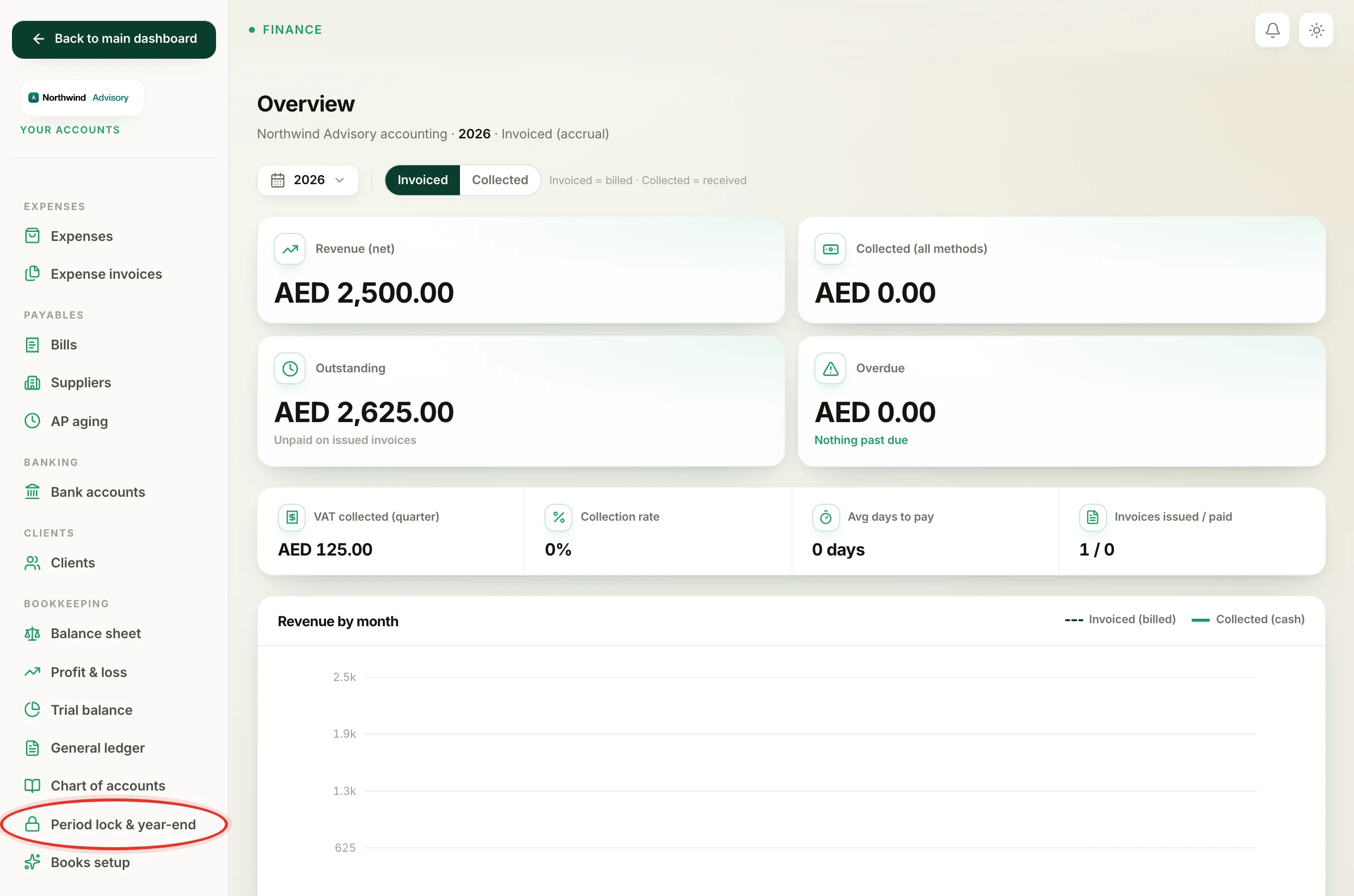
- In the accounting menu, under Bookkeeping, click Period lock & year-end.
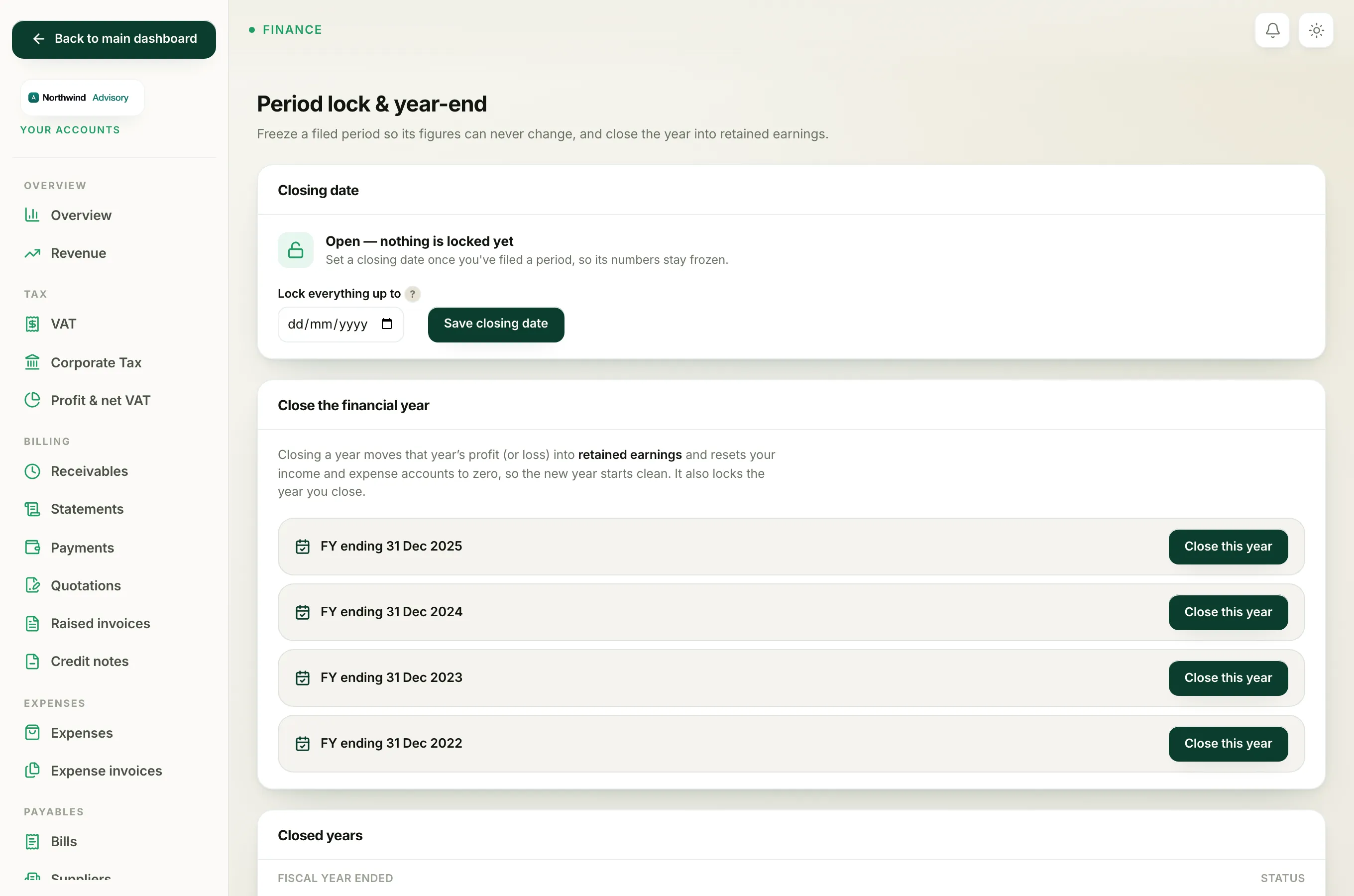
- In the Closing date panel, click Reopen (clear the lock).
You will see the message Books reopened, the closing date was cleared, and the panel returns to Open, nothing is locked yet. You can now edit or add entries in what used to be a locked period.
Note
The Reopen (clear the lock) button only appears when a closing date is currently set. If the books are already open, there is nothing to reopen.
Lock it again when you are done
As soon as your correction is in, lock the period again by setting the closing date back to the end of the filed period. That refreezes the numbers and protects them from any further change.
If you are simply trying to work in the current period and are being blocked, you probably do not need to reopen anything. See why you cannot post to a locked period, because the fix is usually to date your entry in today's open period instead.