Your client does not need an account or a password to sign. They simply open the private link you sent and sign there and then. This article walks through exactly what they see, so you can guide them if they get stuck.
Opening the link
The client clicks the signing link in the email you sent (or a link you shared by hand). The page opens showing your firm's letterhead at the top, the full agreement, and a panel listing every party with a tick or an Awaiting mark. No login is needed.
Step 1: verify it is them
Before anyone can sign, the page asks the client to prove the email is theirs.
- The client sees a Verify it's you box showing the email address the code will go to.
- They click Email me a code.
- A six-digit code is emailed to them right away.
- They type the code into the box and click Verify & continue.
If the code does not arrive, they can click Resend code. The code is only good for a short time, so they should use it soon after it arrives.
Step 2: sign
Once verified, the Sign the agreement box appears. The client can sign in one of two ways using the Draw and Type buttons:
- Draw: they draw their signature with a finger on a phone or a mouse on a computer.
- Type: they type their full name and it is shown in a signature style.
Below the signature is a tick box that reads: "I confirm I have read and agree to this agreement, and that my electronic signature is legally binding." The client must tick this to continue.
Finally they click Agree & sign.
Note
If the client tries to sign without drawing or typing anything, or without ticking the box, the page gently stops them and points out what is missing. Nothing is submitted until both are done.
After they sign
The client sees a Thank you, you've signed confirmation and can close the page. Their signature is recorded straight away.
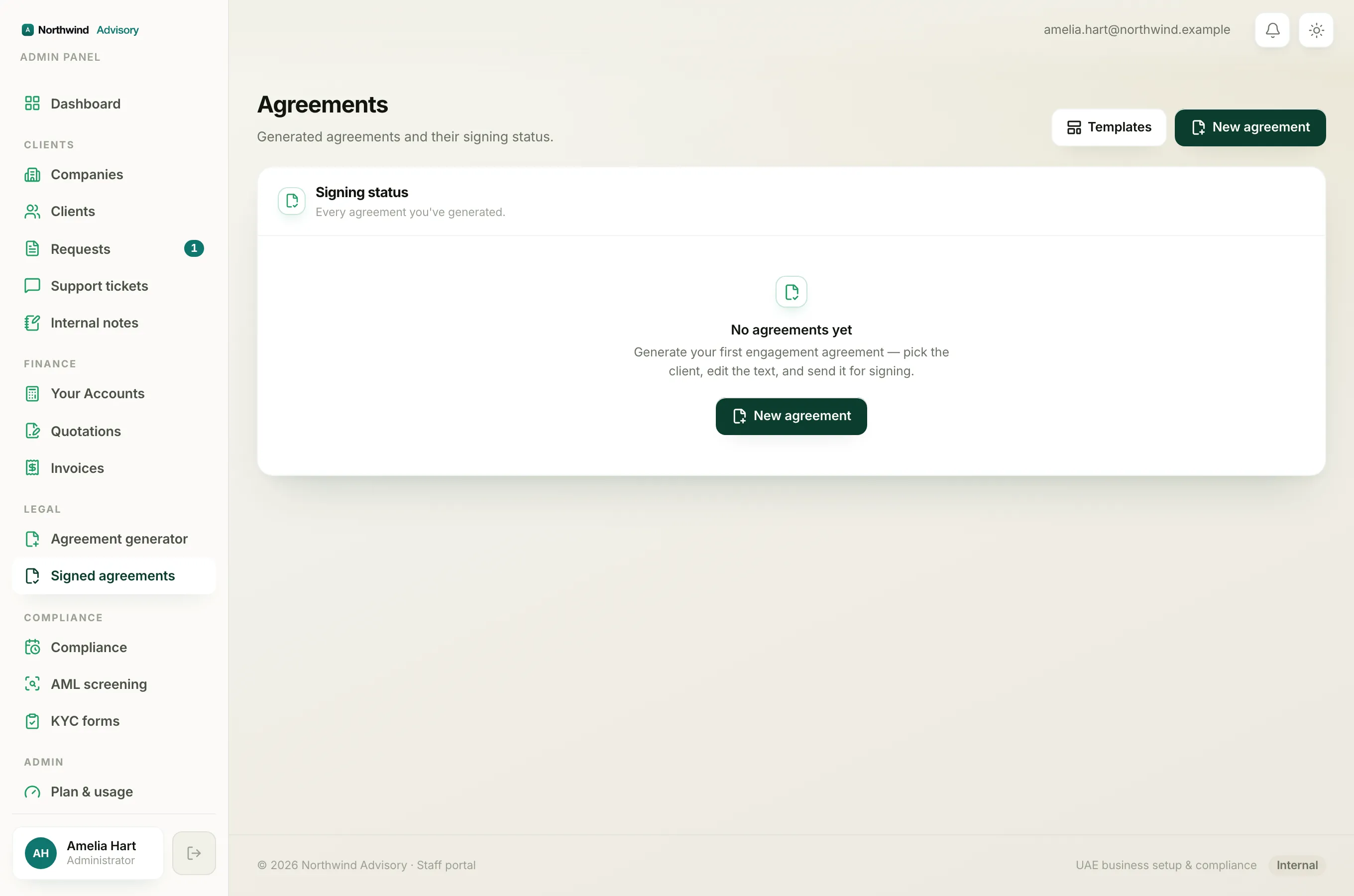
When every party has signed, a fully-signed copy of the agreement is emailed to everyone automatically. Until then, each person only signs their own part. You can watch progress from the agreement's Signing panel, where each party turns from Awaiting to Signed.
If a client says the link will not open or the code will not work, see The client cannot open or accept the agreement.