You can bill a client and take payment without ever leaving the request. IzzyTap turns your line items into a real invoice, emails it to the client with a pay link, and posts a pay card in the conversation that you settle when the money arrives.
Open the request
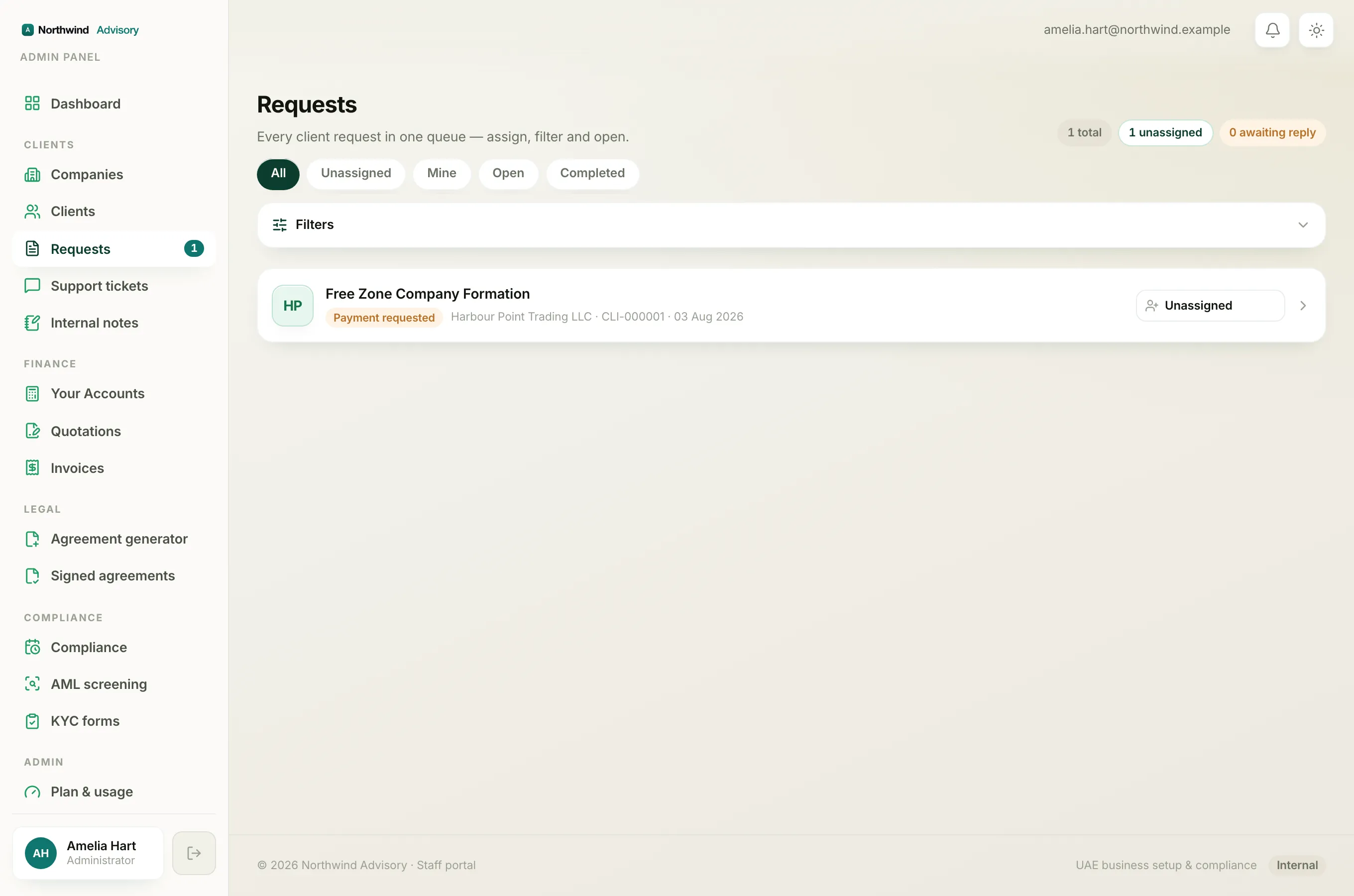
- Log in to your workspace.
- In the left menu, under Clients, click Requests.
- Click the request you want to bill.
Raise the invoice
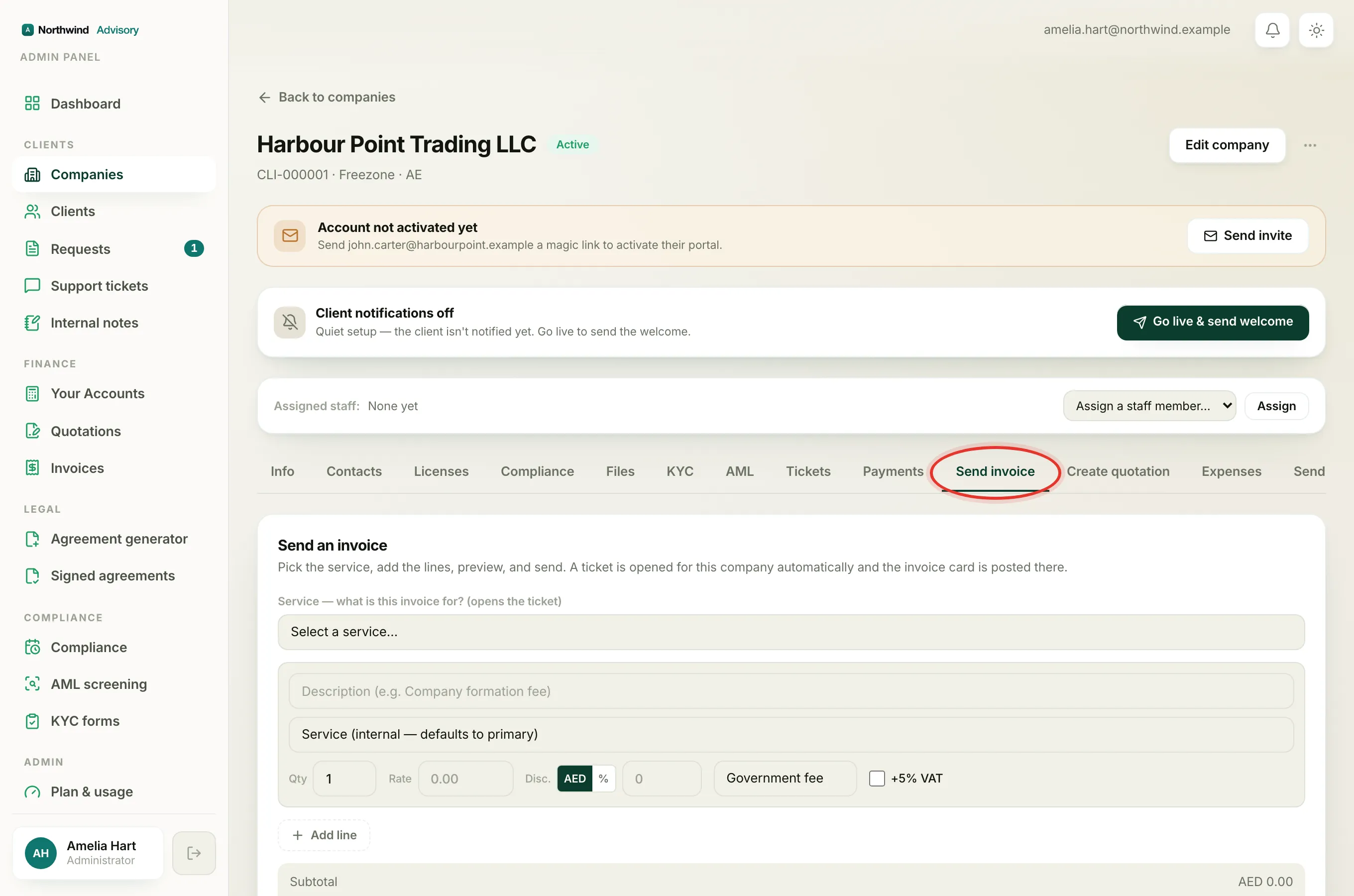
- Scroll down to the staff tools under the conversation.
- Open the Send invoice card. Its subtitle reads Raise an invoice & post a pay card.
- Fill in each line:
- Description, for example Company formation fee.
- Qty and Rate.
- The line kind: Government fee, Service charge or Other. Choosing Service charge ticks the +5% VAT box for that line automatically, because your own fees are usually VAT rated. Government fees are passed through without VAT.
- Use Add line for more items.
- Set the Invoice date if it should not be today, and change the currency box if you are billing in something other than AED.
- Click Preview invoice. This builds the exact PDF the client will receive, without saving or sending anything yet.
- Check the preview. Click Edit to fix anything, or click Send invoice to send it.
Tip
Always preview before you send. Sending creates a real, numbered invoice and emails the client straight away.
What happens when you send
- A Payment requested card appears in the conversation showing the amount due.
- The request automatically moves to the Payment requested stage, so its status chip turns amber. See Move a request through its stages.
- The client gets an email with the invoice PDF attached and a link to pay, and a notification in their portal.
Record the payment when it arrives
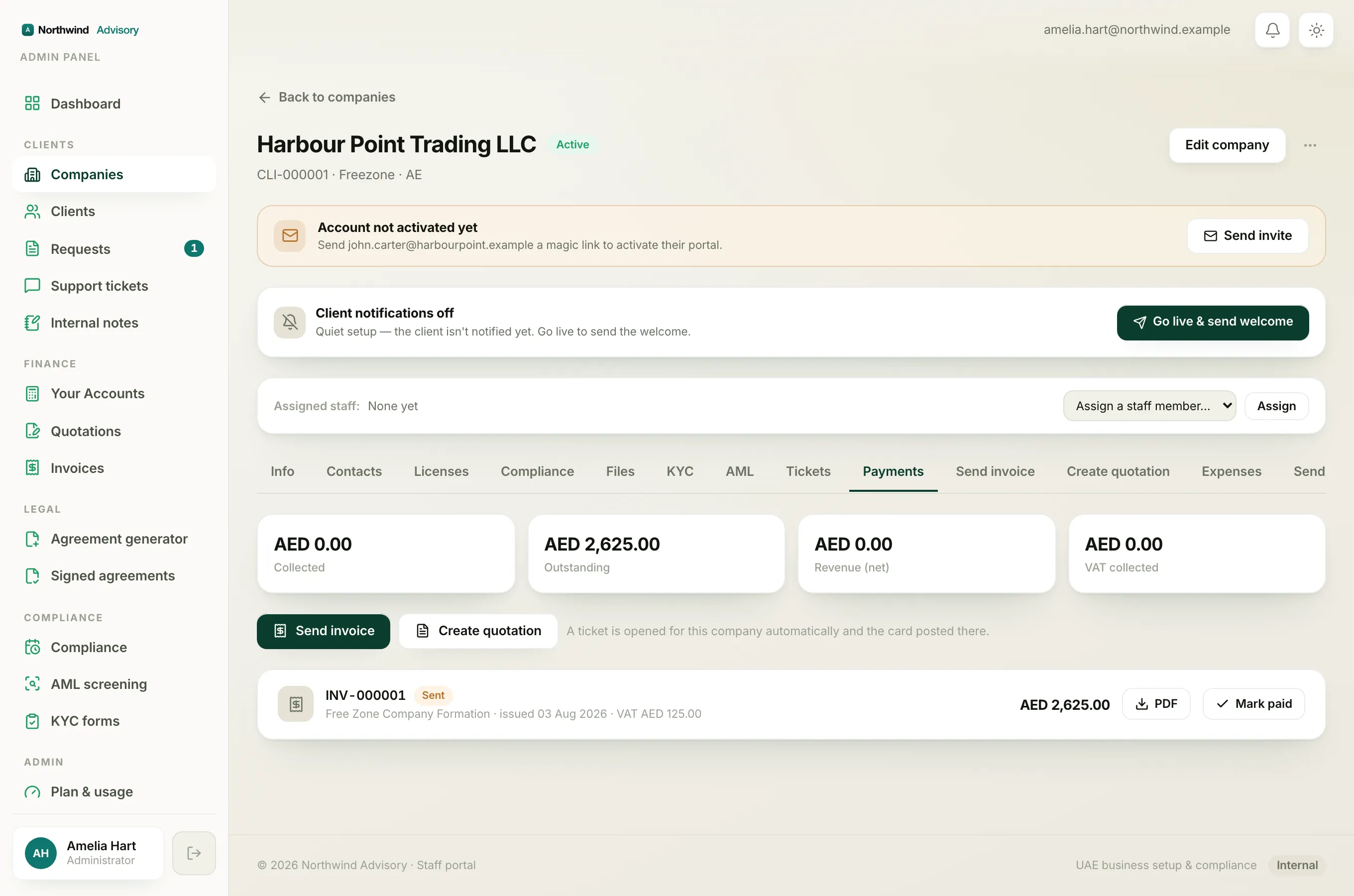
When the client pays you offline (bank transfer, cash and so on), record it against the pay card:
- On the Payment requested card, click Mark as received.
- Choose the Payment method: Bank transfer, Cash, Card / POS, Cheque or Other.
- In Where / reference, note how it came in, for example ADCB a/c · ref TT-12345.
- If your firm keeps books with more than one account, pick the account in Deposit to so the money lands in the right place.
- Click Confirm payment.
The card flips to Paid, and the client gets a branded receipt by email.
Recording a part payment
If the client pays only part of the bill:
- Click Record payment on the pay card.
- In Amount received, type the amount that actually came in (less than the balance owed).
- Fill in the method and reference as above, then click Confirm payment.
The card now shows Partially paid with the remaining Balance due. Record the rest the same way when it comes in. See Record a part payment.
Cancelling an invoice raised in error
While a pay card is still unpaid, its card shows a Cancel invoice button. Use it to void an invoice you raised by mistake. Once any money has been recorded you can no longer cancel it. For the full picture, see Withdraw a quote or cancel an invoice from a ticket.