A quotation is a priced offer you send a client before the work starts. They can review it and accept it online. You build one from the Quotations page, for a client you already have or a new one. This guide walks you through each step from login.
Start a new quotation
- Log in to your workspace.
- In the left menu, under Finance, click Quotations.
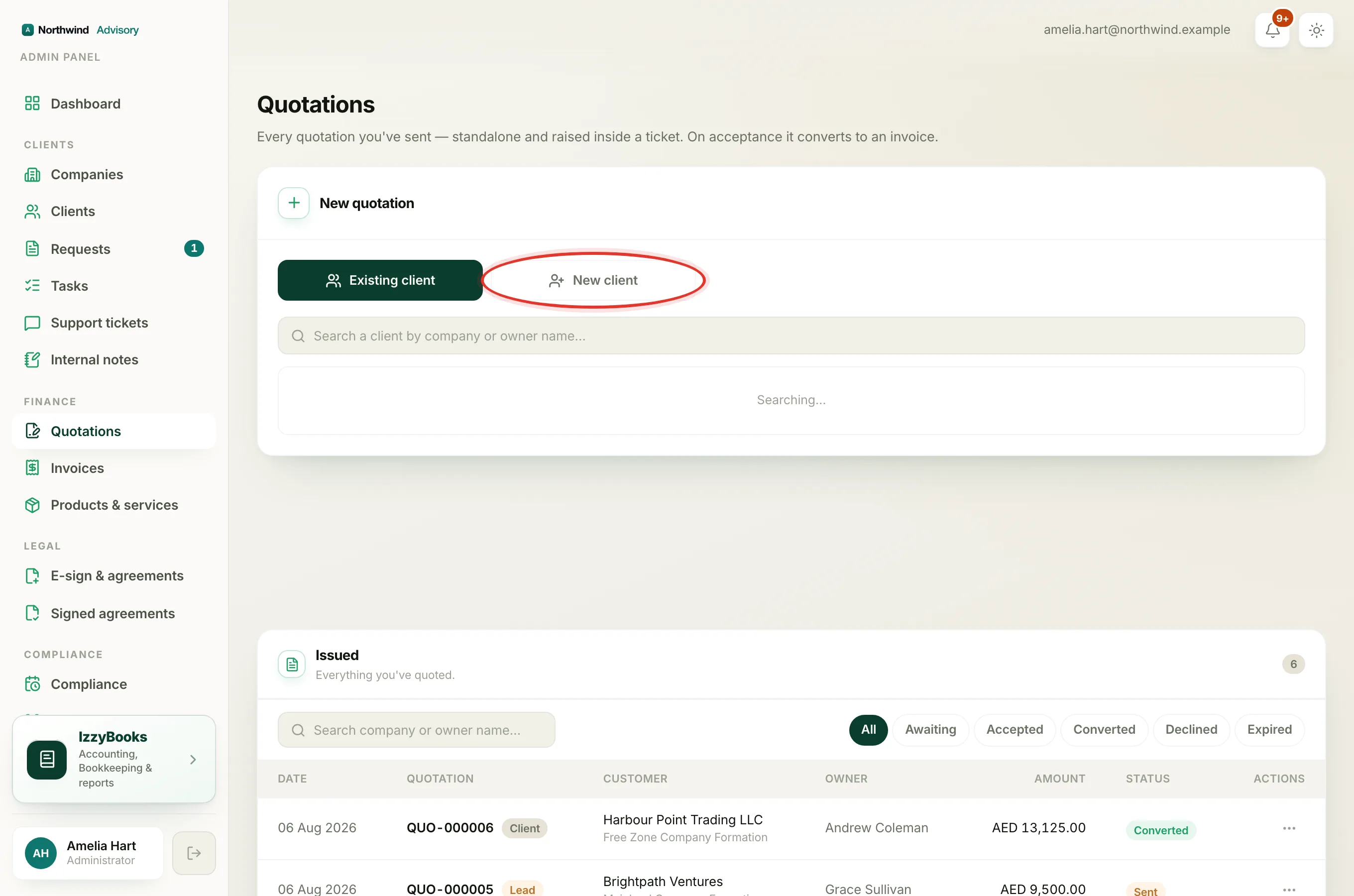
- Click New quotation at the top of the page.
Choose who it is for
- Pick one:
- Existing client. Click Existing client, search by company or owner name, and click the client. Their currency and details fill in for you.
- New client. Click New client, then type the company name and the owner's name and email. The app saves them so you can find them again.
Build the quotation
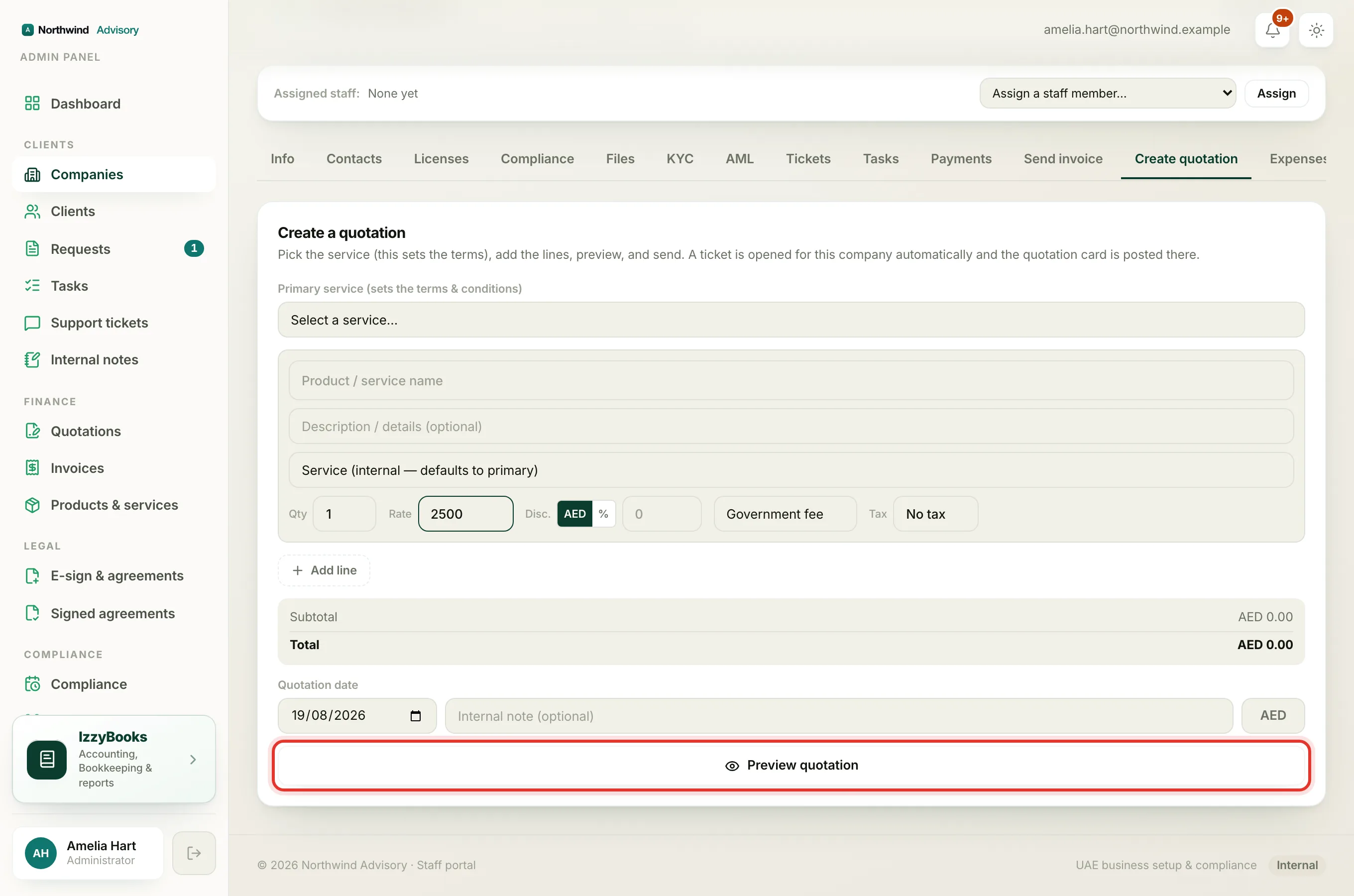
- Choose the Service this quote is for. For firms that offer set services, this also sets the standard terms text on the quote.
- Add your lines. For each line, type the Product or service name (pick a saved one to fill in its rate, or type a new one and save it), add a Description if you want, set the Qty and Rate, choose the type, and set the tax if it applies.
- Click Add line for more rows. The Subtotal, tax and Total update at the bottom.
Tip
You can change the order of your lines. Drag the handle on the left of a line, or use the up and down arrows next to it. The order you set is the order that prints on the quotation.
- Review the terms below the lines. You can edit, add, reorder or remove any block. This is the text that prints on the quote.
Add a matter or reference (optional)
Near the top of the builder you will see two optional fields, the same as on an invoice.
- Matter / reference. A short reference for the work, such as a case name or your own job number. It prints in a small band near the top of the quotation.
- Handled by. The name of the team member who looked after the client. It prints next to the matter.
Leave both blank and the quotation prints exactly as before, with no extra band.
Date, currency and exchange rate
- The Quotation date is today. Change it if you need to. The quote is valid for 30 days from this date.
- For a saved client the currency is locked to theirs. For a new client, pick the currency.
- If the quote is in a currency other than your firm's own, enter the Exchange rate. It carries onto the invoice this quote becomes, so the invoice is booked at the right value.
Preview and send
- When the quotation is ready, click Preview quotation. This builds the exact document with your firm's name and logo. Nothing is sent yet. Use Download PDF or Open in new tab to see it full size.
- When it looks right, click Send quotation. The button shows the total, so you get one last check before you send.
Note
What happens after you send. The client gets the quotation by email with a link to open and accept it online. When they accept, the app turns it into an invoice for you and moves the request forward.
Track and manage it
Every quotation you raise appears on the Quotations page with a status. See Quotation statuses explained, and Edit or resend a sent quotation if you need to change it or send it again.