Sometimes you have a client's papers in hand, maybe they sent them over WhatsApp or email, and you want them saved in the right place. You can upload files into any of a company's folders yourself. This is the everyday way to store documents. If you are handing over an official document that needs an expiry or filing reminder, use Issue a document to a client instead.
Open the folder you want to upload into
- Log in to your workspace.
- In the left menu, under Clients, click Companies.
- Click the company you are working on to open it.
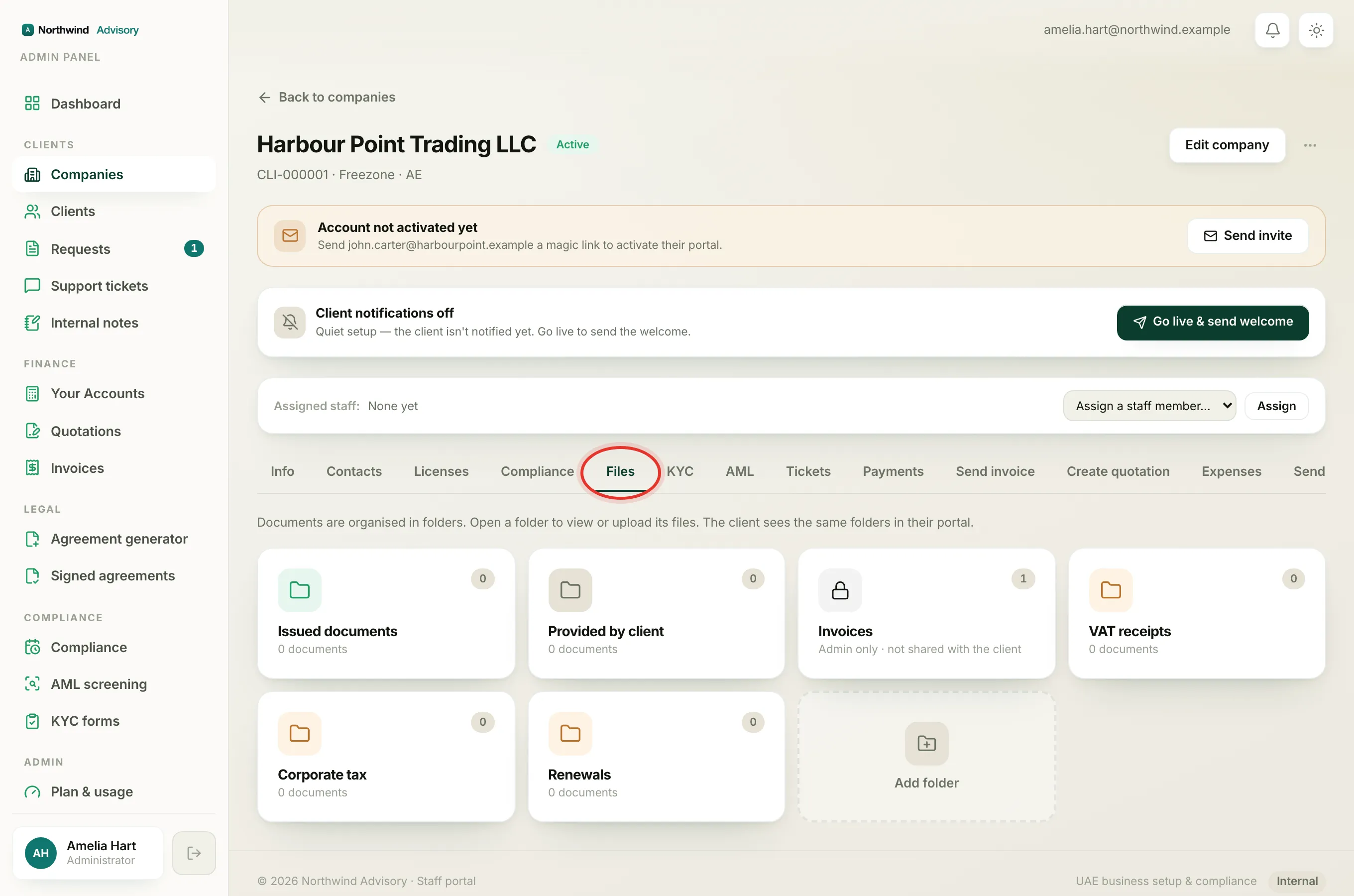
- Click the Files tab.
- You will see the folders for this company. Click the folder you want to add files to.
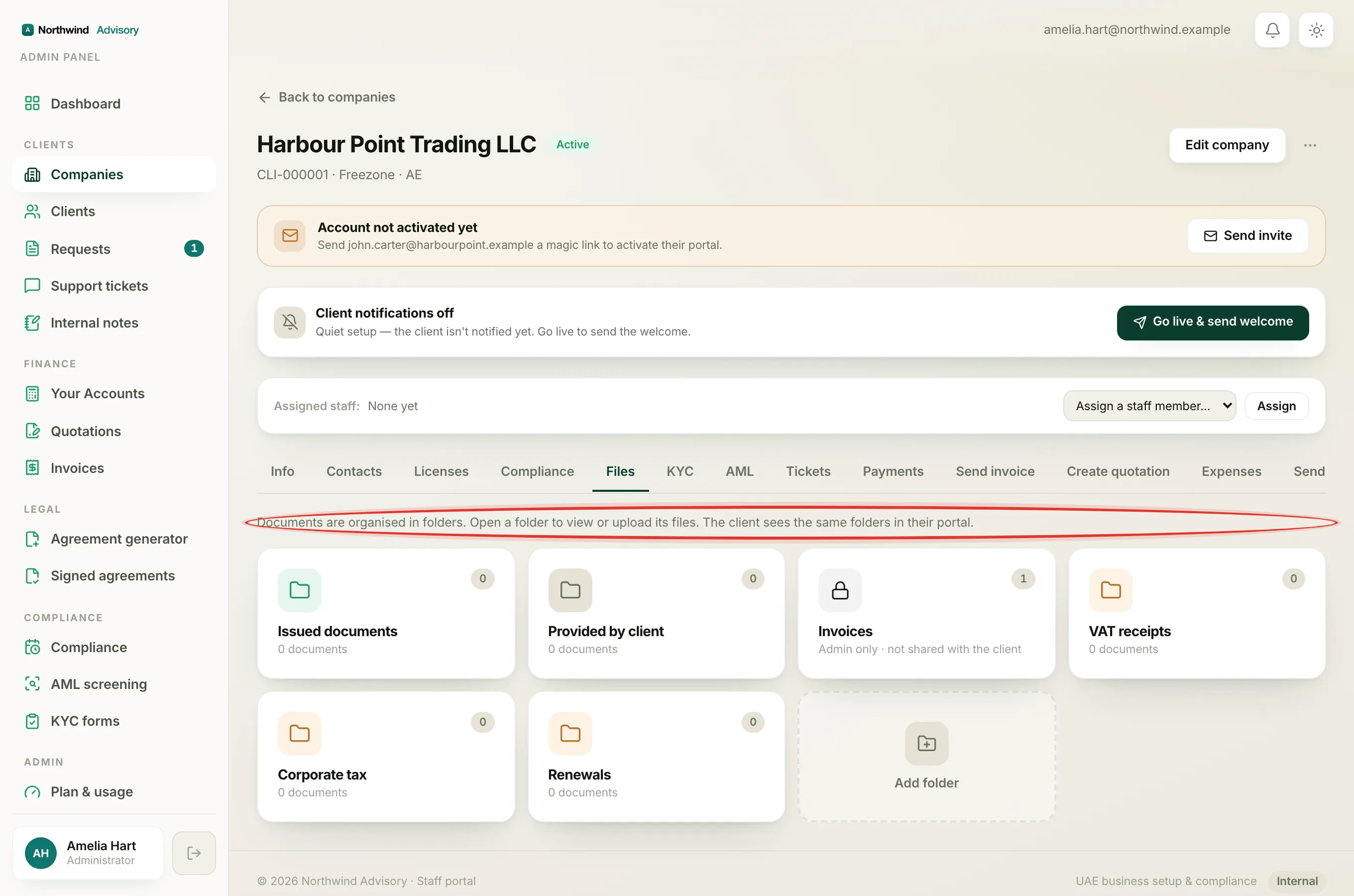
Documents are organised in folders, and the client sees the same folders in their portal. To learn what each folder is for, read Organise a client's files in folders.
Upload the files
- Inside the folder, find the upload box at the top.
- Drag your files onto the box, or click it to browse and pick them from your computer.
- You can add several files at once. Each file can be a PDF, an image or a Word document, up to 10 MB each.
- If you want the client to get an email and an in-app alert about the new files, tick the notify option.
- Click Upload.
Each file shows its own progress as it uploads. If a file is the wrong type or too large, it is flagged so you can remove it and carry on with the rest.
Where the files land, and what the client sees
The folder you upload into decides how the file is filed:
- Provided by client folder: the file is saved as the client's own document. This is the right place for papers the client gave you, for example a passport copy they sent over WhatsApp. The client sees it in their portal as something they provided.
- Issued documents folder, or any custom folder you made: the file is saved as a document from your firm.
Note
The Invoices folder is view and download only. It fills up on its own from the invoices you raise, so you cannot upload into it by hand.
Whether the client can see a folder at all depends on its visibility. A hidden folder stays staff-only. See Hidden vs client-visible folders to control this.