After you send a quotation, the client does the rest online. This article explains what the client sees, what happens the moment they accept, and where to find the invoice that is created for you. To send a quotation in the first place, see How to create a quotation.
What the client does
The client gets an email with a link to their quotation. When they open it, they can read every line, the totals and the full terms and conditions. To go ahead, they:
- Type their full name.
- Sign in the signature box with their finger or mouse.
- Click Accept & sign quotation.
If they do not want to proceed, they can click Decline this quotation instead.
Note
The client does not need to log in or have an account to accept. The secure link in the email is all they need. This is the same signing experience they see across your portal, so it stays on your brand.
What happens the moment they accept
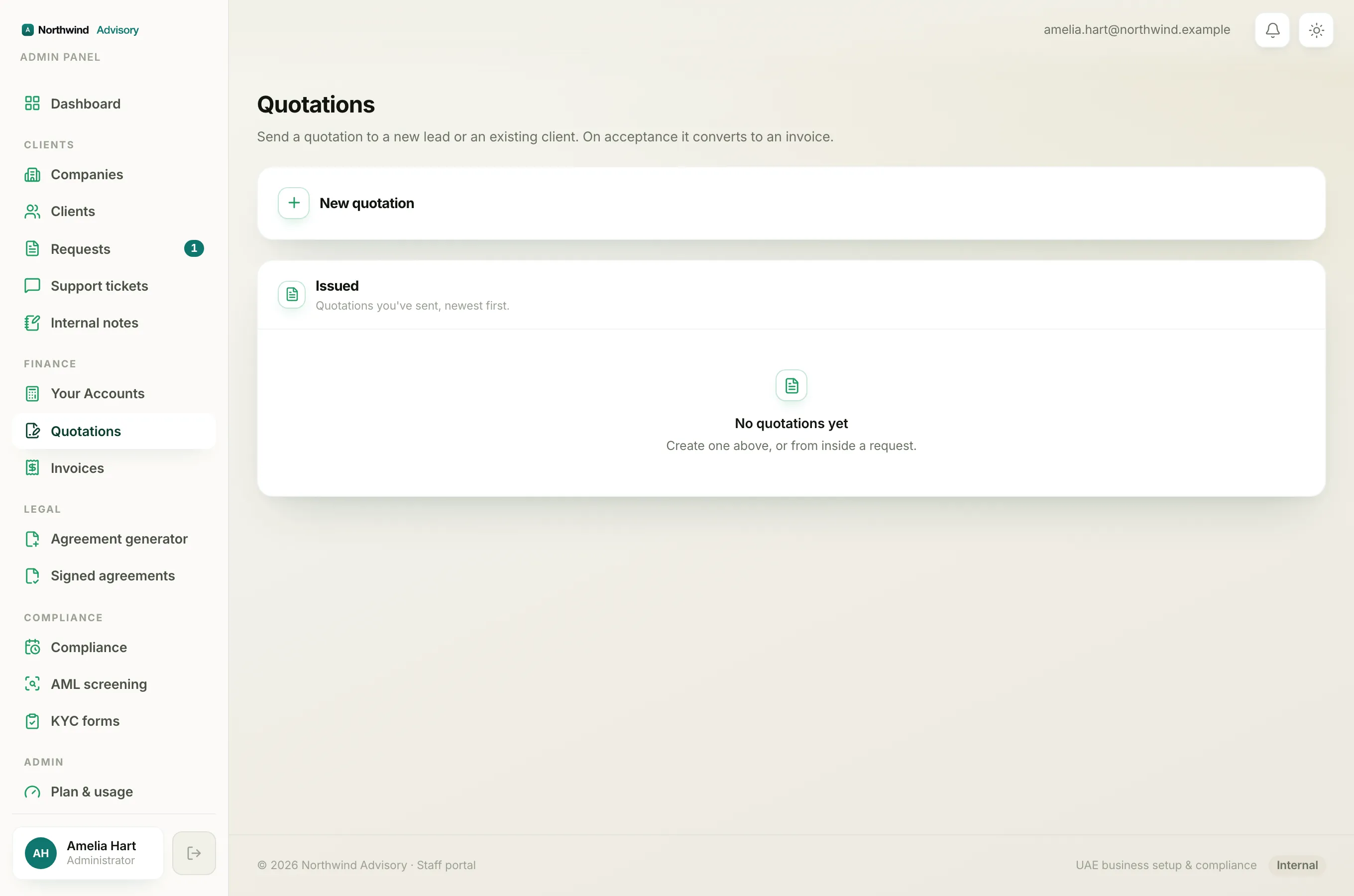
When a client accepts a quotation you sent, IzzyTap does several things for you automatically:
- The quotation is marked accepted, then converted. In your Quotations list the status updates on its own, so you always know where each quote stands.
- A signed copy is saved. The quotation, with the client's signature on it, is filed into the client's documents as proof of what they agreed to.
- An invoice is created. A new invoice is raised from the quotation, using the same line items, discounts and totals. You never have to re-type the figures.
- The invoice is emailed to the client. They receive the invoice with the PDF attached, on your brand, with a due date 30 days out.
- A brand new lead becomes a client. If the quotation went to someone who was not a client yet, IzzyTap sets up their company workspace at the same time, so they appear under Companies ready to work with.
- You get a notification. You are told that the quotation was accepted and which invoice was sent.
Important
Because the invoice is created and emailed for you the instant the client accepts, always check the quotation carefully in the preview before you send it. The figures on the accepted quotation become the invoice.
If the request was linked to the quotation
When the quotation was raised inside a request, that request automatically moves to a payment stage once the client accepts. This keeps the request moving forward on its own, and it means the request advances again as soon as the invoice is paid.
Where to find the invoice
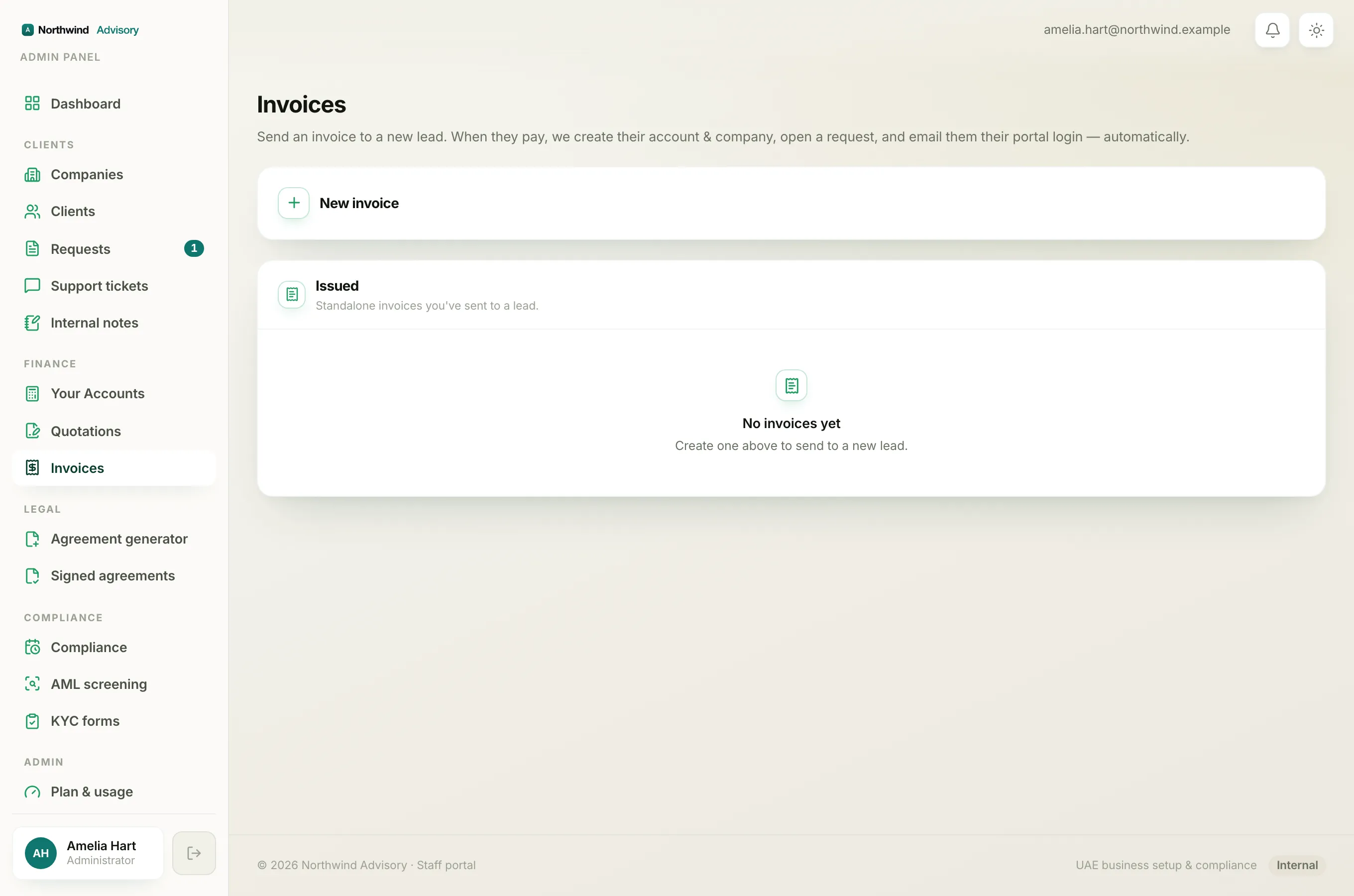
- Log in to your workspace.
- In the left menu, under Finance, click Invoices.
- Find the new invoice. Its note shows it was raised against the quotation.
From here you can download the invoice PDF, see Download an invoice PDF, and record the client's payment when it comes in, see How to record a payment.
If the client declines
If the client clicks decline, the quotation is marked as declined and you get a notification. No invoice is created. You can raise a fresh quotation whenever you are ready. See How to create a quotation.
Tip
If your books are switched on, the new invoice is also posted to your ledger at the moment it is created, so your accounts stay up to date without any extra step.