Why preview matters
Sending a quotation is instant. The moment you send, IzzyTap emails the client the PDF and a link to accept it, and there is no taking that back. So before you send, it is worth looking at the finished quotation exactly as the client will receive it. The Preview step lets you do that safely, without saving a draft and without sending anything to anyone.
Open the preview
- Log in to your workspace.
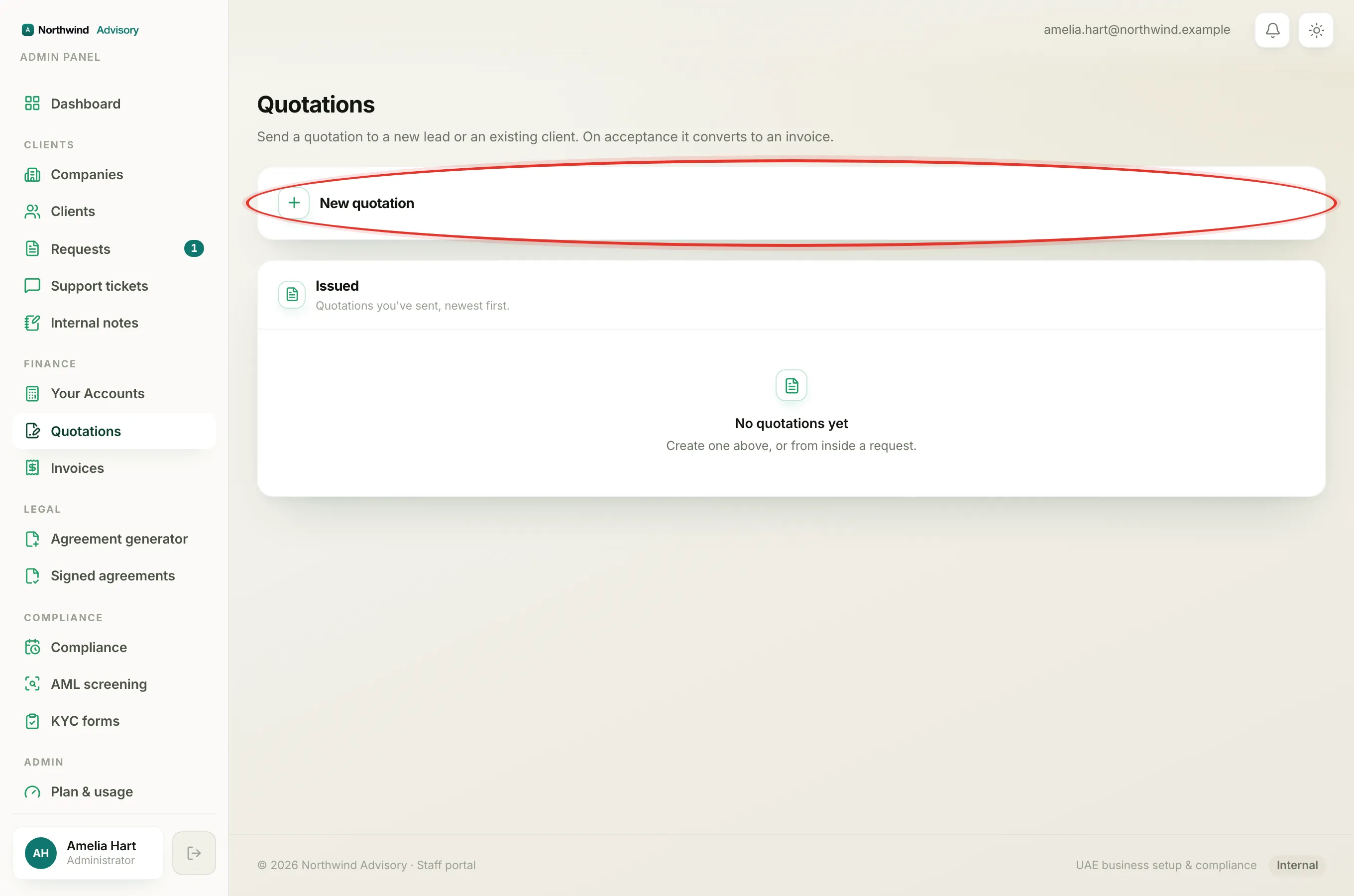
- In the left menu, under Finance, click Quotations.
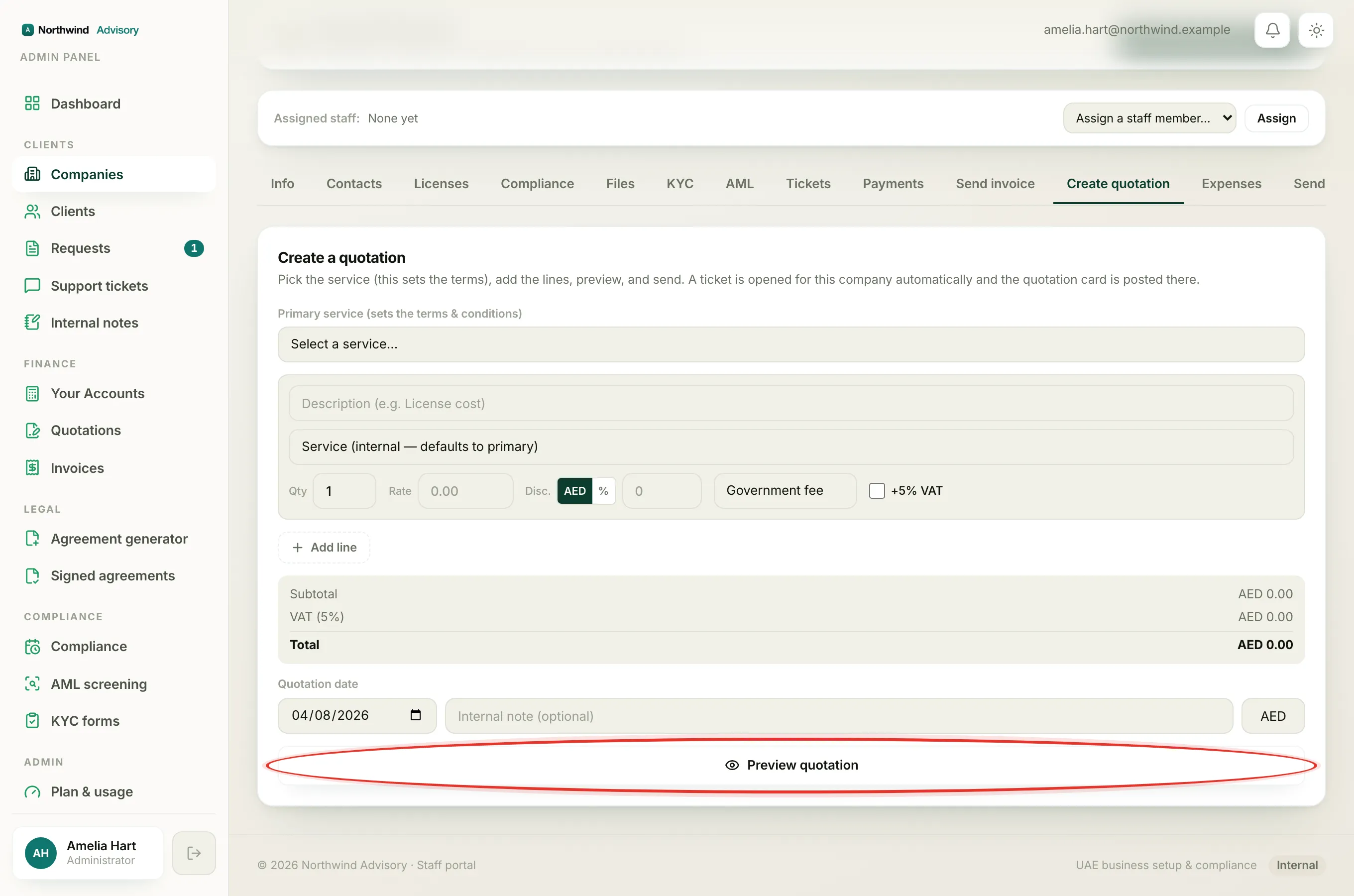
- Click New quotation and fill in the quotation: choose the Primary service, add your lines, and adjust the terms if you need to.
- When it looks right, click Preview quotation at the bottom to build it.
IzzyTap builds the real PDF, on your firm's letterhead, with your logo, your terms and the exact figures. This is not a rough sketch; it is the same document the client would get. Nothing is saved or sent at this stage.
Note
To preview, you need a primary service, at least one line with an amount, and a recipient. If the button is greyed out or shows a message, fill in whatever is missing and try again.
Check the PDF
The preview shows inside the page so you can scroll through it. For a proper full-size look, click Open in new tab, which opens the PDF on its own so you can read every line and the terms in full. To save a copy, click Download PDF.
This is your chance to catch anything that looks wrong: a typo in a line, a figure that is off, VAT that should or should not be there, or a terms block in the wrong order.
Fix something, then send
If you spot a problem, the builder is right there below the preview, so change what you need and click Preview quotation again to see the updated PDF.
When the PDF is exactly right, click Send quotation. This is the point of no return: the client is emailed the quotation and the accept link right away.
Heads up
There is no draft stage and no undo on send. Once a quotation is sent you can only withdraw it while it is still unaccepted, and only if the client has not already accepted. See Withdraw a quotation you have sent.