When you add a teammate with Send invite email, they get a link to set their own password. That link is valid for 7 days. If they wait too long, the link stops working and they cannot finish setting up. This article explains how to get them a fresh link, and what the "already a staff member" message means when you try to invite someone again.
How you know the invite has expired
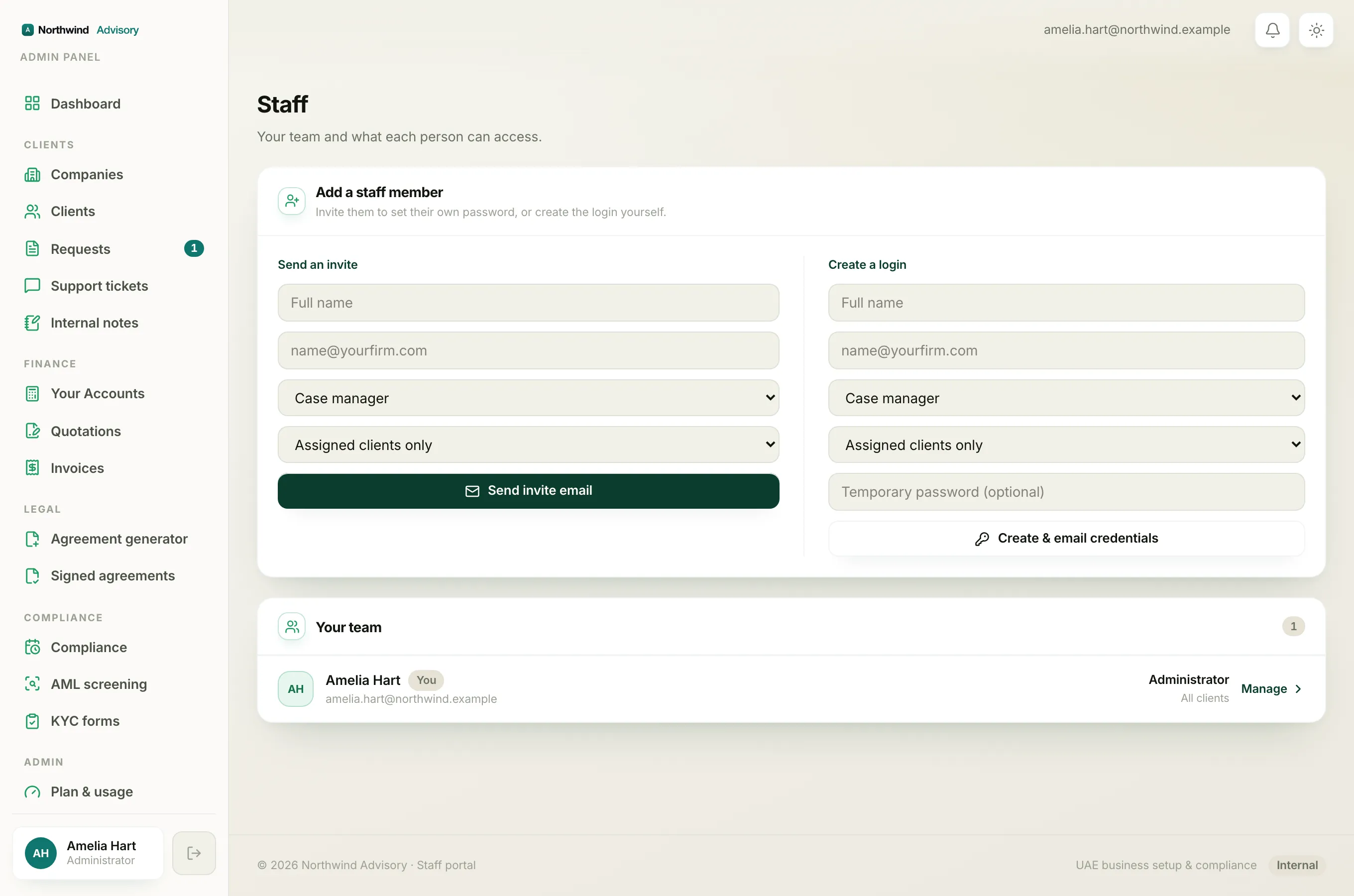
Your teammate clicks the Set your password button in the invite email and, instead of the password screen, they see a message like:
This reset link is invalid or has expired.
That means the 7-day window has passed. Nothing is broken. The person is still on your team, they just have not set a password yet.
In your Staff list they will still show an amber Invited chip, because they have not signed in for the first time. See Invited, Active, Deactivated and Removed explained.
The quick fix: your teammate requests a new link
Because the person is already listed on your team, the easiest way to get them a fresh link is for them to request one themselves from the sign-in page.
- Ask your teammate to open your staff sign-in page (the same web address they were invited to).
- On the sign-in screen, tell them to click Forgot password?.
- They enter the same work email you invited, then submit.
- They receive a new email with a fresh link. This one is valid for one hour, so they should open it straight away.
- They set their password and are signed in.
Tip
The email sign-in option on the same screen also works. If your teammate would rather not set a password right now, they can use the email link to get in, then set a password later.
Why re-sending the invite does not work
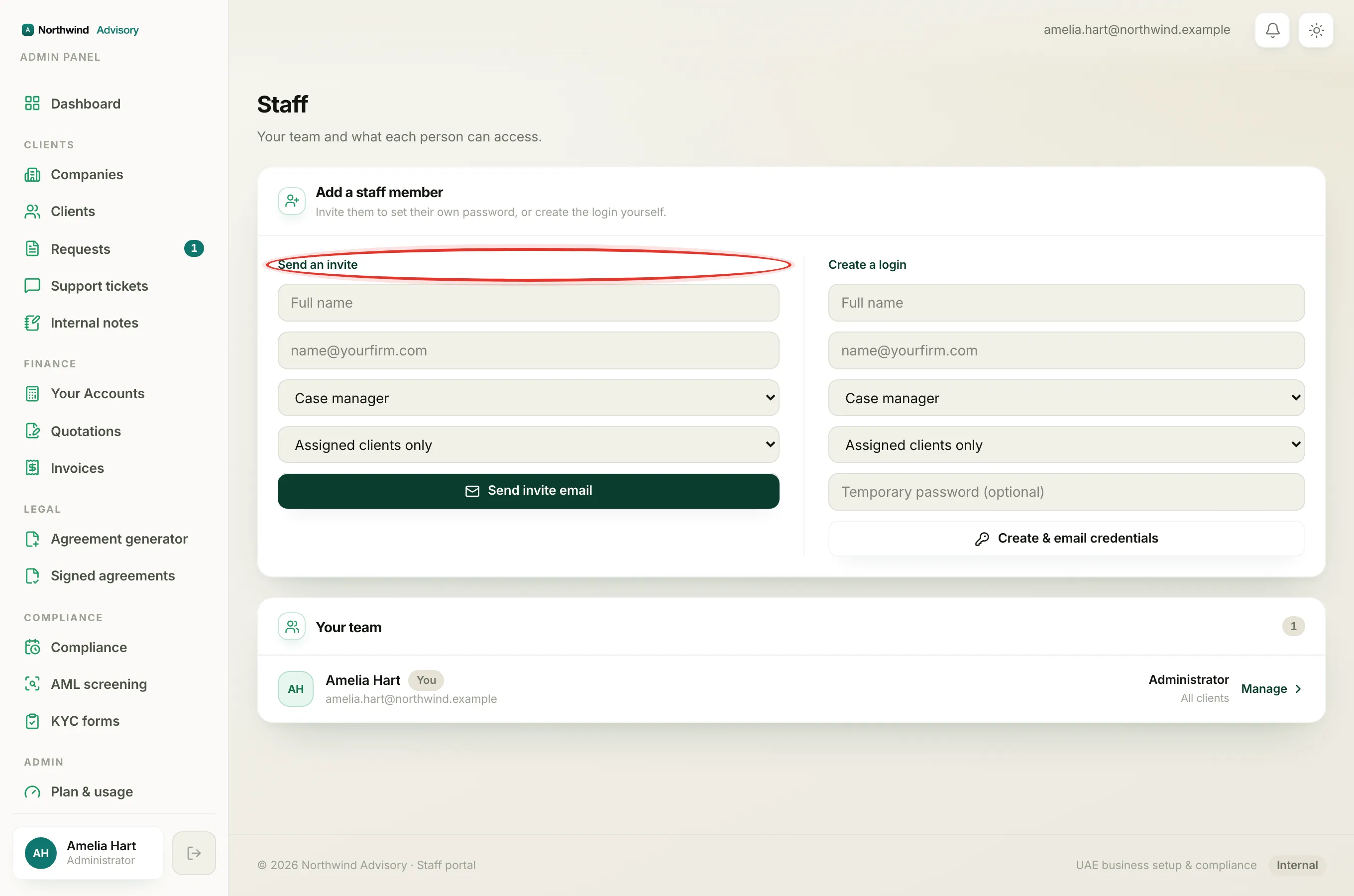
When you first invited the person, their staff account was created straight away. So if you fill in the Send an invite form again with the same email, you will see:
That email is already a staff member.
This is not an error you did wrong. It is the system stopping you from creating a second account for someone who is already on the team. The same message appears if you try the Create a login form with an email that is already a teammate.
So the invite form cannot be used to re-send a link to an existing teammate. Use the Forgot password? route above instead.
"That email is already a staff member" when you did not expect it
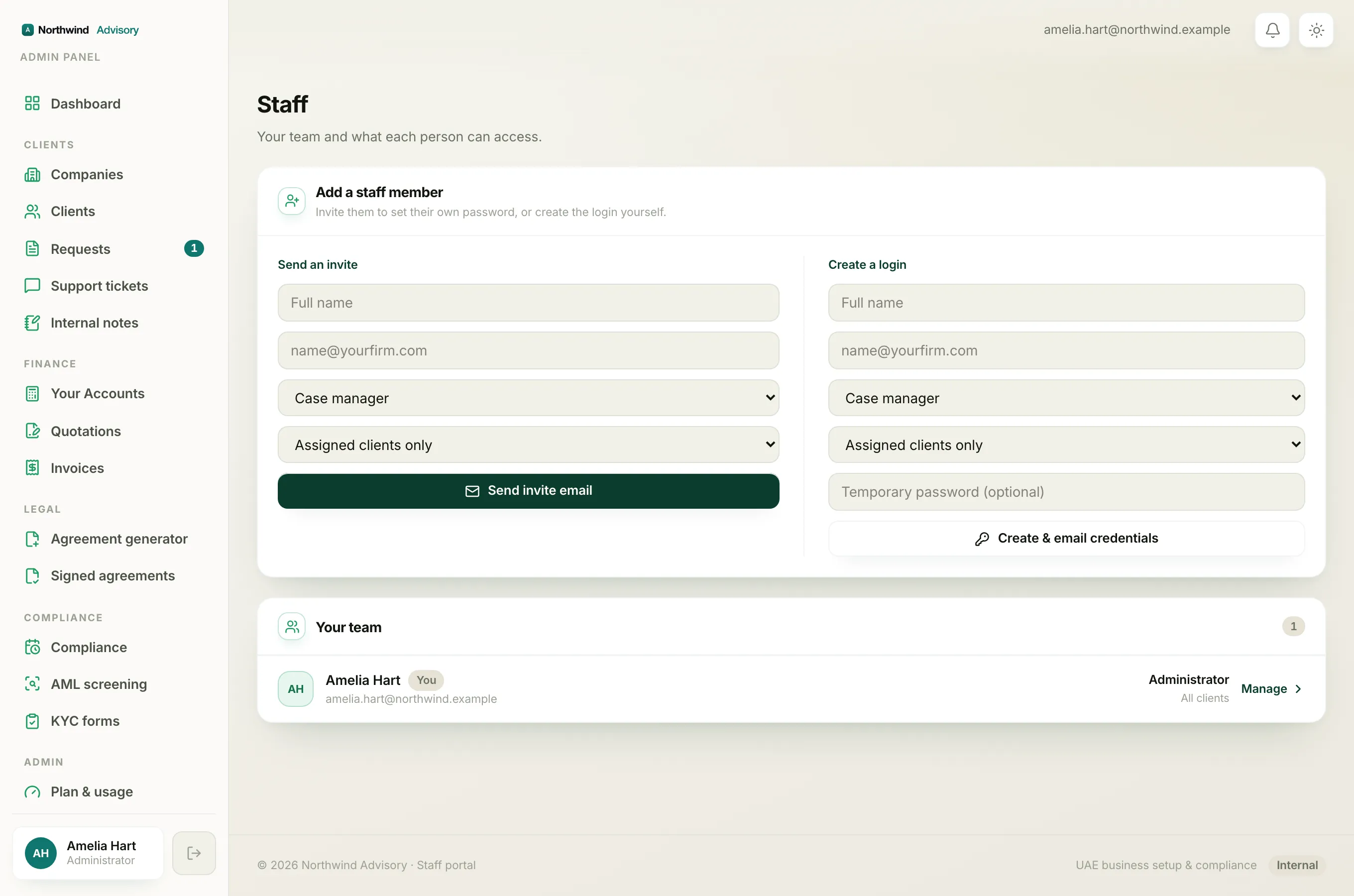
Sometimes you see that message when you thought you were adding a brand-new person. It always means the email is already on your team. To check who:
- Log in to your workspace.
- In the left menu, under Admin, click Staff.
- Look down the Your team list for that email address.
If you find them with an amber Invited chip, they were already invited and just need to finish setting their password (use the Forgot password? route above). If they show as active with a last-login date, they are already set up and can sign in normally.
Note
If someone left and you removed them, their record is archived for your audit trail, not deleted. That is why their email can still count as "already a staff member." See Remove a teammate and hand over their work.
If you would rather set the password yourself
For a brand-new teammate who is not on your team yet, you can skip invites altogether and use Create a staff login with a temporary password. You set the password, it is emailed to them, and they change it on first sign-in. This only works for people who are not already staff members.