When to use this
Some costs never come with a receipt you can scan, for example a bank charge, petty cash, or a fee paid over the counter. For these you can type the expense in by hand instead of uploading anything. If you do have a receipt, it is quicker to scan it, see Upload a receipt and let it auto-fill.
Open the manual form
- Log in to your workspace.
- In the left menu, under Finance, click Your Accounts.
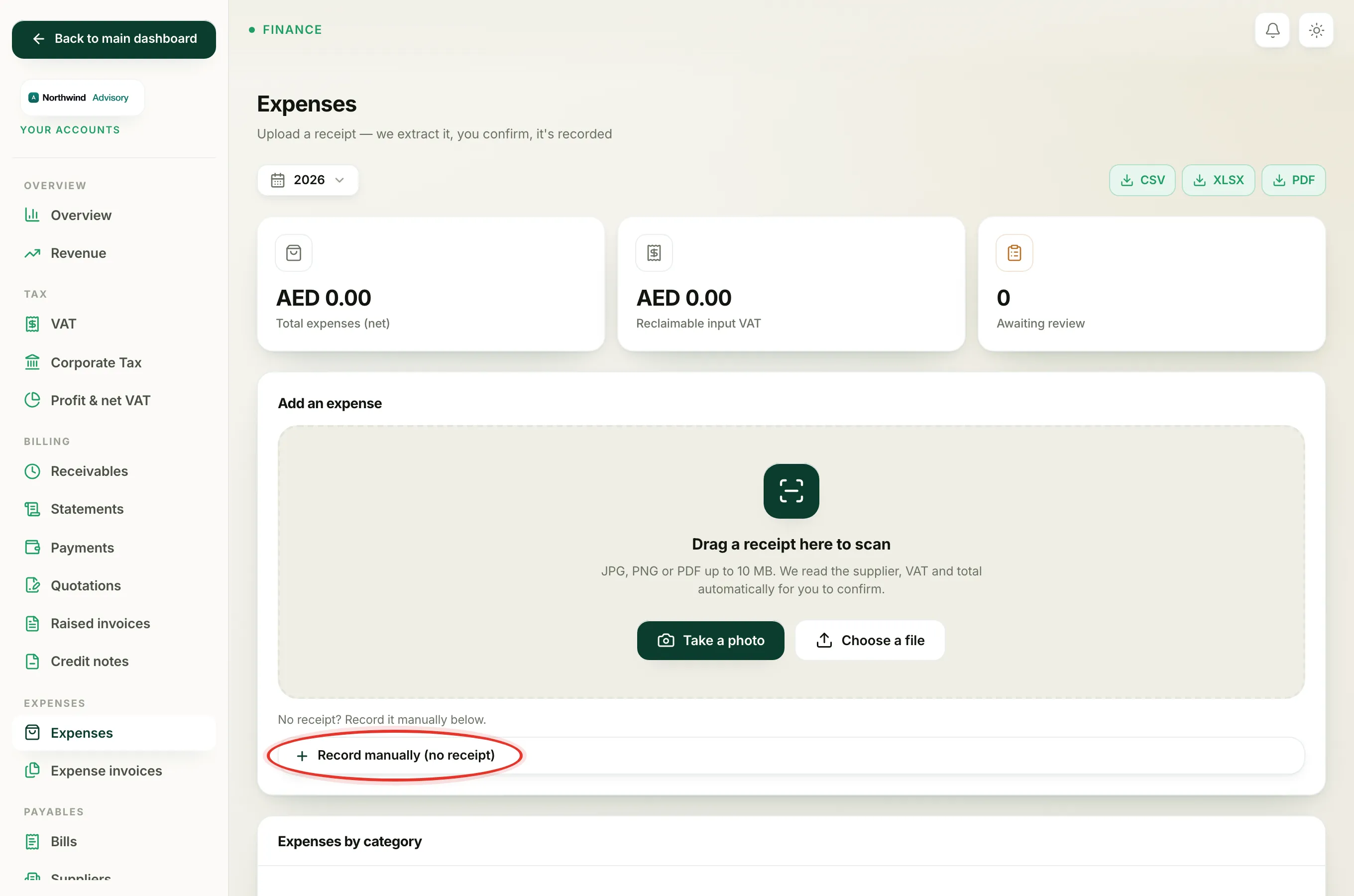
- In the accounts menu on the left, under Expenses, click Expenses.
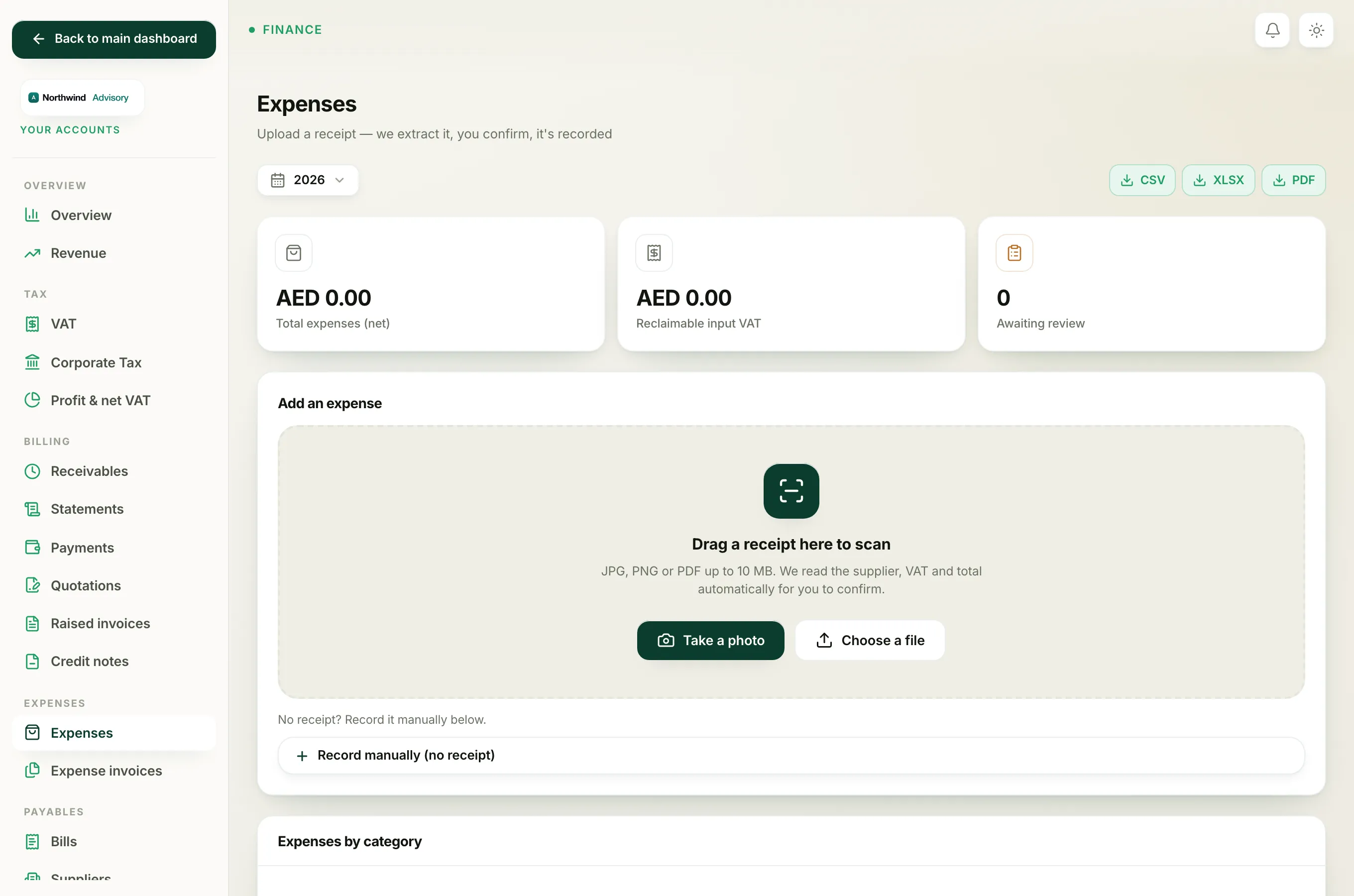
- In the Add an expense box, below the receipt scan area, click Record manually (no receipt) to open the form.
Fill in the details
Work down the form:
- Client, which company is this expense for? Pick the client company this cost belongs to, or leave it on General / not client-specific (overhead) if it is a cost for your own firm.
- Supplier is who you paid, for example DEWA, a courier, or petty cash.
- Supplier TRN is the supplier's tax number. You need it if you want to reclaim the VAT.
- Reference number is any invoice or receipt number you want to note.
- Expense date defaults to today. Change it to the date the cost was actually incurred.
- Category puts the expense into a group such as Rent, Utilities or Bank charges. See Expense categories explained.
- Net (AED) is the amount before VAT.
- VAT (AED) is the VAT amount. Leave it at 0 if there was no VAT.
- VAT treatment describes how the VAT is handled (Standard 5%, Zero-rated, Exempt, Out of scope or Reverse charge).
- VAT reclaimable is ticked by default. Untick it if you cannot reclaim the VAT on this cost.
- Notes is a free box for anything you want to remember about the expense.
Note
You do not enter a total. IzzyTap works it out for you as Net + VAT when you save.
If your firm runs more than one bank or cash account, you will also see a Paid from picker so you can say which account the money came out of.
Save it
Click Record expense. The expense is written to your books straight away and appears in the Recorded list further down the page. Unlike a scanned receipt, a manual expense does not need a separate review step, because you have already entered the details yourself.
Tip
If you tagged the expense to a client, it counts towards that client's true profit and the entry is filed in that company's private, staff-only Expenses folder. See See what a client is really worth.