A credit note is the correct, auditable way to reverse an invoice you should not have raised. It creates a proper numbered document (CRN-000001, CRN-000002 and so on), voids the invoice it credits, and drops the balance owed to zero. Everything is copied from the invoice by the system, so the reversal matches the original charge to the fils.
Before you start
A credit note can only be raised against an invoice that is issued, still unpaid, and not already credited. If the invoice has been paid, a credit note is not the right tool, because that would leave the client's money unaccounted for. See Cancel, credit note or refund: which one to use if you are not sure which applies.
Open the credit notes page
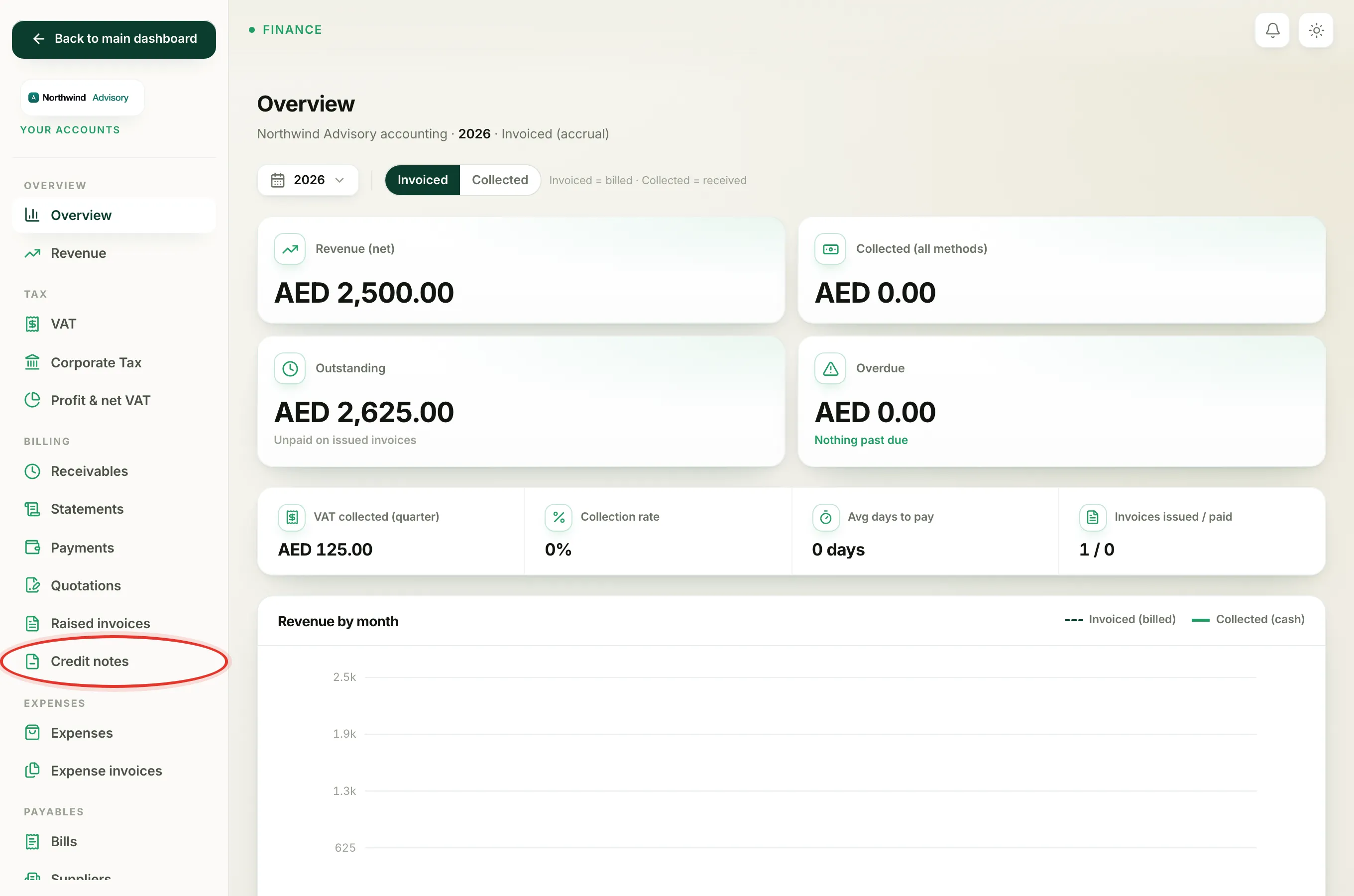
- Log in to your workspace.
- In the left menu, under Finance, click Your Accounts.
- In the accounts menu, click Credit notes.
The page has an Issue a credit note panel at the top and a list of every credit note below it.
Issue the credit note
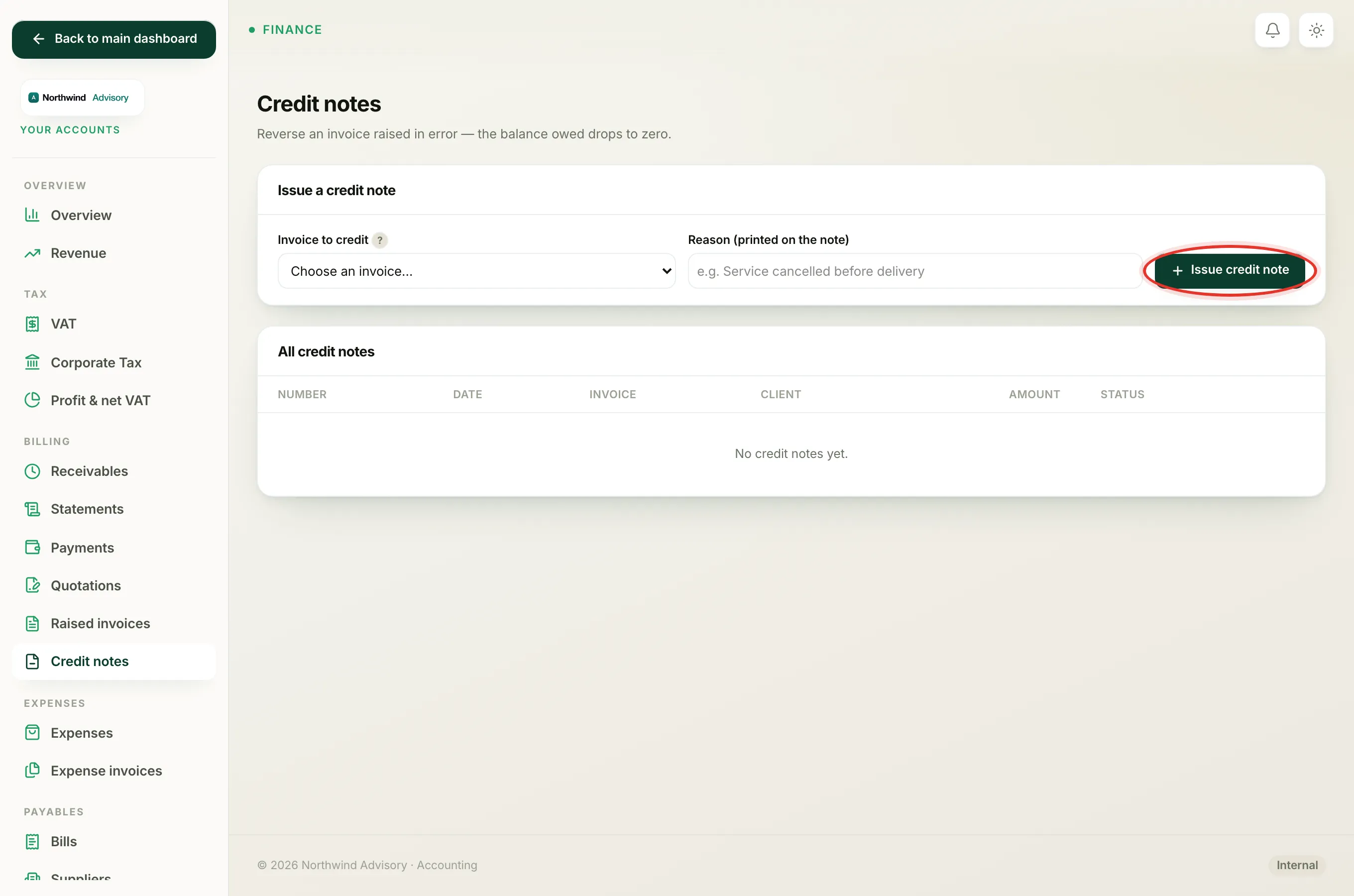
- In the Issue a credit note panel, open the Invoice to credit dropdown. Only eligible invoices (issued, unpaid and not yet credited) appear here.
- Choose the invoice. Each option shows its number, the client and the amount.
- In the Reason box, type why you are crediting it, for example Service cancelled before delivery. This reason is printed on the credit note.
- Click Issue credit note.
A green confirmation appears at the top, telling you the credit note number and that the invoice it credits has been voided.
What happens next
- A numbered credit note document is created, with its own downloadable PDF.
- The invoice it credits is marked Cancelled, so the balance owed becomes zero.
- The credited invoice drops out of your revenue, receivables and VAT figures, exactly as a cancelled invoice would.
- Your books get a matching reversing entry, so they still balance.
You can open any credit note from the list to see its details or download its PDF.
If your invoice is not in the list
If the invoice you want is missing from the Invoice to credit dropdown, one of these is usually the reason:
- It has been paid. Crediting it would need a cash refund. See Refund an invoice that has already been paid and Why you can't cancel a paid or part-paid invoice.
- It is still a draft. A draft has not been issued, so edit or delete it instead.
- It already has a credit note against it.
- It falls in a closed accounting period. You must reopen that period before crediting it.
For the full list of reasons, see Why an invoice is missing from the credit-note list.
Note
Issued the credit note in error? You can undo it. See Undo a credit note issued by mistake.