Two ways to cancel
When you cancel a subscription you get to choose the timing:
- At period end (the default). The client keeps full access until their paid period runs out, then it stops. This is the polite option: they have paid for the period, so they get to use it.
- Immediately. Access ends there and then. The account drops to read-only at once.
You pick between them with a single tick-box when you cancel.
Cancel a subscription
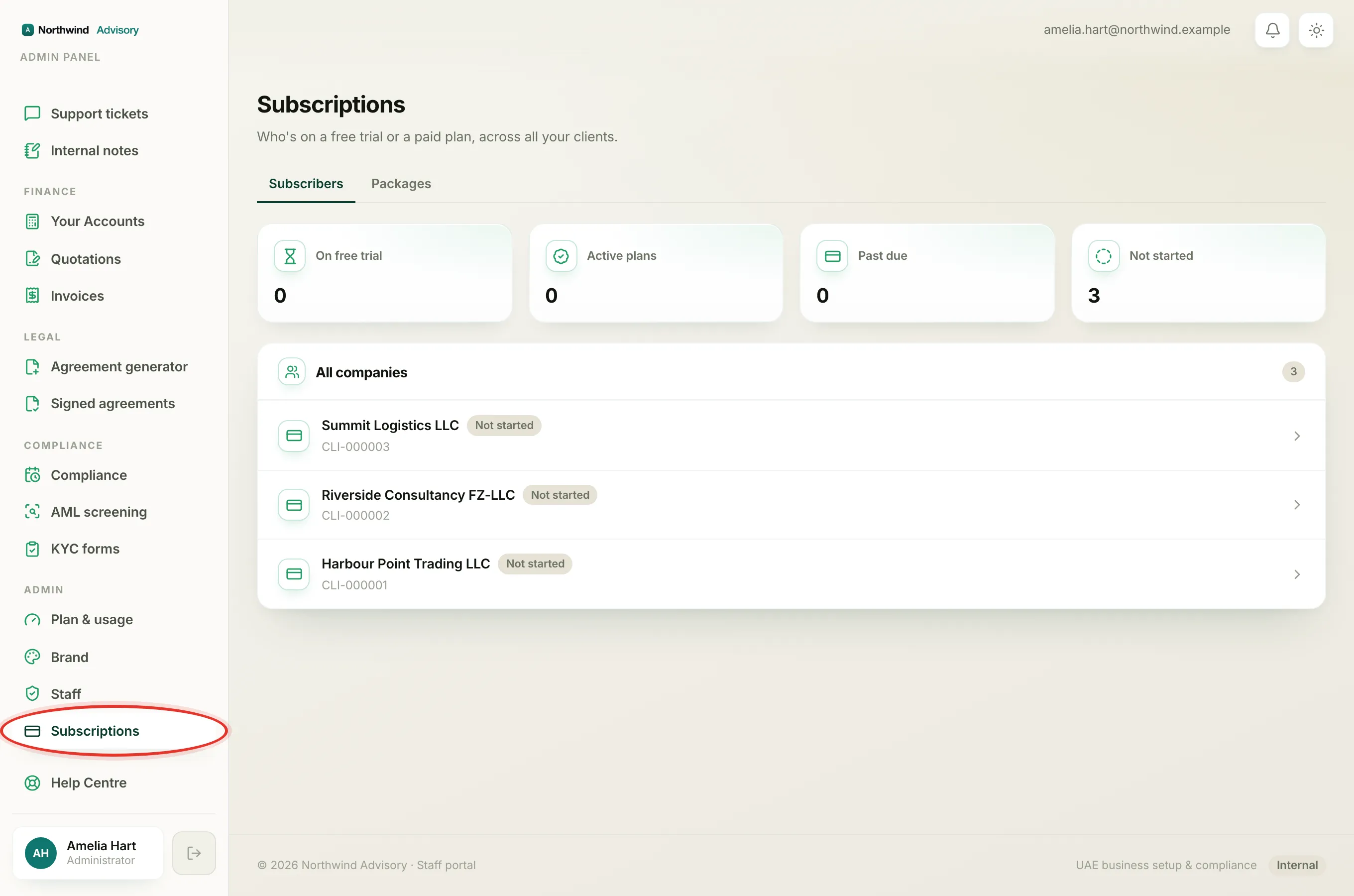
- Log in to your workspace.
- In the left menu, under Admin, click Subscriptions.
- Click the client whose subscription you want to cancel to open their subscription page.
- Scroll to the Manage section.
- Decide the timing:
- Leave the Immediately box unticked to cancel at the end of the paid period.
- Tick Immediately to cut access off now.
- Click Cancel subscription.
A short confirmation appears. If you cancelled at period end it reads that access continues until the period ends. If you cancelled immediately it reads that access has ended.
Heads up
Cancel immediately takes effect right away and puts the account into read-only. The client can still view and export their data, but cannot create anything new. Only tick Immediately when you really mean now.
What "cancels at period end" means
When you cancel at period end, the subscription status becomes Canceled but the client is not locked out yet. Under their name you will see the note cancels at period end. They carry on with full access right up to their renewal date, and then it lapses on its own. Nothing renews after that.
Think of it as a scheduled stop, not an instant one.
Reactivate a subscription
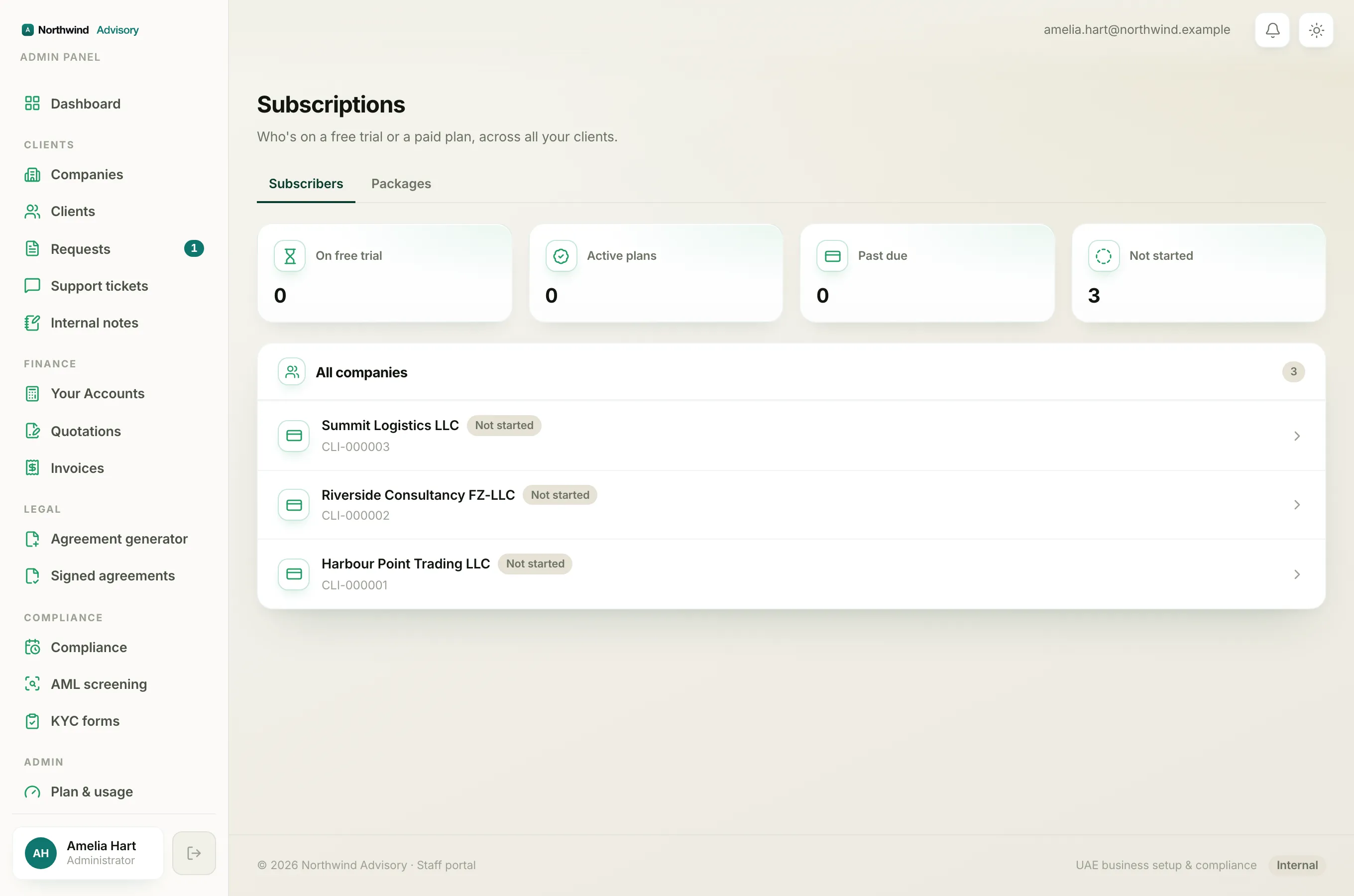
Changed your mind, or the client decided to stay? You can undo a cancel.
- Open the client's subscription page (left menu, Admin, Subscriptions, then click the client).
- In the Manage section, click Reactivate.
This clears the cancel and sets the subscription back to active. The cancels at period end note disappears.
Note
The Reactivate button only shows when there is something to reactivate: a subscription that is set to cancel at period end, or one that has already been cancelled. If the client's access has fully lapsed and expired, reactivate is no longer offered. In that case set them up fresh with Activate a client's plan by bank transfer.
Related
To understand the coloured status pills you see on these pages, read Subscription statuses explained. If a client tells you features have stopped working, see Why a client's account is locked or read-only.