The Quotations page is the one place that lists every quotation you have sent, whether it went to a saved client or a brand new lead. This guide walks you through it from login.
Open the page
- Log in to your workspace.
- In the left menu, under Finance, click Quotations.
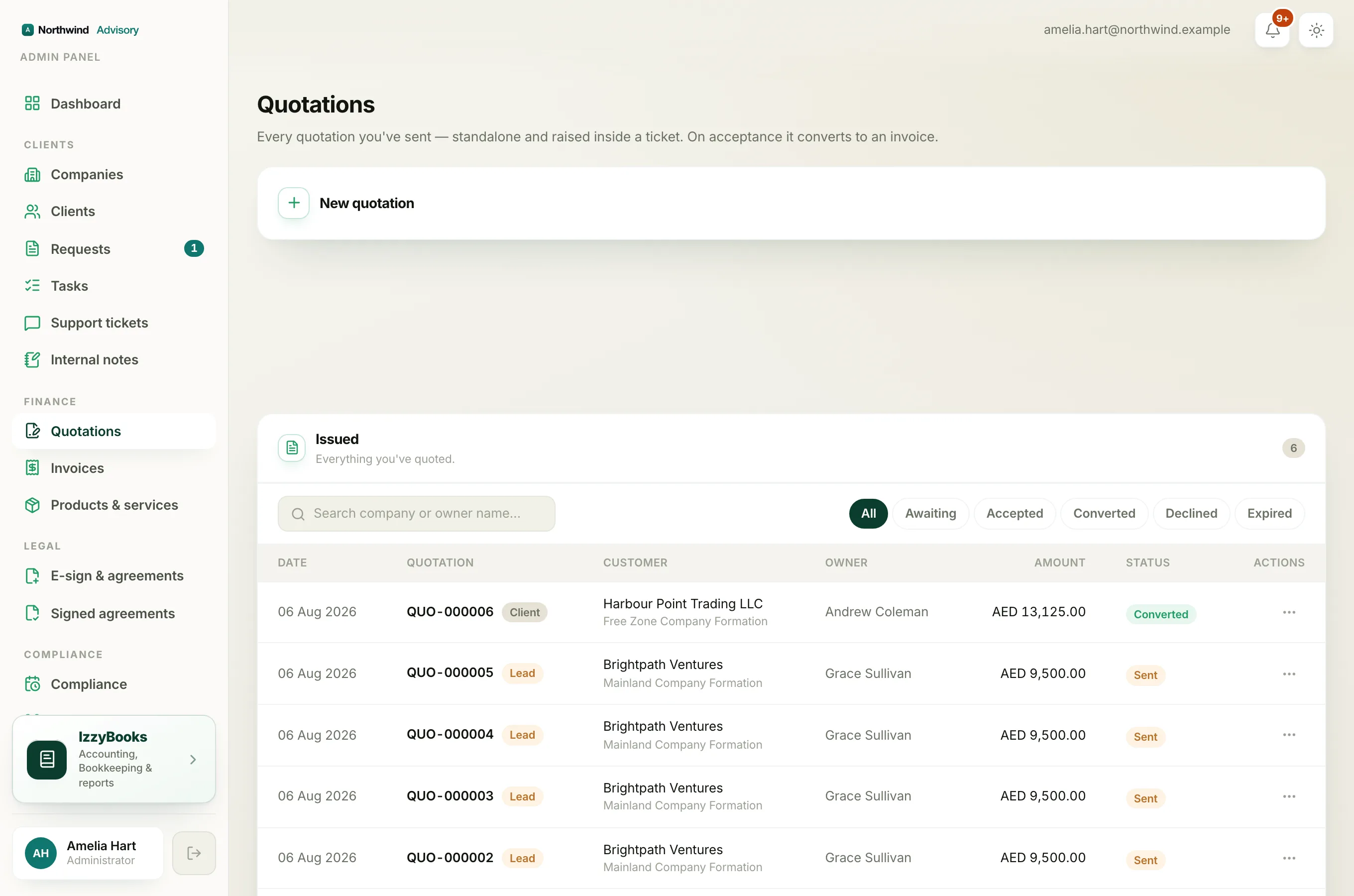
To raise a new quote, open New quotation at the top of the page. See How to create a quotation for the full walkthrough.
Note
This is the working list where you send and manage quotes. It is not the sales funnel. For the scoreboard of Won, Win rate and Open pipeline, see Read your quotation sales funnel, which sits under Finance and then Your Accounts.
The totals at the top
Three cards sit above the list and update on their own:
- Open pipeline. The total value of the quotes you have sent that are still waiting for a decision.
- Awaiting response. How many quotes are still open, waiting for the client to accept or decline.
- Accepted. The total value of the quotes the client has said yes to, including any that have already converted to an invoice.
If you quote clients in more than one currency, the money totals are shown per currency, with your own currency first.
Find a quotation
- Search. Type in the search box to find a quotation by the company or the owner's name.
- Status tabs. Click a tab to narrow the list: All, Awaiting, Accepted, Converted, Declined, or Expired.
Each row shows the date, the quotation number, the customer with the service beneath it, who owns the account, the amount, a status pill, and a chip that reads Client for a saved company or Lead for a brand new one.
Act on a row
Every row has an actions menu, shown as three dots on the right. Click it to:
- View quotation to open its detail page.
- Open PDF to open the quotation document.
- Edit quotation to change it.
- Resend quotation to send it to the client again.
- Send follow-up to nudge the client for a decision.
- Withdraw quotation to pull it back so it can no longer be accepted.
The choices you see depend on the quotation's status. Edit quotation, Resend quotation, Send follow-up and Withdraw quotation show only while a quotation is still awaiting a decision. Once it is accepted, converted, declined or expired, you see View quotation and Open PDF only. See Edit or resend a sent quotation for how editing and resending work.
Tip
Click a quotation number to open its detail page, where you can see the lines, the amounts, and where the quote stands right now.
When there are many quotations
The list shows 25 quotations to a page. Use the Prev and Next controls at the bottom to move through older quotations. The search and the status tab both work across every page, not just the one on screen.