IzzyTap builds your VAT Return (Form 201) for you from the invoices you have raised and the expenses and bills you have recorded. You do not add up anything by hand. This page shows every box, and you can download it as a PDF to help you file.
Note
IzzyTap prepares the return. You still file it yourself on the FTA e-Services portal. This page gives you the figures and a PDF to work from.
Open the VAT page
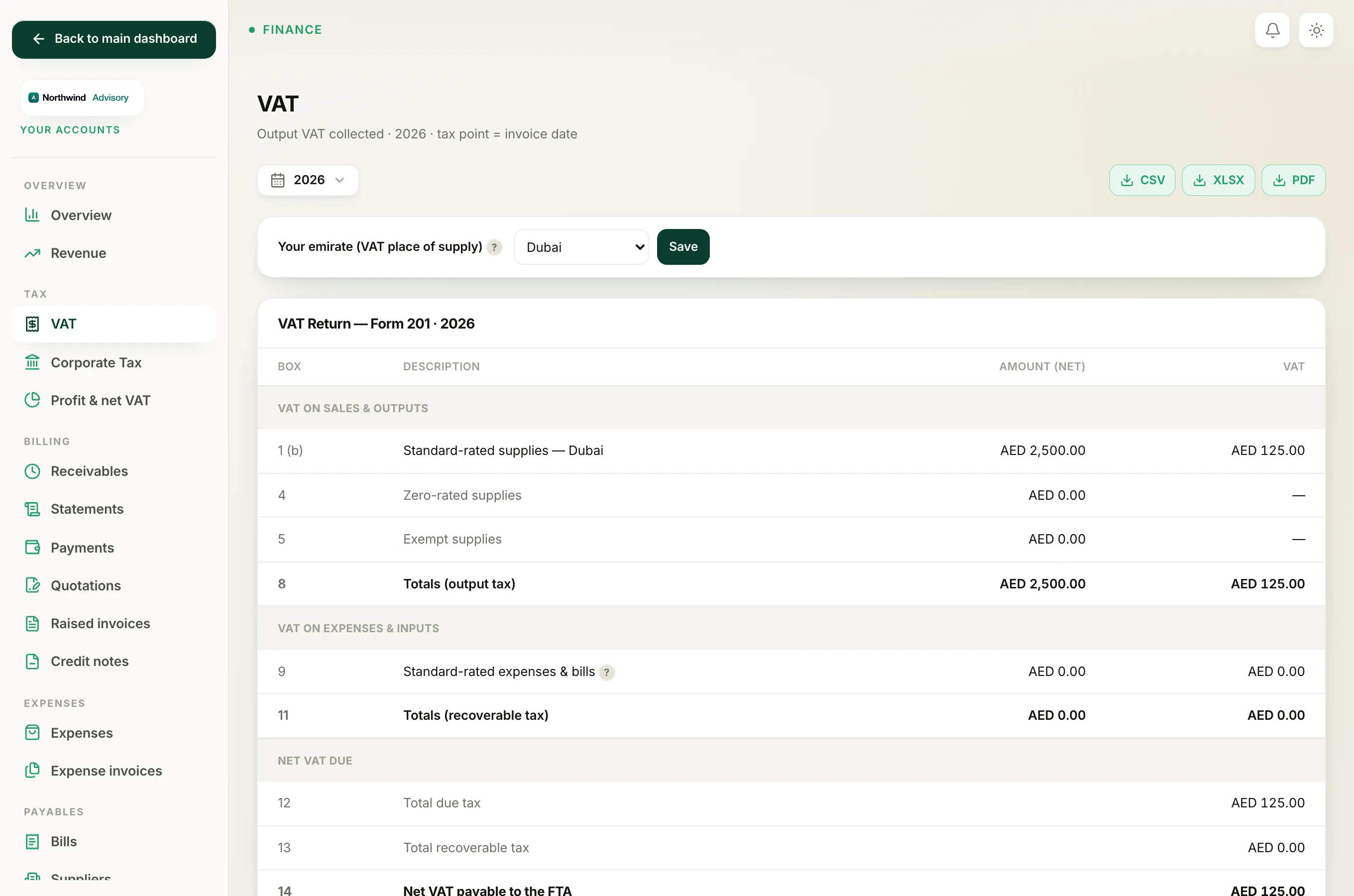
- Log in to your workspace.
- In the left menu, under Finance, click Your Accounts. This opens your accounting workspace, which has its own menu on the left.
- In that menu, under Tax, click VAT.
You now see the VAT page. At the top is the heading VAT with the note Output VAT collected.
Set your emirate (do this once)
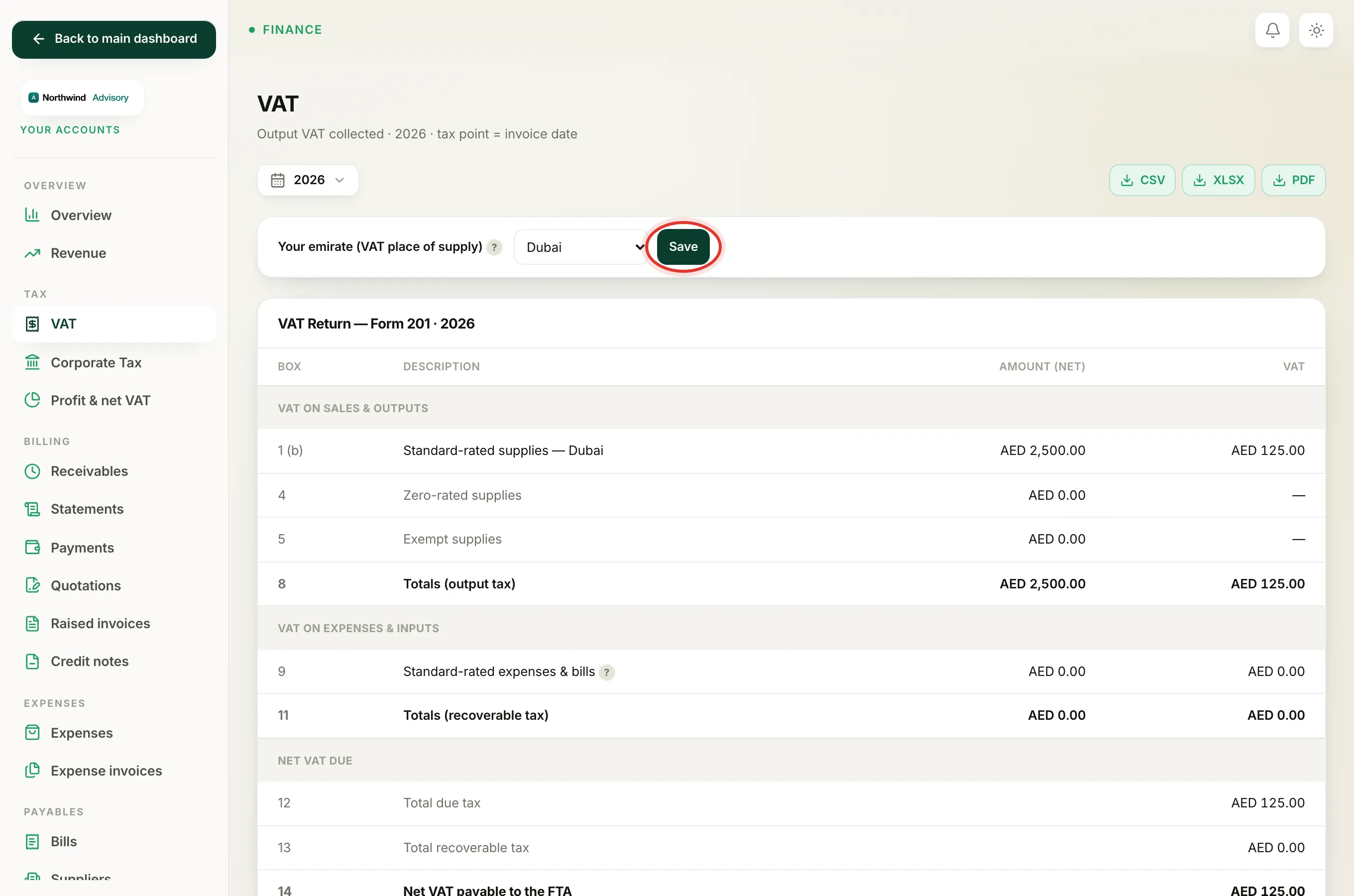
Near the top of the page is a box titled Your emirate (VAT place of supply). This is your firm's trade-licence emirate. The whole of box 1 on the return is reported under it, so it must be right.
- Click the dropdown next to Your emirate (VAT place of supply).
- Choose your emirate from the list.
- Click Save.
Important
If you have not set this, you will see a message in amber: Set this so box 1 files under the right emirate. Set it before you download the return, or box 1 will not carry your emirate.
You only need to do this once. It stays saved for future returns.
Choose the VAT period
At the very top of the page is the date filter. Click it to open the list of quick periods:
- This month
- Last month
- This quarter
- Last quarter
- This year
- Last year
- Custom range
Most UAE firms file VAT every quarter, so This quarter or Last quarter is the usual choice. If your VAT period does not line up with the calendar quarter, pick Custom range and type your own From and To dates.
Every figure on the page updates to match the period you pick.
Read your Form 201
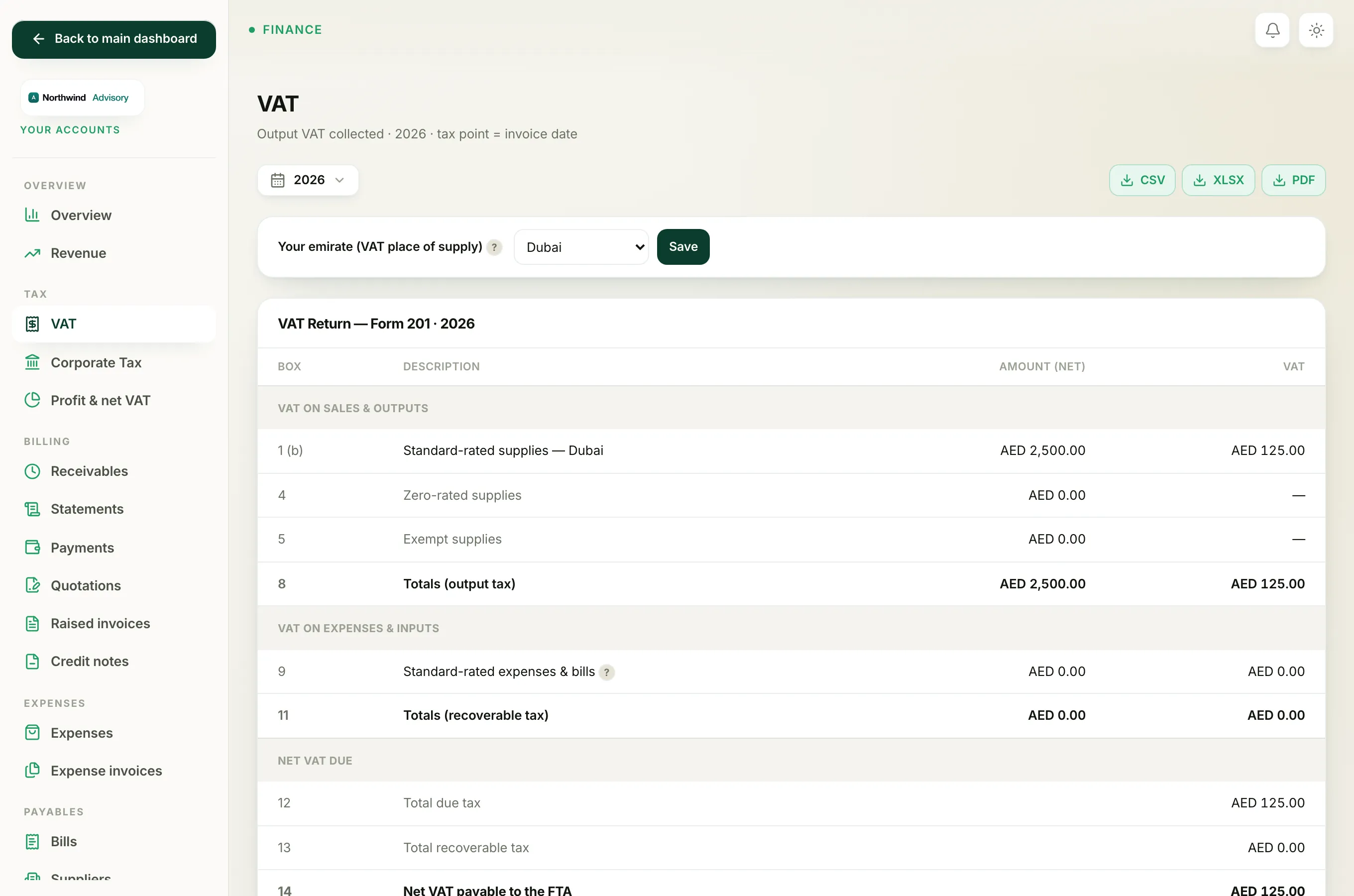
The panel titled VAT Return, Form 201 shows the return exactly as the FTA lays it out, in boxes:
- Box 1: Standard-rated supplies. Your net sales and the VAT you charged, reported under your emirate.
- Box 4: Zero-rated supplies.
- Box 5: Exempt supplies.
- Box 8: Totals for output tax (what you owe on sales).
- Box 9: Standard-rated expenses and bills. The VAT you can reclaim on your recorded expenses and supplier bills.
- Box 11: Totals for recoverable tax (what you can claim back).
- Box 12: Total due tax.
- Box 13: Total recoverable tax.
- Box 14: The bottom line. It reads either Net VAT payable to the FTA (you owe money) or Net VAT refundable by the FTA (they owe you).
Note
Box 9 pulls in both your expenses and your supplier bills. If a bill is missing here, it may not be recorded yet. See How to record a supplier bill. VAT only appears in box 1 for invoices where you flagged the line as taxable, so see How to charge VAT on an invoice if a sale is missing.
Download the return
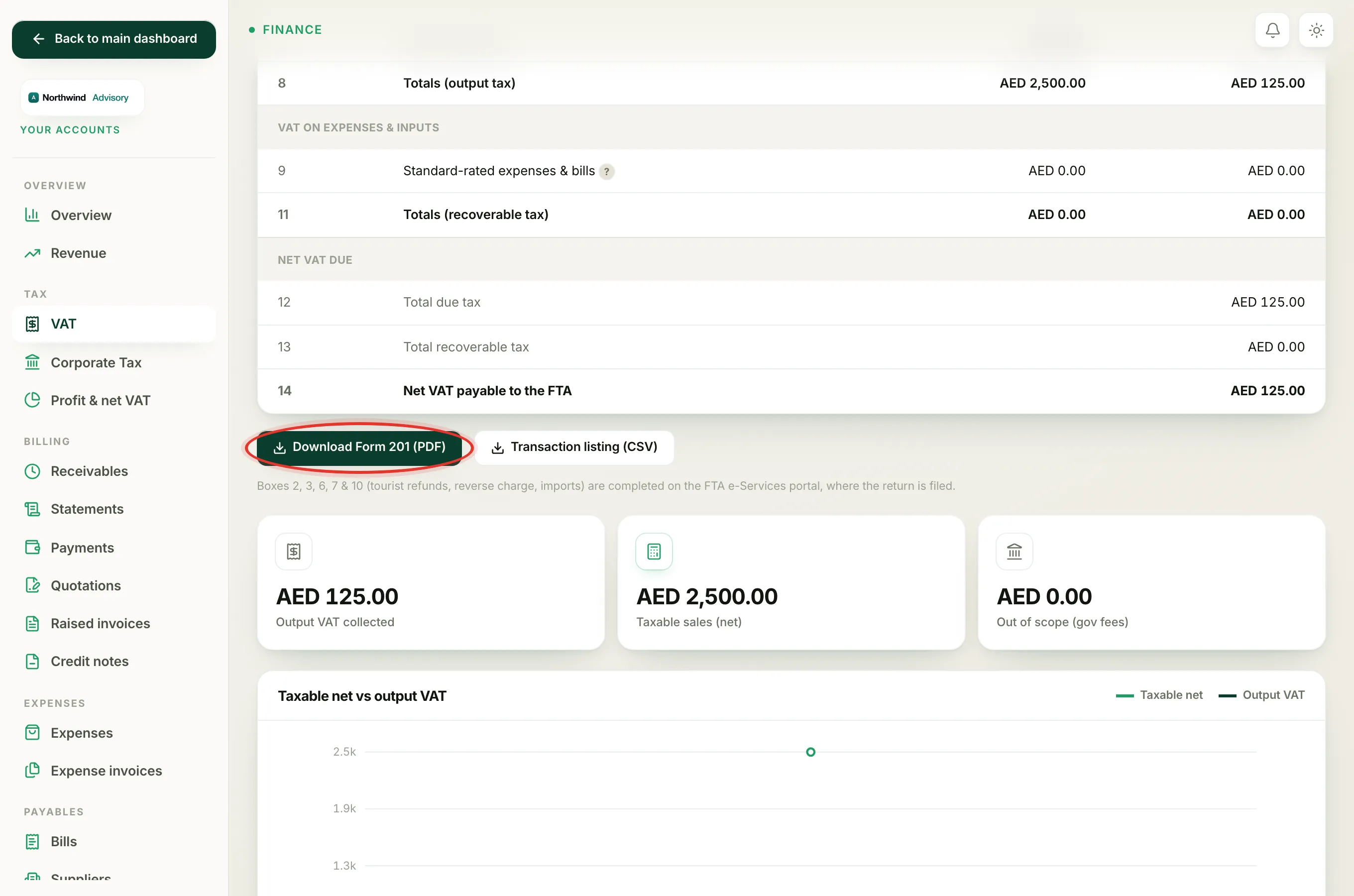
Just under the Form 201 panel are two buttons:
- Click Download Form 201 (PDF) to save the full return as a PDF. This is the document you work from when you file.
- Click Transaction listing (CSV) if you also want the line-by-line list behind the return. This is the audit file your tax agent or the FTA may ask for. See How to export the VAT audit file for more.
Important
Boxes 2, 3, 6, 7 and 10 (tourist refunds, reverse charge, and imports) are not filled in by IzzyTap. You complete those directly on the FTA e-Services portal, which is also where the return is filed. IzzyTap tells you this on the page, just under the download buttons.
Check the numbers below
Under the return you will find three summary cards and two tables to help you review:
- Output VAT collected, Taxable sales (net), and Out of scope (gov fees) as quick totals.
- A table titled By VAT quarter, so you can see each period side by side.
- A table titled Detail (per invoice), which lists every invoice in the period with its net, VAT, and total.
Use the Detail (per invoice) table to spot anything that looks wrong before you file. If a payment is missing against an invoice, see How to record a payment.
Tip
Run the return as soon as your VAT period ends, while the details are fresh, and check the per-invoice table against your own records. It is much easier to fix a wrong invoice now than after you have filed.