When to archive a company
Archive a company when you have stopped working with it and want it out of your day-to-day view, but you do not want to lose its history. Archiving hides the company from your active Companies list. Nothing is deleted. Every invoice, document, request and KYC record is kept, and you can restore the company at any time.
Archiving is different from suspending. Suspending only pauses a company for a while and you expect to switch it back on soon. Archiving is for companies you are done with. To learn the full difference, see Company statuses: Active, Suspended and Archived and Suspend a company (and re-enable it).
Note
Only an admin can archive or restore a company. If you do not see the Actions menu described below, your staff role does not include this permission.
Archive a company
- Log in to your workspace.
- In the left menu, under Clients, click Companies.
- Find and open the company you want to archive. If you need help finding it, see Find a company fast.
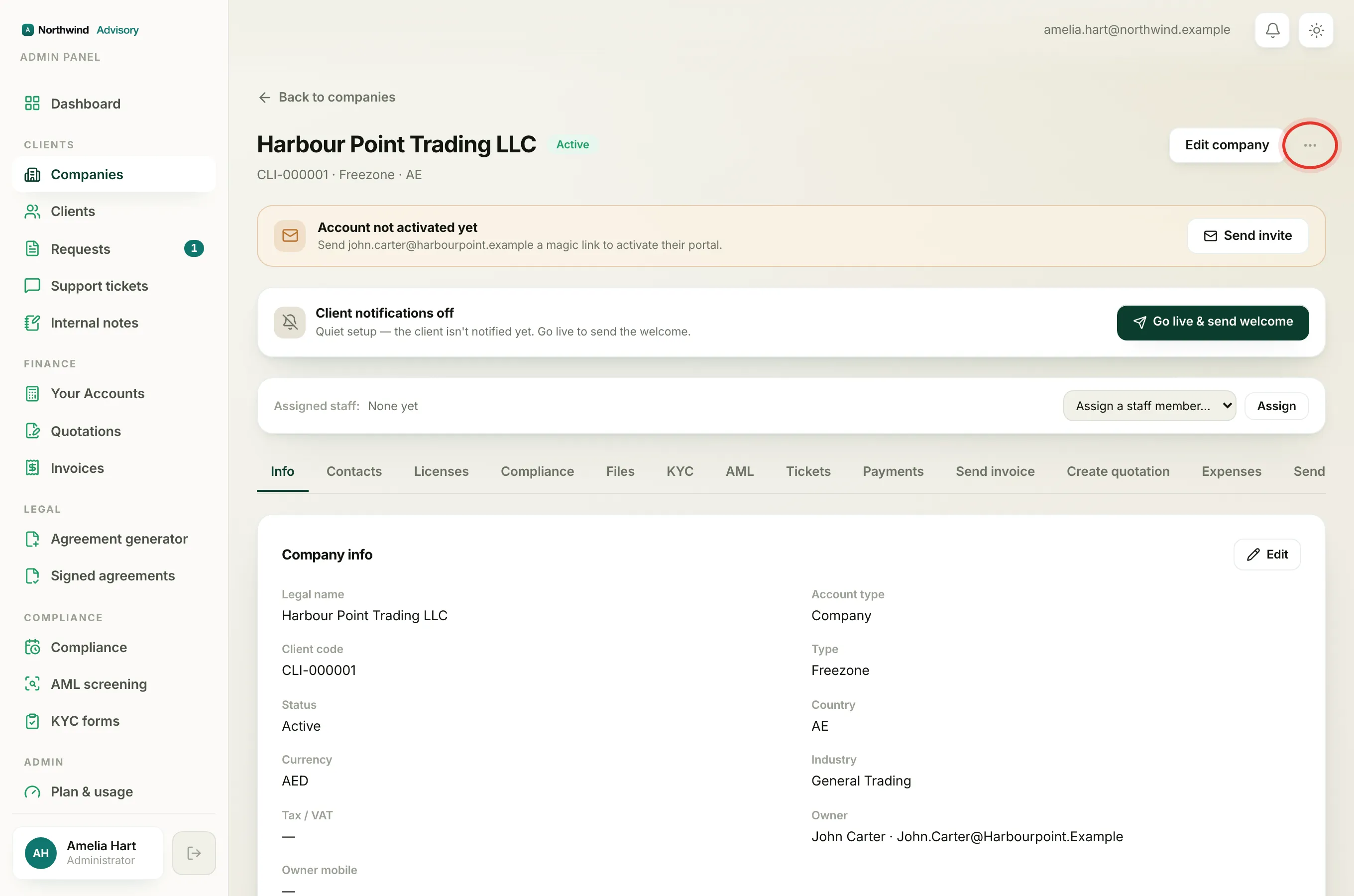
- At the top right of the company page, next to Edit company, click the Actions menu.
- Click Archive company.
- A window opens titled Archive company. Before you confirm, it runs a quick check and shows you what is still open on this company: Active contacts, Open requests and any Outstanding balance. Read this so you are not archiving a company that still owes you money or has work in progress.
- If you want, type a short Reason. It is internal only and is saved to the audit log. The client never sees it.
- Click the red Archive company button.
You will see a short confirmation that the company has been archived, its data kept, and hidden from the active list.
Where an archived company goes
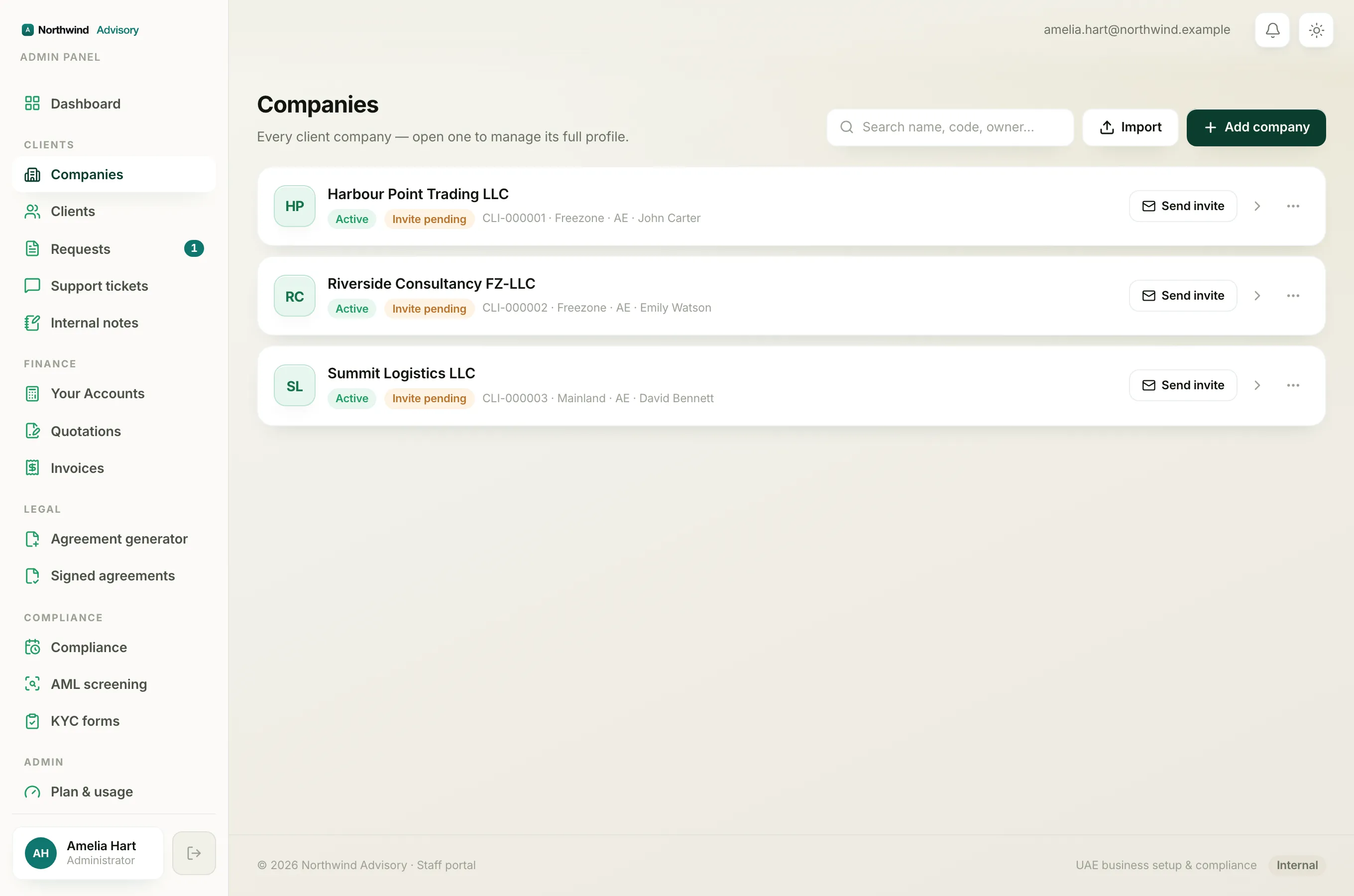
An archived company no longer appears in your normal Companies list. To see it again:
- In the left menu, under Clients, click Companies.
- At the bottom of the list, click View archived. The number in brackets tells you how many archived companies you have.
- The list now shows only your archived companies, each with a grey Archived chip.
- To go back to your normal list, click Back to active companies.
Restore a company
Restoring brings the company back to Active and switches its portal access, services and reminders back on.
- In the left menu, under Clients, click Companies.
- Click View archived at the bottom of the list.
- Open the archived company you want to bring back.
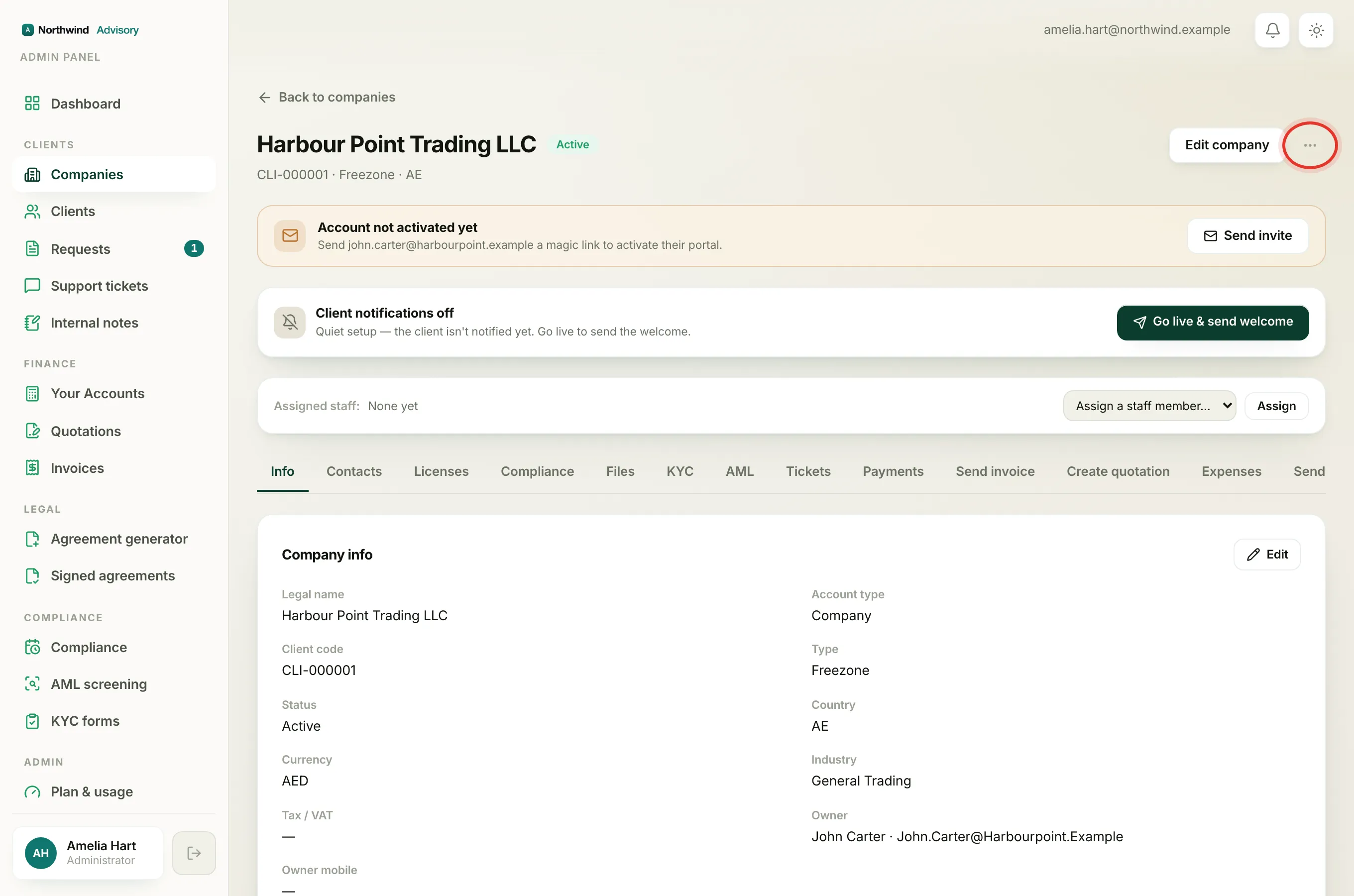
- At the top right, click the Actions menu.
- Click Restore company.
- A window opens titled Re-enable company. You can add an optional reason.
- Click Re-enable company.
The company returns to your active list with all of its records exactly as they were. You will see a confirmation that access has been restored.
Important
Archiving a company acts only on that company. It does not delete or block the person's login, and it does not touch any other company the same person owns. If you want to stop a person from signing in, that is a separate action on the Clients list. See Suspend or restore a client's login.