This guide is about getting help from the izzytap team, for you and your staff. It is not about the support tickets your own clients open with you. For that, see Open a support ticket and track replies.
There are two ways to get help inside izzytap. You can ask the help assistant, which answers straight away, and you can connect with a real person on our team when you want one.
Ask the help assistant
The help assistant answers your questions from this help centre in seconds. It is the fastest way to get an answer.
- Log in to your workspace.
- Look for the round chat button in the bottom right corner of the screen. It is on every page.
- Click it to open the help window.
- Type your question and press Enter, or tap one of the suggested questions to start.
- The assistant writes back an answer, with links to the full help articles.
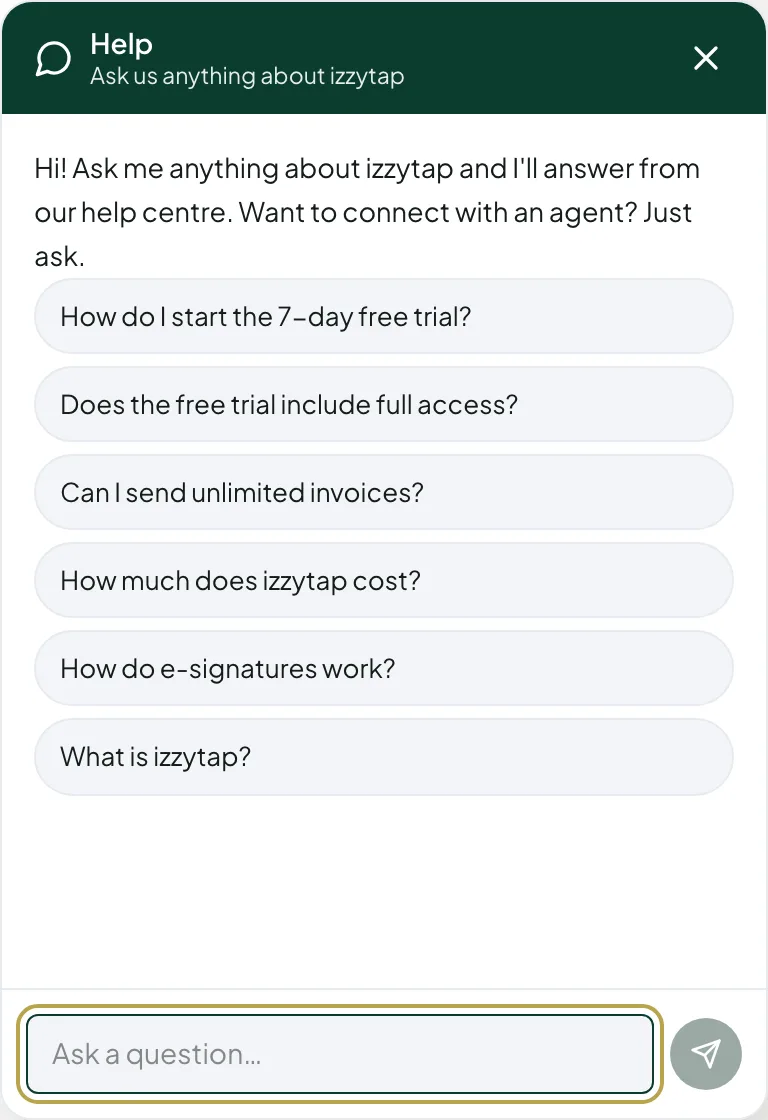
The assistant is good for how-to questions, such as how to send an invoice, how to run an AML screening, or how your plan works. It does not give legal, tax, or accounting advice. For those, it points you to a person.
Tell us if an answer helped
Under each answer from the assistant you will see Was this helpful? with a thumbs up and a thumbs down button. Tap thumbs up if the answer sorted your question, or thumbs down if it did not. Once you tap, the buttons change to Thanks for the feedback.
You do not have to rate anything. Your ratings tell us which answers work and which ones need improving, so the help centre gets better over time.
See what is new
When you open the help window, you may see a short banner at the top with a megaphone icon. This is a product announcement from the izzytap team, such as a new feature or an important change. If there is a link, tap Learn more to read the full details.
To close a banner, tap the small X on it. Once you close an announcement it stays closed, so you will not see the same one again.
You may also see a small speech bubble appear next to the chat button before you open it. This is a gentle nudge from us with a tip or an offer of help. It never opens the window on its own. Tap the bubble to open the help window, or tap the X on it to dismiss it.
Connect with a real person
If the assistant cannot help, or you would rather talk to someone, you can reach our team from the same window.
- In the help window, click Connect with an agent. You can also type something like "I want to talk to an agent" and the assistant will offer it.
- We save your chat and let our support team know right away.
- You will see short status updates in the window while we connect you.
- When someone joins, their replies appear in the same chat, marked as izzytap Support.
You do not need to open a separate ticket. The chat itself is your conversation with us, and we keep the whole history in one place.
See when our agent is replying
Once you are connected, the chat shows you what is happening on our side. When our agent is writing back, you will see izzytap Support is typing with three moving dots. After you send a message and our agent has read it, you will see a small Seen note under it. This way you know your message got through and a reply is on the way.
Attach a screenshot or a PDF
While you are in a live chat with our team, you can send a picture or a document to explain your question.
- In the live chat, click the paperclip button to the left of the message box.
- Pick the file you want to send.
- The file uploads and appears in the chat, and our team can see it right away.
You can attach an image or a PDF, up to 10 MB. If you pick another kind of file, you will see Only images and PDFs can be attached. If the file is too big, you will see That file is too large (max 10 MB). The paperclip only shows once you are connected to a real person, not while you are talking to the assistant.
We reply in the chat and by email
You do not have to sit and wait with the window open. When our team replies, you get it in two places:
- In the help window, the next time you open it.
- By email, so you can carry on from your inbox.
This way you never miss an answer, even if you close the tab or step away.
Ending a chat
When your question is sorted, either you or our team can end the chat. To end it yourself, tap End chat & ask the assistant at the top of the window. Ending it returns the window to the help assistant, so you can ask it something new any time.
Right after a live chat ends, the window asks How was our support? with a thumbs up and a thumbs down button. Tap one to rate the help you got. If you tap thumbs down, you can add a short note about what went wrong, or skip it. This is optional, and it helps us look after you better next time.
On our website too
The same help assistant is on our public website. If you are not a member yet, you can still open the chat button in the bottom right of the page, ask a question, and connect with an agent. When you ask for a person, we take your name and email so we can reply.
Related
- Learn how your plan and usage work. See Understand your plan and usage.
- Set the support email your own clients see. See Set your contact details and support email.