When you need papers from a client, you can ask for them right inside the request. IzzyTap posts a tidy checklist, tells the client what to send, and keeps everything in the one thread.
Open the request
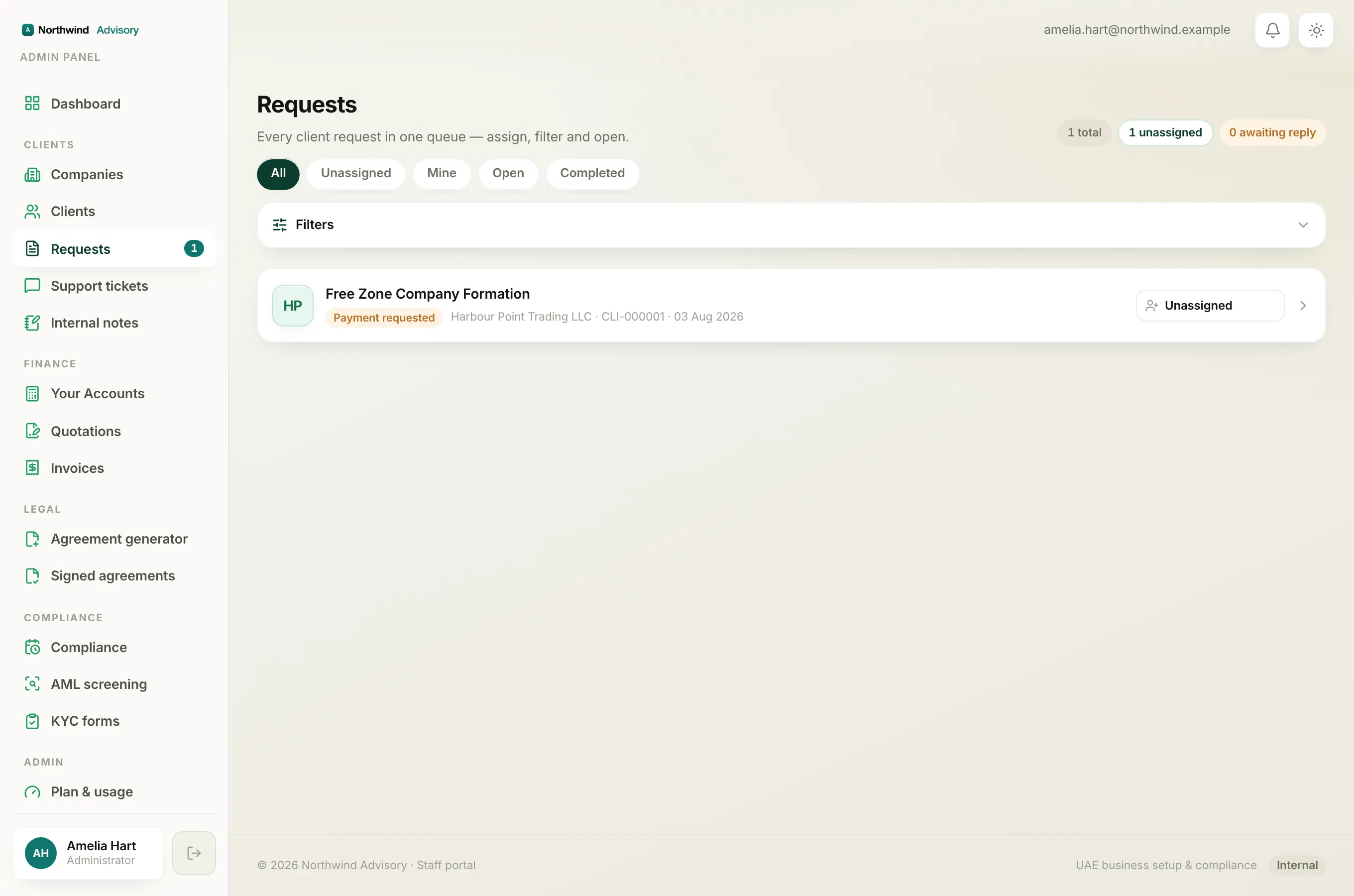
- Log in to your workspace.
- In the left menu, under Clients, click Requests.
- Click the request you are working on.
Send a document request
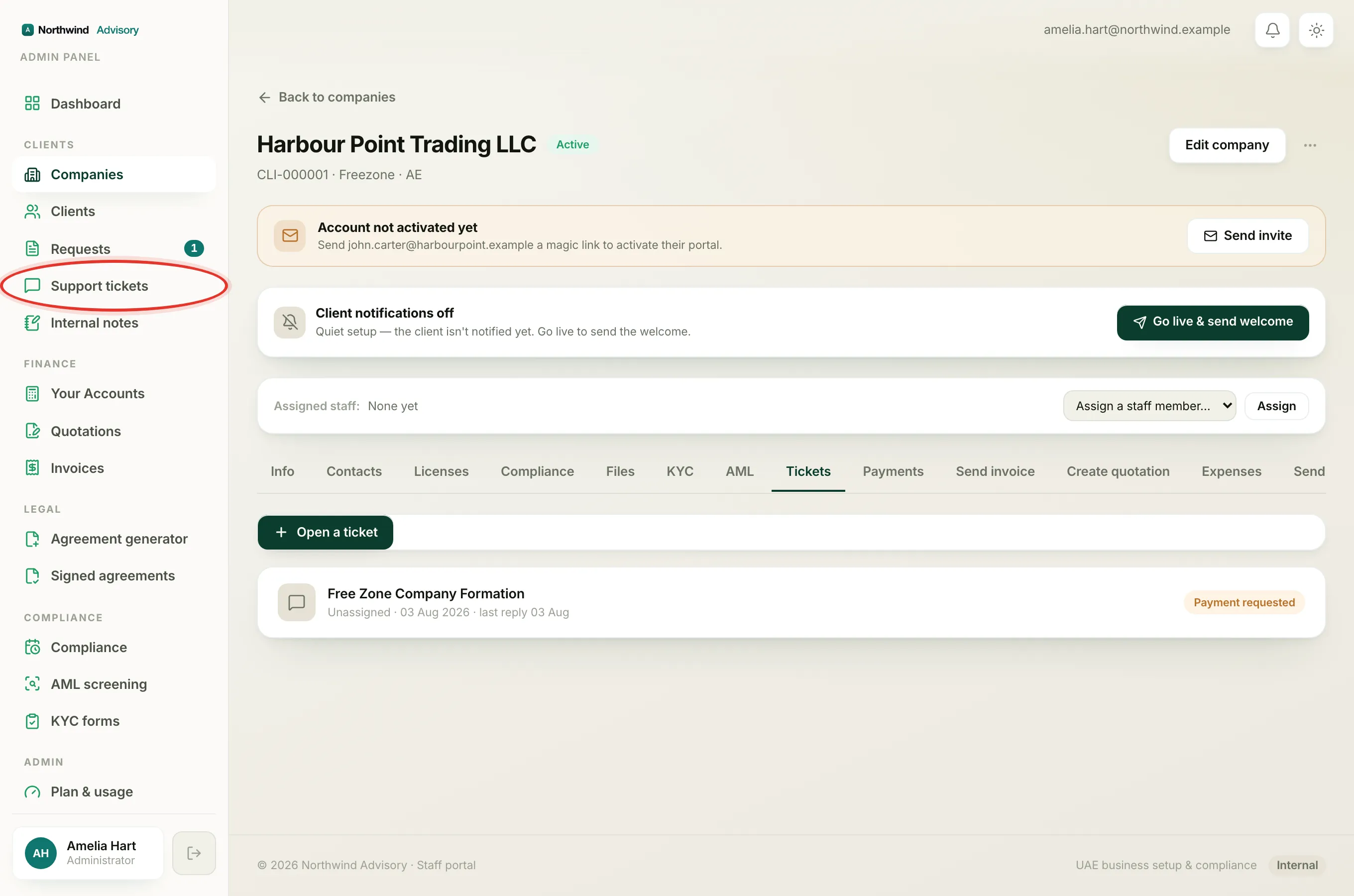
- Scroll down to the staff tools under the conversation.
- Open the Request documents card. Its subtitle reads Ask the client for specific files.
- In the big box, type one document per line, for example:
- Passport copy
- Trade license
- In the Optional note field, add anything the client should know (for example, Please make sure the passport is not expired). You can leave this blank.
- Click Send request.
You can list up to 20 documents in one request.
What happens next
As soon as you send it:
- A card titled Documents requested appears in the conversation, in amber, listing every item you asked for.
- The request automatically moves to the Document requested stage, so its status chip turns amber to show you are waiting on the client. See Move a request through its stages.
- The client is notified in their portal and by email, and the email lists exactly what to upload.
Tip
Write each document as its own short line. The client sees your list as a clear checklist, which makes it far more likely you get everything back in one go.
Following what has come back
When the client uploads a file, it appears in the conversation as a document card on their side, so you can open it and check it off against your Documents requested list above. Keep the list and the uploads in view together to see at a glance what is still outstanding.
If a client sends you a paper another way, for example over WhatsApp, you can file it for them so the record stays complete. See Upload a file on a client's behalf.
When you also need payment
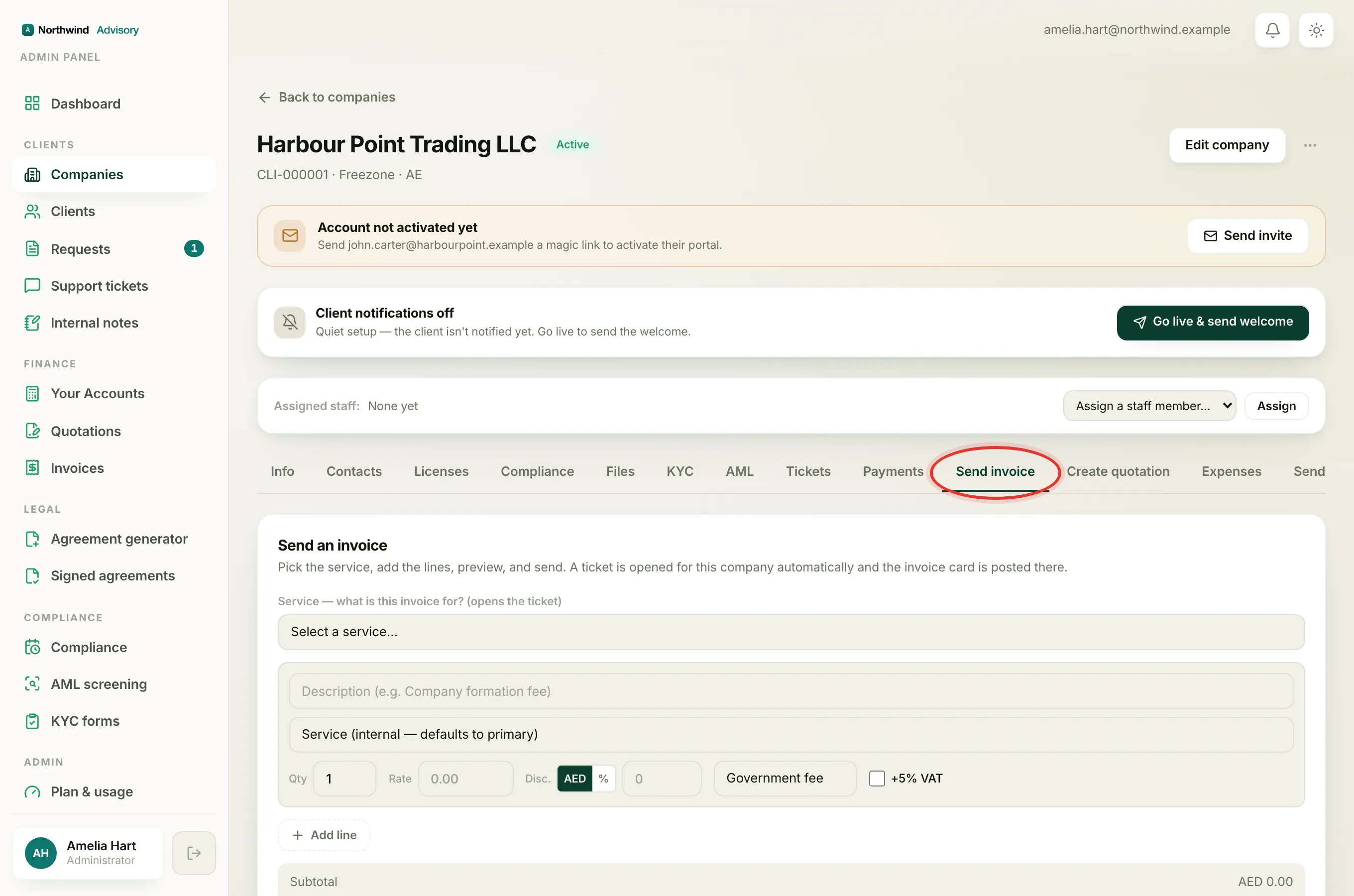
If the next thing you need from the client is money rather than papers, use the Send invoice tool instead. See Request a payment inside a ticket.