Open your companies
- Log in to your workspace.
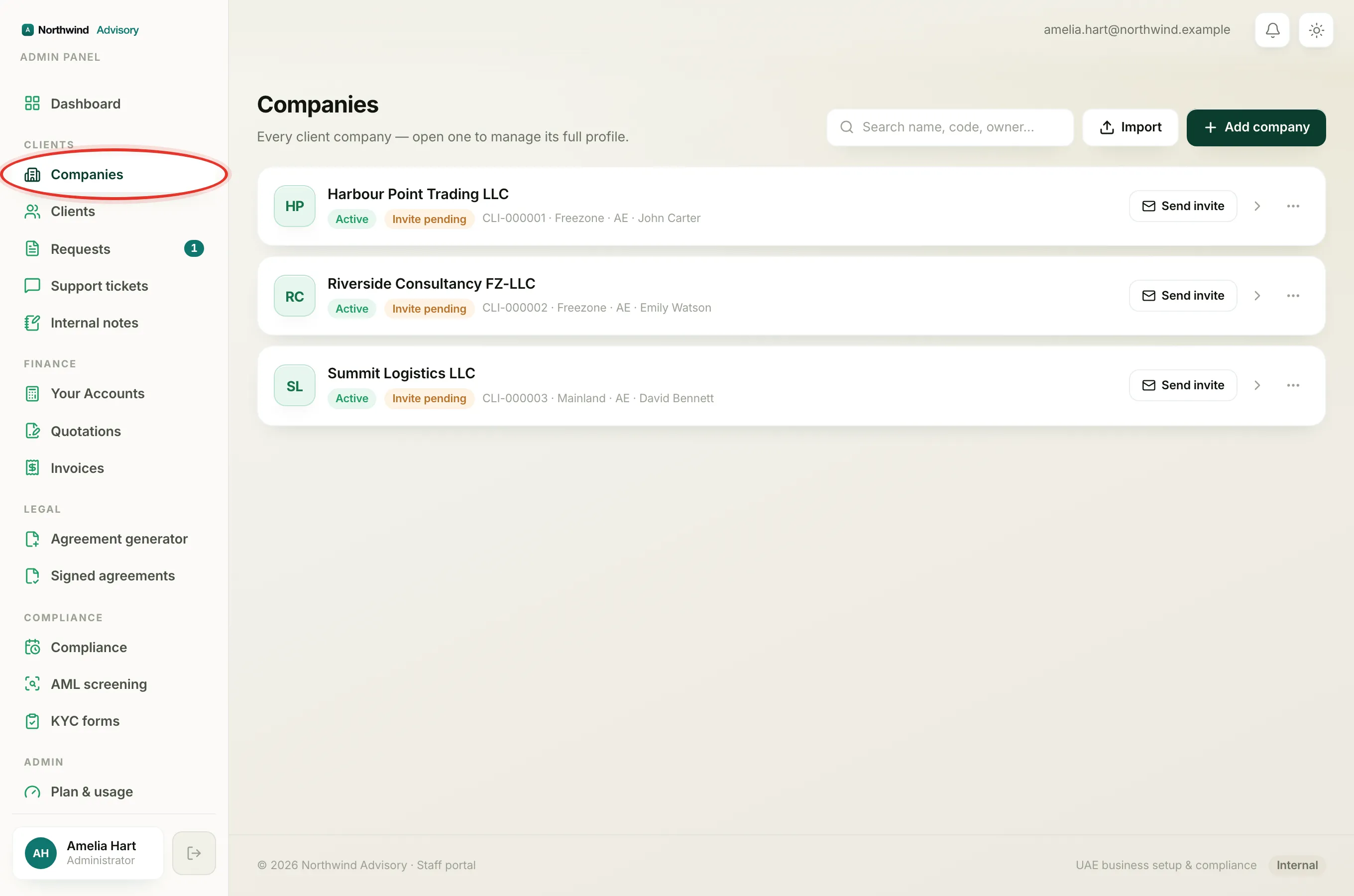
- In the left menu, under Clients, click Companies.
This is the full list of your client companies. Open any one to manage its profile, requests, documents and invoices.
Search for a company
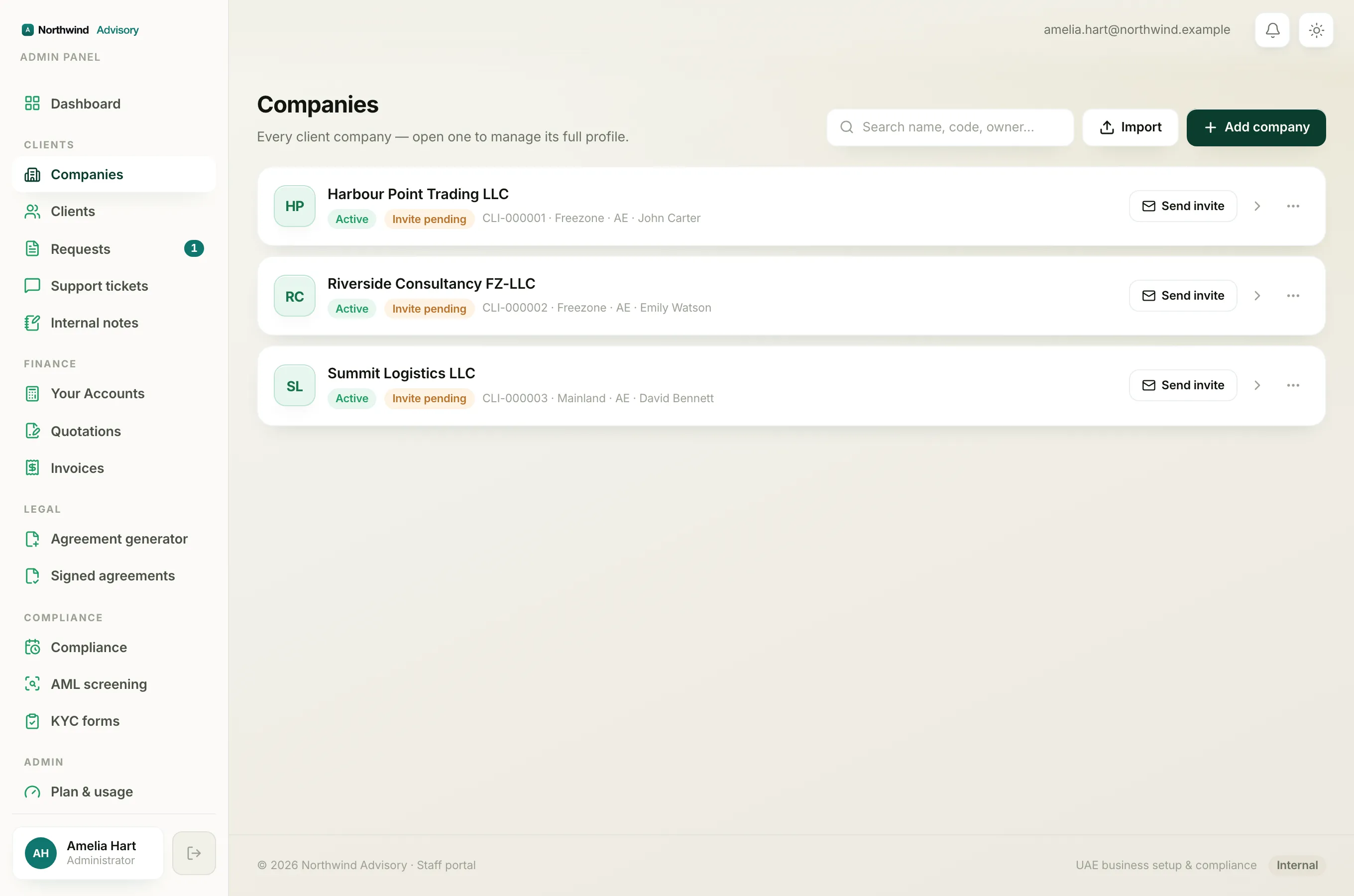
At the top right of the page there is a search box with the placeholder Search name, code, owner….
- Click the box and start typing.
- Press Enter. The list narrows to companies that match.
The search looks across four things at once:
- the company name
- the client code (for example the short reference on each card)
- the owner's name
- the owner's email
You do not need the full word. A partial match is enough, so typing part of a name, a few digits of the code, or part of the email address will find it.
Tip
To clear the search and see everyone again, click the small X inside the search box (it appears once you have searched), or just empty the box and press Enter.
If nothing matches, the page shows No companies match your search with a Clear search button. Use it if you think the list looks empty by mistake.
Show archived companies
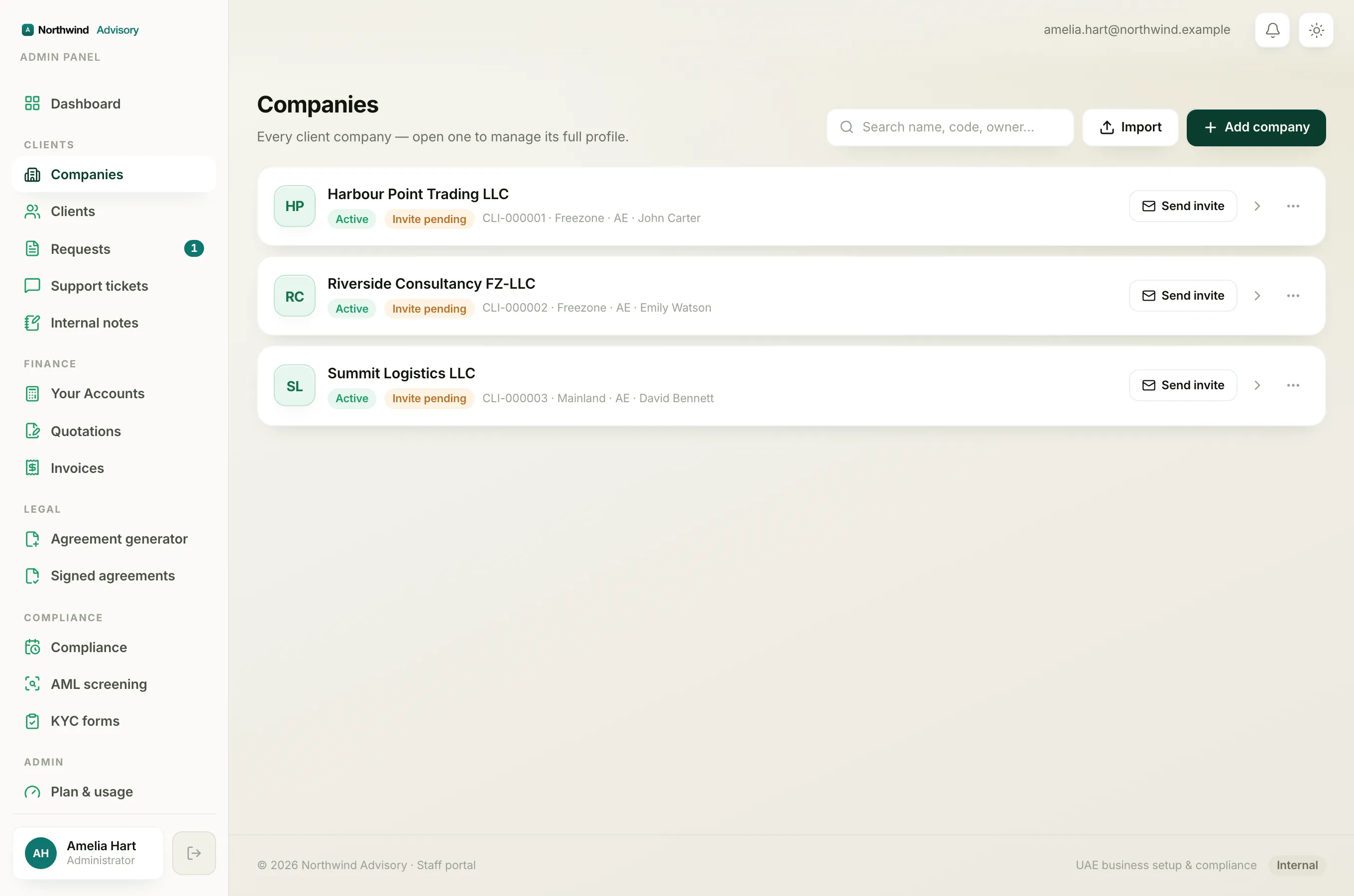
Archived companies are hidden from this list on purpose, so your day-to-day view stays clean.
- Scroll to the bottom of the Companies list.
- Click View archived (it shows the number in brackets, for example View archived (3)).
The list now shows only your archived companies.
- To return to your normal list, click Back to active companies at the bottom.
If you do not see the View archived link at all, it means you have no archived companies yet.
Note
The archived toggle and the search work together. If you have searched and cannot find a company, remember it may be archived, so switch to the archived view and search again there.