What a line type is
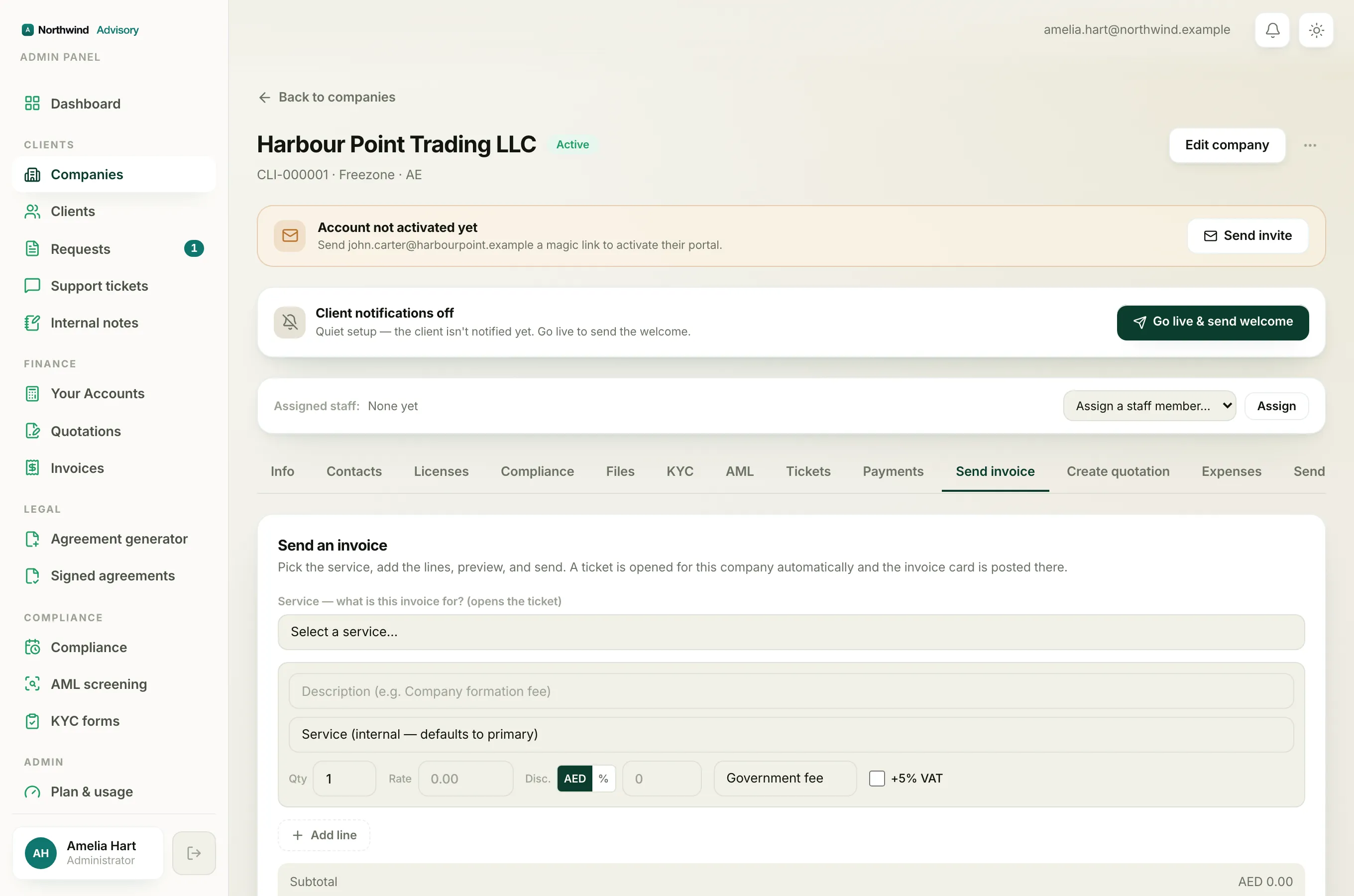
Every line on an invoice has a type. You pick it from the small dropdown on the right of each line, next to the +5% VAT box. The type does two jobs. It tells IzzyTap whether the money on that line is your own fee or money you are only passing on, and it decides how the line is treated for VAT and in your reports. It does not print a label on the client's PDF. The client just sees the description, quantity, rate and amount.
There are three types.
Government fee
Use Government fee for money you collect from the client and pay straight on to a government body or authority. Think trade licence fees, immigration fees, Ejari, or a chamber of commerce charge. This is a pass-through. It is not your income, so no VAT is added to it and it is not counted as your service revenue in your reports. This is the type a fresh line starts on by default.
Service charge
Use Service charge for your own professional fee: the work your firm actually does. This is your income. Because your services are a taxable supply in the UAE, choosing Service charge automatically ticks the +5% VAT box on that line for you, so 5% VAT is added on top. The line is counted as service revenue in your reports.
Tip
You can still change the VAT tick by hand after you pick the type. The type sets a sensible starting point; the +5% VAT checkbox is what actually decides whether VAT is charged on the line.
Other
Use Other for anything that does not fit the two above, for example a disbursement, a courier cost you are recovering, or a miscellaneous charge. Picking Other leaves the +5% VAT box unticked, so no VAT is added unless you tick it yourself.
How VAT is worked out on a line
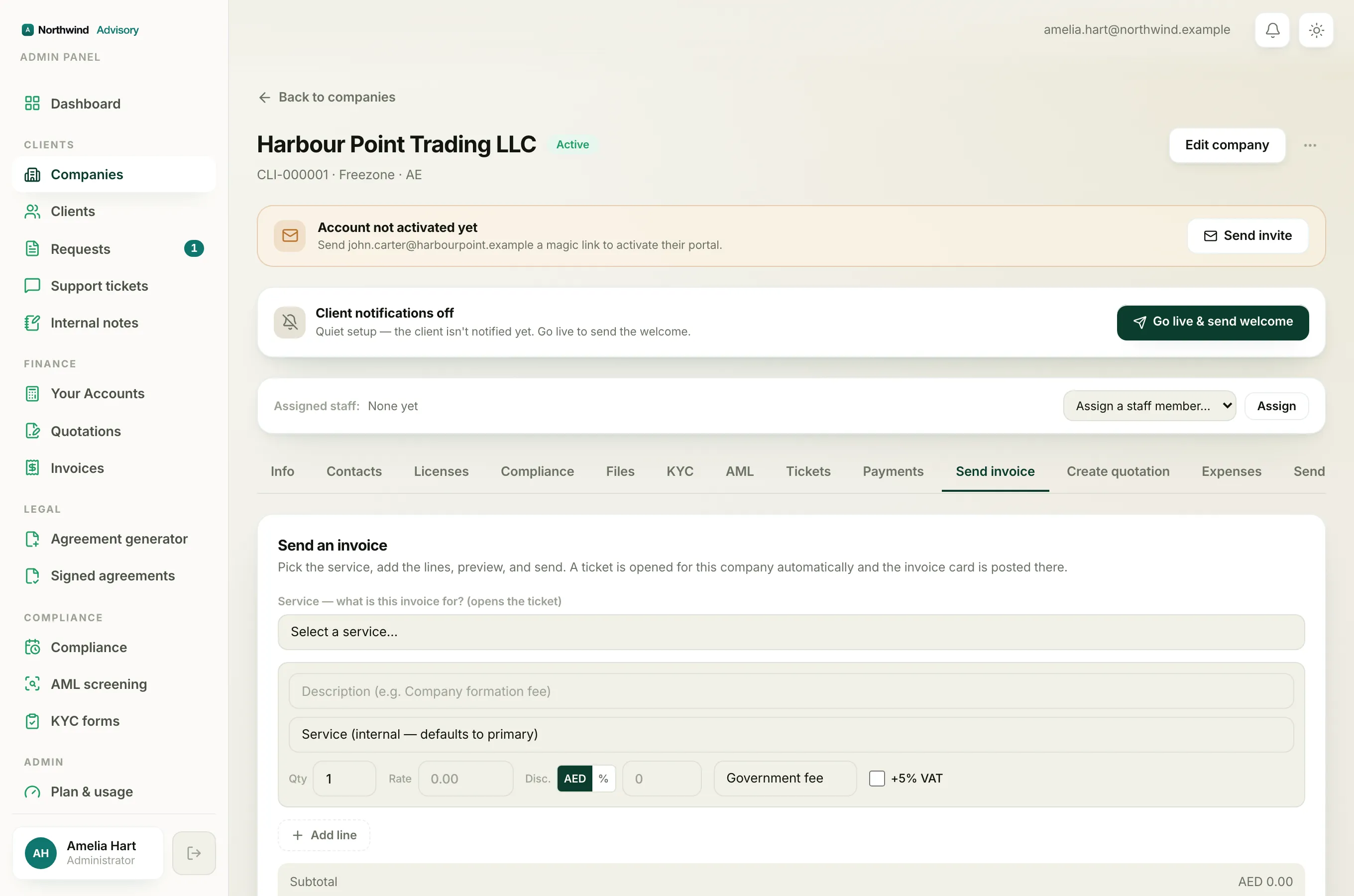
When +5% VAT is ticked, IzzyTap adds 5% of that line's amount (after any per-line discount) to the invoice. The VAT (5%) row in the totals box adds up the VAT from every ticked line, and the Total includes it. If no line is ticked, the invoice carries no VAT.
Changing the type later
While you are still building the invoice you can change any line's type at any time from its dropdown. Remember that switching a line to Service charge re-ticks its VAT box, and switching away from it does not automatically untick VAT, so glance at the +5% VAT box after you change a type.
Note
Get the type right on each line before you send. It keeps your VAT correct and keeps your income and pass-through fees separated properly in your accounts.
Once the lines look right, you can tag each line to a service so your revenue reports split correctly, then preview and send.