Before you start
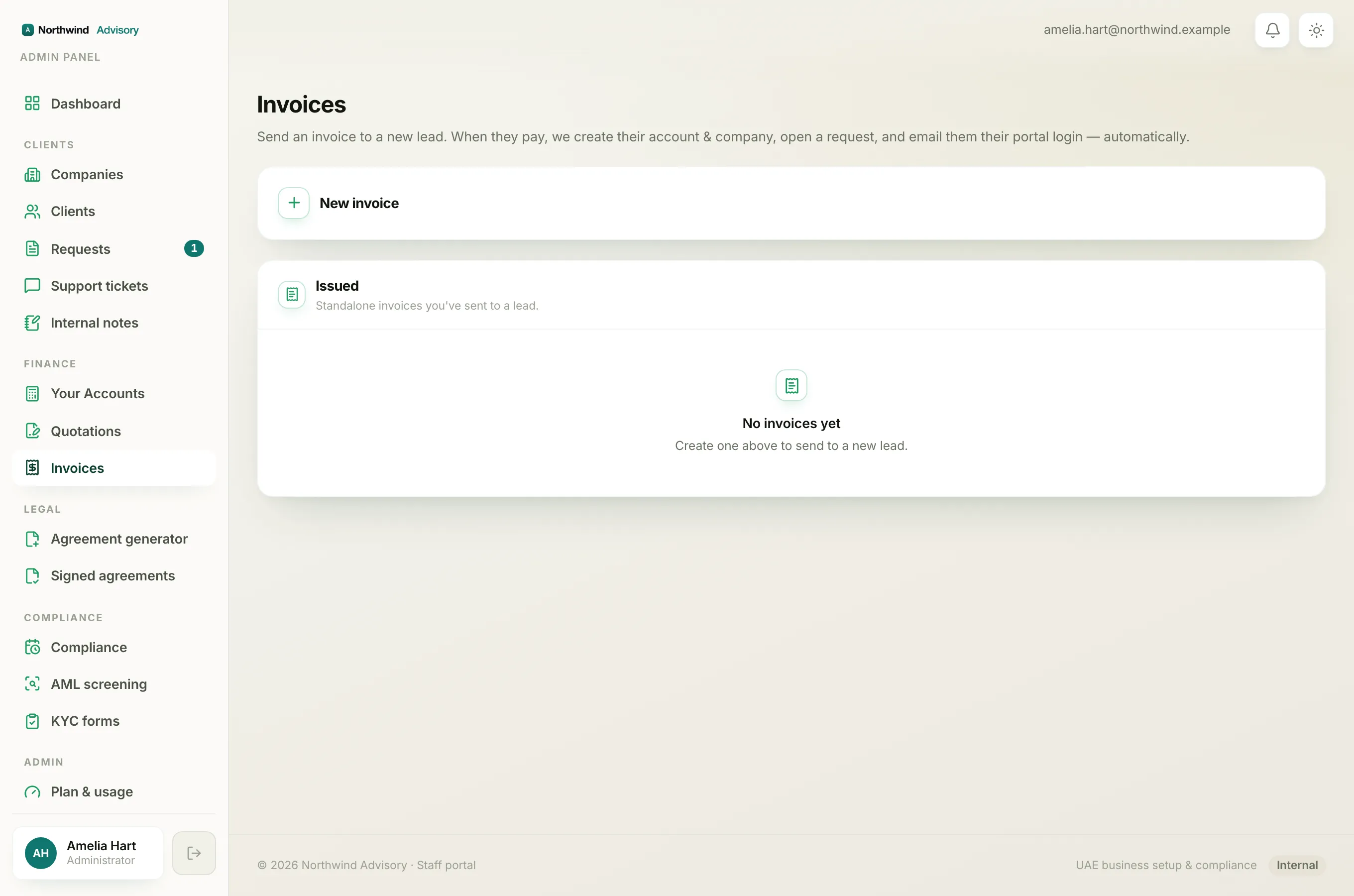
You can pay an invoice online when two things are true: your provider has connected a payment gateway, and the invoice has not been paid yet. When you pay online you pay the exact invoice amount. No processing fee is added. If online payment is not set up for an invoice, your invoice PDF has bank transfer details you can use instead. See How to pay by bank transfer.
Pay from your portal
- Log in to your portal.
- In the left menu, click Invoices.
- Find the invoice you want to pay. An outstanding one shows a blue Pay button with the amount, for example Pay AED 1,500.00.
- Click the Pay button. You are taken to a secure checkout page to enter your payment details.
- Complete the payment on the checkout page.
- You are brought back to your Invoices page.
Note
You pay the exact invoice amount online, with no processing fee added. A small note under the Pay button says the same, and points you to bank transfer as another option. If you would rather not pay online, use the bank transfer details on your invoice PDF instead. See How to pay by bank transfer.
What you see after paying
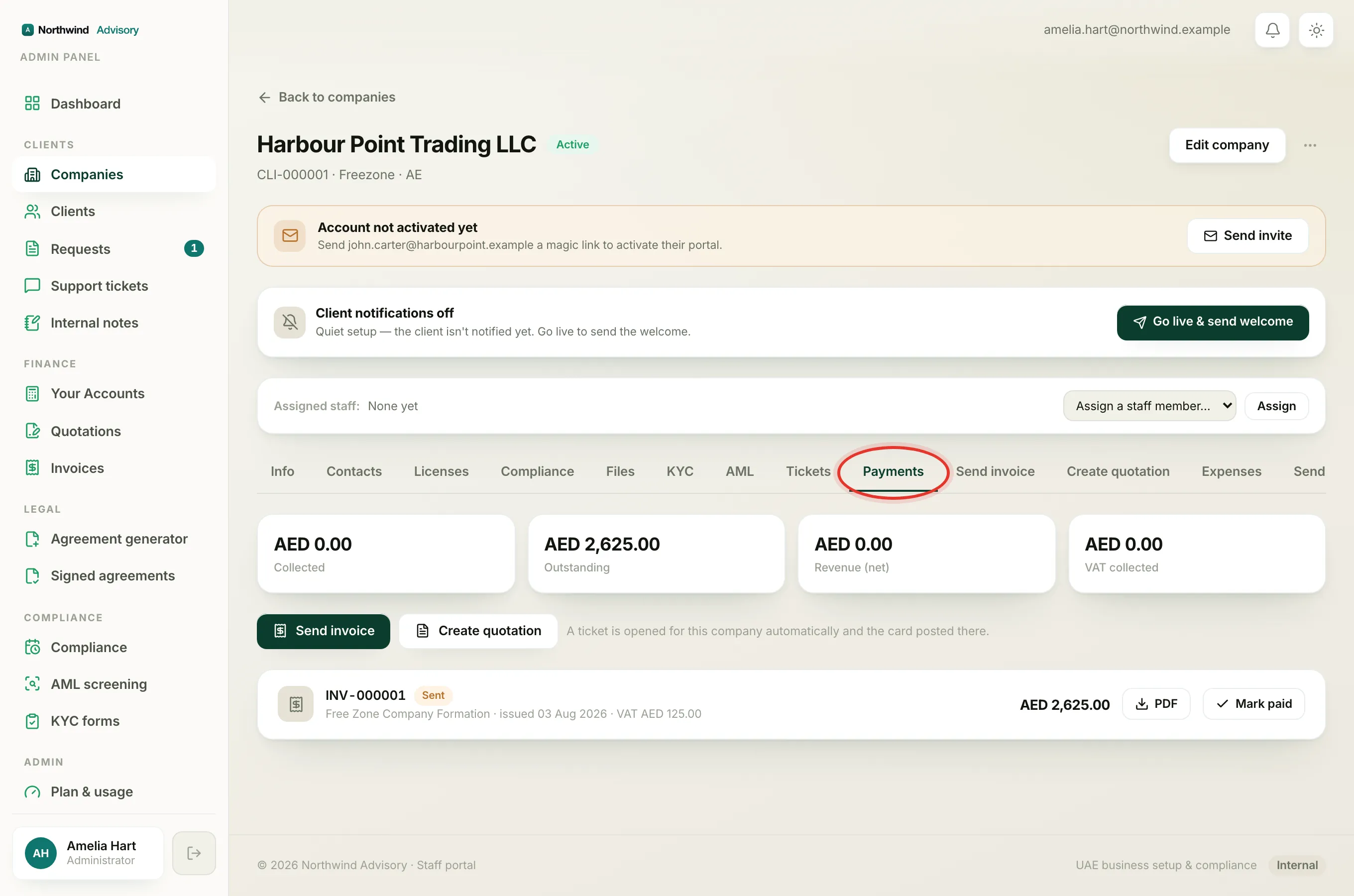
When the payment goes through, your Invoices page shows a green banner:
Payment received, we are recording it now. Your paid invoice will appear here in a moment.
The invoice moves to Paid a moment later once the payment is confirmed behind the scenes. If it still shows as due for a short while, that is normal. See Payment made but invoice still shows due.
If you close the checkout or go back without finishing, you return to a grey banner:
Payment cancelled, nothing was charged. You can pay any time from the list below.
Nothing is taken from your card unless you complete the checkout.
When the Pay button is not there
The Pay button only appears on an invoice that is still outstanding and has had no payment recorded against it. Once any payment is in, the button disappears and any remaining balance is settled with your provider directly. A Paid invoice has no button. The button is also missing when your provider has not connected a payment gateway yet. In that case, pay by bank transfer using the details on your invoice PDF. To read each badge, see Invoice statuses in the portal.
If you do not have a portal account yet
If your provider billed you before you had an account, the invoice email has its own secure pay link. Open that link and pay the same way. Once the payment clears, your portal account is set up automatically and your paid invoice is waiting for you inside.