What this covers
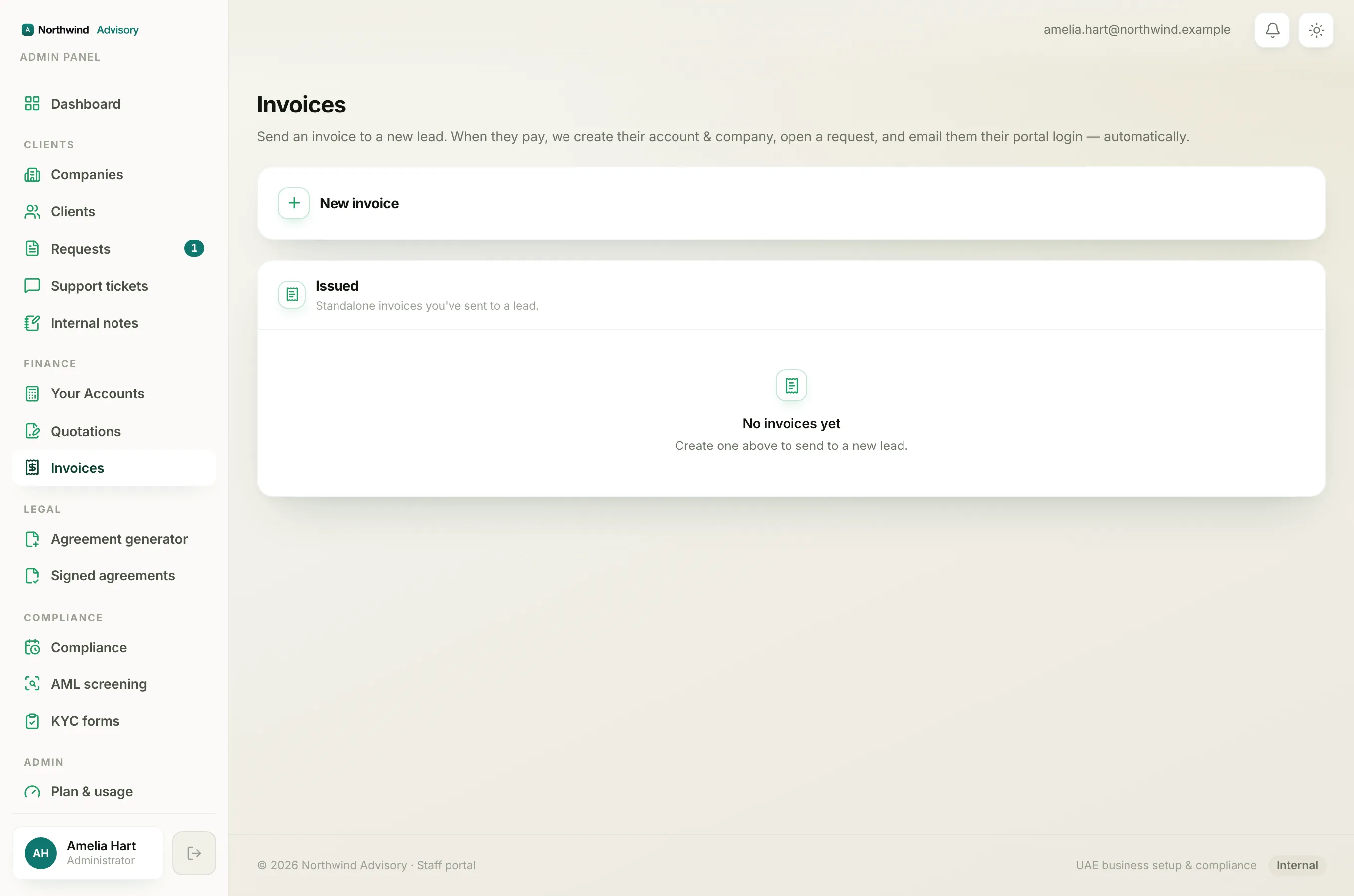
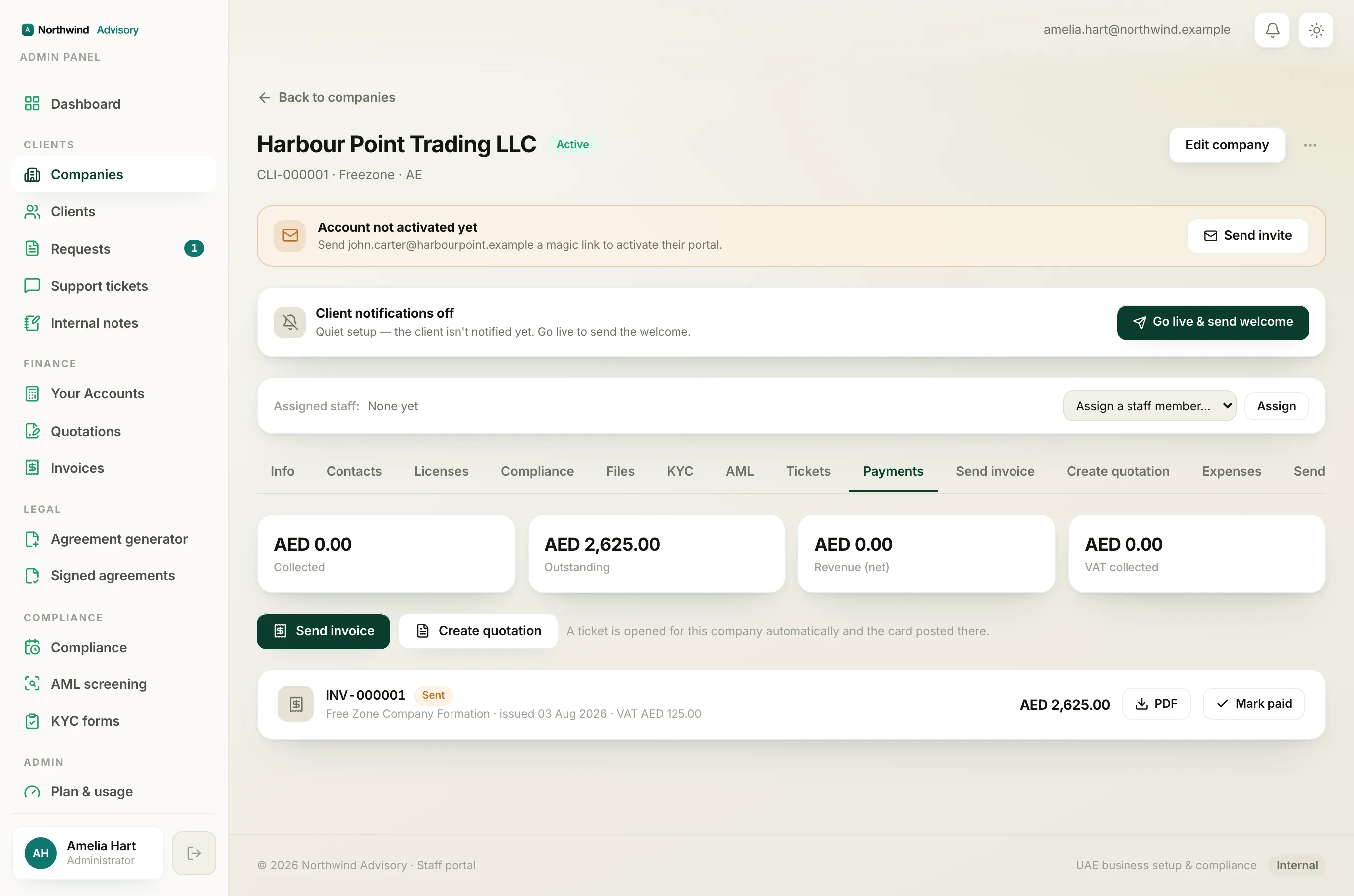
Every invoice in IzzyTap carries a status, shown as a small coloured chip next to its number. The status tells you where the invoice is in its life: still being prepared, out with the client, paid, or voided. This article explains each one and what the colour means, so you can read a list of invoices at a glance.
You will see these chips on the Invoices page (in the left menu under Finance), on a company's Payments tab, and on your Dashboard.
The colours, in short
The colours are always the same, whatever the status label says:
- Green means the money is in. Paid.
- Amber means the invoice is out with the client and waiting. Sent, or partially paid.
- Red means it is late. Overdue.
- Grey means it is not live money. A draft, or a cancelled invoice.
The statuses
Draft (grey)
A draft is an invoice that has been started but not yet sent to the client. Nobody has received it and it does not count towards what the client owes you. You can still change everything on it. A draft only turns into a real, sent invoice once you send it.
Note
Invoices you raise for a brand-new lead from the Invoices page are sent straight away, so they never sit as a draft. Drafts appear when an invoice is prepared inside a client's request but not yet sent.
Sent (amber)
The invoice has been issued and the client has it. This is the normal state for money you are waiting to collect. The client can see it in their portal and, for a lead invoice, pay it from the link in their email. It stays Sent until it is either paid, goes past its due date, or is cancelled.
Overdue (red)
The invoice was sent, the due date has passed, and it still has not been paid in full. The due date is 30 days from the invoice date. An overdue invoice is exactly the same as a sent one, it is just late, so the client can still pay it. Red is your cue to chase it. For more on how the due date is worked out, see Why an invoice shows as overdue.
Partially paid (amber)
Some money has come in, but not the full amount. The invoice keeps showing you the balance still owed. This happens when you record a part-payment against an invoice raised inside a client's request. It stays partially paid until the remaining balance is settled, at which point it turns Paid. See Record a part payment.
Note
Invoices sent to a brand-new lead must be paid in full in one go, so they do not use the partially paid state.
Paid (green)
The full amount has been received. You are done. The invoice shows the date it was paid, and the client gets a receipt. A paid invoice cannot be cancelled, because money has changed hands. If you need to reverse it, you issue a credit note or a refund instead.
Cancelled (grey)
The invoice has been voided. It can no longer be paid, it is left out of your books and reports, and the client's Pay button drops away. Cancelling is only possible while an invoice is unpaid (sent or overdue). A cancelled invoice keeps its number so there is never a gap in your numbering. See Cancel an invoice.
What to do about each one
- Sent or Overdue: wait, or chase, then record the money when it lands. See How to record a payment.
- Partially paid: record the rest when the balance comes in.
- Paid: nothing to do.
- Cancelled: nothing to do. If it was a mistake, raise a fresh invoice.
- Draft: send it when it is ready, or leave it and finish it later.