Three formats, on every report
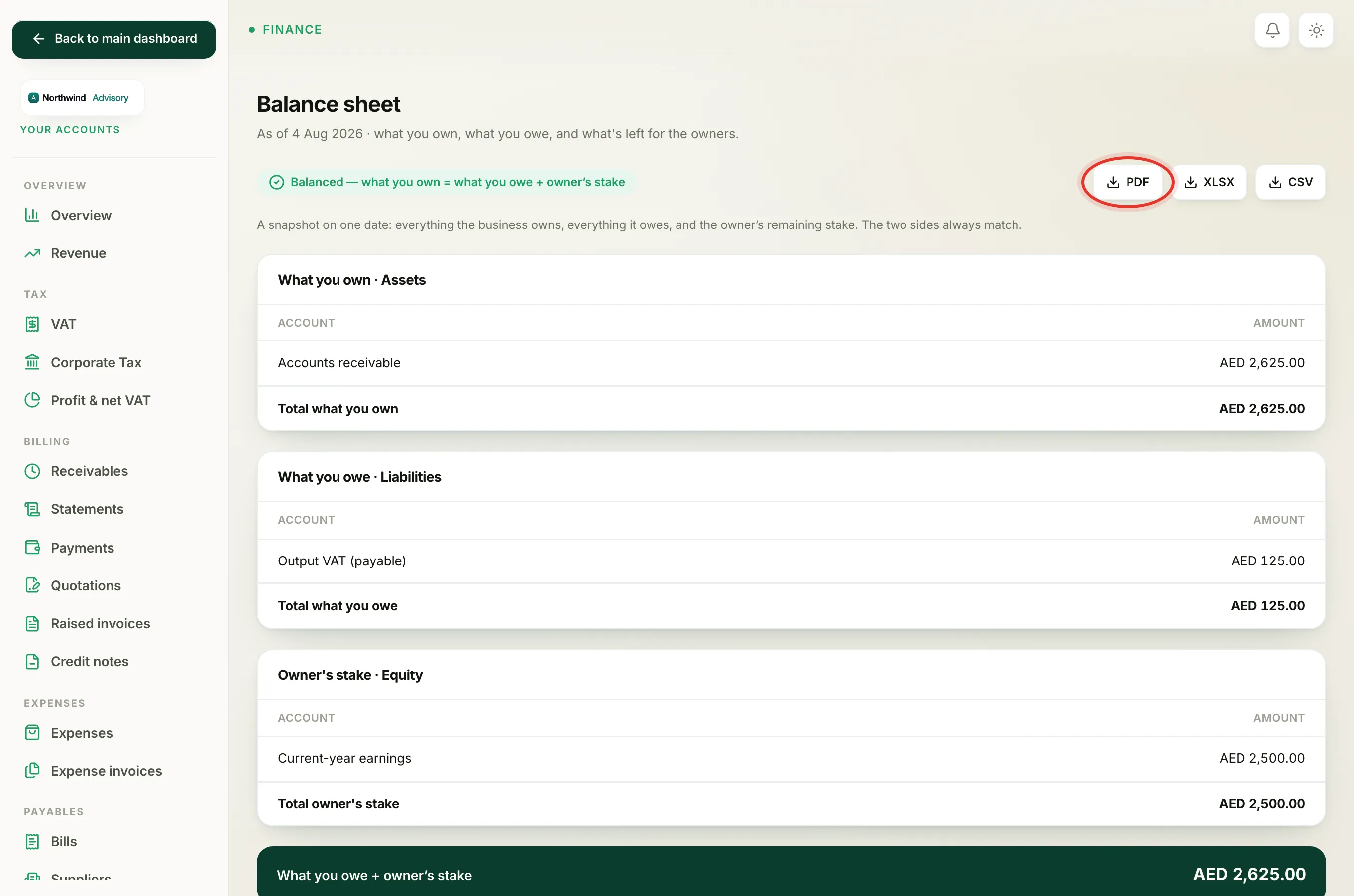
Almost every accounts report and statement in IzzyTap can be downloaded. You will find the same three download buttons near the top of each one:
- PDF, a tidy, branded document on your firm's letterhead, best for sending to a client or your accountant.
- XLSX, an Excel spreadsheet, best when you want to sort, filter or add your own working.
- CSV, a plain data file that opens in any spreadsheet program.
The file always matches exactly what is on screen, including the date range or period you have chosen.
How to export
- Log in to your workspace.
- In the left menu, under Finance, click Your Accounts.
- Open the report you want. For example, in the accounts menu under Bookkeeping, click Balance sheet, Profit & loss or Trial balance.
- If the report has a date filter, set the period first so the download covers the right dates. See Filter a report by period.
- Click PDF, XLSX or CSV. The file downloads to your device.
Tip
Set the period before you click. The export uses whatever range is showing, so choosing the month, quarter or year first means the downloaded file is already correct.
Reports you can download
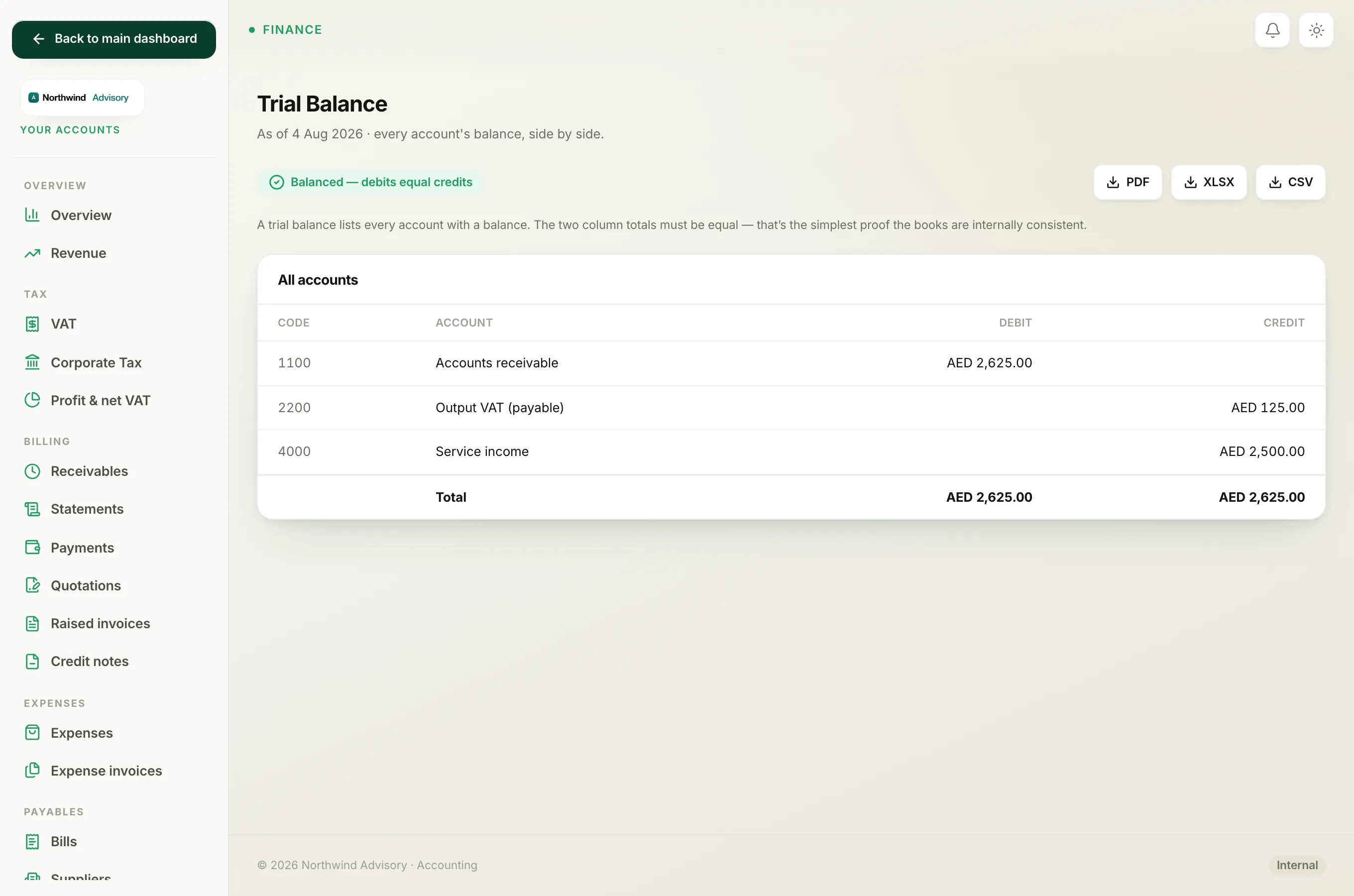
The same three buttons appear on:
- Balance sheet and Trial balance (under Bookkeeping).
- Profit & loss (under Bookkeeping).
- AP aging, what you owe your suppliers (under Payables).
- Revenue and Profit & net VAT (under Overview and Tax). See Read the revenue report and Read the profit & net VAT report.
- Customer statements, which you pick a customer and period for before downloading. See Send a customer statement.
- Bank reconciliation reports for each bank account.
What is in each file
The PDF carries your firm's logo and name at the top, so it is ready to send as-is. The Excel and CSV files hold the same figures as columns of data, so you can open them in Excel or Google Sheets and work with the numbers.
Note
Downloads are available to staff who can view revenue. If you do not see the download buttons, your role may not include that permission. Ask an admin at your firm if you need access.