A lock means the feature is not in your plan yet
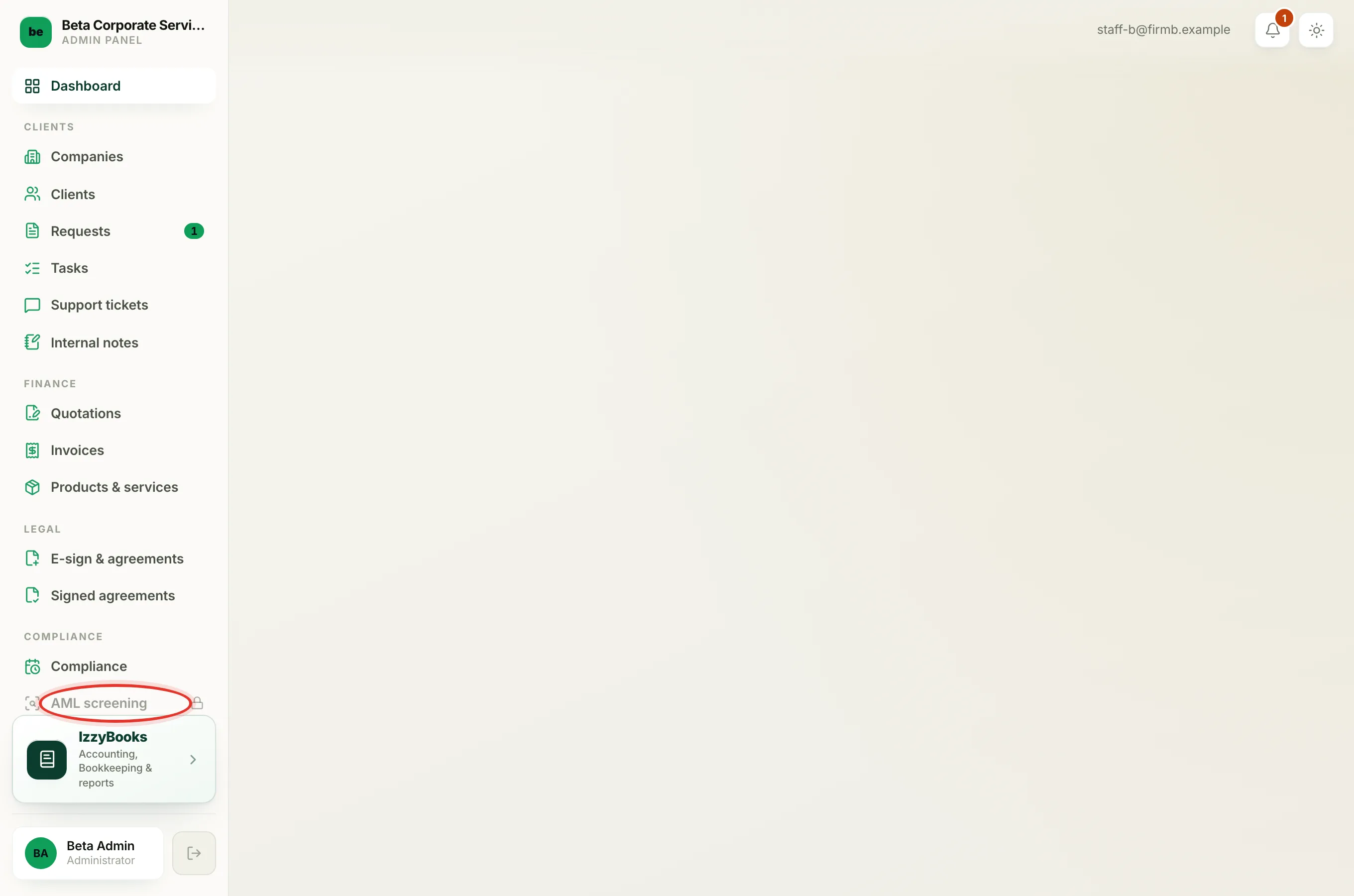
Your firm's plan is built from modules. Each module turns on a set of features, like sending invoices, running AML checks, or building KYC forms. If your plan does not include a module, every feature that belongs to it shows as locked instead of being hidden. A locked item looks dimmed and carries a small padlock icon.
You will run into this in three places:
- In the left menu. A menu row like Invoices, KYC forms or AML screening shows dimmed with a padlock when its module is not in your plan.
- On a company's tabs. Open a company and a tab like Payments, KYC, AML or Compliance shows a small padlock if you do not have that module.
- On your dashboard. A panel titled Do more with your plan gives you a button for each module you can add.
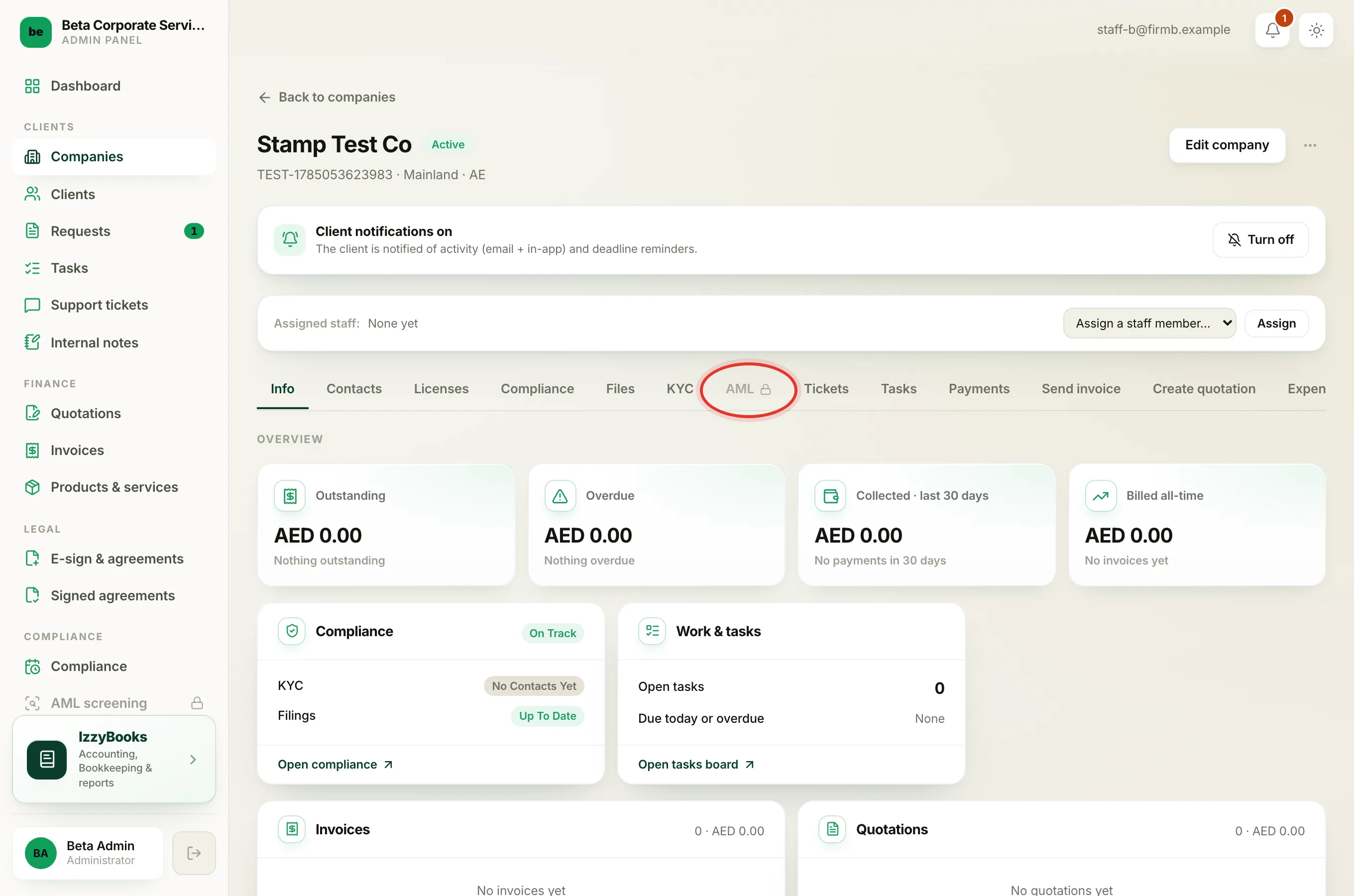
Nothing is broken. The lock is a doorway, not a dead end. Clicking a locked item does not open the feature. It opens a small popup that tells you what the module does and lets you add it to your plan.
Note
A locked item is not the same as a missing one. A padlock means the feature exists but is not in your plan. If a whole menu item is not there at all, that is usually your staff role, not your plan. See Why a menu section is missing for you for that. The lock is also a real wall, not only a badge. Even if you typed the web address of a locked feature by hand, the system would send you back to your dashboard.
What the popup shows
When you click a locked item, the same popup opens wherever you clicked from. It shows:
- The plain name of the feature at the top, for example Invoice & accounting or AML screening.
- A heading that reads Add [module] to your plan, for example Add izzybooks to your plan.
- A short line describing the module, then a short list of what you get with it.
- The price, shown as $5 / user / month, added to your plan straight away.
- A green button that reads Unlock [module], for example Unlock izzybooks.
- A Compare all plans link under the button, for when you want to see everything side by side first.
Each module has its own name in the popup. Invoice & accounting is izzybooks, E-signatures & agreements is izzysign, KYC & onboarding is izzykyc, AML screening is izzycheck, Compliance & renewals is izzycompliance, and Work is izzytask.
Add a module to your plan
Only an administrator at your firm can add a module. If you are not an administrator, ask one to do this for you.
- Log in to your workspace.
- Find the locked feature you want. It can be a dimmed row in the left menu, a padlocked tab on a company, or a button in the Do more with your plan panel on your dashboard.
- Click the locked item. The popup opens.
- Read what the module includes and check the price. Each module is $5 / user / month, so the total depends on how many staff seats you have.
- Click Unlock [module], for example Unlock izzybooks.
- What happens next depends on whether your firm already pays for a plan:
- If your firm already has a subscription, the module is added to your current plan straight away. The popup closes, the page refreshes, and the padlock is gone.
- If your firm has never subscribed, you are taken to a secure checkout page to enter your card. After you pay, you come back to the Subscription page and the module is active.
Tip
Adding a module never drops what you already pay for. The popup adds the new module on top of your current plan. If you end up owning every module, your plan becomes the full bundle at $20 per user each month, which is cheaper than paying for all six one by one.
If your firm is on a free trial
If your firm is inside a running free trial, the popup changes. Instead of a price it shows Free while you are trialing, and the button reads Add [module] to my trial. Click it and the module is added to your trial straight away, with no payment. You keep it for the rest of the trial, and it becomes part of what you pay for when the trial ends.
See and change every module in one place
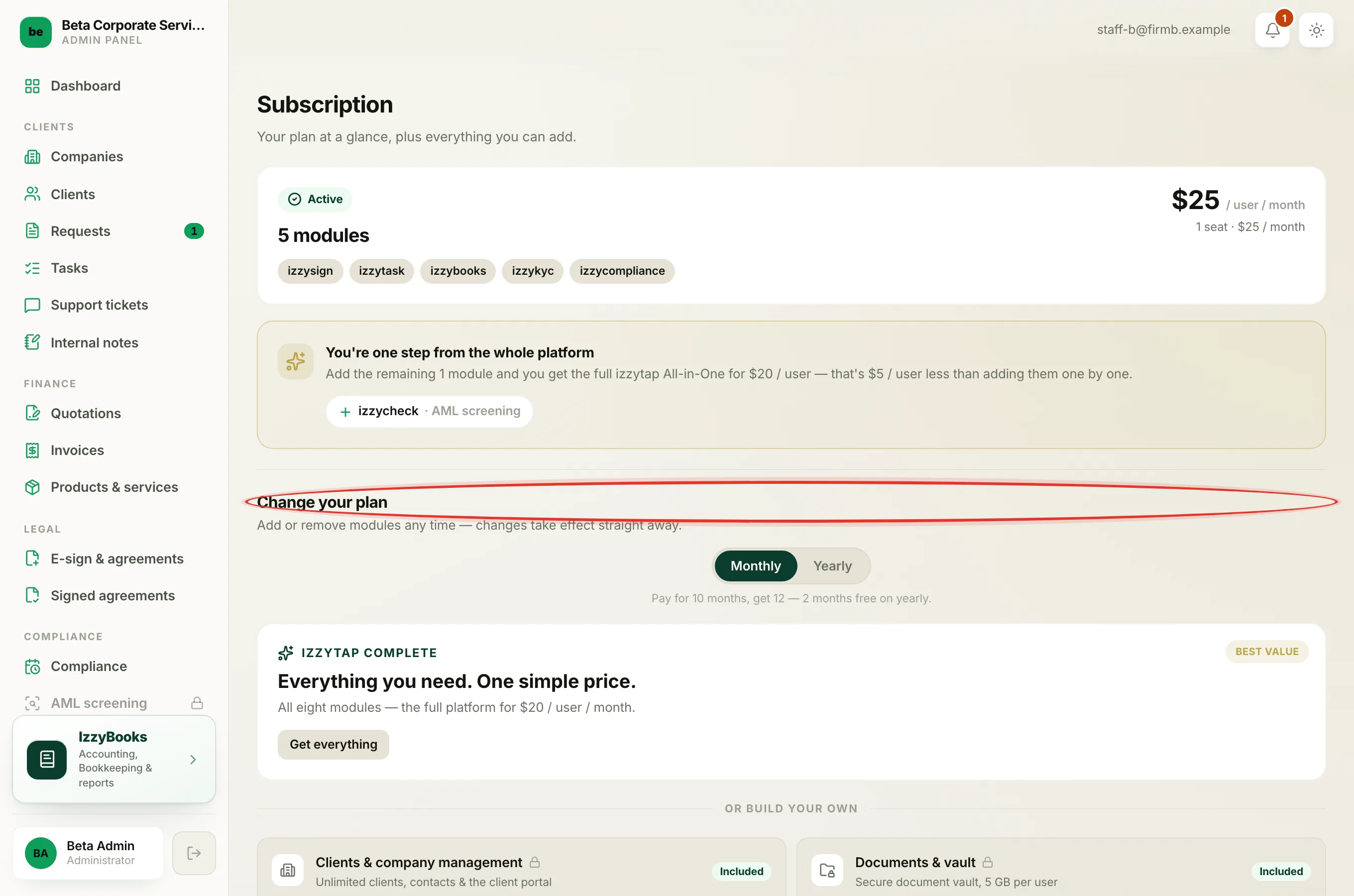
The popup is the quick way to add one module. To see your whole plan and change several modules at once, use the Subscription page.
- Log in to your workspace.
- In the left menu, open the Admin section and click Subscription.
- Under Change your plan, add or remove any module, or switch between paying monthly and yearly.
- Confirm your choice. Changes take effect straight away.
This is the same page the Compare all plans link in the popup opens. To go deeper on plans and pricing, see Choose or change your plan. To understand the monthly pools that come with some modules, like AML checks and e-signatures, see Understand usage and top-ups.