What this is for
Before you can import a bank statement or reconcile your books, IzzyTap needs to know which accounts your firm actually runs. That means each bank account and each cash box. This guide shows you how to add one.
Note
Your books must be switched on first. If Banking shows a "books not set up yet" message, follow How to activate your books and then come back here.
Open the Banking screen
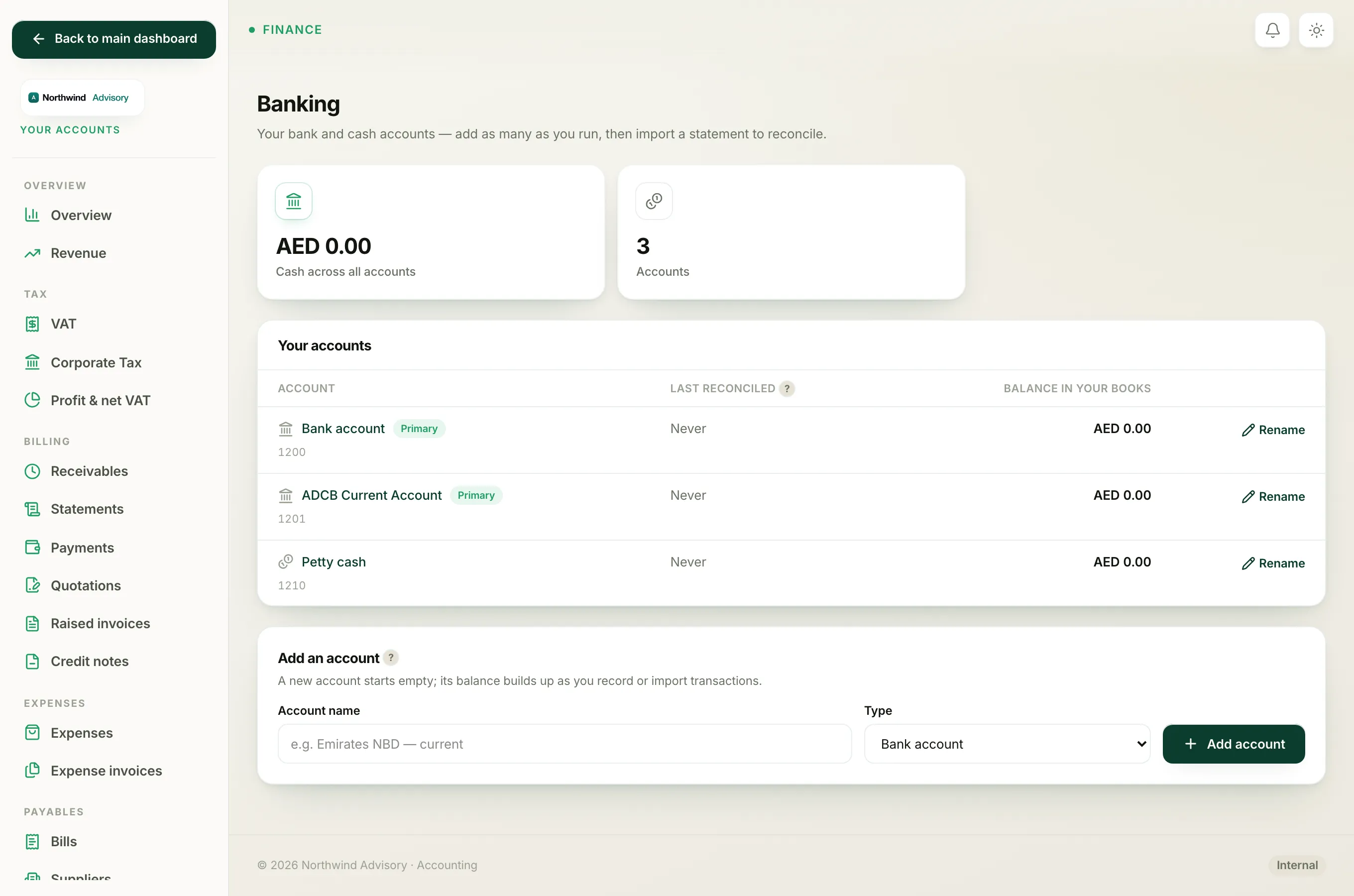
- Log in to your workspace.
- In the left menu, under Finance, click Your Accounts.
- In the accounts side menu, under Banking, click Bank accounts.
You are now on the Banking page. At the top you see two tiles, Cash across all accounts and Accounts, then a Your accounts list of everything you have added so far.
Add an account
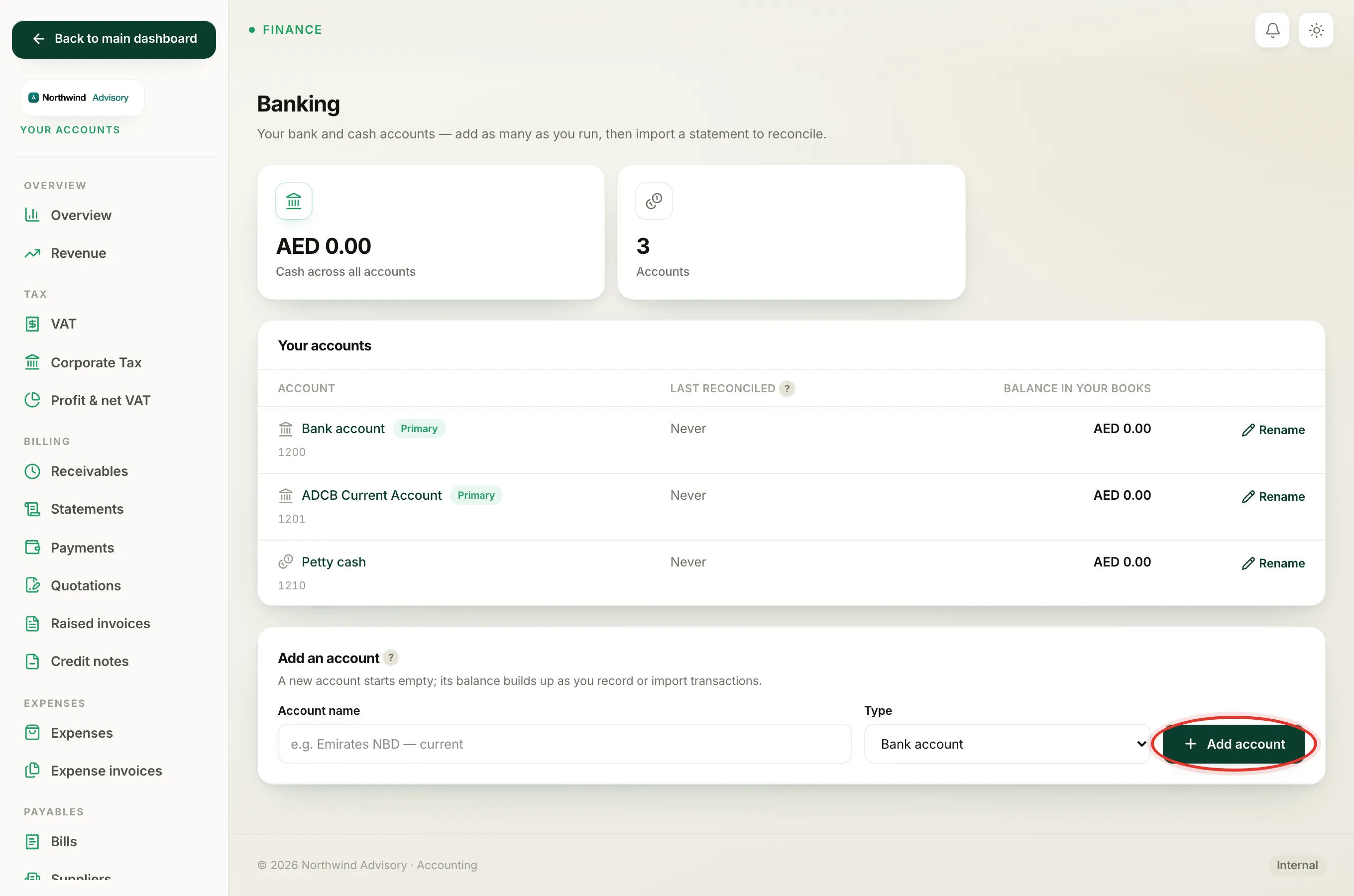
- Scroll down to the Add an account box near the bottom of the page.
- In Account name, type a clear name for the account, for example the bank and the type, like Emirates NBD current.
- In the Type dropdown, choose Bank account for a real bank account, or Cash account for petty cash or a cash box.
- Click Add account.
The new account appears straight away in the Your accounts list.
Tip
Give each account a name you will recognise later. When you record a payment you pick the account the money went into or out of, so a clear name like Emirates NBD current is much easier than a long account number.
What a new account looks like
A new account starts empty with a zero balance. Its balance builds up as you record payments or import and reconcile statements. In the list you will see:
- The account name, with a small Primary tag if it is your main account, and a Hidden tag if it is switched off.
- Last reconciled, which shows Never until you finish your first reconciliation.
- Balance in your books, which is what IzzyTap thinks the account holds.
Rename an account or hide it
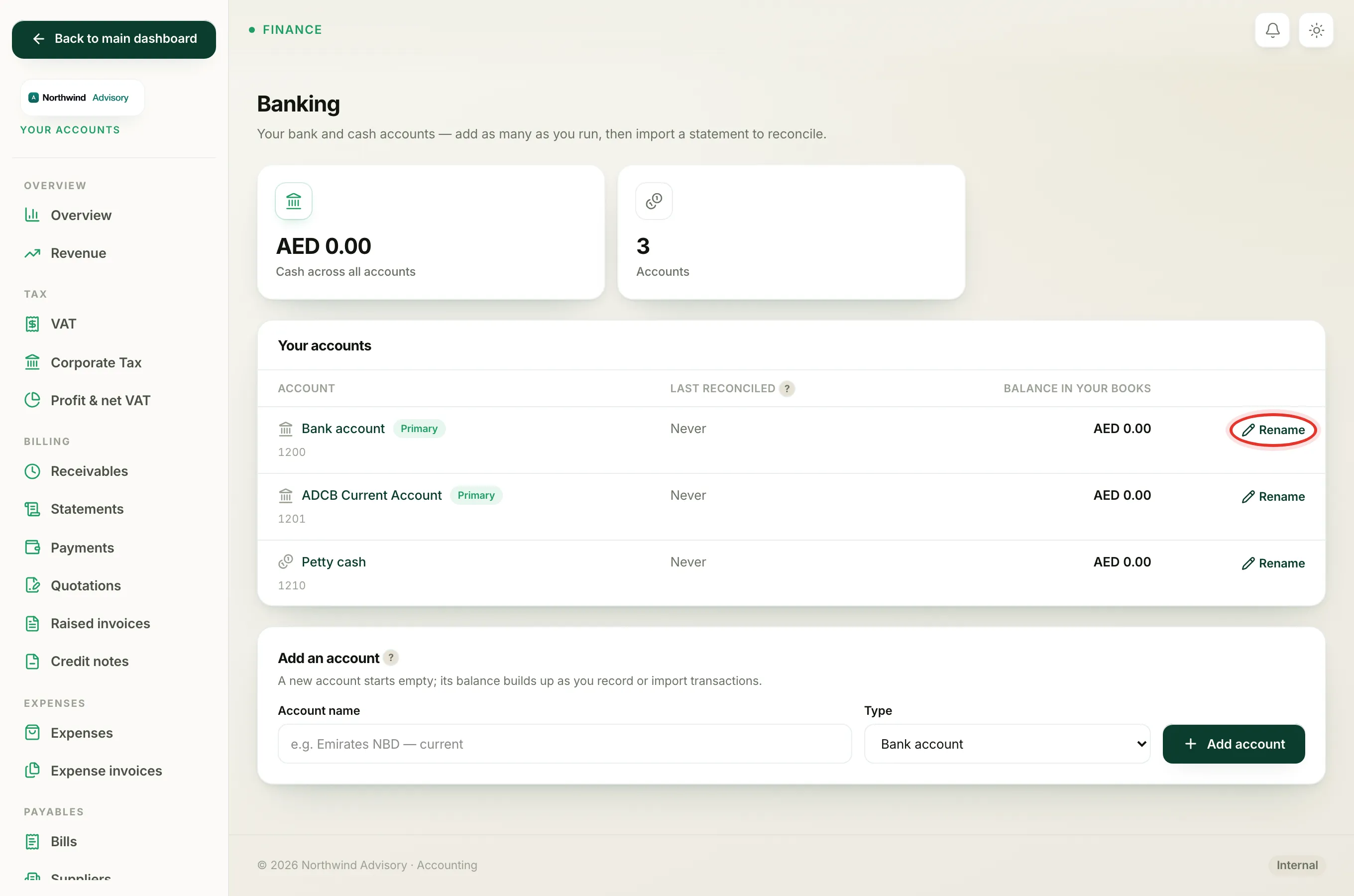
You can tidy up an account name at any time.
- On the Banking page, find the account in the Your accounts list.
- On the right of that row, click Rename.
- Change the name in the box that appears.
- For an extra bank or cash account, you can also untick Active to hide it from everyday lists. Your main account cannot be hidden.
- Click Save.
Important
Hiding an account does not delete it or its history. It only keeps a rarely used account out of the way. Untick nothing if you are not sure.
What to do next
Once the account is added, you are ready to bring in transactions.
- Download a statement from your bank and follow How to import a bank statement.
- Or record money in and out by hand with How to record a payment.
When you have transactions in the account, tick them off against your statement with How to reconcile your bank.