Every engagement agreement you create lives on one page, so you can see at a glance what is still a draft, what is out for signing, and what is fully signed. This article walks through that list and how to open an agreement from it.
Open the agreements list
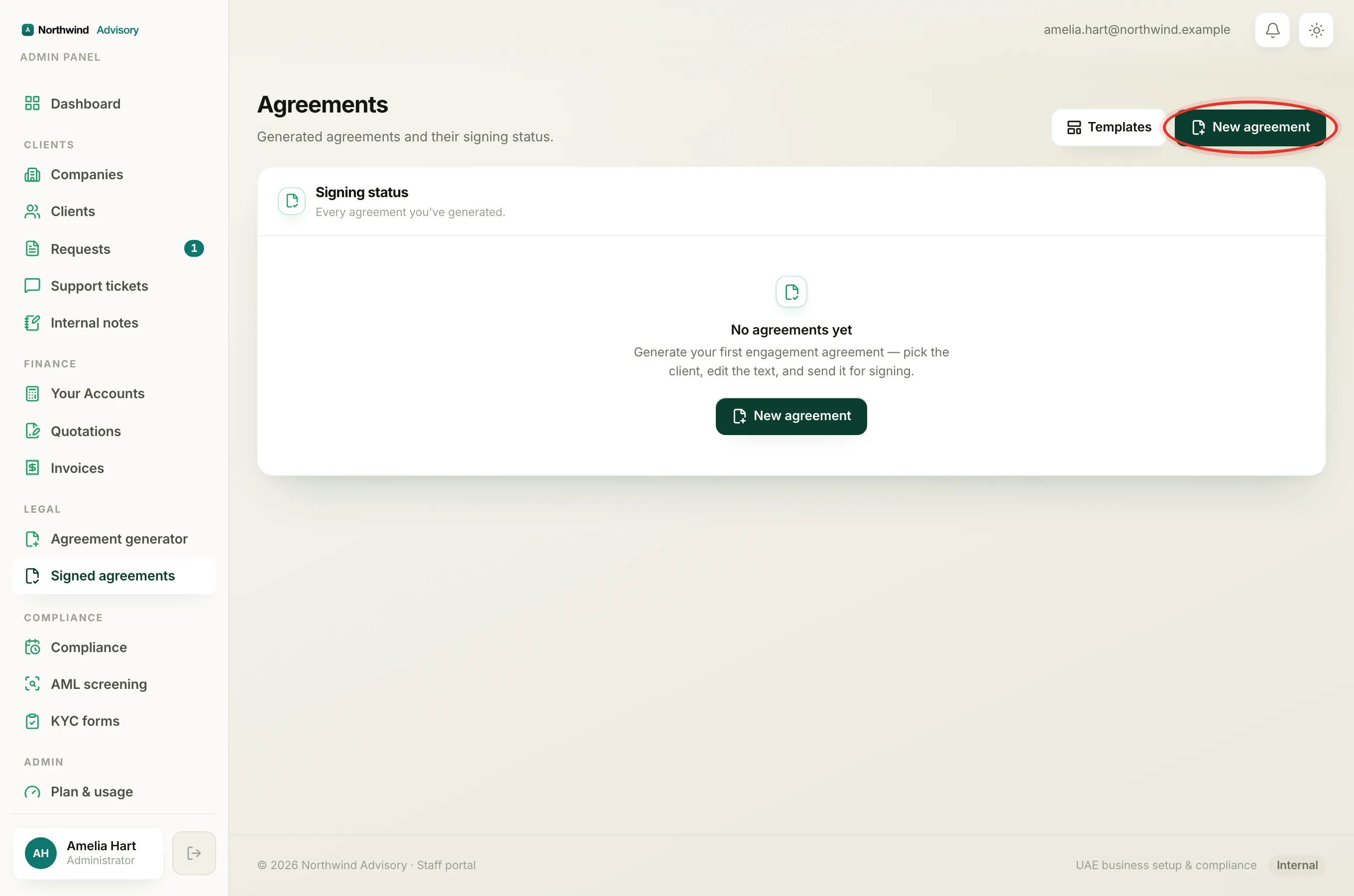
- Log in to your workspace.
- In the left menu, under Legal, click Signed agreements.
This opens the Agreements page. It is a simple table titled Signing status with a count of how many agreements you have. The two buttons at the top right are Templates (a shortcut to your saved agreement templates) and New agreement (which starts the generator).
Reading the table
Each row is one agreement. The columns are:
- Number: the agreement's reference number. Click it to open the agreement.
- Agreement: the document heading on the first line, with the linked service name underneath.
- Client: the client company, or the client's name if there is no company on the agreement.
- Signed: how many parties have signed out of the total, shown as a count like 1/2. Your firm signs first, so once an agreement is sent this rarely reads 0.
- Status: a coloured chip showing where the agreement is in its life. See What each agreement status means.
- Created: the date you generated it.
The newest agreement is always at the top. On a phone the table scrolls sideways inside its own box, so the rest of the page stays put.
Open an agreement
Click the agreement's Number (or anywhere the number links) to open its detail page. From there you can preview or download the PDF, copy a party's signing link, and see who has signed so far.
When the list is empty
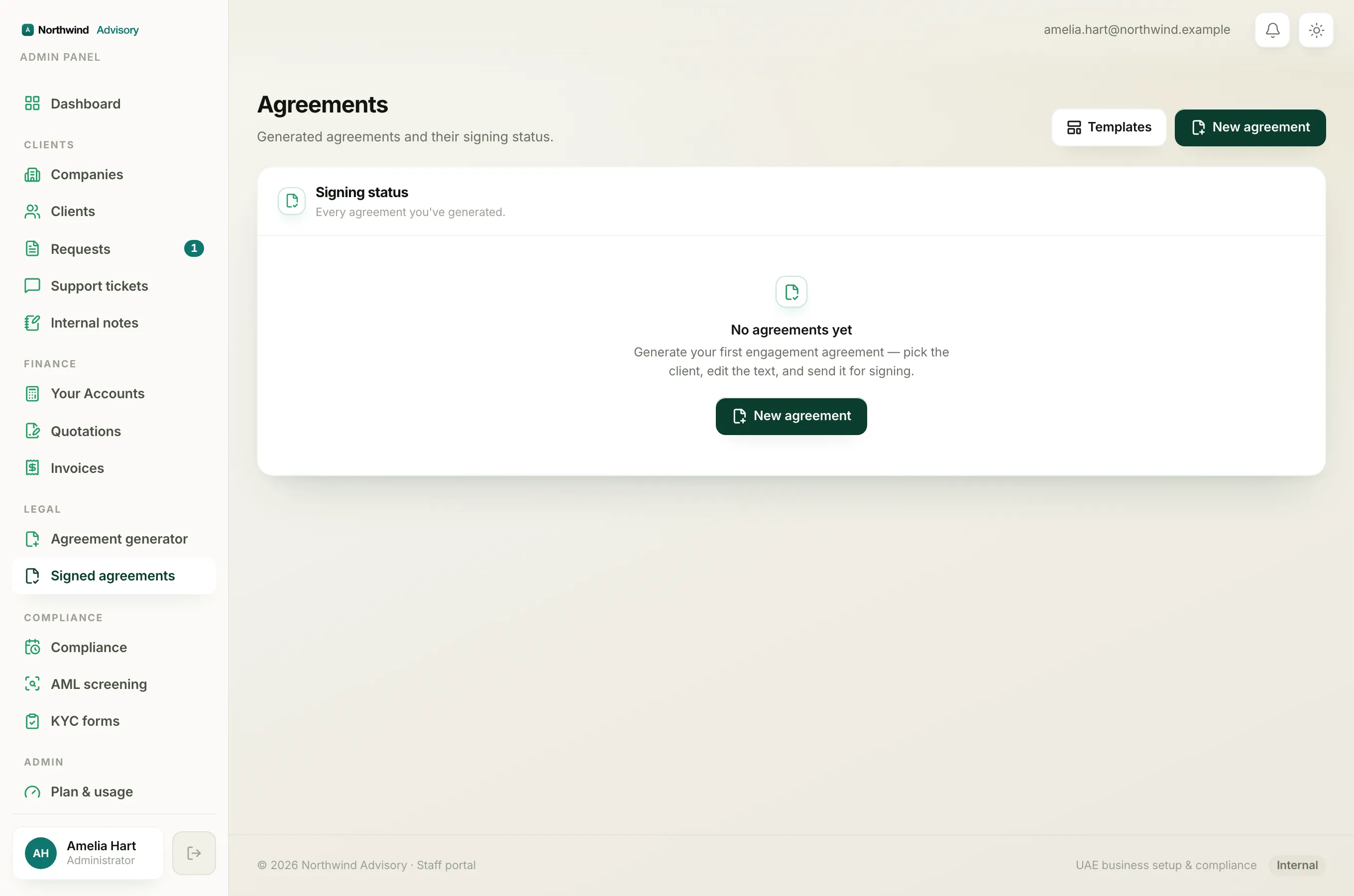
If you have not made any agreements yet, you see No agreements yet with a New agreement button. Clicking it takes you into the generator, where you pick the client, edit the text, and send it out for signing.
Note
The Signed agreements item and the Agreement generator item both live under Legal. Agreement generator is where you create an agreement; Signed agreements is where you find and track the ones you have already made.