Why this happens
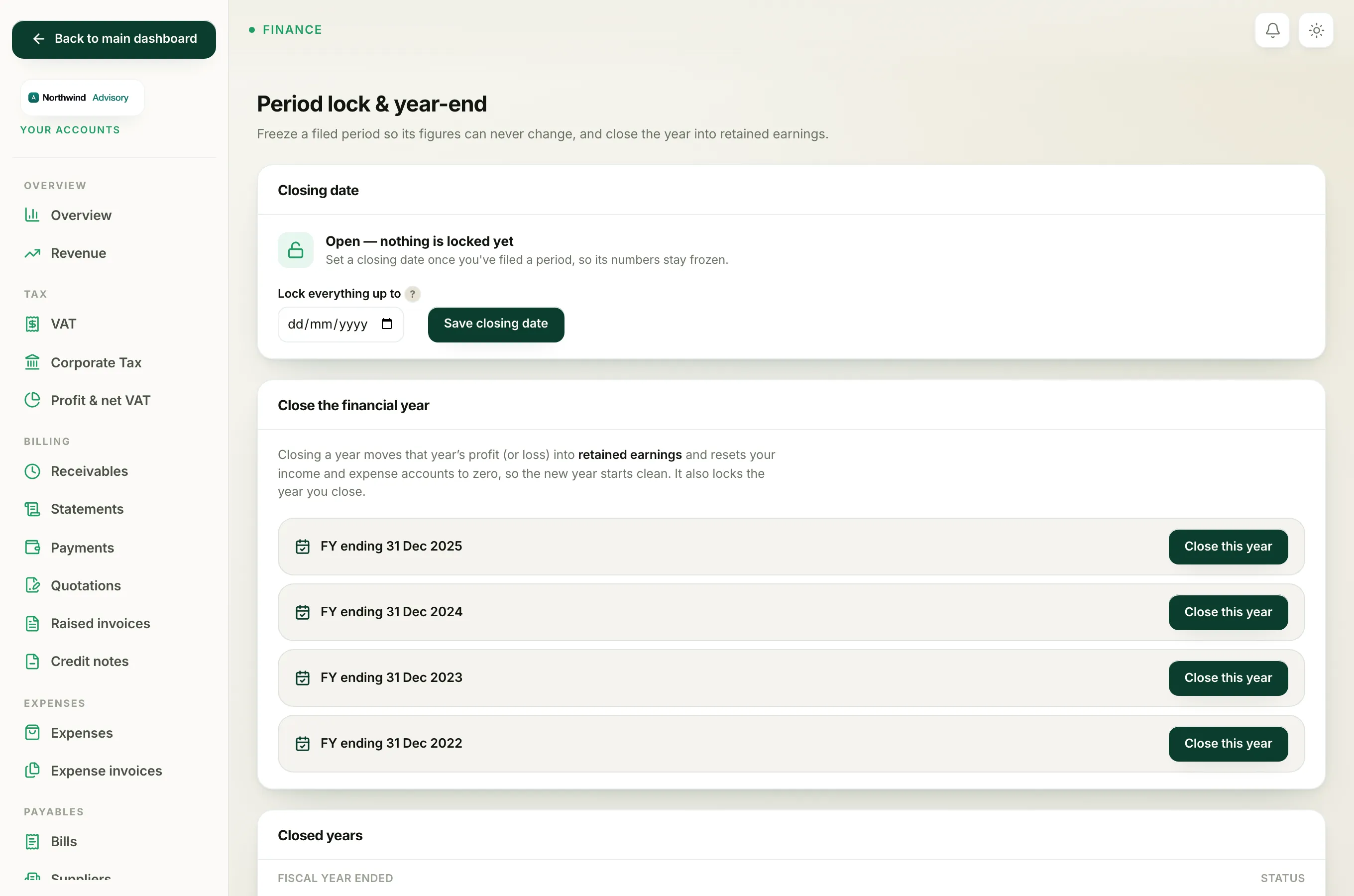
IzzyTap stops you from posting anything into a period you have already closed. This is on purpose. Once you have filed a VAT return or closed a year, those figures should never change, or your filed numbers and your books would no longer agree.
A period is closed when either of these is true:
- You set a closing date on the Period lock & year-end screen. Nothing dated on or before that date can be posted or changed. See Lock a period you've filed.
- You closed a financial year, which sets the closing date to that year's end. See Close your financial year.
What you will see
When you try to save something that lands in a closed period, IzzyTap blocks it and tells you the books are closed through a date, and that the entry cannot be posted. It suggests you either reopen that period or date the entry after the closing date.
This can happen when you:
- Record a payment, an expense, a supplier bill or a bill payment dated in the closed period.
- Try to issue a credit note against an invoice from a closed period. In that case you will see a clear message that the invoice is in a closed period and must be reopened before you can credit it.
How to fix it
You have two safe choices.
Option 1: date the correction in the open period (recommended)
Most of the time, the right answer is to leave the filed period untouched and record the correction with today's date, or any date after the closing date. Your current, open period absorbs the change, and your filed figures stay exactly as you filed them. This is the standard bookkeeping way to fix something after a period is closed.
Option 2: reopen the period
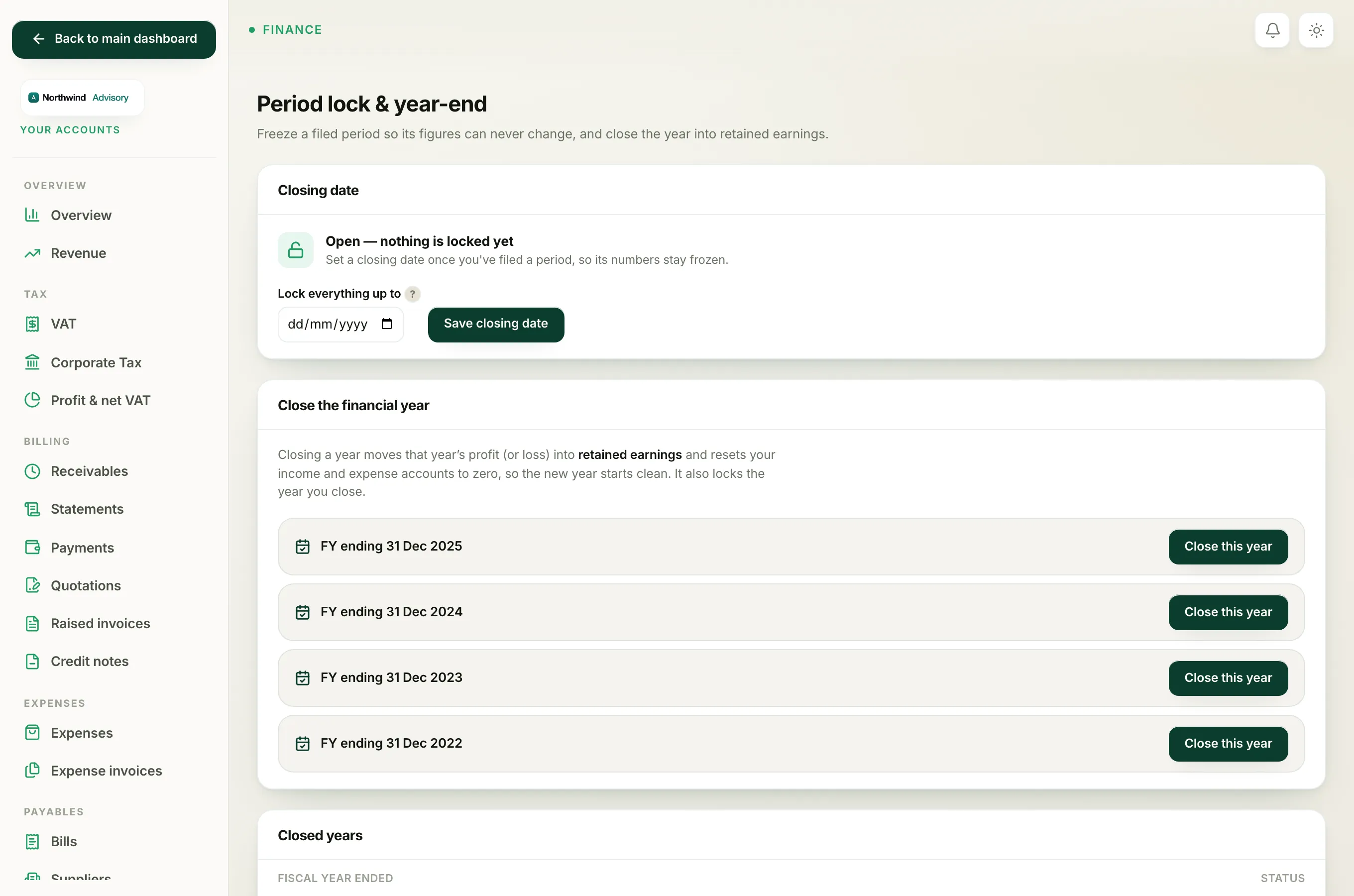
If the closed figures were genuinely wrong and you need to restate them, you can lift the lock, make the correction, then set the closing date again.
- Log in to your workspace.
- In the left menu, under Finance, click Your Accounts.
- In the accounts menu, under Bookkeeping, click Period lock & year-end.
- Click Reopen (clear the lock).
- Make your correction, then set the closing date again.
Full steps are in Reopen a locked period.
Important
Reopening changes numbers you may have already filed with the FTA. Only do it if you intend to restate that filing. If in doubt, use Option 1 and date the correction today.