When you upload a receipt, IzzyTap scans it, pulls out the supplier, VAT and total, and drops it into a Needs review queue. Nothing hits your books until a person confirms it. This is how you clear that queue.
Where the queue lives
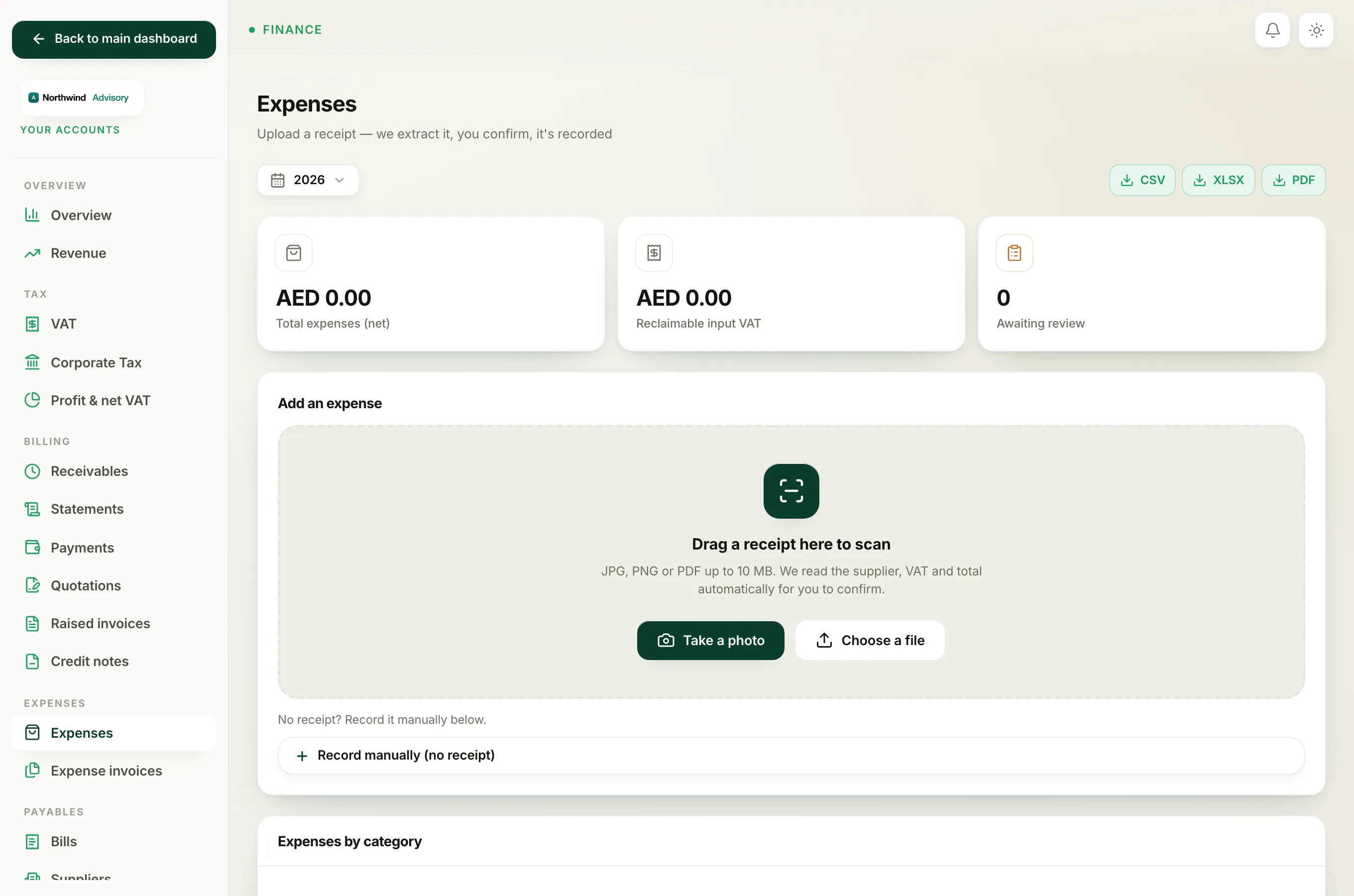
- Log in to your workspace.
- In the left menu, under Finance, click Your Accounts. This opens your accounting workspace, which has its own menu down the left side.
- In that menu, under Expenses, click Expenses.
At the top of the page the Awaiting review tile shows how many receipts are still waiting. Just below the upload box, a panel titled Needs review lists each one, with its supplier, date and total.
Note
If you have not uploaded anything yet, there is no queue to clear. See Upload a receipt first.
Review and record a receipt
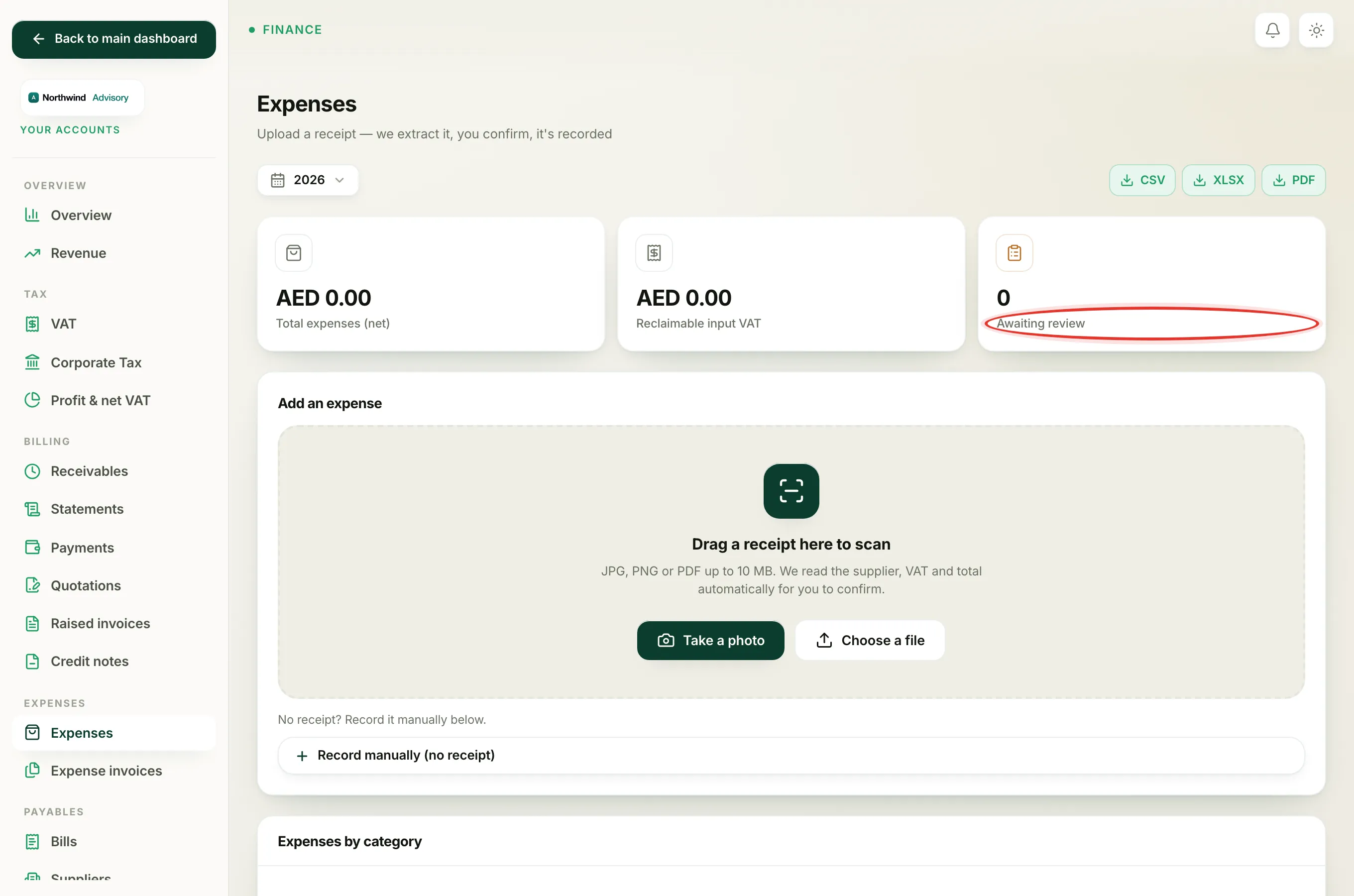
- In the Needs review panel, find the receipt and click Review on its row.
- The review screen opens. On the left you see the scanned receipt image (or an Open receipt link for a PDF). On the right is a form already filled in with what IzzyTap read.
- Check every field against the receipt in front of you. The scan is a helpful head start, not gospel, so correct anything that is wrong:
- Client picks which company this cost is for. Leave it on General / not client-specific (overhead) for your own running costs, or choose a company to attribute the cost to that client.
- Supplier, Supplier TRN and Reference number.
- Date, Category and the money fields, Net (AED) and VAT (AED).
- VAT treatment and the VAT reclaimable tick box.
- When the details are right, click Confirm & record.
The total is worked out for you as Net plus VAT when you record, so you never type it yourself.
Tip
If you point the expense at a client, the receipt is also filed into that company's private, admin-only Expenses folder. Your client never sees it, but it is there if you ever need to show your working.
What happens after you record it
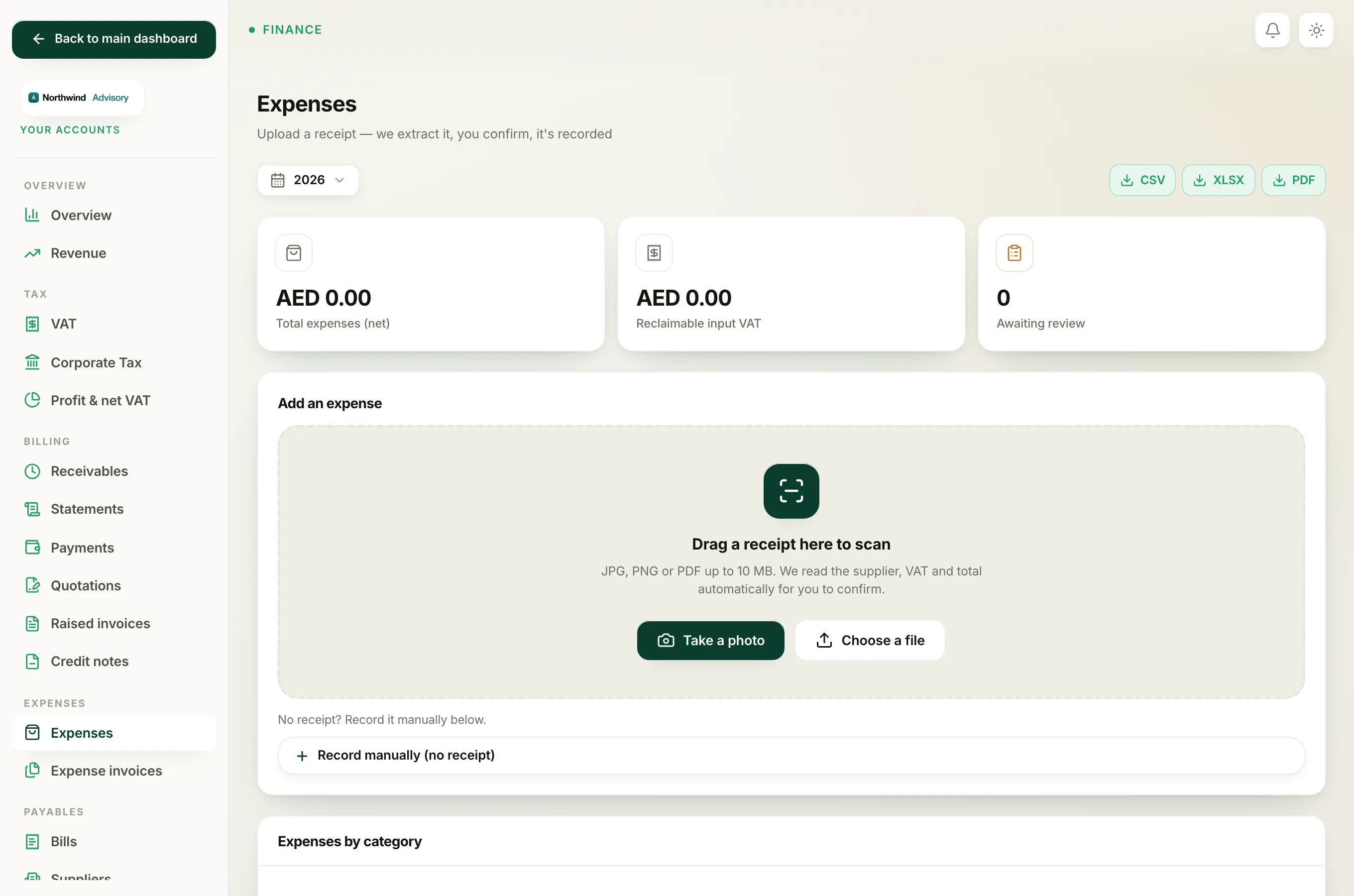
The receipt leaves the Needs review panel and appears in the Recorded list lower down the page. The Awaiting review count drops by one, and the cost now counts in your reports. If you later spot a mistake, you can still fix it: see Edit or delete a recorded expense.
Getting the VAT reclaimable setting and the Supplier TRN right matters for your VAT return. If you are unsure, read Reclaim VAT on an expense before you confirm.
Important
A scanned figure is a suggestion. Always eyeball the Net, VAT and Date against the paper before you click Confirm & record, because these numbers flow straight into your accounts.