When a client pays you outside IzzyTap, by bank transfer, cash or cheque, you record that payment by hand so the invoice is marked paid. While you are there, you can capture two useful things: how the money arrived, and which of your accounts it landed in. This article walks through both.
Open the payment form
- Log in to your workspace.
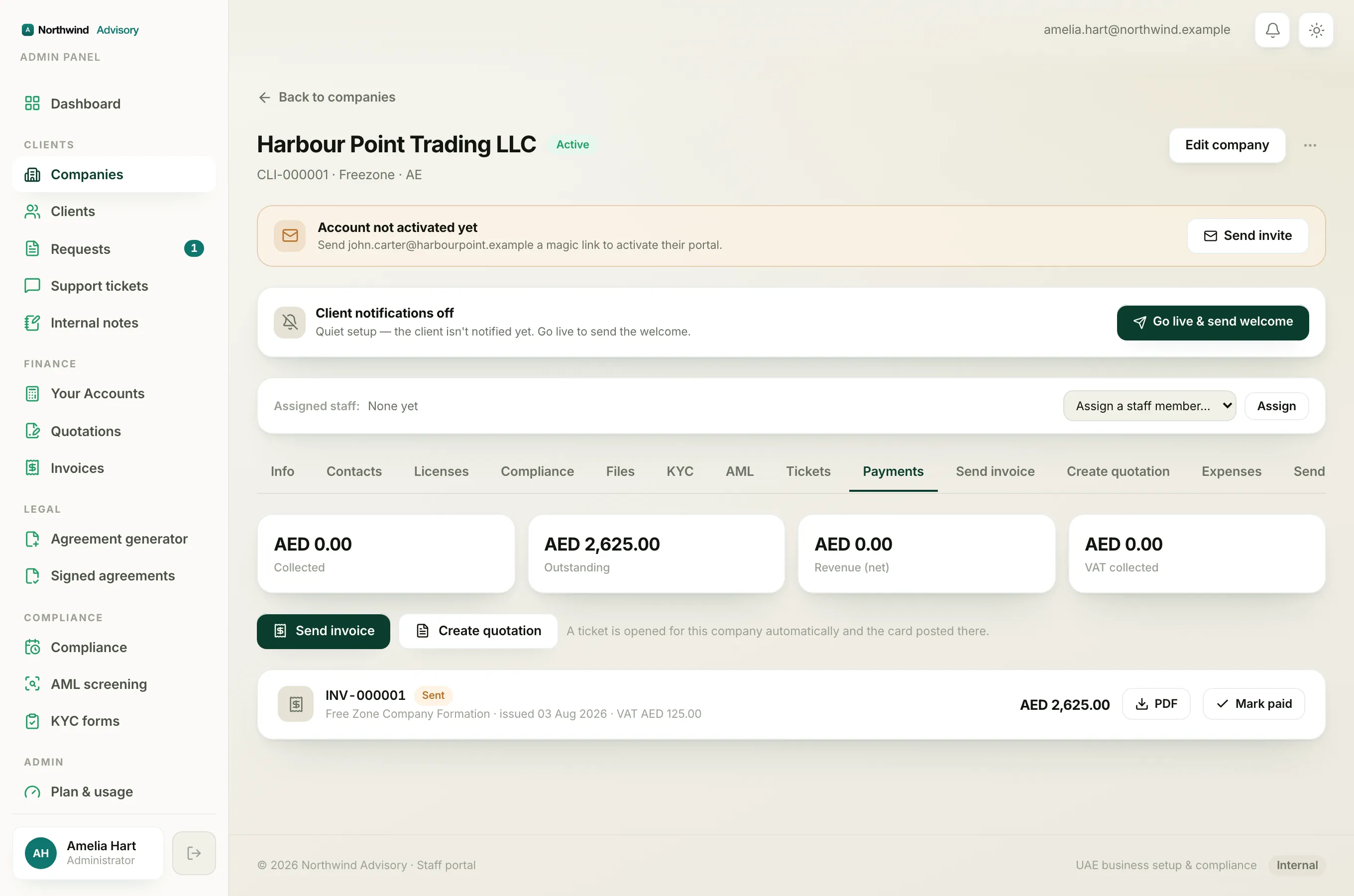
- Open the invoice you want to mark paid. You can do this from three places: in the left menu under Finance, click Invoices for invoices sent to leads, or open a company and go to its Payments tab, or open the client's request (ticket) where the payment was requested.
- Click Mark as paid (it may read Mark as received). A small form opens.
Record how the money arrived
The form has a Payment method dropdown. Pick the one that matches how the client paid:
- Bank transfer (the default)
- Cash
- Card / POS
- Cheque
- Other
Underneath is a Where / reference box. This is optional but worth filling in. Type a short note that will help you find this payment again, for example the bank the money hit and the transfer reference, or a cheque number. IzzyTap shows an example like ADCB a/c, ref TT-12345 to guide you.
For more on when to use each method, see Choosing the right payment method.
Choose which account it lands in
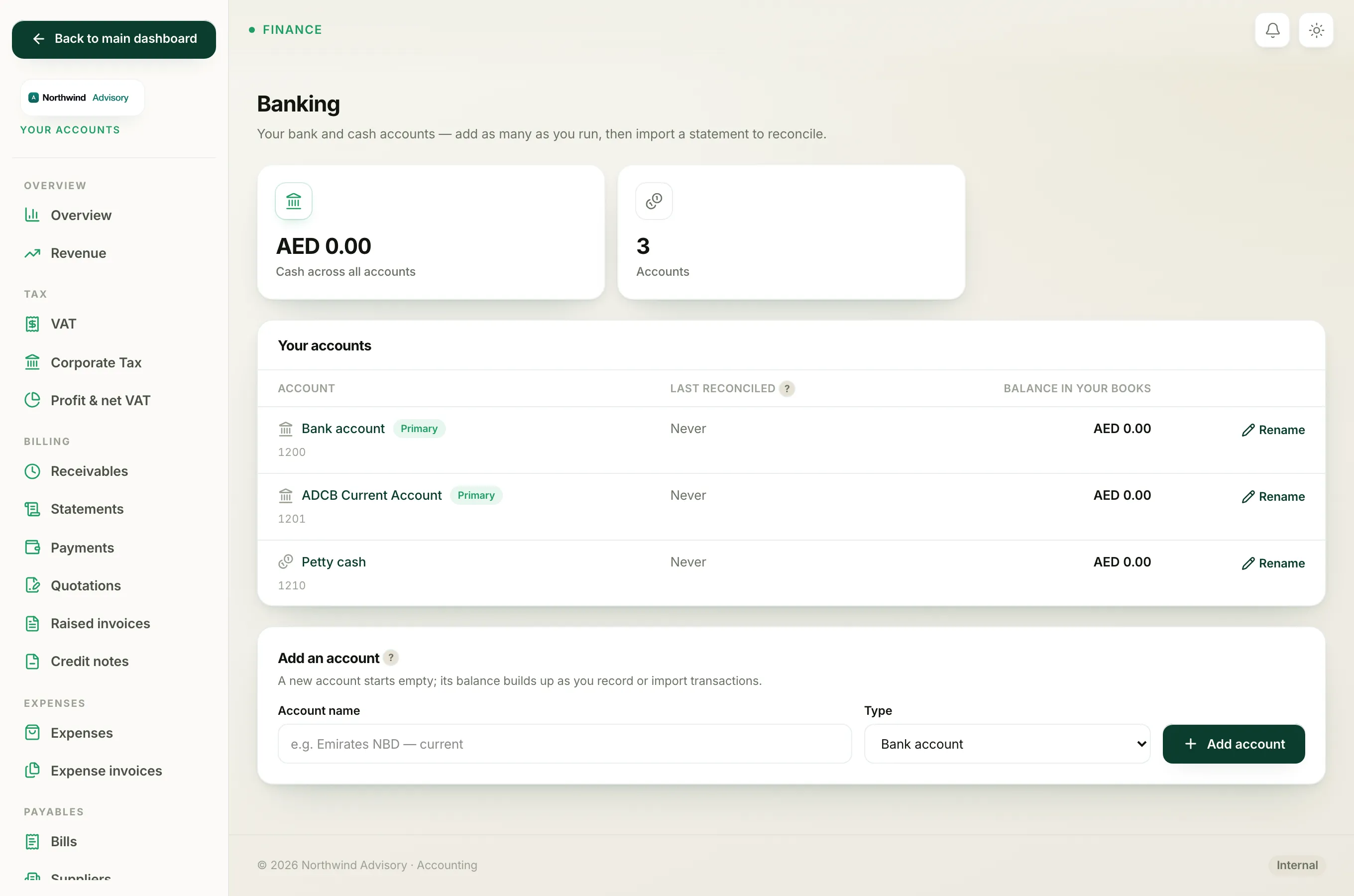
If your books are switched on and you have more than one bank or cash account, the form also shows a Deposit to picker. Use it to tell IzzyTap which account actually received the money.
- The first option is your primary bank account, and it is selected by default.
- Pick any of your other accounts (for example a petty cash or a second bank) if the money went there instead.
Whichever account you choose has its balance in your books updated, so it will reconcile cleanly against your real bank statement later. See Choose which bank account a payment lands in for more, and Bank and cash account types to understand the accounts on offer.
Note
If you do not see a Deposit to picker, it is because your books are not switched on yet, or you only have one account. In that case the payment simply lands in your primary bank account, which is the correct behaviour.
Confirm the payment
When the method, reference and account are set, click Confirm payment. The invoice is marked paid, the receipt is recorded, and if the payment settles a lead's invoice, their account and portal login are created automatically.
Important
A good reference note is the single biggest help when you reconcile your bank. Take a moment to fill in Where / reference so a payment is easy to match to a real bank line weeks from now.