What this choice does
Every client you add has a Client notifications switch. It decides whether that client gets emails from your workspace: the welcome and login link, and the updates you send as work moves along (new documents, request updates, deadline reminders).
You set this the moment you add the client, and you can change it any time afterwards from the company's page. There are two modes.
- Live updates turns notifications on right away. The client gets a welcome email with their login link now, and is kept in the loop at every step.
- Quiet setup keeps everything silent. You build the client's records in peace, and nothing reaches them until you press Go live.
Choosing the mode when you add a client
- Log in to your workspace.
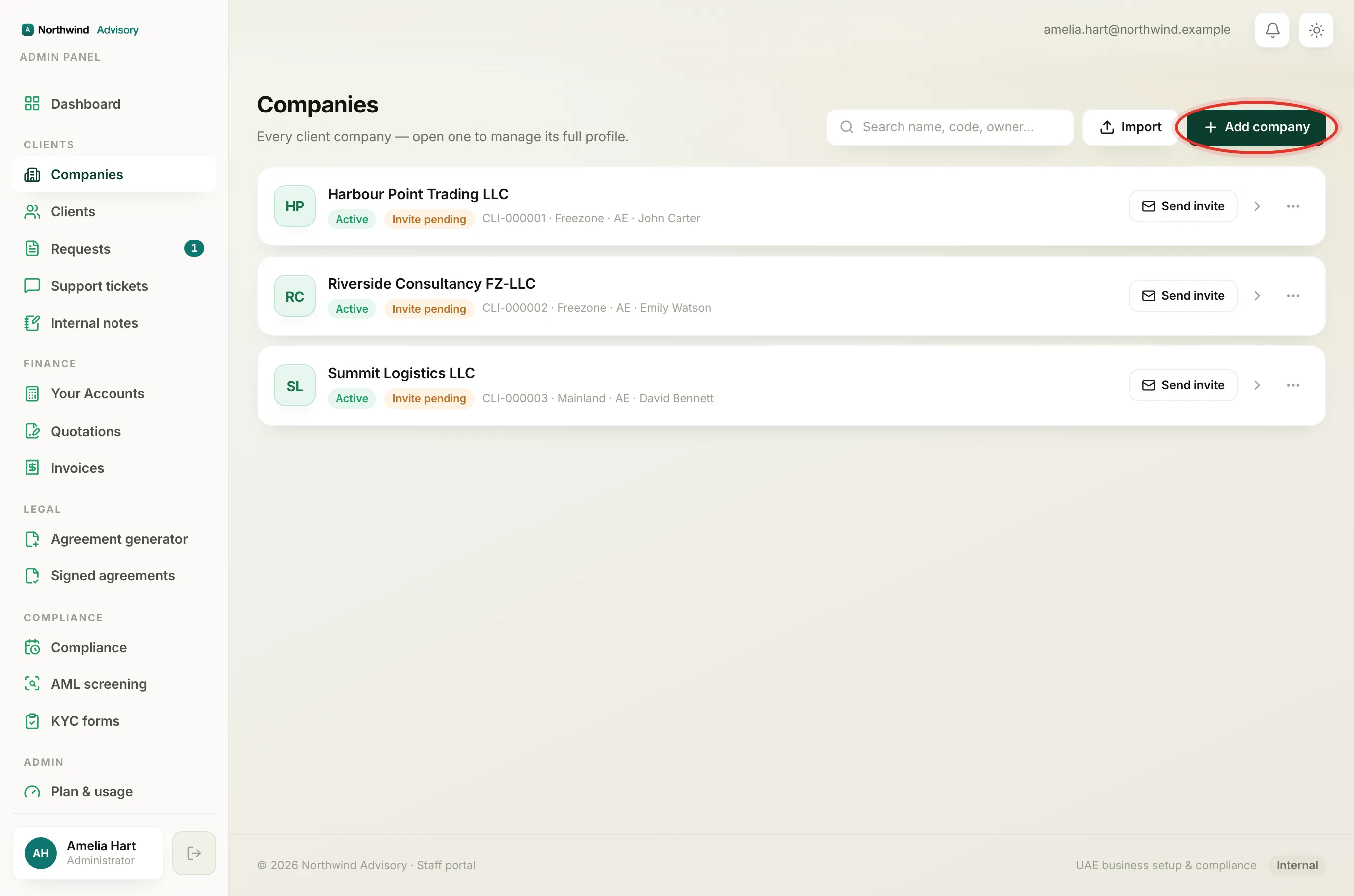
- In the left menu, under Clients, click Companies.
- Click Add company (or add a company) and fill in the company and owner details.
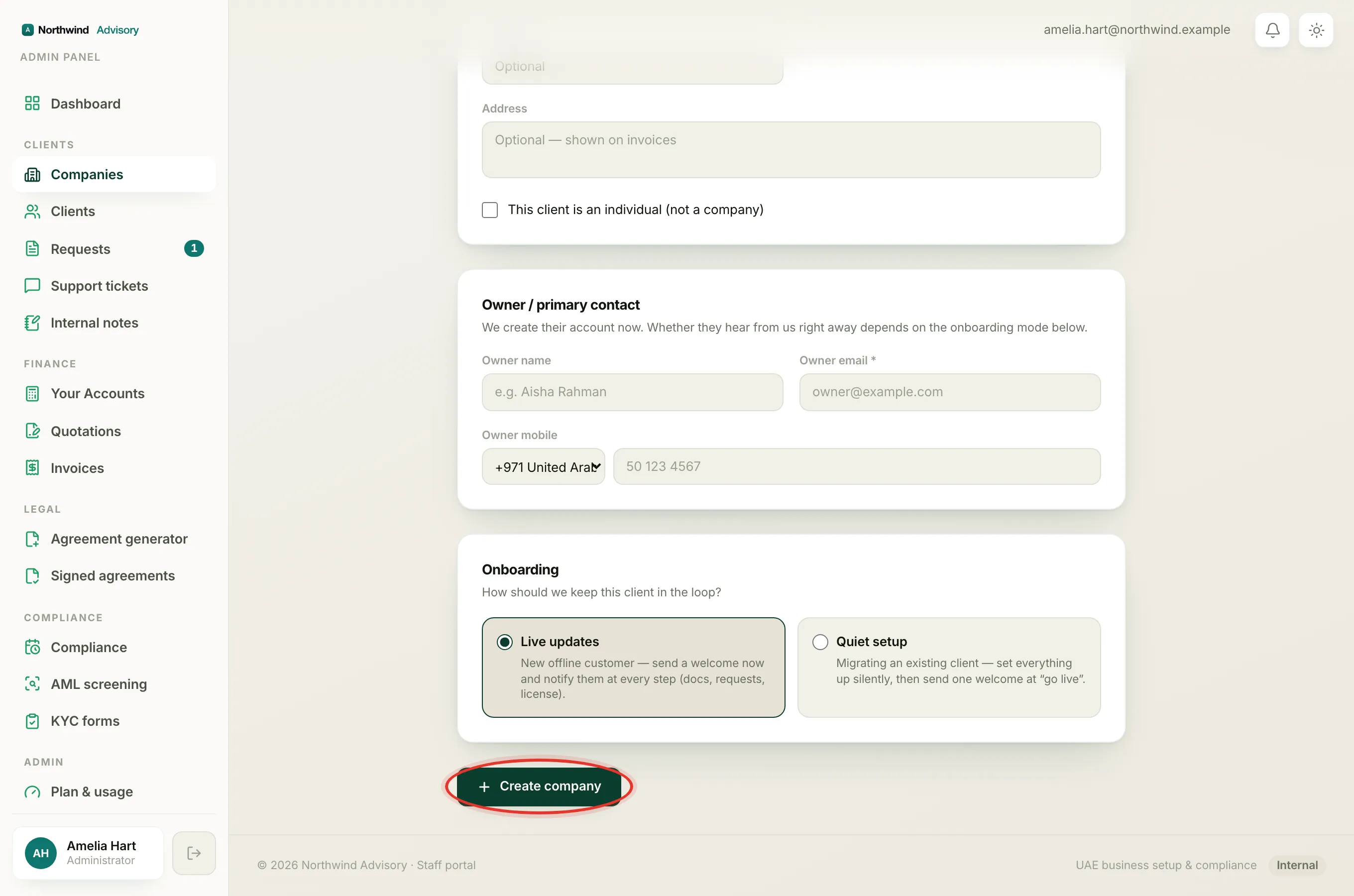
- Scroll to the Onboarding section headed How should we keep this client in the loop?
- Pick one of the two cards:
- Live updates for a brand-new offline customer. The card reads send a welcome now and notify them at every step (docs, requests, license).
- Quiet setup for a client you are migrating across from elsewhere. The card reads set everything up silently, then send one welcome at "go live".
- Click Create company.
Live updates is selected by default, so if you do nothing the client hears from you straight away.
Tip
Use Quiet setup whenever you are moving an existing client onto the platform. You can load their trade licence, past documents and open work first, then go live once the picture is complete. Their first ever email is a tidy welcome, not a burst of catch-up notifications.
Going live later
A quiet client stays silent until you decide they are ready. When you do:
- In the left menu, under Clients, click Companies.
- Open the company.
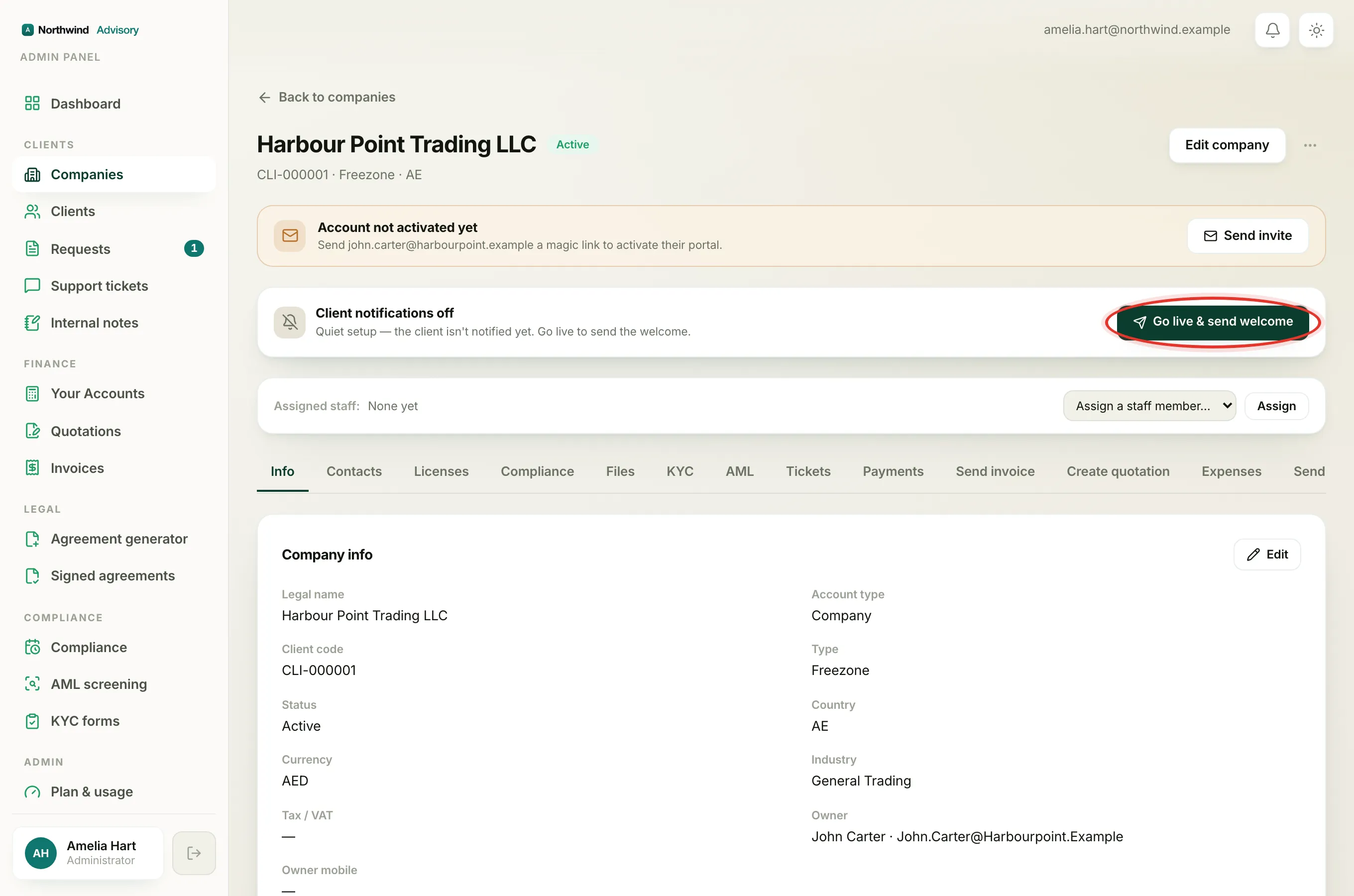
- Near the top of the profile you will see the communications box. For a quiet client it reads Client notifications off with the note Quiet setup, the client isn't notified yet. Go live to send the welcome.
- Click Go live & send welcome.
That single click switches notifications on and sends the client one welcome email with their login link. Past steps are not replayed. The client simply logs in and finds their portal already set up, which is the whole point of a quiet handover.
Note
If the owner has already activated their account, or a welcome was sent earlier, the button reads just Go live. In that case no second welcome is sent, the switch is simply turned on.
Turning notifications back off
When notifications are on, the same box reads Client notifications on with a Turn off button. Click it to go quiet again, for example while you sort out something behind the scenes. Turning off never sends anything to the client.
What Live actually sends
With notifications on, the client is emailed and gets an in-app note for the activity you would expect them to see: documents you issue, updates on their requests, and deadline reminders as licences and filings come due. Staff-only notes are never included.
Important
Some actions always reach the client no matter what this switch says, because they are deliberate one-to-one messages. Sending a direct message, issuing an invoice, or sending a KYC form goes out even to a quiet client. The switch controls the automatic activity updates, not messages you personally choose to send.
Doing this in bulk after an import
If you brought many clients in at once through an import, you do not have to go live on each one by hand. See send welcome invites after an import to send every new client their welcome and login link in one batch. For the day-to-day switch on a single client, see turn client emails and updates on or off.