The three access levels
Every client account is always in one of three states. Knowing which one explains what they can and cannot do.
- Full access (unlocked). They can view, create and send. This is normal.
- Read-only. They can still open and export their existing records, but they cannot create anything new. Nothing is deleted, all their data is safe, they just cannot add to it.
- Locked (not started). They have never had a plan or a trial. The suite is closed to them until a plan is activated or they begin their free trial.
Why an account goes read-only
Read-only is what happens when a plan runs out. The common reasons are:
- The subscription was cancelled and the paid period has now ended. During the paid period after a cancel they keep full access. Once it lapses, they drop to read-only. See Cancel or reactivate a client's subscription.
- A cancel done immediately. Ticking Immediately when cancelling ends access at once and lands them in read-only straight away.
- A free trial that has run out. Once the trial end date passes, access becomes read-only.
- The subscription is paused.
In all of these the data is preserved. Read-only never loses anything.
Why an account is locked (not started)
A brand-new company that has never taken a plan or started a trial is locked. On their subscription page the usage panel says plainly that it is locked because there is no active subscription, and it points you to activate a plan or let the customer start their free trial.
A note on Past due
A client whose payment is late shows as Past due, but this is a grace period. They keep working normally while you sort the payment out. Past due does not lock them. Only a fully lapsed, expired, paused or ended subscription does.
How to unlock a client again
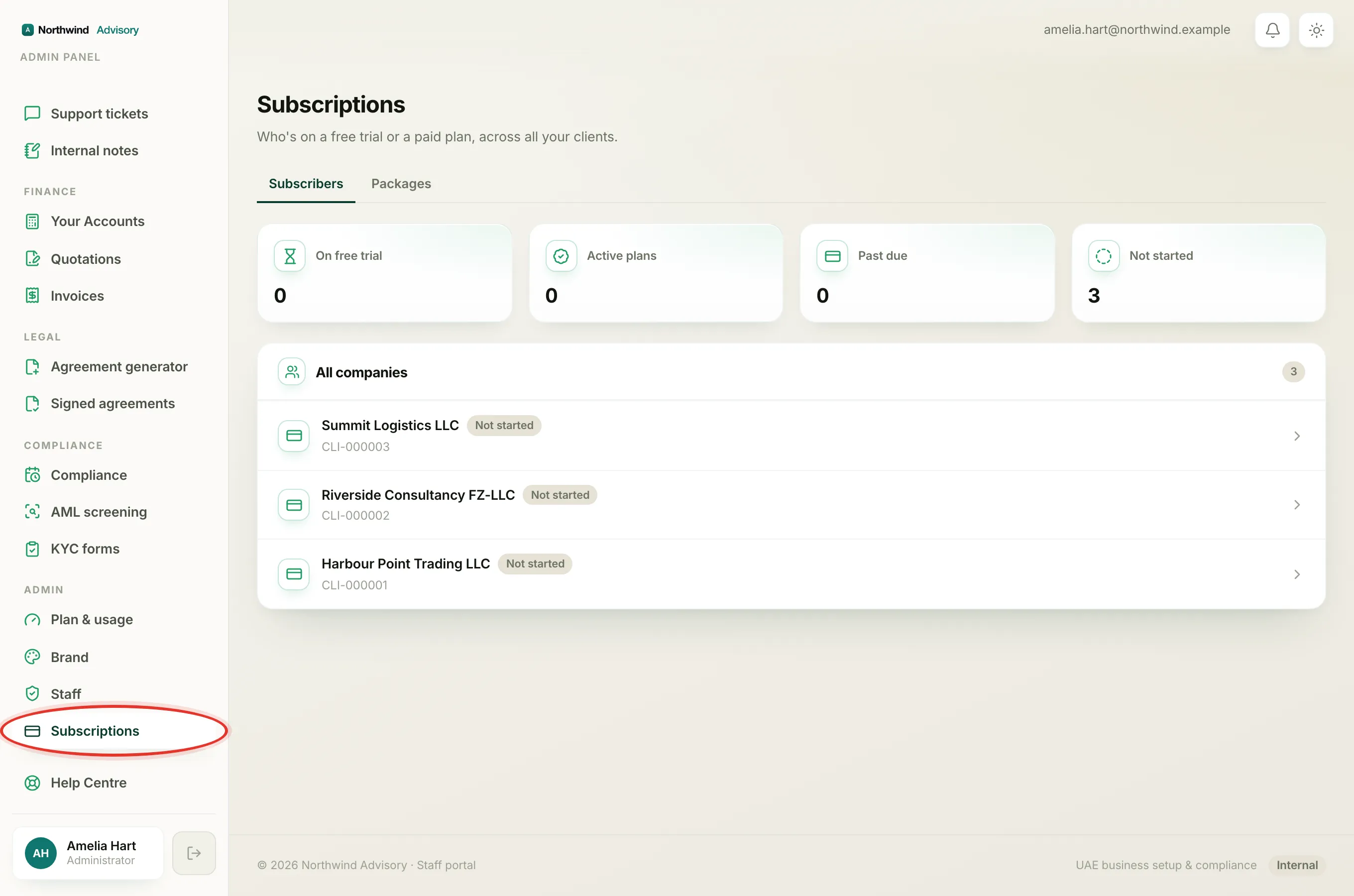
Pick whichever fits the situation:
- Log in to your workspace.
- In the left menu, under Admin, click Subscriptions.
- Click the client to open their subscription page.
- Then:
- If they were cancelled and you want them back, click Reactivate in the Manage section (see Cancel or reactivate a client's subscription).
- If they need a fresh paid plan, use Activate a paid plan (bank transfer) to set one live (see Activate a client's plan by bank transfer).
- If they simply never started, the customer can begin their own free trial from their side, or you can activate a plan for them.
Tip
The quickest way to tell which state a client is in is the coloured pill next to their name on the subscription page. Subscription statuses explained walks through what each one means.