Your staff pages use a few small coloured labels to tell you, at a glance, where each teammate stands. This article explains every one, both on the Your team list and on an individual teammate's page.
Where to look
- Log in to your workspace.
- In the left menu, under Admin, click Staff.
- You see the Your team list. Click Manage on any person to open their detail page.
Labels on the Your team list
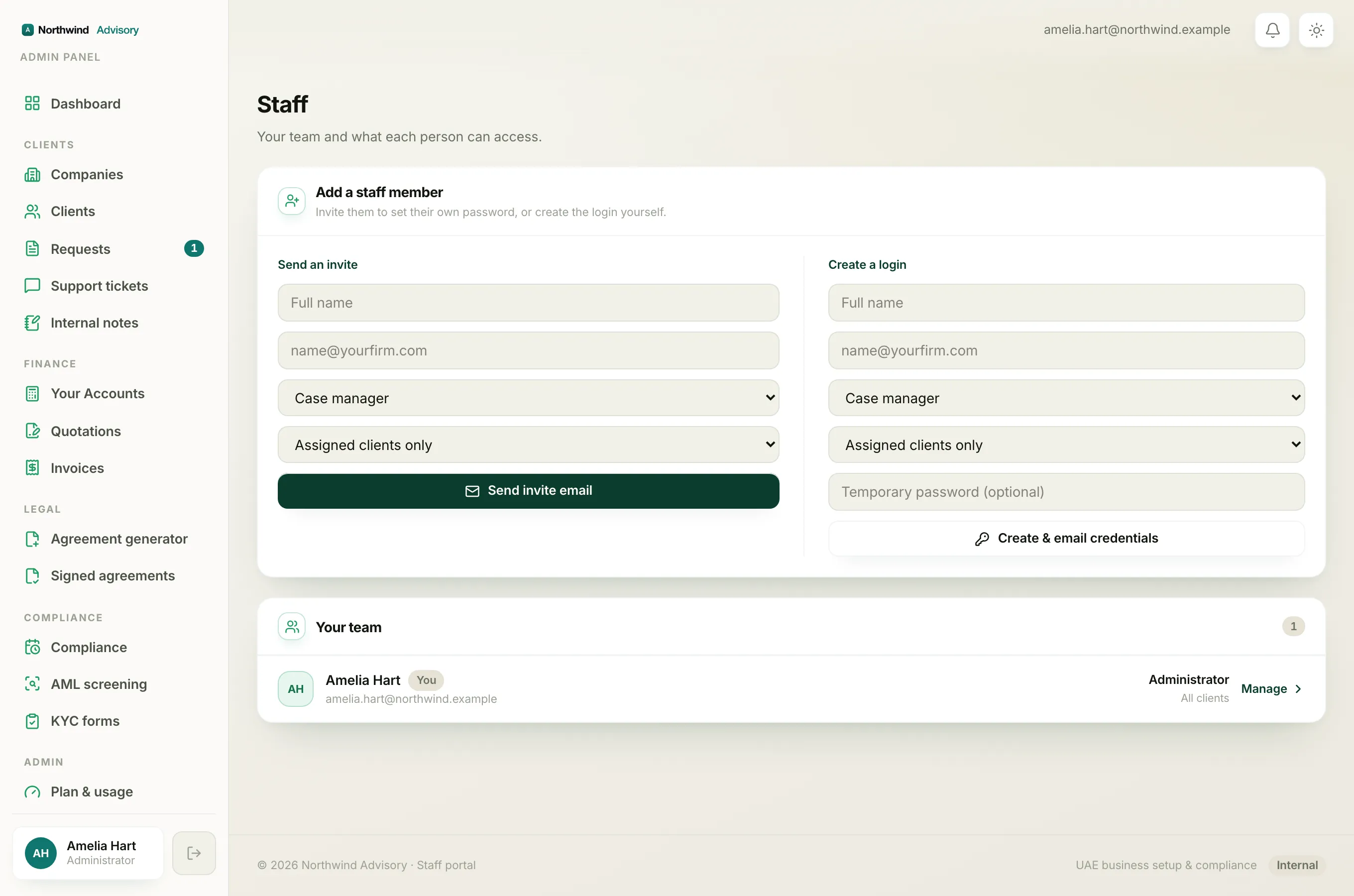
Next to each teammate's name you may see:
- You (grey) marks your own account. You cannot deactivate or remove yourself from here.
- Invited (amber) means the person has been added but has not set a password or signed in yet. The amber colour is a gentle nudge that someone still has to act, usually the teammate finishing their setup.
Under the name you also see their role and access scope (Assigned clients or All clients), and, once they have signed in, a last login date.
Note
If a teammate stays on Invited for a long time, their setup link may have run out. See Fix or resend an expired staff invite.
Status on the teammate's detail page
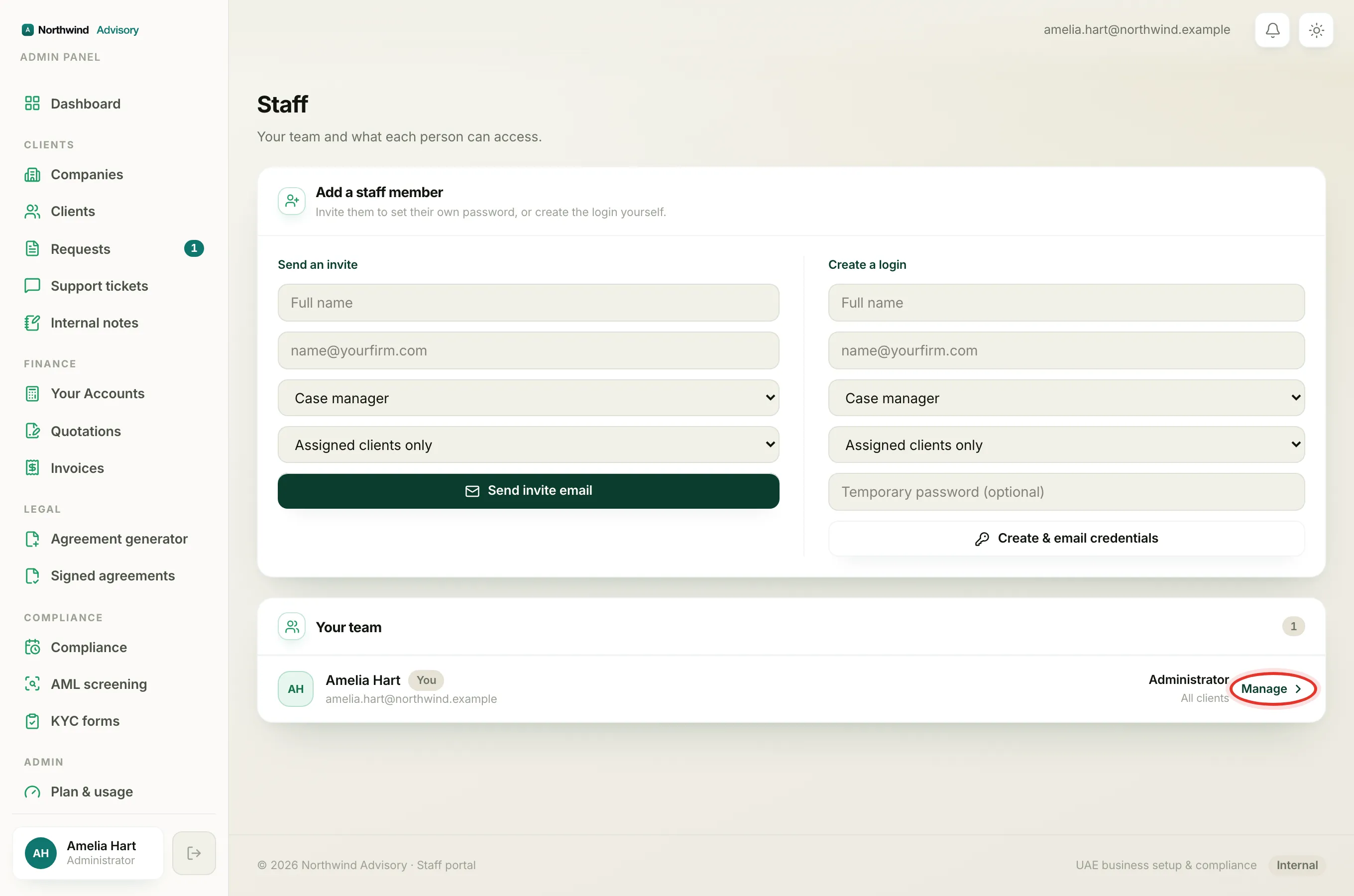
Open a teammate with Manage and you see a status chip beside their name. There are three:
- Active (green). The person can sign in and do their job. This is the normal state.
- Deactivated (amber). Their sign-in is blocked right now, but their account and all their assignments are kept. You can switch them back to Active at any time. Use this for someone on leave or a temporary pause. See Block and later restore a teammate's sign-in.
- Removed (grey). The account has been archived. It is kept for your audit trail, the person can no longer sign in, and their companies and tickets have been handed over. Removing is not a permanent delete. See Remove a teammate and hand over their work.
Why the colours matter
The colours are a quick signal, not decoration:
- Green means everything is working.
- Amber means someone needs to act, either the teammate (finish signing up) or you (decide whether to reactivate).
- Grey means the record is set aside, either your own account marker or an archived teammate.
Administrators and your own account
Administrator accounts and your own account do not show the Deactivate or Remove controls. Administrators are managed directly, and you manage your own password from your profile. See Update your own name and password.