When you raise a quotation or an invoice inside a request, it appears in the conversation as its own card. If you sent it in error, or the client asked for a change, you can pull it back from that same card. You never have to leave the ticket.
This only works while the record is still open. A quote the client has already accepted, or an invoice that has already been paid, cannot be withdrawn this way. Those cases are covered at the end.
Open the request
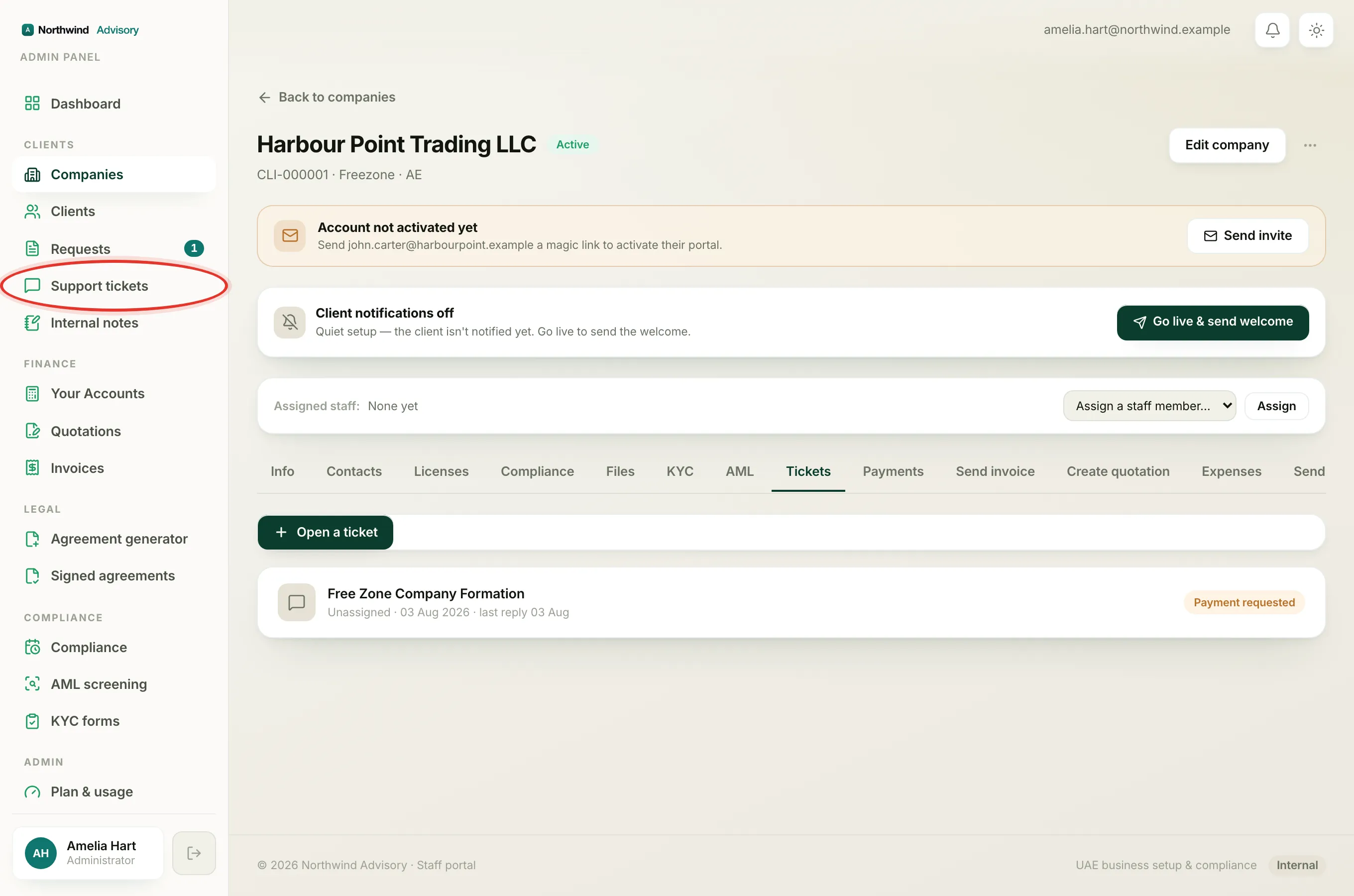
- Log in to your workspace.
- In the left menu, under Clients, click Companies, then open the company.
- Click the Tickets tab and open the request that holds the quote or invoice. You can also reach it from Requests in the left menu.
Scroll through the conversation to find the card you want to pull back.
Withdraw a sent quotation
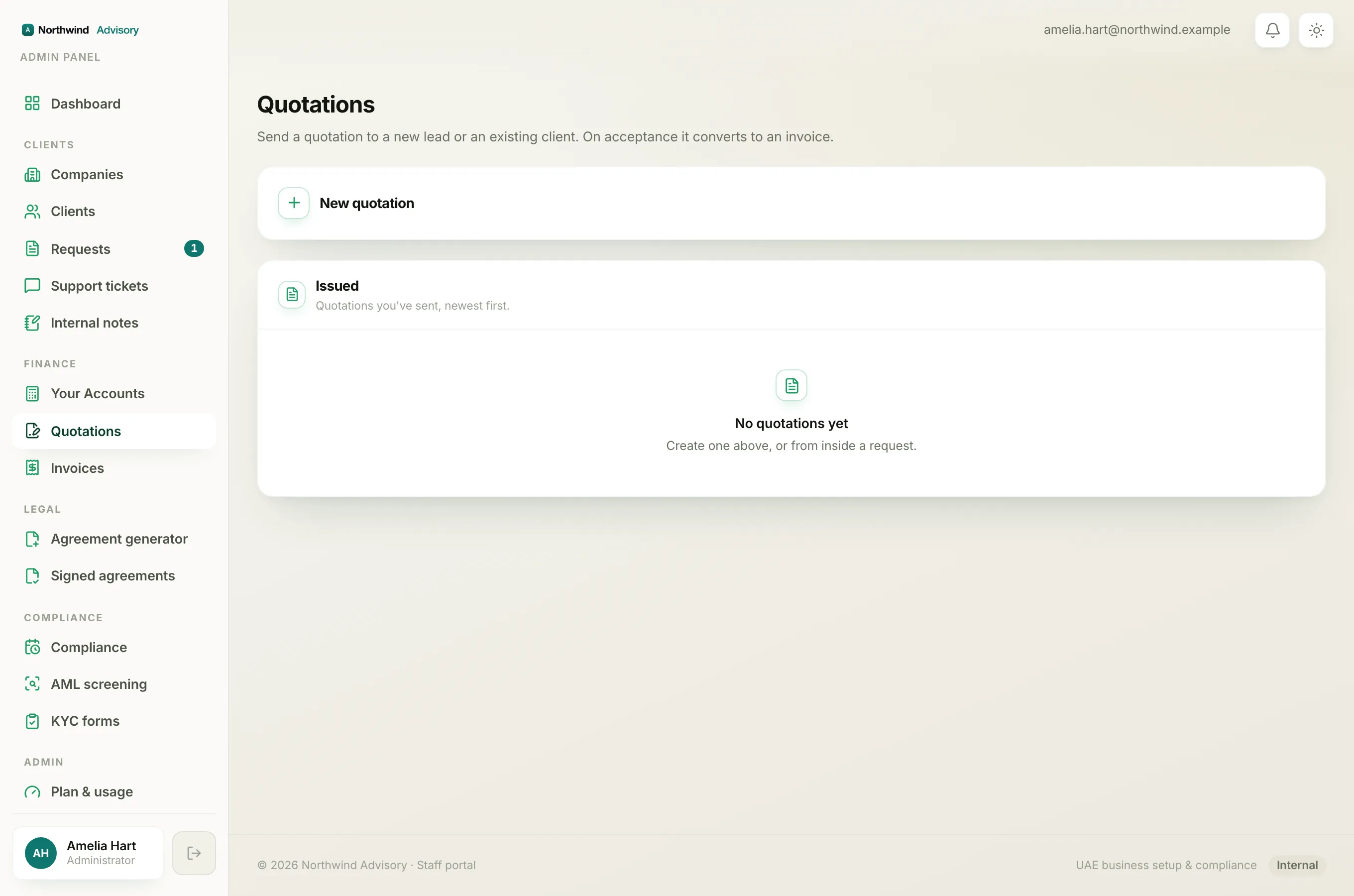
A quotation shows in the thread as a card titled Quotation sent with its number, for example Quotation sent · QUO-000001. A Withdraw quote button only appears on the card while its status is still sent.
- On the quotation card, click Withdraw quote.
- A short confirmation appears: Withdraw quotation QUO-000001? It can no longer be accepted. It also reminds you that the client is notified.
- You may type an optional note to the client, for example that a corrected quote is on the way. This is not required.
- Click Withdraw quote again to confirm, or click Keep it to back out.
After you confirm:
- The card status changes to Cancelled.
- The client's accept-and-sign link stops working.
- A short line is posted into the thread telling the client the quotation was withdrawn. If you left a note, your words are added to that line.
- The client receives a notification that the quotation was withdrawn.
Cancel an unpaid invoice
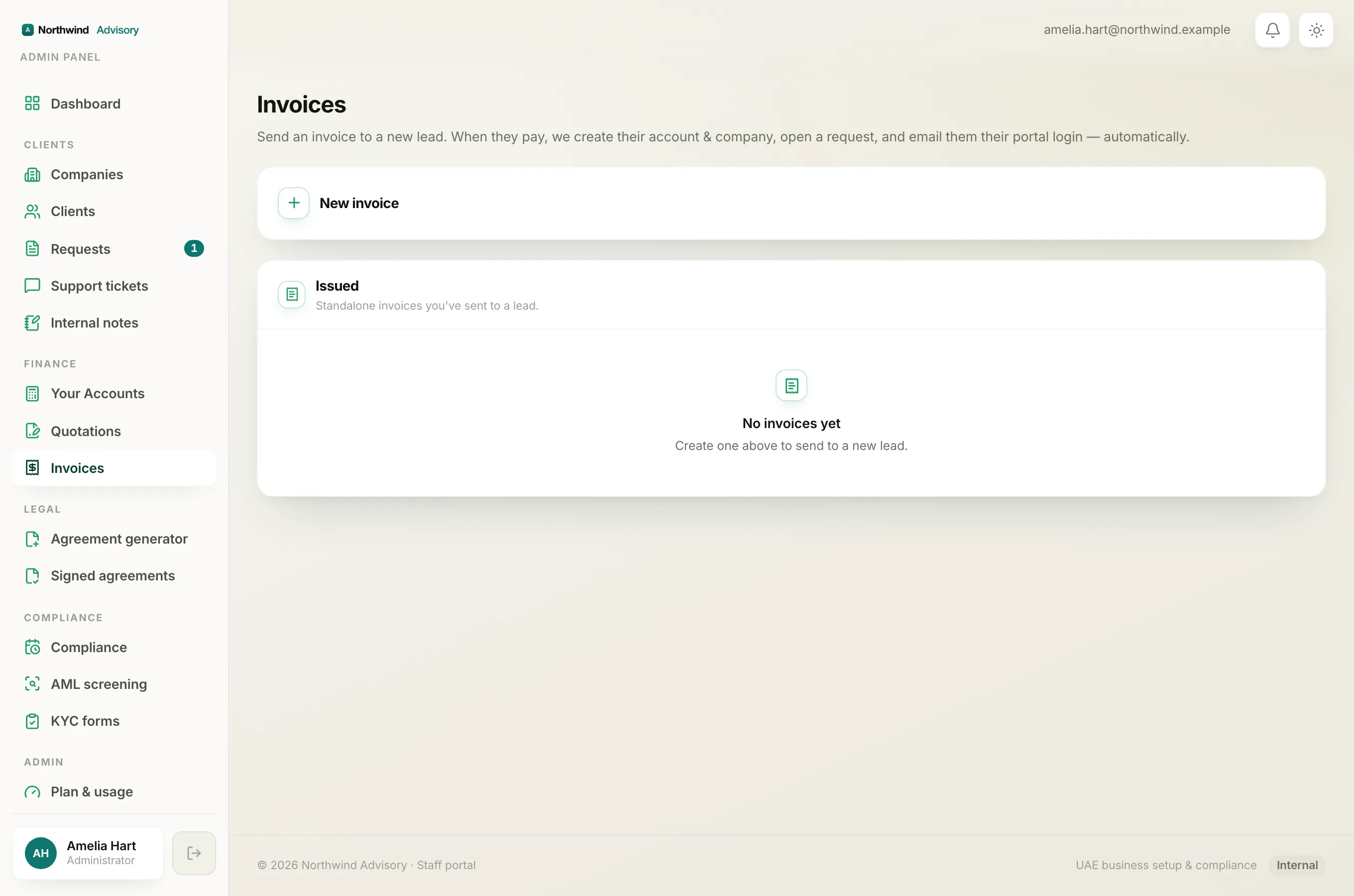
An invoice raised in a ticket shows as a Payment requested card. A Cancel invoice button appears on it only while it is still unpaid (its status is Pending or Overdue, with nothing received).
- On the payment card, click Cancel invoice.
- The confirmation reads: Cancel this invoice? It's voided (excluded from the books) and can no longer be paid.
- Add an optional note to the client if you wish.
- Click Cancel invoice to confirm, or Keep it to back out.
After you confirm:
- The card status changes to Cancelled and the client's Pay button drops off.
- The invoice is voided, so it no longer counts in your books or your VAT figures.
- The client is notified, and a note is posted to the thread.
Note
Cancelling keeps the invoice number. It stays in your records marked as cancelled so your numbering has no gaps. See How invoice numbers work.
When the buttons are not there
The controls only show while a record can still be pulled back. If you do not see them, or you get an error, here is why.
- The quote was already accepted. Once a client accepts a quotation it turns into a real invoice, so there is nothing to withdraw. Cancel that invoice instead. See Why you cannot withdraw an accepted quotation.
- The invoice has a payment. You cannot cancel an invoice once any money has been received against it. Use a credit note or a refund instead. See Why you can't cancel a paid or part-paid invoice and Issue a credit note against an invoice.
- It was cancelled already, so there is nothing left to do.
- It was just accepted or paid a moment ago. If the client acted at the same second you clicked, you may see a message asking you to refresh and try again. This is the system protecting you from voiding something that has already been paid or signed. Refresh the page and check the current status.
Tip
Withdrawing a record does not delete the conversation. The whole history stays in the thread, which keeps your audit trail clean. To raise a corrected version, just create a new quotation or payment request in the ticket.