The tasks board is where your team tracks its own work, separate from client support tickets. It is a board of columns, and each piece of work is a card you move from left to right as it gets done. This guide walks you through it from login.
Open the board
- Log in to your workspace.
- In the left menu, under Clients, click Tasks.
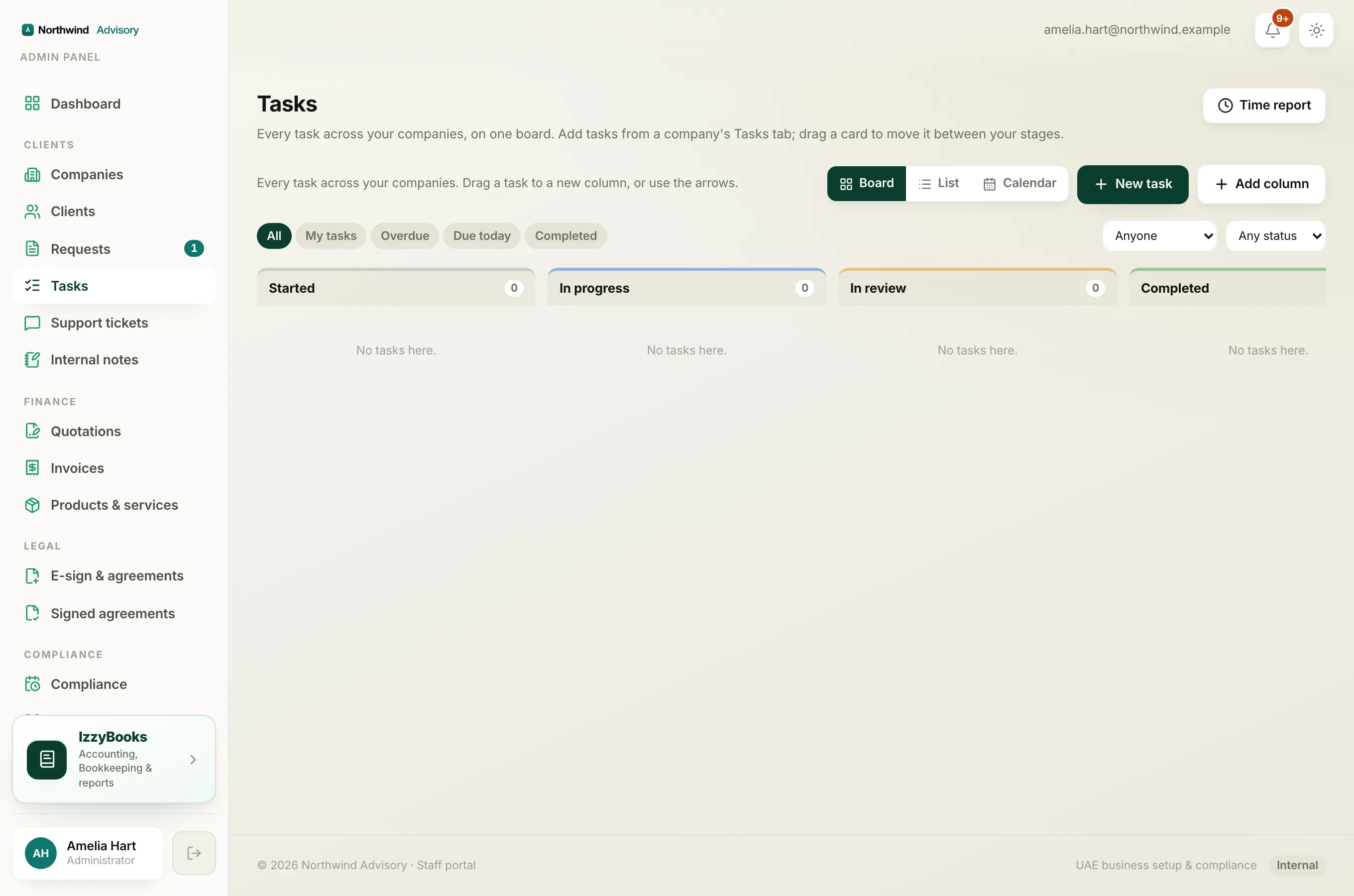
The board opens with a set of columns, for example To do, In progress and Done.
Choose how you see your work
At the top of the page you can switch between three views:
- Board: the columns of cards, the default.
- List: a plain list of all your tasks.
- Calendar: a month grid, with each task that has a due date shown as a pill on its day. Use the arrows to move between months, or Today to jump back. Overdue tasks show in red, and finished ones are struck through. Tasks without a due date are counted below the grid.
Click a pill in the calendar, or a card on the board, to open the same task.
Add a task
- Click Add task at the top of a column, or New task.
- Give it a title.
- Choose the Company it relates to if it is for a client, or leave it for internal work.
- Set the Assignee, the Priority and a Due date if you have one.
- Save.
A card appears in the column. Cards show the title, the company, the due date, and how many sub-tasks are done.
Move work along
Drag a card from one column to the next as the work moves forward, for example from To do to In progress. On a phone you can use the move controls on the card.
Open a task for the detail
Click a card to open it. Inside you can:
- Change the Assignee, Priority, Stage and Due date.
- Break the work into Sub-tasks and tick them off.
- Add Notes.
- Leave Comments for your team and add Watchers so the right people are kept in the loop.
- Add Files to the task. See below.
- Log Time. See Log time on tasks.
Add files to a task
In the Files section of a task you have two ways to add a file:
- Attach: link one of the company's existing files to the task. This links the file, it does not make a copy.
- Upload: add a new file from your computer, up to 10 MB each. You can upload a PDF, an image, or a Word document. Uploads are kept in the company's internal "Task files" folder, which is staff only, so your client never sees them.
To remove a file, use the remove control next to it. This unlinks the file from the task. It does not delete the document itself.
Set up your columns
You can shape the board to how your firm works. Use the controls on a column to Rename it, Move it left or right, or Delete it.
Note
The tasks board is part of the work and tasks module. If you do not see Tasks in your menu, your plan may not include it yet. See Choose or change your plan.
Tip
You can also see a client's open tasks on their overview. See The client overview dashboard.