You can only withdraw a quotation while it is still Sent. If the button is missing, or you clicked it and got an error, this article explains why and what to do next.
The one rule
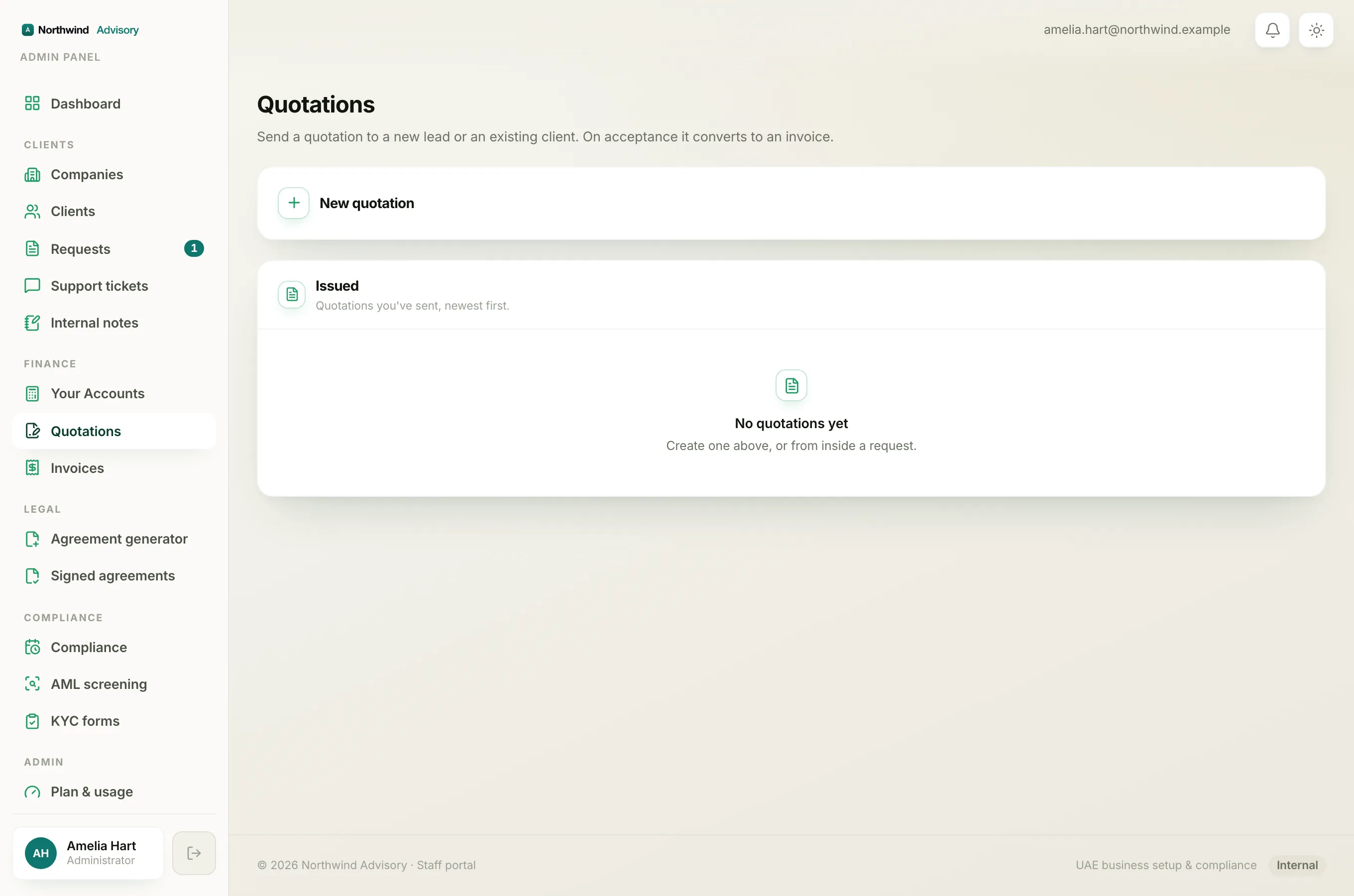
Accepting a quote is not just a status change. The moment a client accepts, IzzyTap raises a real invoice from the quote. That invoice is now the live document the client owes against. Withdrawing the quote at that point would leave the invoice dangling, so IzzyTap blocks it.
Important
To reverse a quote a client has already accepted, cancel the invoice it produced, not the quote. See Cancel an invoice.
The messages you might see
When you try to withdraw a quote that cannot be withdrawn, you get one of these:
"This quotation was already accepted. Cancel the resulting invoice instead." The client has accepted and an invoice exists. Find that invoice and cancel it there. You can reach it from the company's Payments tab or from the invoice card in the request thread.
"This quotation is already cancelled." Someone on your team already withdrew this quote. There is nothing more to do.
"Only a sent quotation can be cancelled." The quote is in a state that cannot be withdrawn, such as declined or expired. There is nothing to pull back, because the accept link is already closed.
"This quotation can no longer be cancelled. It may have just been accepted. Refresh and try again." This is a timing case. The client accepted the quote in the moment between you opening the page and clicking withdraw. Refresh the page. You will now see the quote as Converted, and you handle it by cancelling the invoice instead.
How to find the invoice from an accepted quote
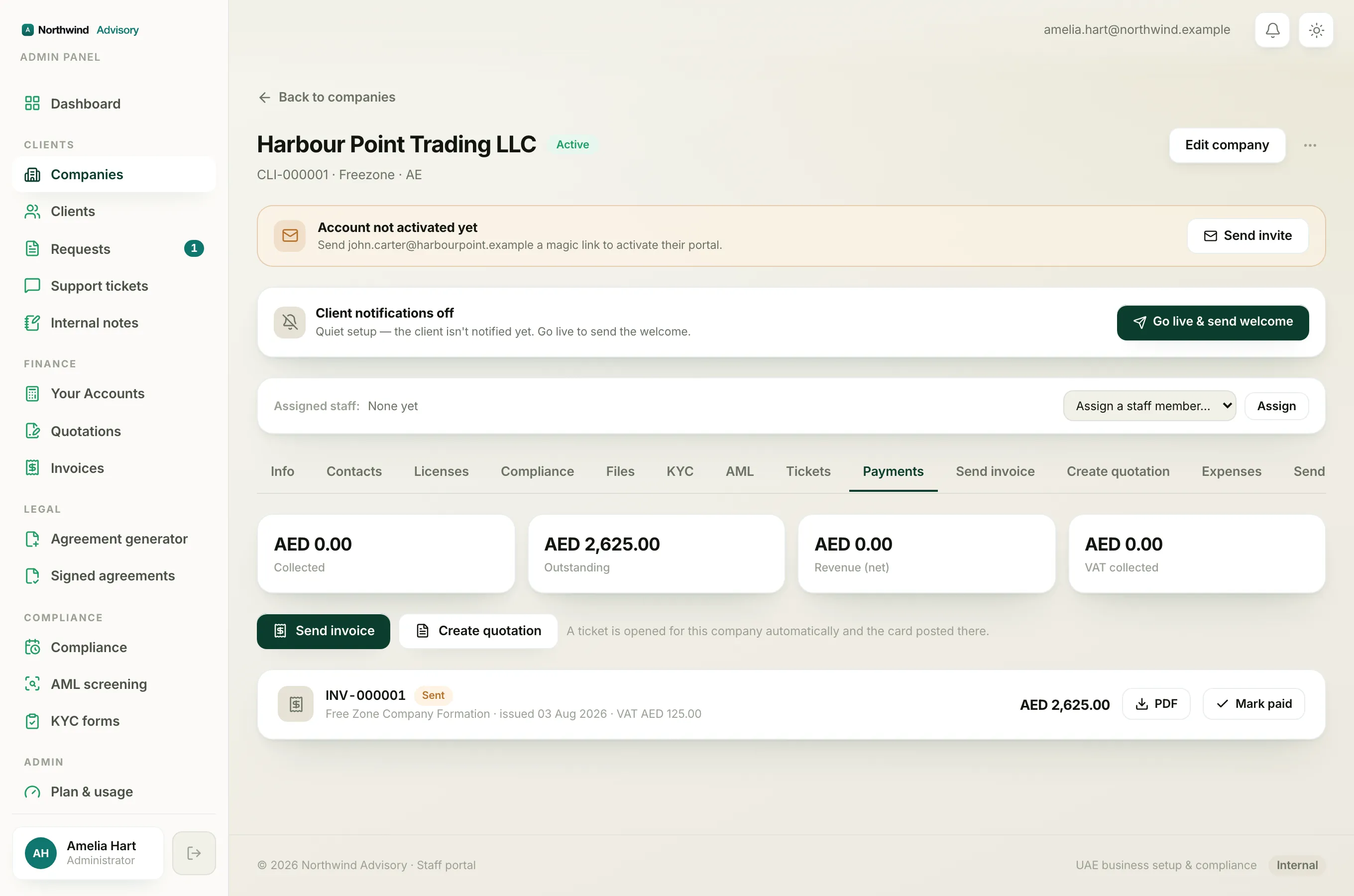
- Log in to your workspace.
- Open the company the quote belongs to.
- Open the Payments tab. The invoice raised from the quote is listed there with its own INV number.
- Cancel that invoice from there. See Cancel an invoice for the steps and for the rules on paid invoices.
If the quote came from a request, you can also open the request and use the invoice card in the thread.
Why it works this way
This protects your records. A quote and the invoice it created stay linked and consistent, so your accounts never show an invoice with no reason behind it. It also gives you a clean audit trail: the quote reads Converted, and the invoice carries its own cancellation.