Assigning gets work to the right person
Assigning a request puts it clearly in one teammate's hands, so it shows up in their Mine queue and they know it is theirs to finish. You can assign from the inbox or from inside the request itself.
Assign from the inbox
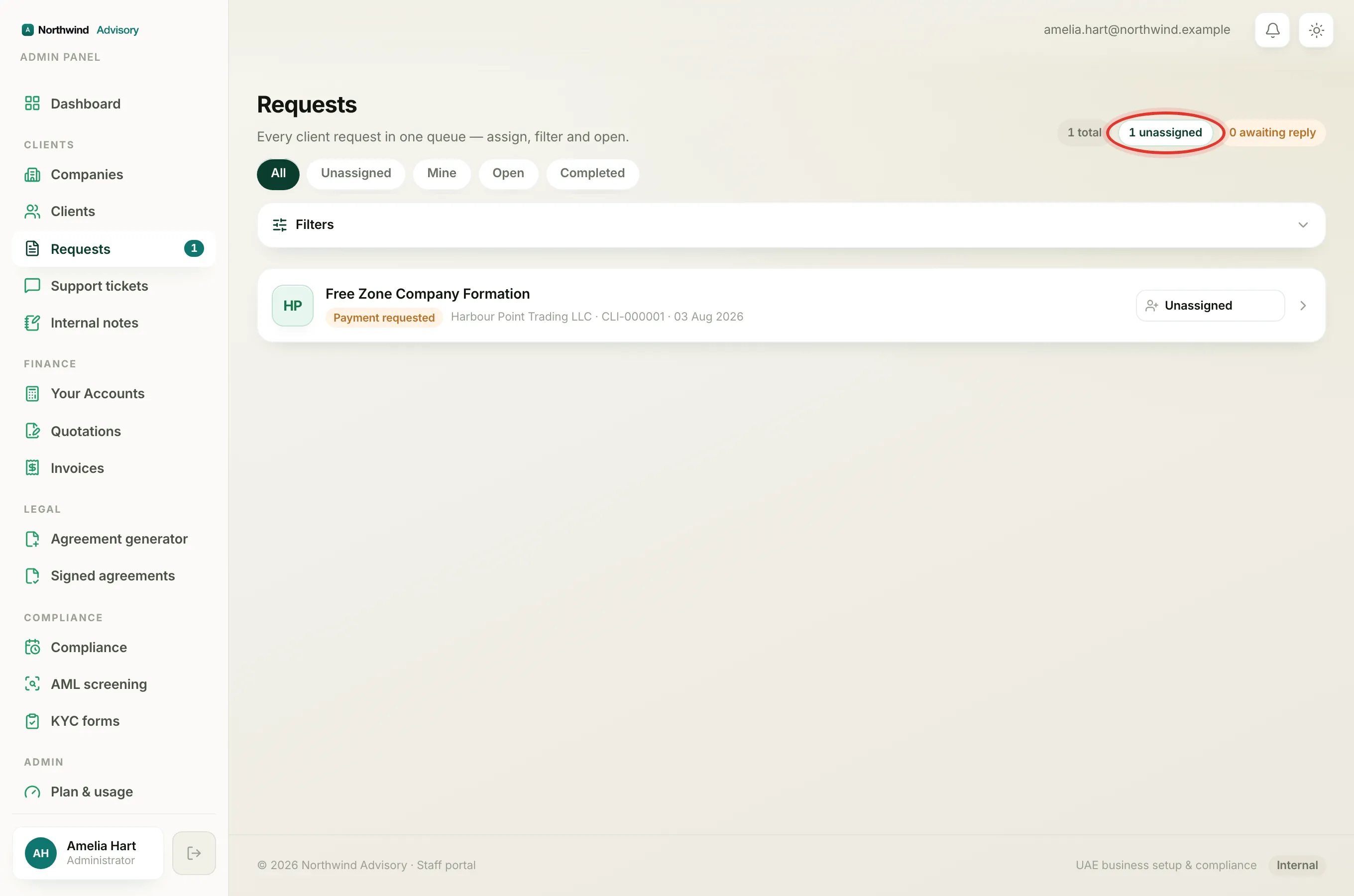
- Log in to your workspace.
- In the left menu, under Clients, click Requests.
- Find the request in the list. On the right of its row is a button showing the current assignee, or Unassigned.
- Click that button. A small panel opens.
- Under Assign to, pick the teammate you want, or Unassigned to take it off someone.
- Optionally, type a Note to assignee, for example what is outstanding or what to do next.
- Click Assign. The button stays greyed out until you actually change the assignee, so you cannot assign by accident.
You can also assign the same way from the header of an open request, so you do not have to go back to the inbox.
What happens after you assign
- The new assignee is notified straight away, both by email and by the in-app bell. If you left a handover note, it is folded into that notification so they get the context without opening the ticket first.
- The note, if you left one, is saved as a staff-only internal note on the request. The client never sees it.
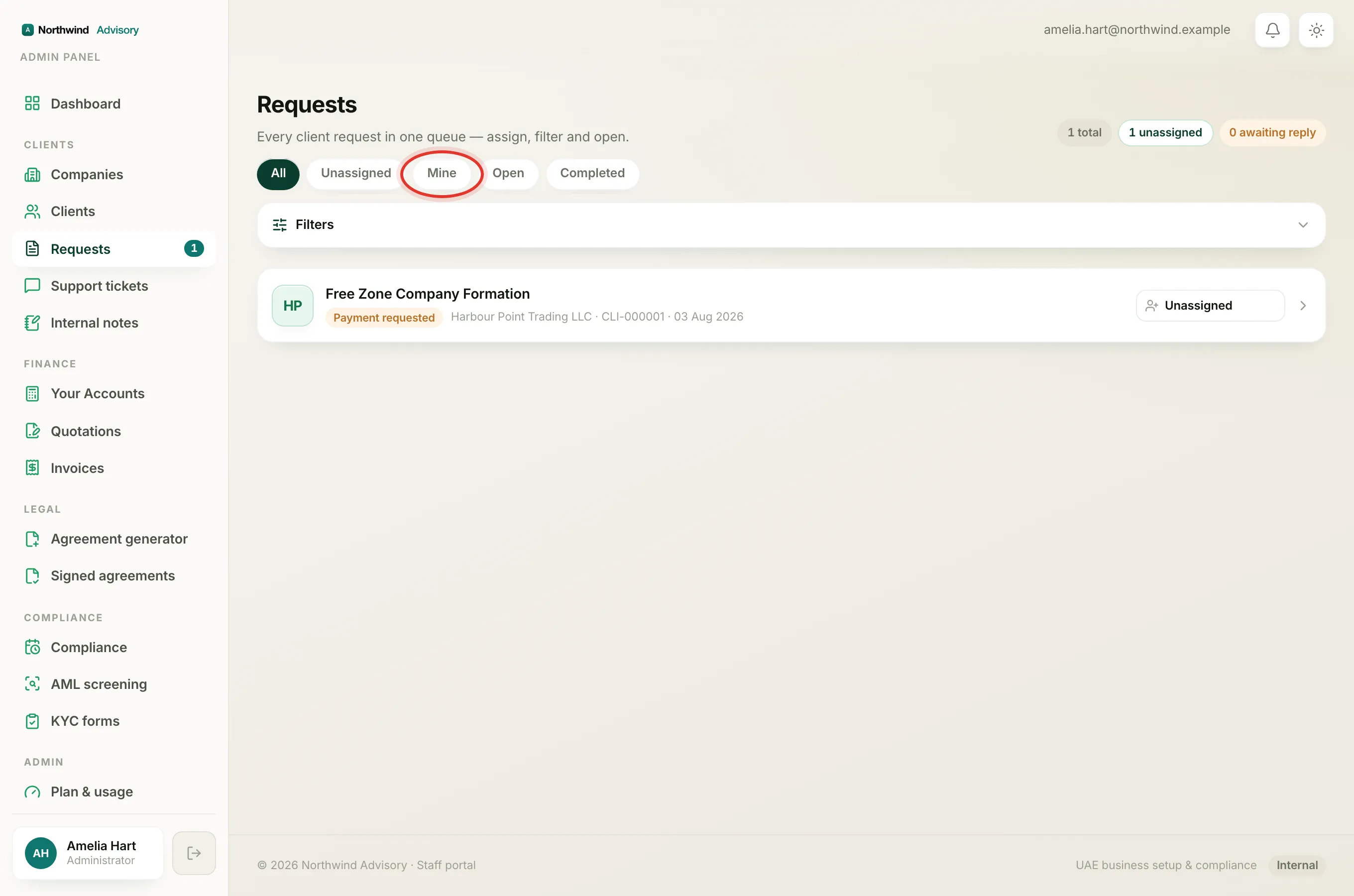
- The request now appears in the assignee's Mine segment.
Note
Assigning a request to yourself does not send you a notification, since you already know about it.
Why you may only be able to pass on your own
Who can assign what depends on your role:
- An administrator or an operations manager can assign any request to anyone.
- Other roles, such as a case manager, can only hand off a request that is already assigned to them. They cannot pick up an unassigned request this way, and they cannot reassign a request that belongs to someone else.
If you are not allowed to assign a particular request, you will not see the assign button on it at all. Instead you will just see the assignee's name as plain text. Roles are set by the administrator. For more, see Staff roles.
Note
If you only have access to a company because a single request was assigned to you, handing that request to someone else can remove your access to it. When that happens the system sends you back to the Requests inbox rather than leaving you on a page you can no longer open.