The short version
When you send an invoice to a brand-new lead, you do not create anything for them upfront. The magic happens on payment. The moment that invoice is paid, IzzyTap turns the lead into a full client for you: it creates their account and company, opens a request you can both track, and emails them their portal login with a paid receipt attached. You do not have to do any of it by hand.
This applies to invoices sent from the Invoices page. To send one in the first place, see Send an invoice to someone who has no account yet.
The two ways a lead can pay
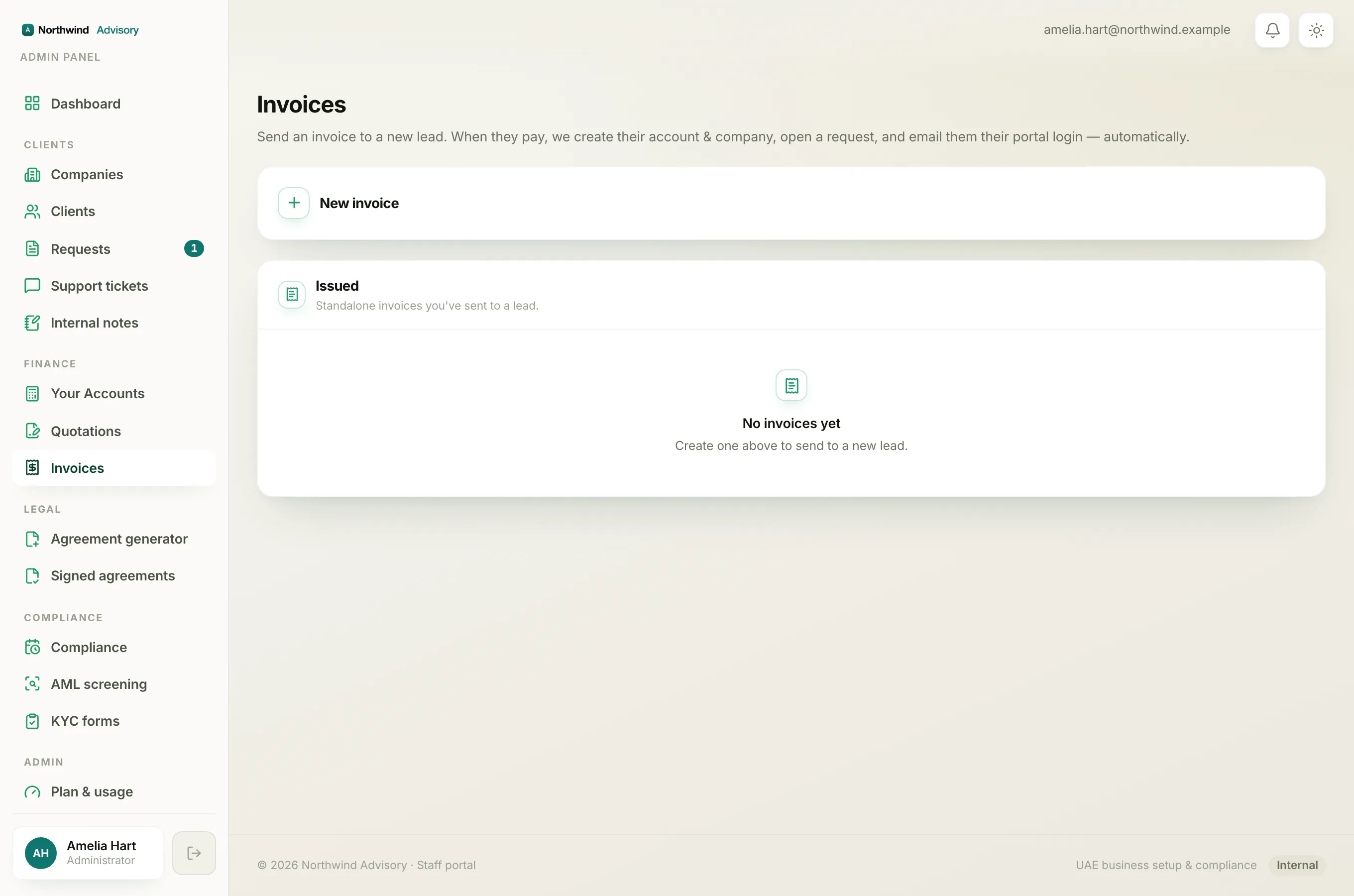
They pay online. The lead clicks the Pay now link in their invoice email and pays by card on a secure page. Card payments carry a small card processing fee shown as its own line at checkout. Once the payment clears, the steps below run automatically.
You record the payment. If the lead pays you offline, by bank transfer or cash for example, you record it yourself. On the Invoices page, find the invoice in the Issued list and click Mark as paid, choose the method, and save. The same steps below then run.
What IzzyTap does automatically
When a lead invoice is paid, in one go IzzyTap will:
- Create their account and company. If you typed a company name on the invoice, it becomes a company. If you did not, it is set up as an individual client. Their name, email, phone, TRN and address from the invoice are carried across.
- Open a request. A new request is created and labelled with the service you chose on the invoice, so you have somewhere to do the work and message the client. It opens with a short welcome message already posted.
- Mark the invoice paid and file the receipt. The invoice flips to Paid and a paid PDF is filed in the new company's documents.
- Email the client their login. They get a welcome email with a one-time login link so they can reach their portal, with the paid invoice attached as their receipt.
- Tell your team. Your admins get a notification that the lead paid and an account was created.
How you will see it
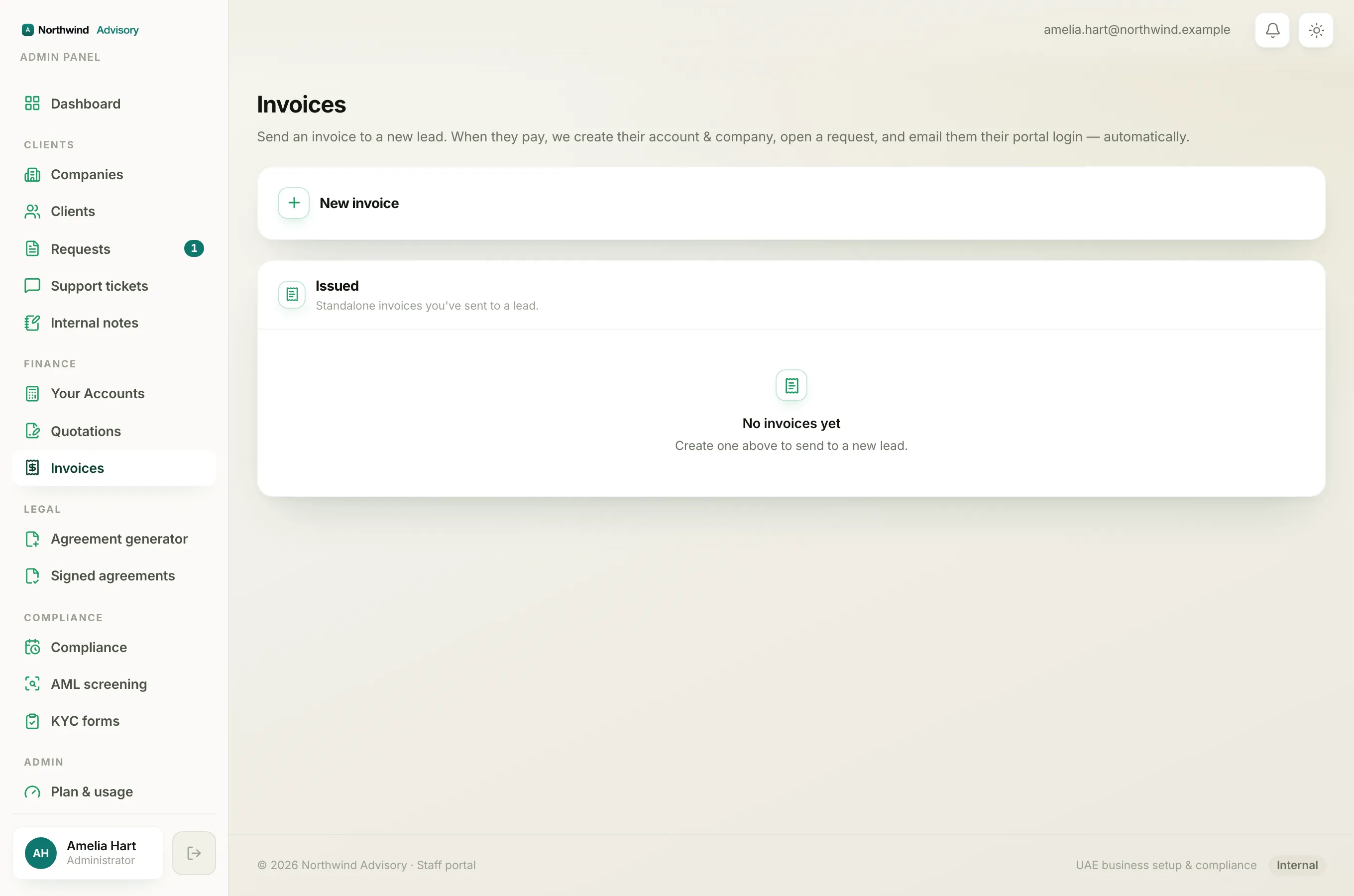
Back on the Invoices page, the invoice row now shows a green Account created chip, and an Open profile button appears so you can jump straight into the client's new company page. From there everything works like any other client.
Note
When a lead pays online, they are not logged in automatically, because they were never signed in to begin with. They sign in for the first time using the login link in the welcome email. This is the same login link a client gets when you invite them normally. See Invite a client.
What the client sees
After paying and logging in, the client lands in their portal with their paid invoice, their open request, and the start of their document area. For a full tour of the client's side, see What clients see.