Where the terms come from
Every quotation carries a full set of terms and conditions. You do not write these from scratch each time. When you choose the primary service for the quotation, IzzyTap loads that service's ready-made terms into the editor for you. From there you are free to leave them as they are or change any part before you send.
Note
The terms only appear once you have picked a Primary service. That service is what sets the wording, so the Terms & conditions section stays hidden until you select one.
Open the terms editor
- Log in to your workspace.
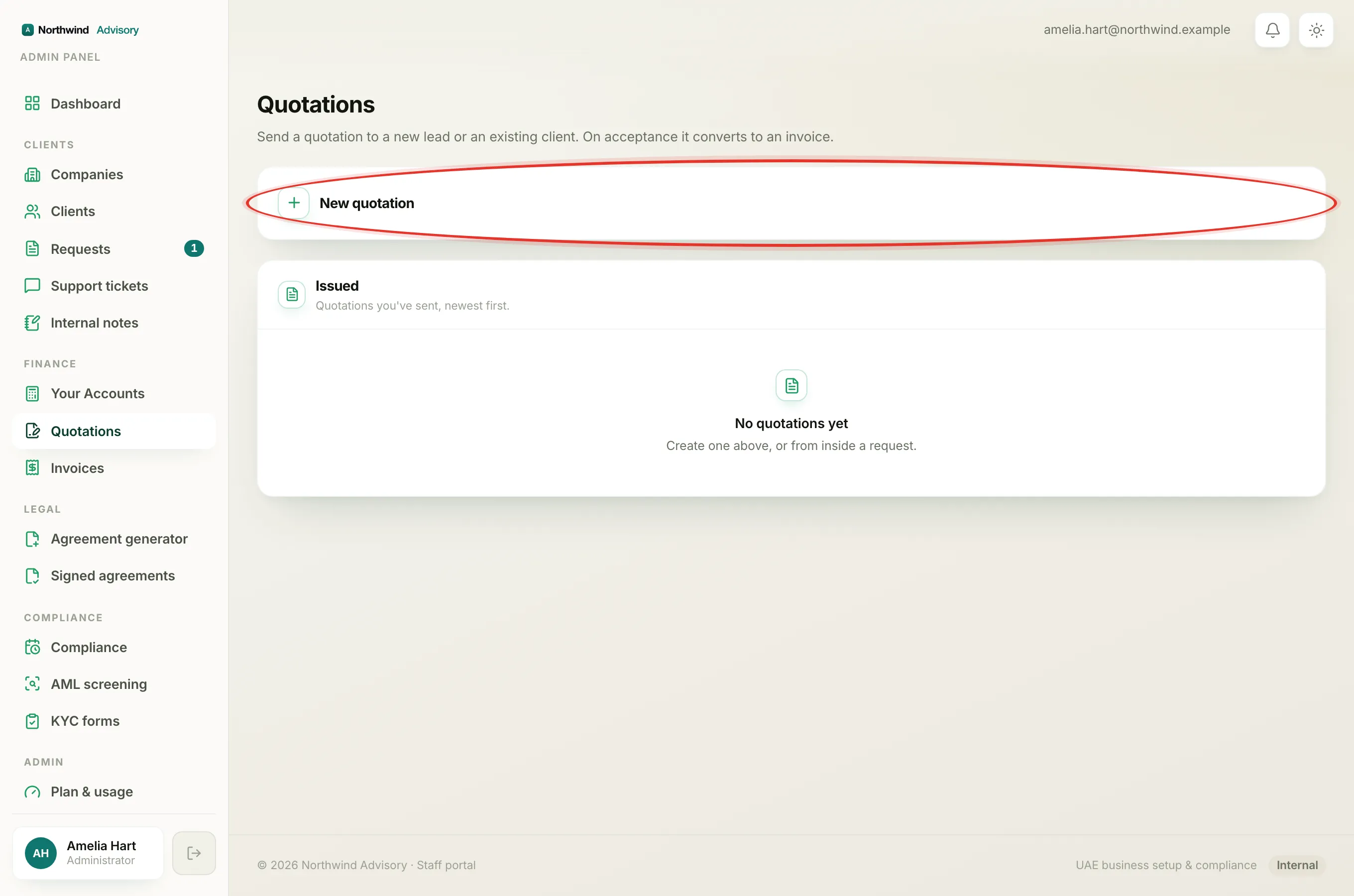
- In the left menu, under Finance, click Quotations.
- Click New quotation to open the builder. (You can also raise a quotation from inside a request; the terms editor works the same way there.)
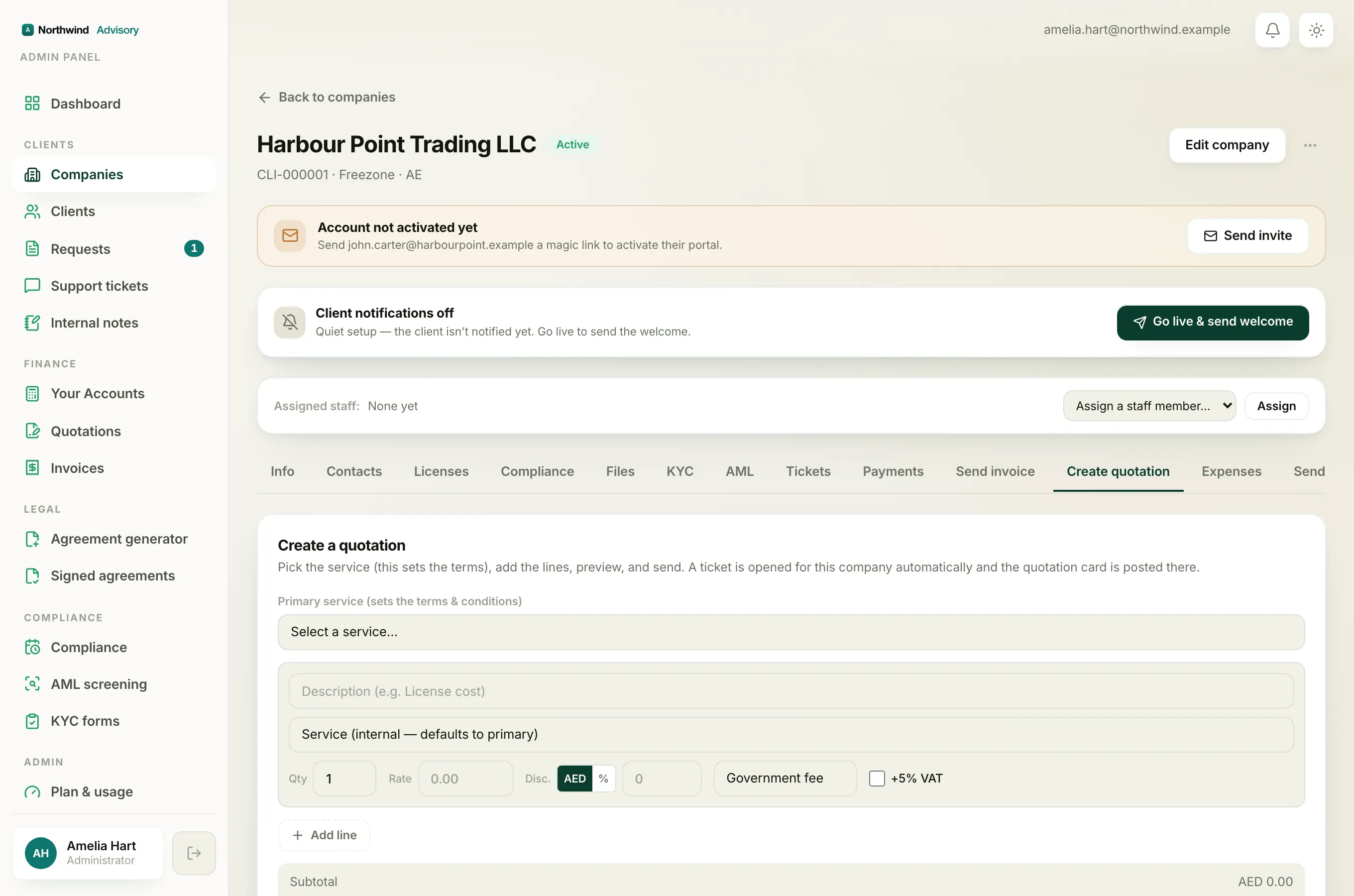
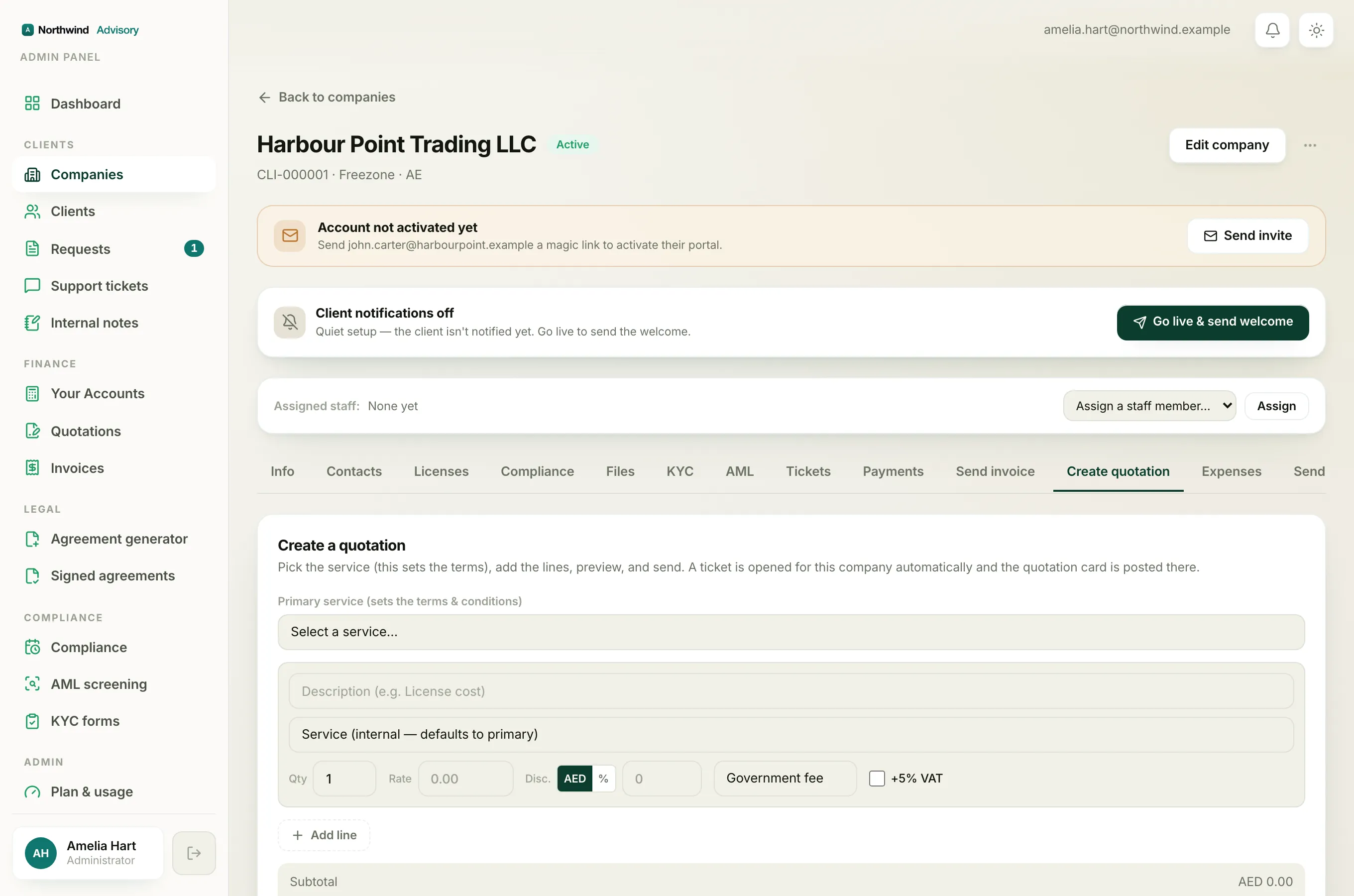
- From Primary service (sets the terms & conditions), choose the service you are quoting for. The Terms & conditions section now appears lower down, already filled in with that service's terms.
Edit the wording
The terms are made of separate blocks. Each block is one section of the terms, such as Payment Terms or Client Responsibilities. For any block you can:
- Change the heading. Type in the heading box at the top of the block. The heading is optional; you can leave it blank.
- Rewrite the body. Type in the large text box. Put one paragraph, or one bullet point, on each line. A new line starts a new paragraph or bullet.
Switch how a block looks
Each block has a small style dropdown next to its heading. It sets how that block prints on the quotation:
- Paragraph prints the text as normal paragraphs.
- Bullets turns each line into a bullet point.
- Note box puts the text in a boxed callout, handy for an important warning you want to stand out.
Reorder, delete and add blocks
- Use the up and down arrows on a block to move it earlier or later. The order here is the order the client reads.
- Use the bin icon to delete a block you do not need.
- Use Insert block below under any block, or Add block at the bottom, to add a new empty block. Give it a heading, type its body, and pick its style.
The "edited" mark and Reload from service
As soon as you change anything, the heading of the section shows a small · edited mark. This is your reminder that these terms no longer match the plain service default.
If you want to start again from the clean service terms, click Reload from service. Because this replaces your changes, IzzyTap asks you to confirm first so you do not lose your edits by accident. Changing the primary service also reloads the terms for the new service.
How the terms freeze onto the sent quote
When you send the quotation, the exact terms you see are saved onto that quote as a frozen copy. After that, nothing changes them. If you later edit the service's standard terms, or reload a fresh set for your next quotation, the quote you already sent keeps the wording it was sent with. What the client accepts is always exactly what they were shown.
Tip
Preview before you send so you can see the finished terms laid out on the PDF exactly as the client will. See Preview a quotation before you send it.
Once a client accepts, the quotation turns into an invoice. See How to create a quotation and Turn a quotation into an invoice for the wider flow.