Where the bell is
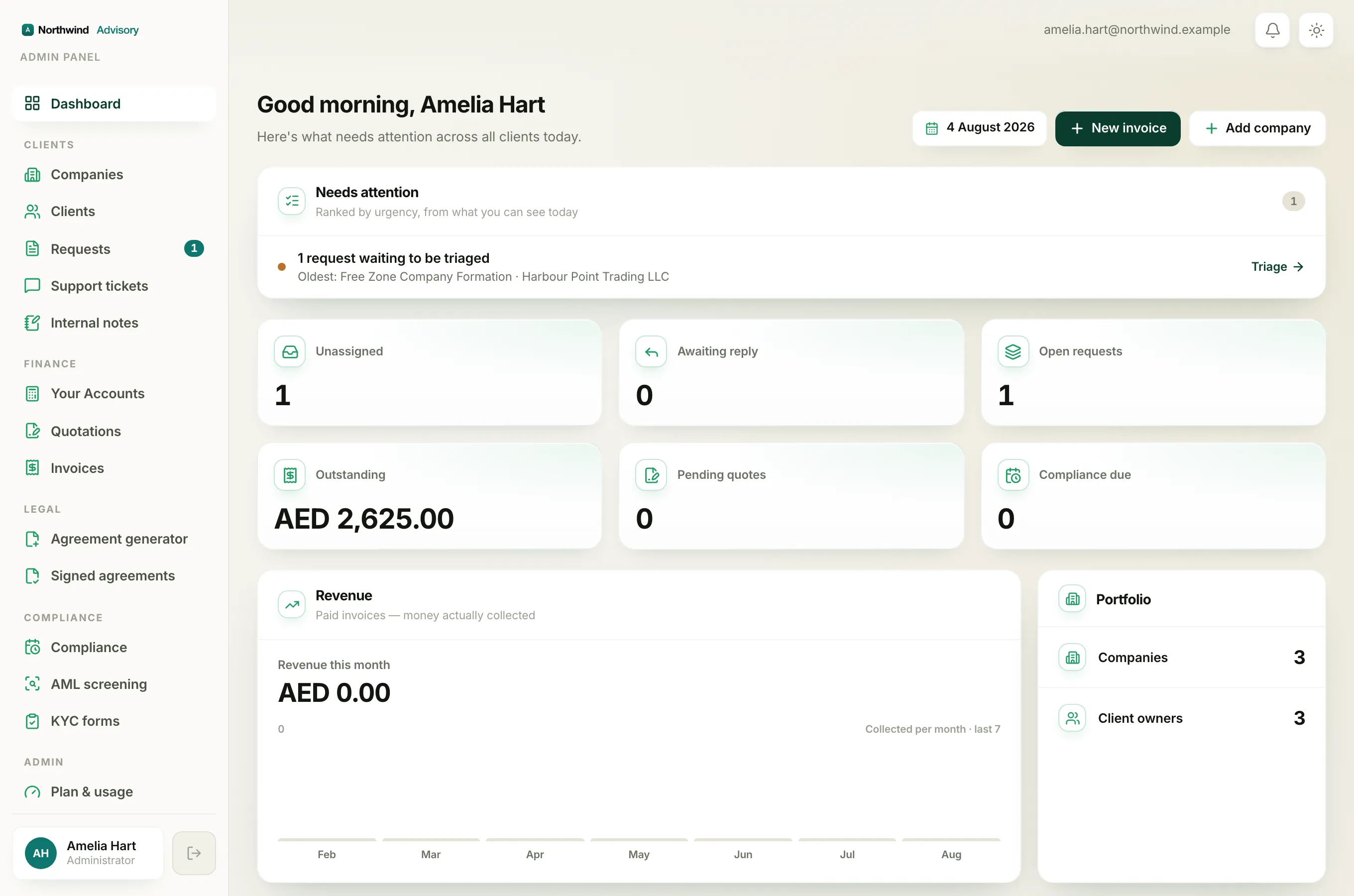
Your notifications live behind the bell icon at the top right of every screen, next to the light and dark toggle. It is your running feed of things that happened in your firm's workspace, like a client sending a message, paying an invoice, or a new request coming in.
The red count
When you have unread notifications, a small red number sits on the corner of the bell. That number is how many notifications you have not looked at yet.
- It counts up to nine.
- If you have more than nine unread, it shows 9+.
- When you have nothing unread, there is no red number at all.
Open and read your notifications
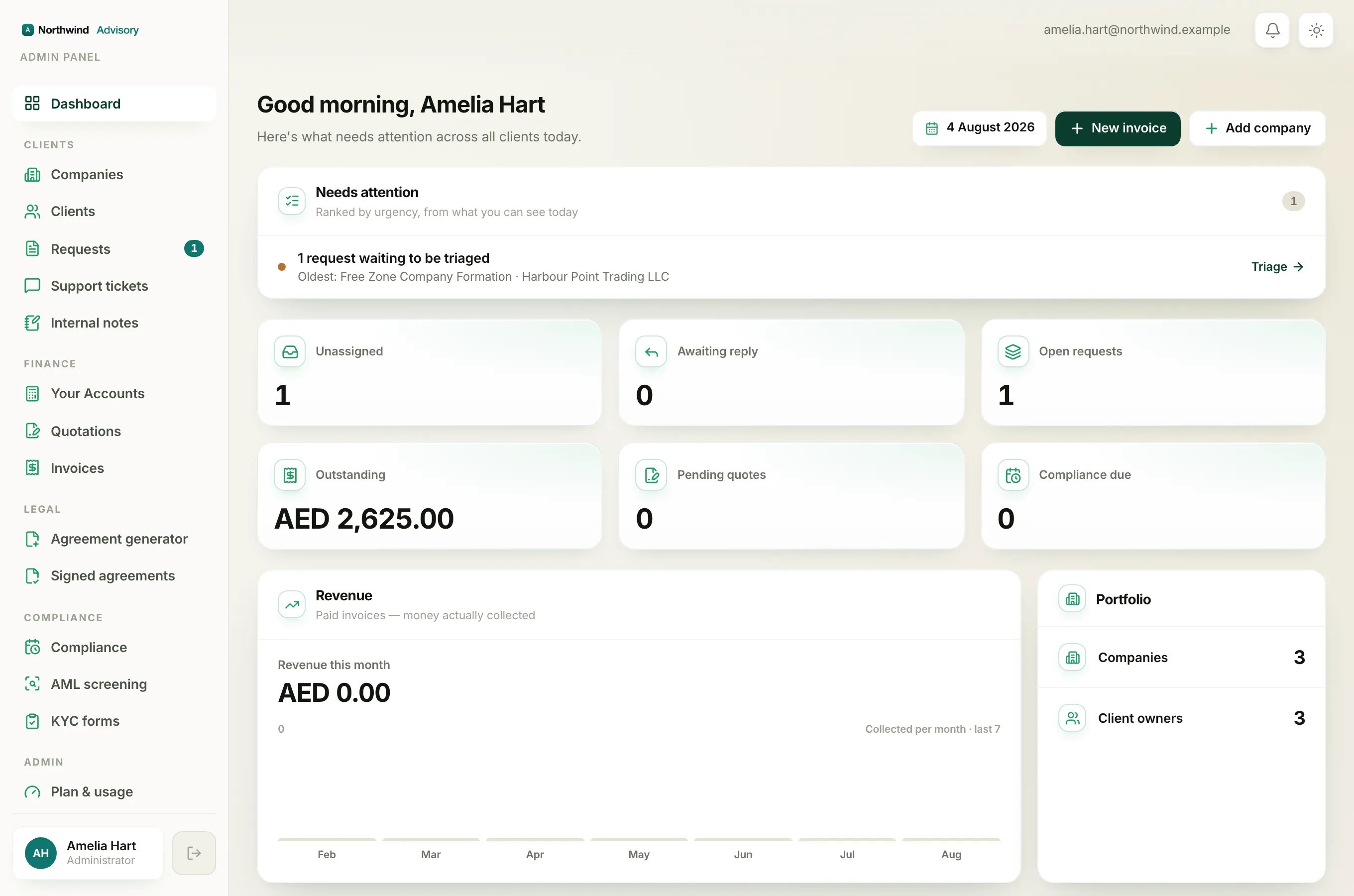
- Log in to your workspace.
- At the top right, click the bell icon.
- A panel titled Notifications opens, showing your most recent items (up to the latest ten).
- Read each row from top to bottom. The newest is at the top.
- Click any row to jump straight to the thing it is about, such as the request or the company it came from.
Each notification shows a short title, a line of detail underneath, and how long ago it happened, like "just now", "5m ago", "2h ago" or "3d ago".
An item you have not read yet has a small green dot on its left. Once it is read, the dot goes away.
If you have no notifications at all, the panel simply says You're all caught up.
How items mark themselves read
You do not have to tick anything off. The moment you open the bell, everything that was unread is marked as read, and the red count clears straight away.
The notifications themselves stay in the list so you can still read them and click through. Only the red count resets. So the next time you open the bell, the panel still shows your recent items, just without the red number on top.
Tip
Opening the bell is what clears the count, not clicking each row. If you want to act on something later, click straight into it from the panel or note it down, because the red badge will already be gone.
If your bell always looks empty, see Why you are not getting notifications.