The Invoices page is the one place that lists every invoice you have raised, whether you sent it to a saved client or a brand new one. This guide walks you through it from login.
Open the page
- Log in to your workspace.
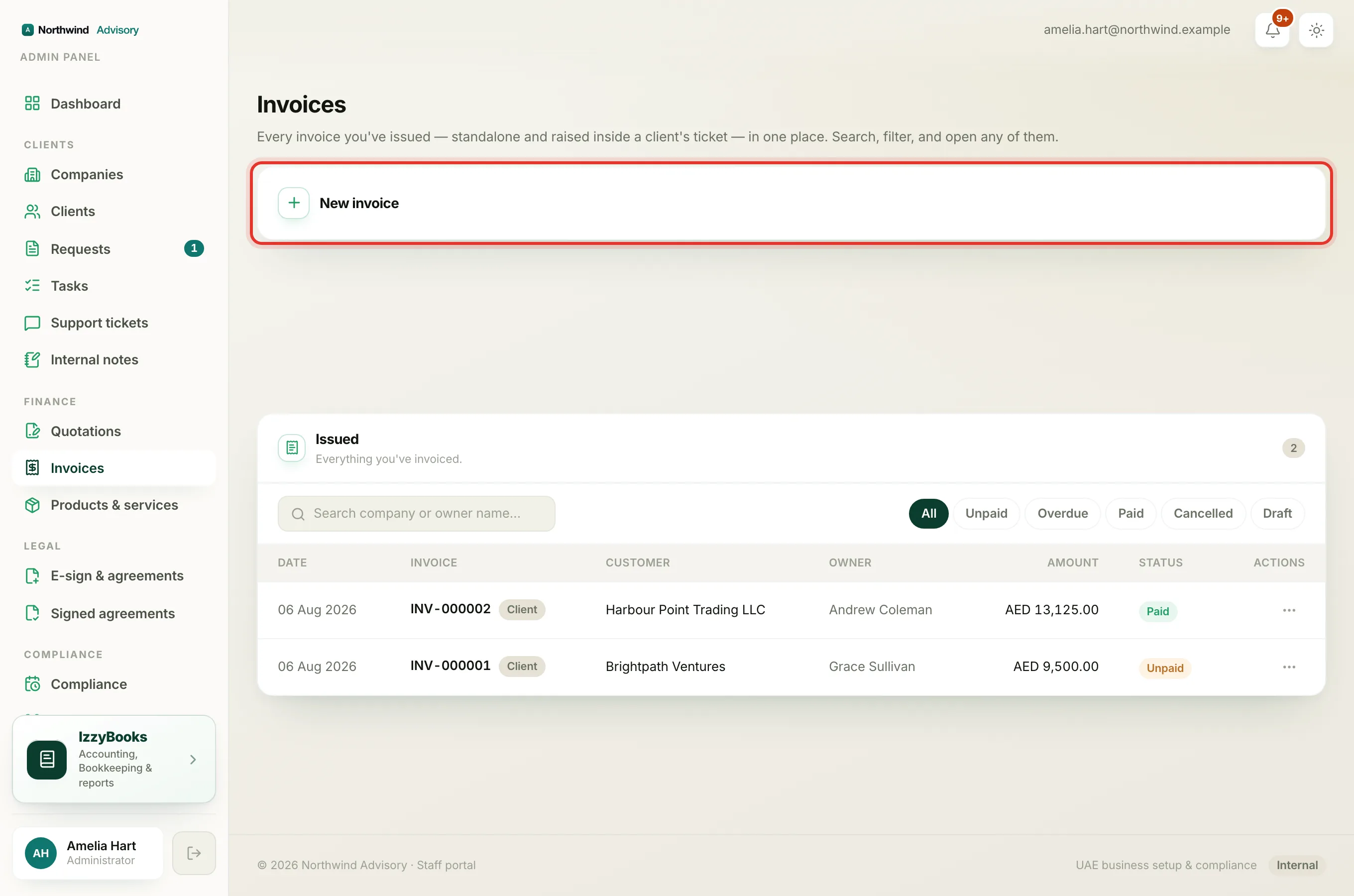
- In the left menu, under Finance, click Invoices.
The totals at the top
Three cards sit above the list and update on their own:
- Outstanding. The total still owed to you across all unpaid invoices.
- Overdue. How much of that outstanding total is past its due date.
- Paid this month. What you have collected so far this month.
If you bill clients in more than one currency, each total is shown per currency, with your own currency first.
Find an invoice
- Search. Type in the search box to find an invoice by its number, the company, or the owner's name.
- Status tabs. Click a tab to narrow the list: All, Unpaid, Overdue, Paid, Cancelled, or Draft.
Each row shows the date, the invoice number, the client, who owns the account, the amount, a status pill, and a chip that reads Client for a saved company or Lead for a brand new one.
Act on a row
Every row has an actions menu, shown as three dots on the right. Click it to:
- View the invoice detail.
- Open PDF to download the document.
- Edit the invoice.
- Resend it to the client.
- Void it if it should be cancelled.
- Credit note to raise a credit against a paid invoice.
The choices you see depend on the invoice's status. See Edit or resend an invoice for how those two work.
Tip
Click an invoice number to open its detail page, where you can see the lines, any payments, and the reminder controls.
When there are many invoices
The list shows a page at a time. Use the page controls at the bottom to move through older invoices. The search and the status tab both work across every page, not just the one on screen.