Where your templates live
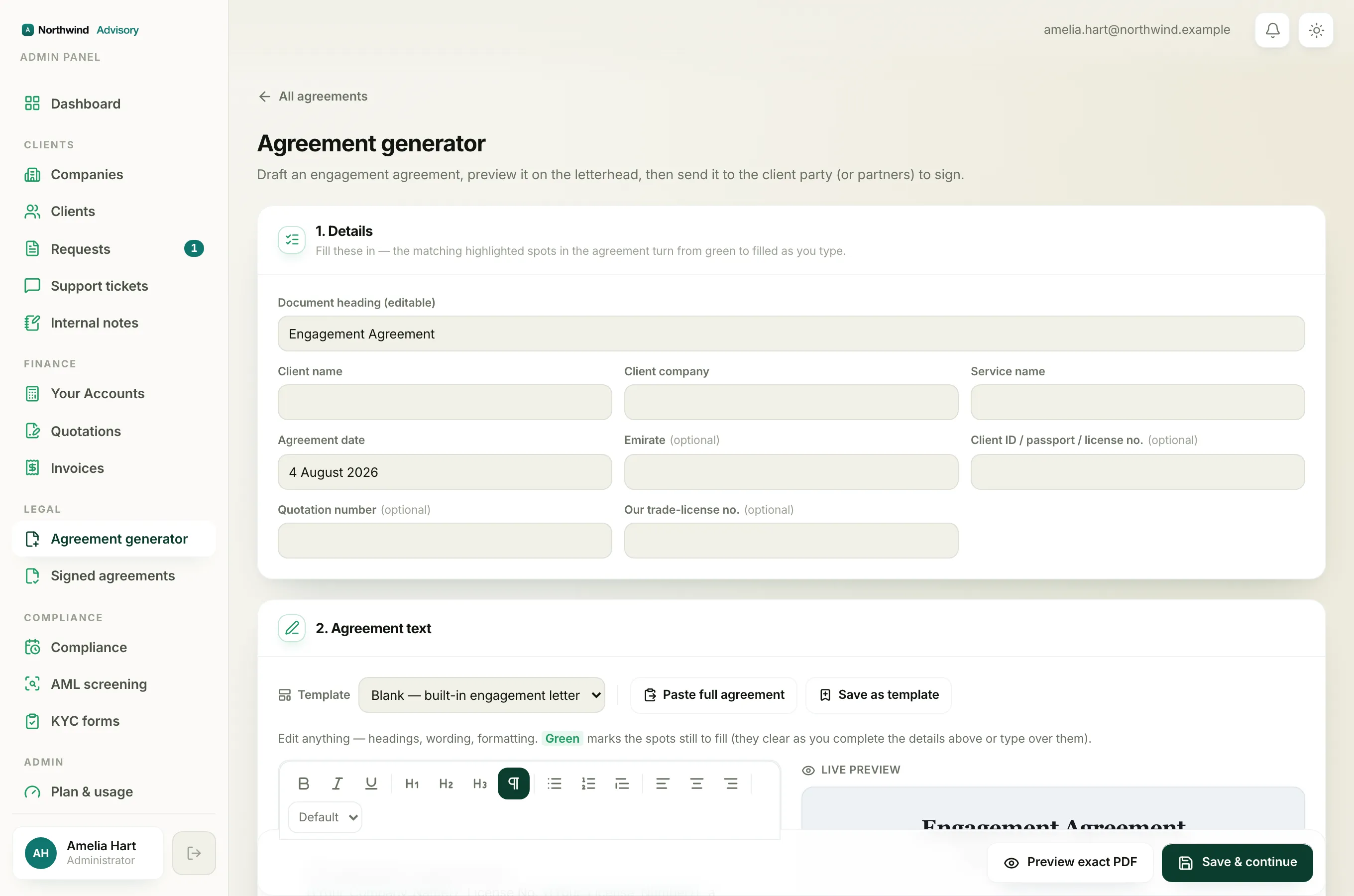
All of your saved agreement templates sit in one place.
- Log in to your workspace.
- In the left menu, under Legal, click Agreement generator.
- Click Manage templates. This opens the Agreement templates page.
You will see the Saved templates list. Each row shows the template name, an optional description, and the date it was last updated. Next to each one are three controls: Edit, Duplicate, and a trash icon to delete.
Duplicate a template
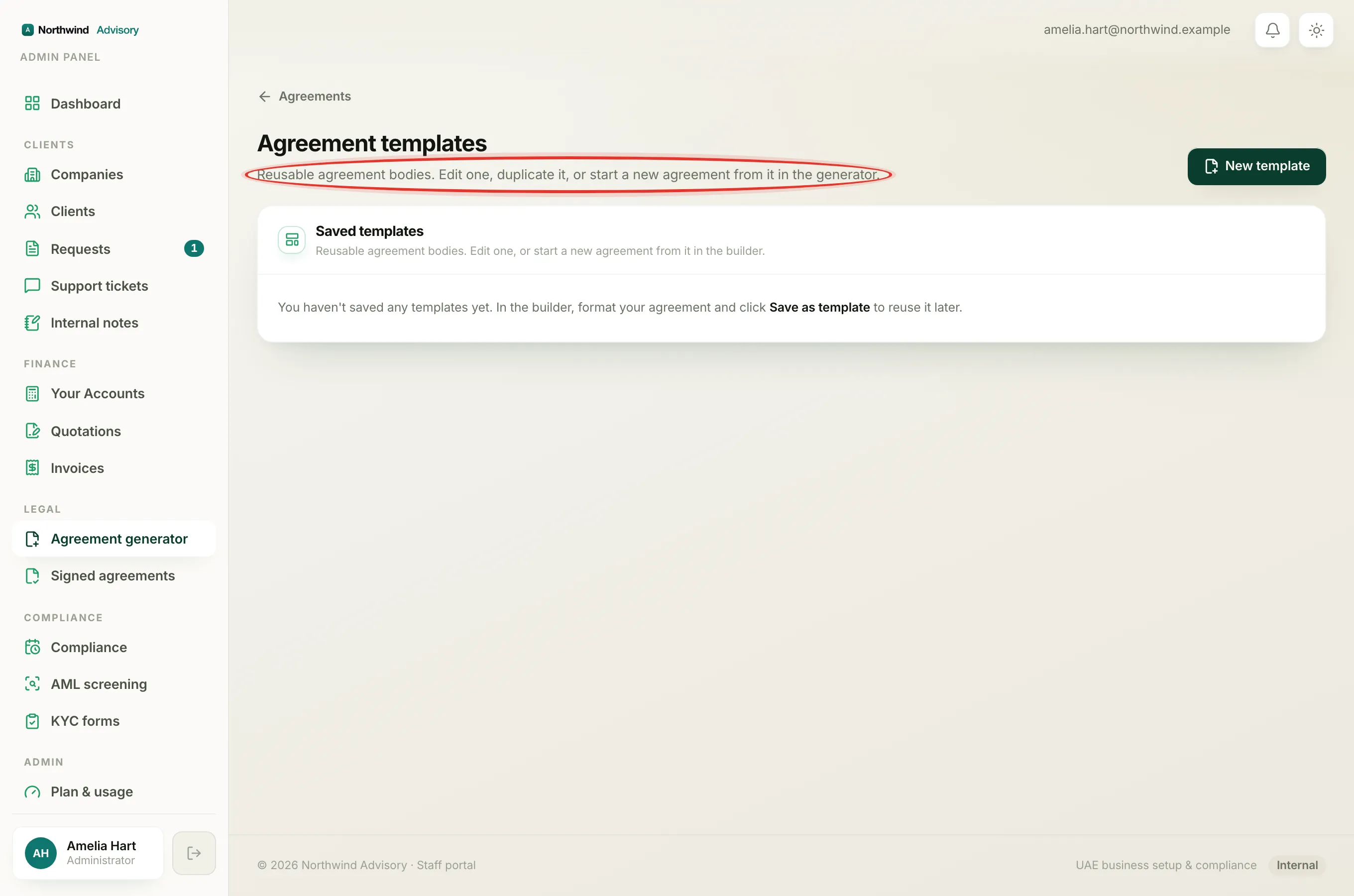
Duplicating makes an exact copy so you can build a variant without starting over. This is useful when you have one solid agreement and want a slightly different version, for example a shorter engagement letter or one worded for a particular service.
- On the Agreement templates page, find the template you want to copy.
- Click Duplicate.
- A new template appears in the list named after the original with (copy) added to the end, for example "Engagement Agreement (copy)".
- Click Edit on the new copy to give it a proper name and make your changes.
The copy is completely independent. Editing it never touches the original, and editing the original never touches the copy.
Tip
Duplicate before you experiment. It lets you try a big rewrite on the copy while your trusted template stays exactly as it is.
Delete a template
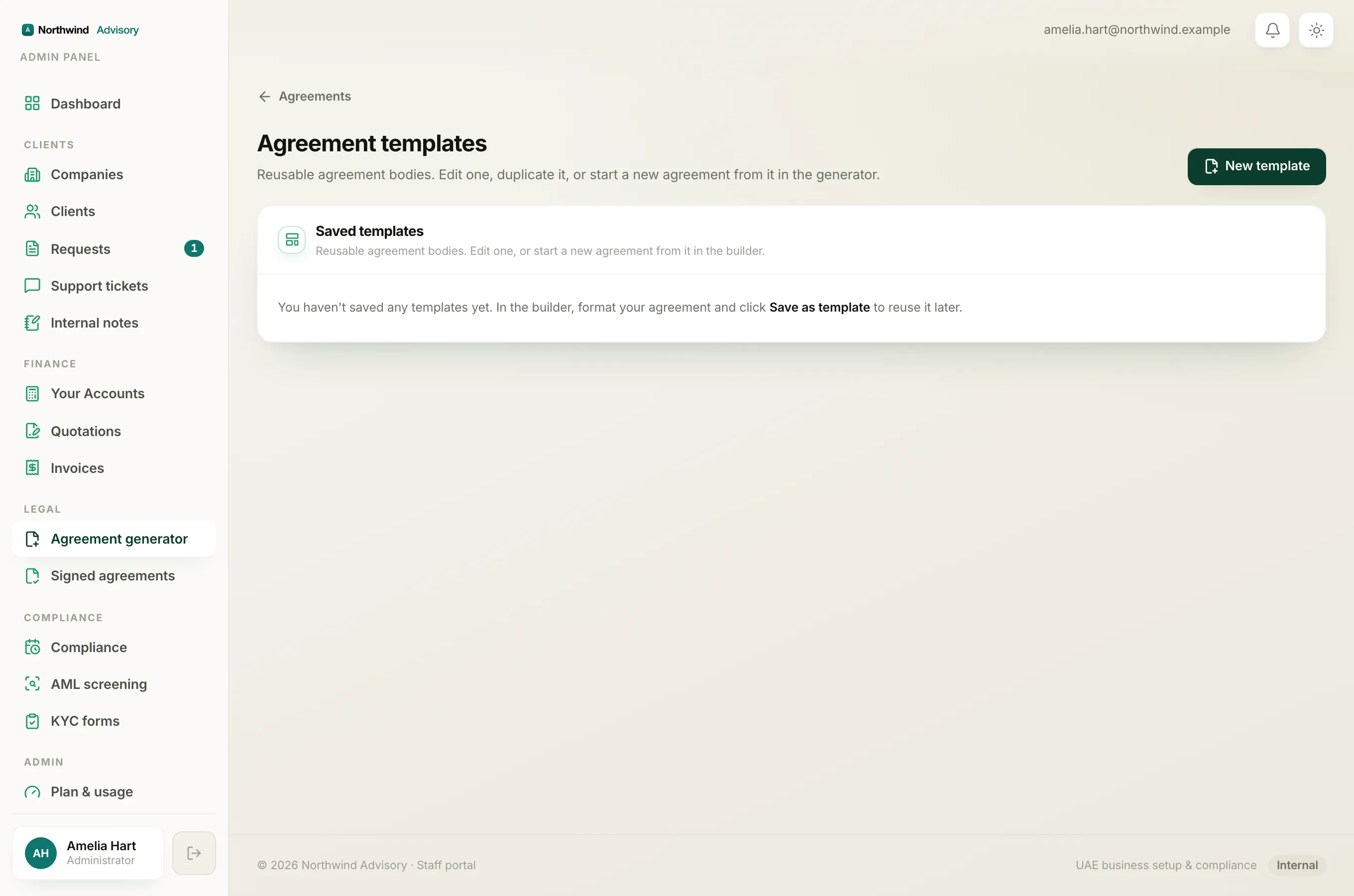
Delete removes a template from your list so it no longer clutters the builder or the template picker.
- On the Agreement templates page, find the template you no longer need.
- Click the trash icon on its row.
- A confirmation box asks you to confirm. It reminds you that agreements already sent are unaffected.
- Confirm to remove it.
The template disappears from your Saved templates list right away.
Why deleting is safe
Deleting a template never harms any agreement. Two things protect you:
- Every agreement keeps its own copy of the wording, taken when it was created. It does not depend on the template still existing. So deleting a template cannot change or break a draft, a sent agreement, or a signed one. See Edit a template without affecting sent agreements.
- Behind the scenes the template is only hidden, not wiped from history. Every agreement it ever produced keeps a record of where it came from, and every signed PDF stays exactly as it was.
In short, deleting a template just tidies your list. It never touches your signed record or anything a client holds.
Note
If you delete your last remaining template, the Agreement generator simply takes you straight to the blank builder next time, since there is no longer a template to choose from.