When you need this
Sometimes you need your collected money outside IzzyTap: to hand your accountant, to keep a monthly record, or to check figures in a spreadsheet. The Payments page lets you export every receipt for a period in one click.
Export your receipts
- Log in to your workspace.
- In the left menu, under Finance, click Your Accounts.
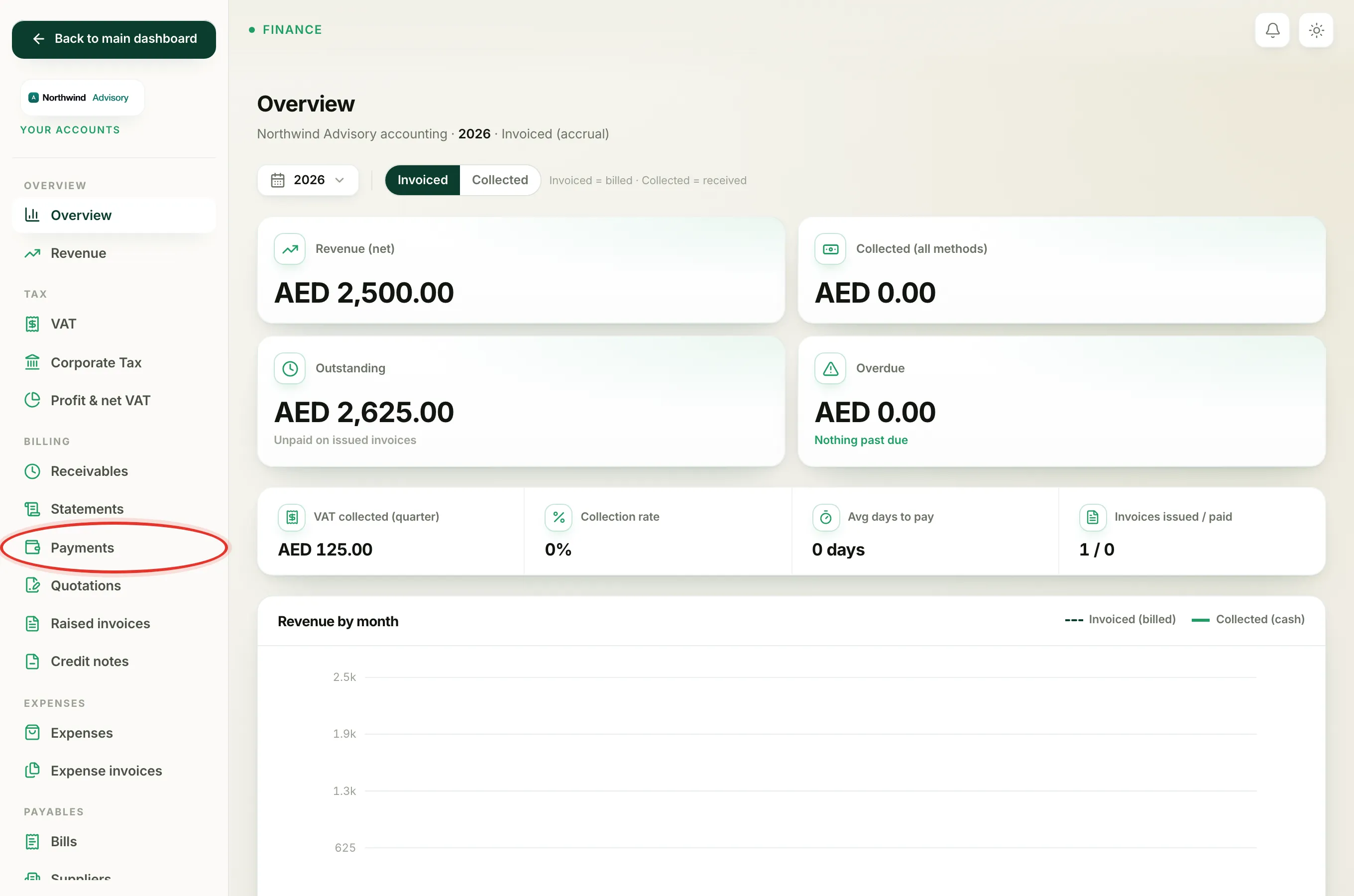
- In the accounts menu on the left, under Billing, click Payments.
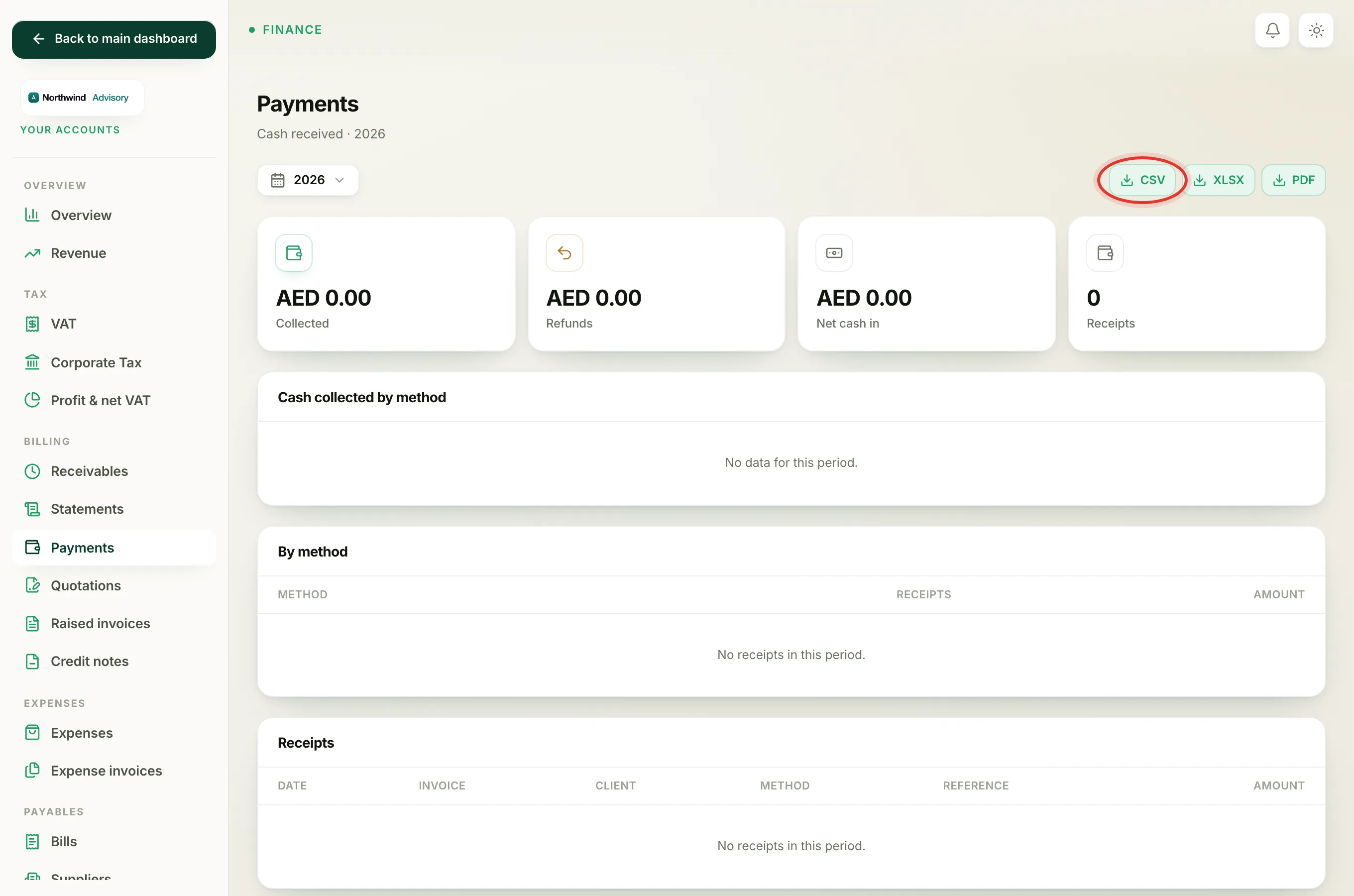
- At the top, choose the period you want using the date range control (a month, a quarter, a year, or a custom range).
- On the right of that same bar, click CSV to download a spreadsheet. (There are also XLSX and PDF buttons next to it if you prefer Excel or a printable file.)
The file downloads named after the report and the dates you chose, for example payments-2026-07-01_to_2026-07-31.csv. Change the date range and export again for a different period.
Note
The download always matches the period showing on screen. Set the dates first, then export.
What is inside the file
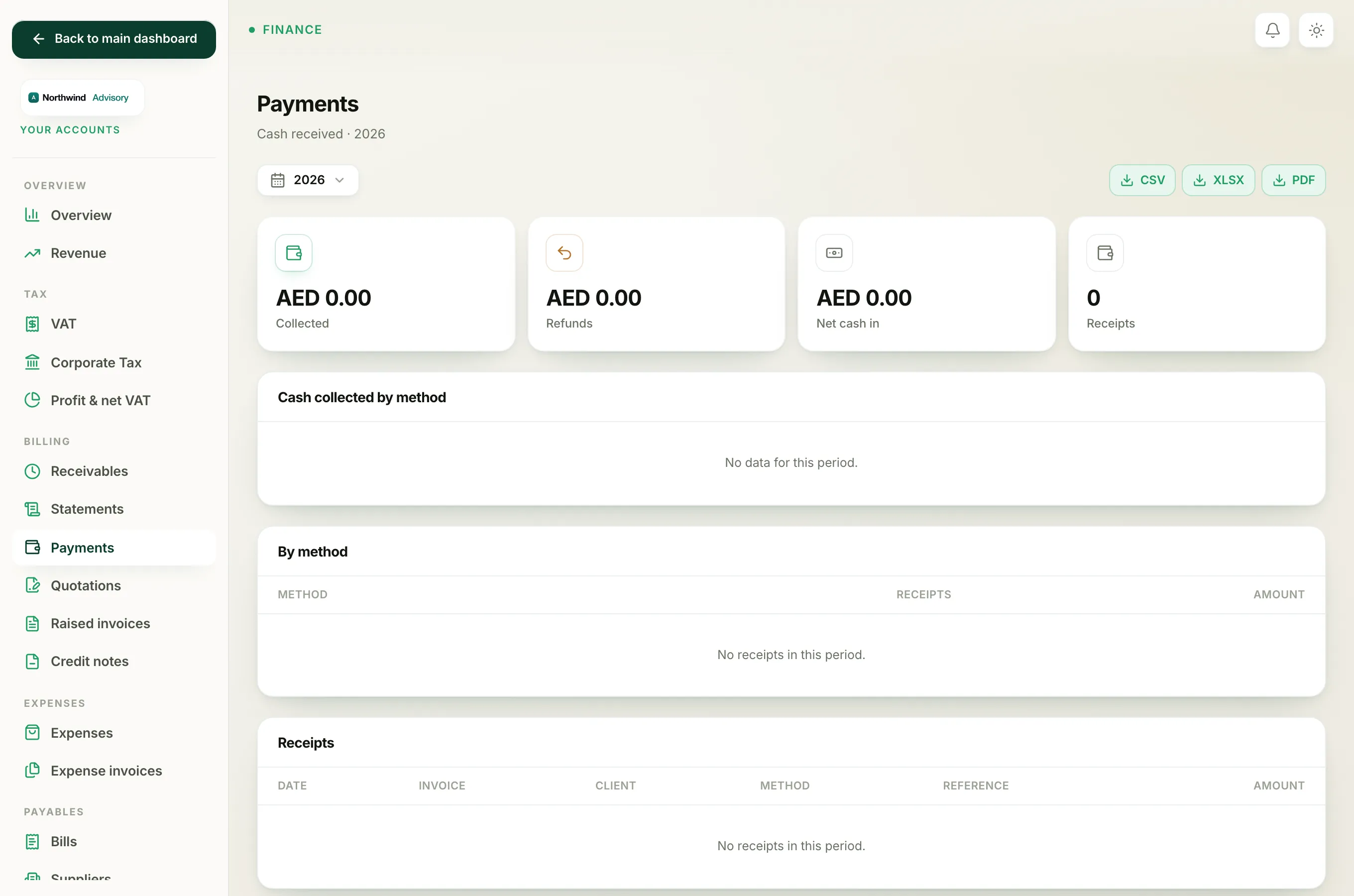
The CSV holds two tables.
By method: a summary of how the money came in:
- Method: Bank transfer, Cash, Card / POS, Cheque or Other
- Receipts: how many payments came in by that method
- Amount: the total collected by that method
Receipts: one row per payment received:
- Date: when the payment was recorded
- Invoice: the invoice number it was paid against
- Client: who paid
- Method: how they paid
- Amount: how much was received
Tip
The on-screen Receipts table also shows a Reference column. Your export focuses on the figures, so open the Payments report on screen when you need to read the reference note against a specific receipt.
Who can export
The accounts area, and this export, are for staff who are allowed to see your firm's financials (your admins). If you cannot see Your Accounts in the menu, your role does not include access to the money reports.
Related: Download the VAT audit file.