What this does
A company can have more than one contact. Each contact is a person linked to the company, such as the owner, a partner, or an accountant. For each one you decide whether they get compliance and renewal reminders, and whether they get ticket and document updates by email.
Open the Contacts tab
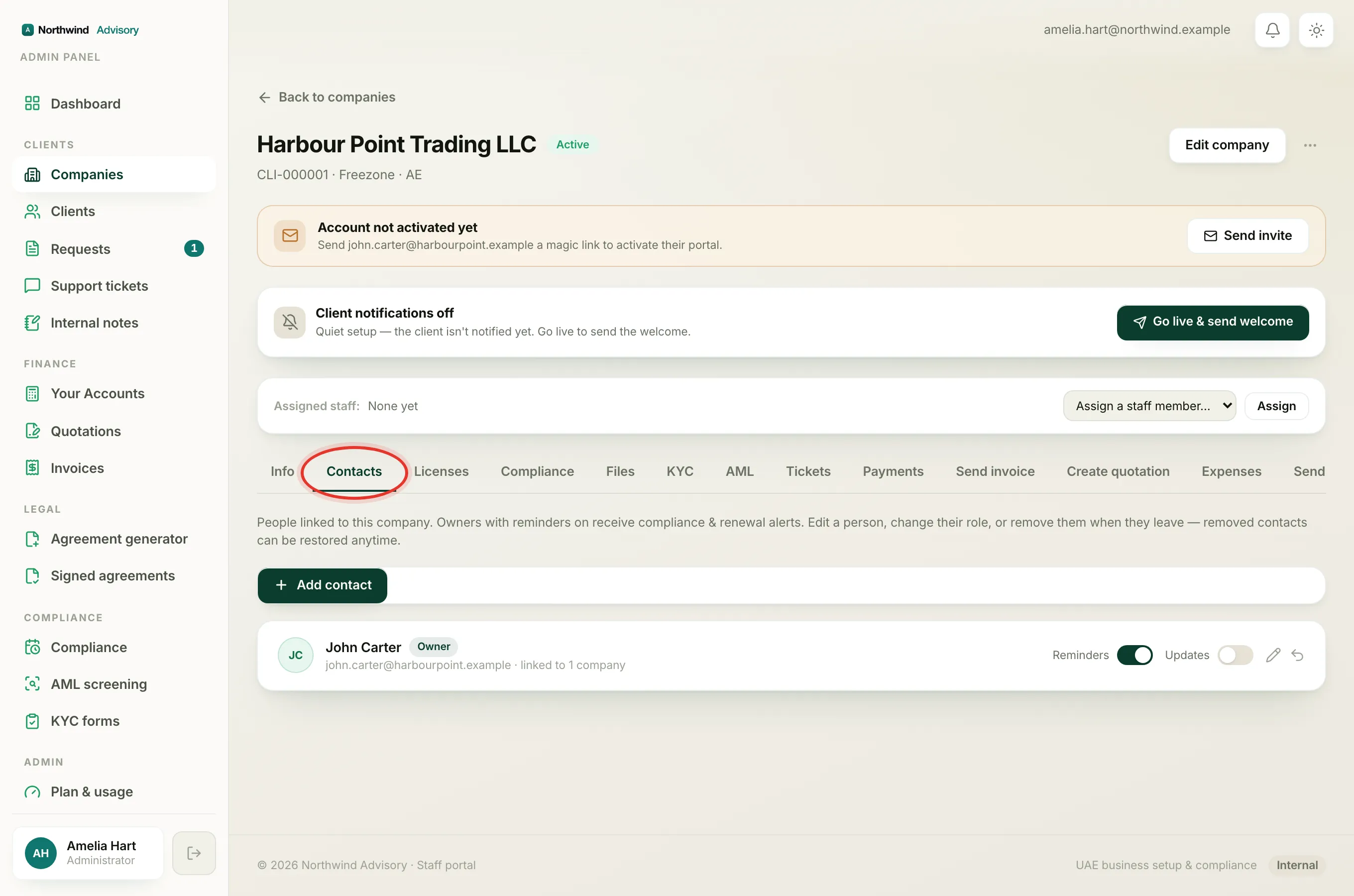
- Log in to your workspace.
- In the left menu, under Clients, click Companies.
- Click the company to open its profile.
- Click the Contacts tab.
Add a contact
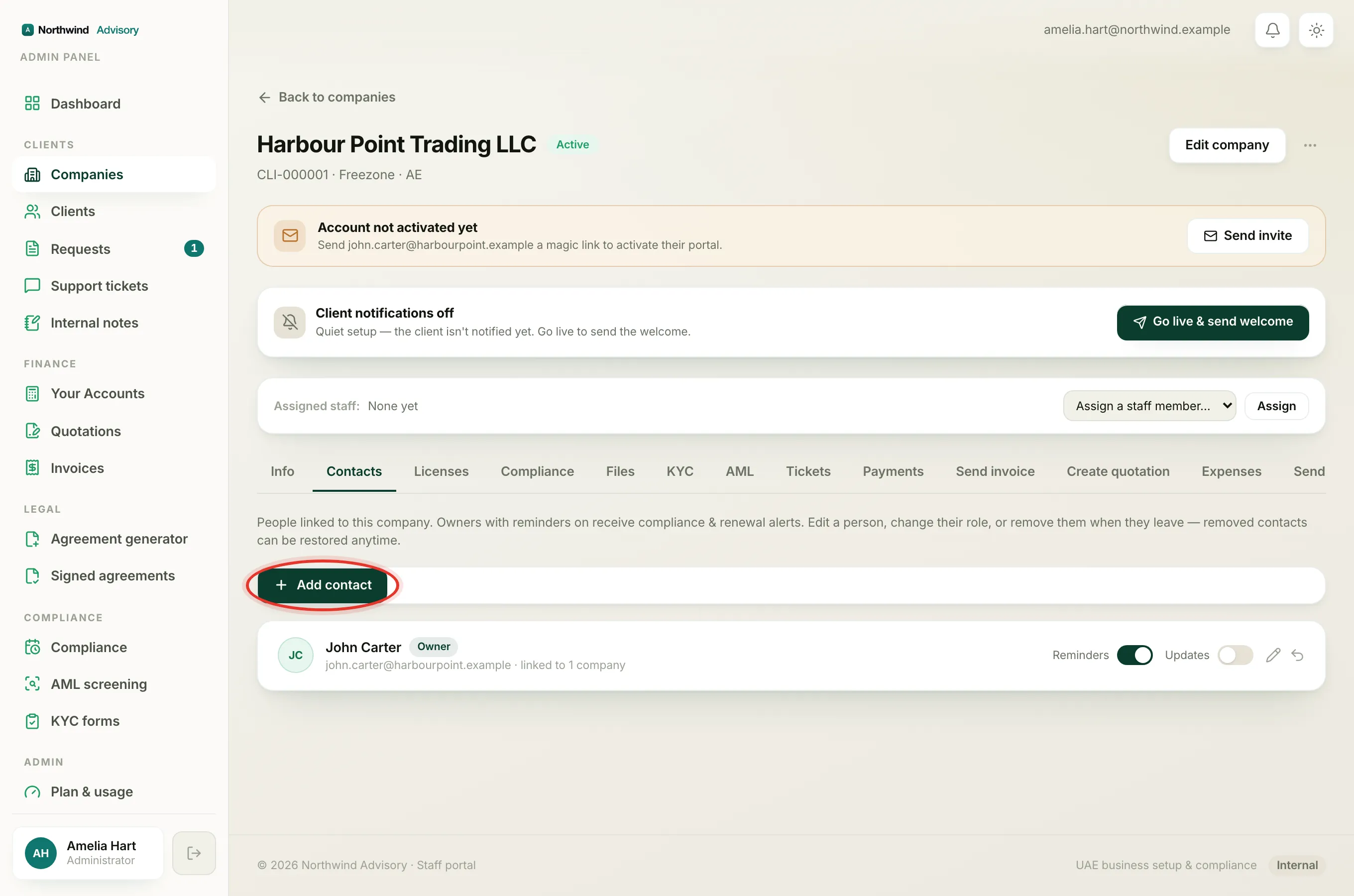
- On the Contacts tab, click Add contact.
- Fill in the form:
- Name is required.
- Email and Mobile are optional.
- Role lets you set what this person is, for example owner.
- Tick Compliance & renewal reminders to send this person deadline reminders.
- Tick Ticket & document updates (emailed) to email them when tickets or documents change.
- Click Add contact.
Tip
If the email or phone already belongs to someone in IzzyTap, that existing person is linked to this company instead of creating a duplicate.
Turn reminders and updates on or off
Each active contact row has two switches on the right:
- Use the Reminders switch to turn compliance and renewal reminders on or off for that person.
- Use the Updates switch to turn ticket and document update emails on or off.
Important
Compliance reminders go to owners. Keep at least one owner on the company with reminders on, so deadline reminders keep going out.
Edit a contact
- On a contact row, click the pencil icon.
- Change the Name, Email, Mobile, or Role.
- Click Save changes.
Editing a person's name, email, or phone updates them everywhere they are linked. It does not change their portal sign-in email.
Remove and restore a contact
- To remove a contact from the company, click the remove icon on their row, then click Remove to confirm.
- Removed contacts move to a Removed contacts section at the bottom of the list. Click it to open the list.
- To bring someone back, click Restore on their removed row.
Removing a contact is safe. It does not delete them, and you can restore them at any time.
What to do next
- Update the company's own details. See How to edit a company's details.
- Send the owner their login. See How to invite a client.