The general ledger lets you open a single account, for example your bank, a client's receivables, or a fee income account, and see every transaction that has ever touched it, in date order, with a running balance. It is the report to reach for when you want to know exactly why an account holds the balance it does.
Note
The Your Accounts area is only visible to staff with the Admin role, and the general ledger needs your books to be switched on. If you see a message that your books are not set up yet, turn on your books first by clicking Set up your books.
Open the general ledger
- Log in to your workspace.
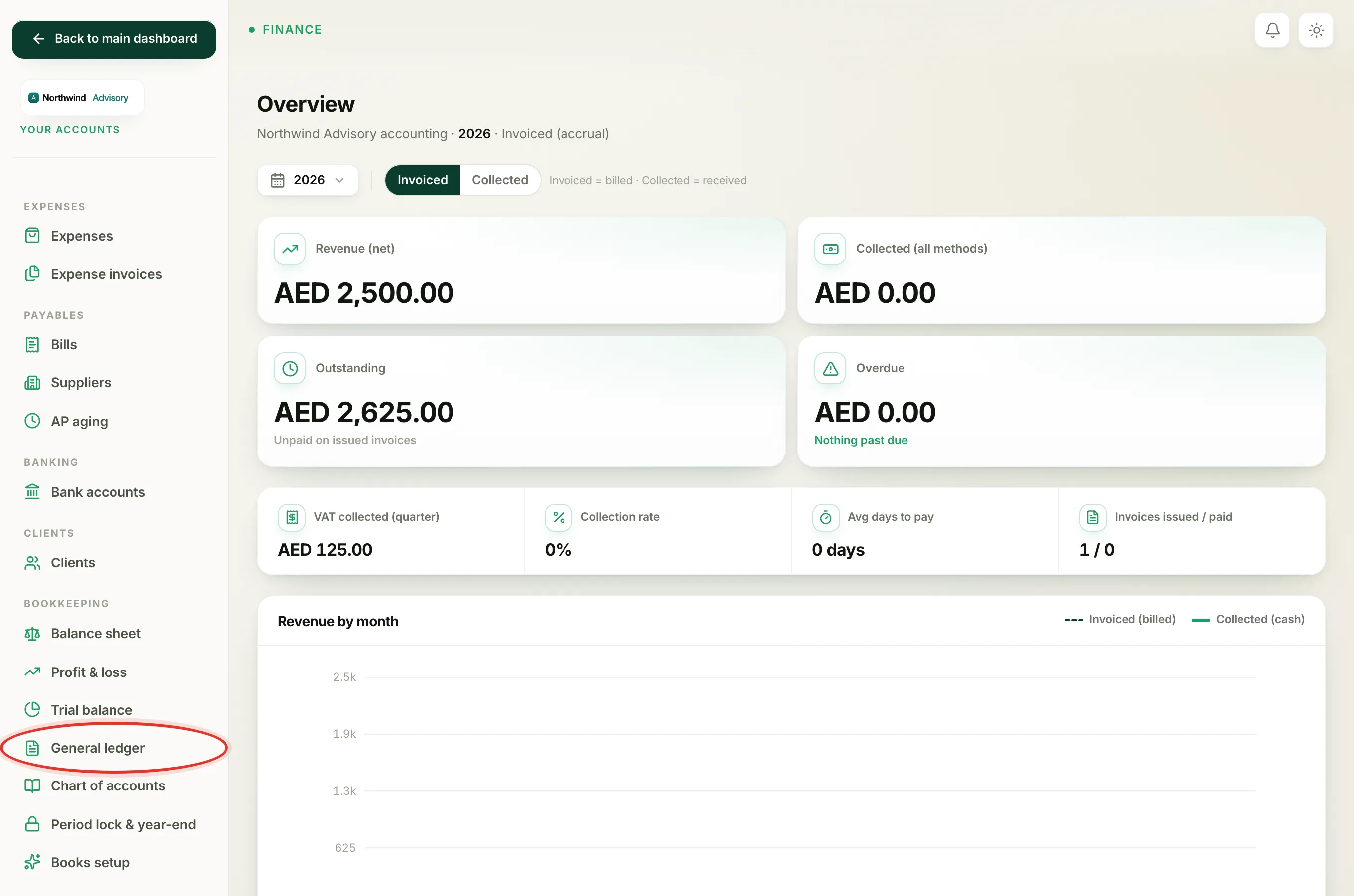
- In the left menu, under Finance, click Your Accounts.
- In the accounting menu, under Bookkeeping, click General ledger.
Pick an account
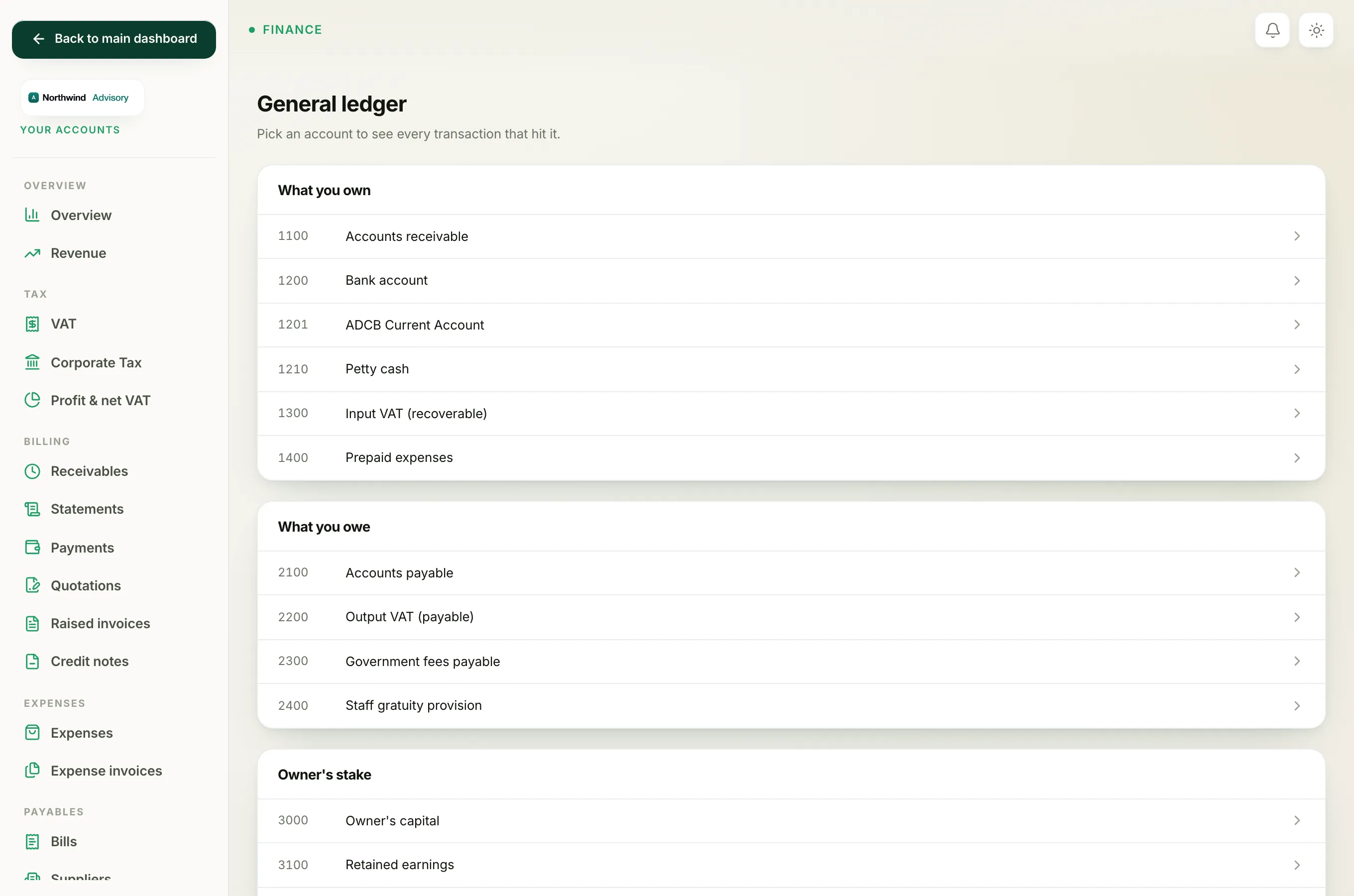
The first screen lists all of your accounts, grouped in plain English:
- What you own (your assets, such as bank and cash)
- What you owe (your liabilities, such as VAT owed to the FTA)
- Owner's stake (your equity)
- Income
- Expenses
Click any account to open its ledger. To browse the full list of accounts and what each one is for, see the chart of accounts.
Read the transactions
The account page shows its code and name at the top, along with its closing balance, which is where the account stands once every transaction below is applied.
The table has six columns:
- Date. When the transaction was dated.
- Type. Where the entry came from. This is one of Invoice, Payment, Expense, Opening balance, Manual entry or Reversal.
- Reference. The document number or a short note, so you can tie the line back to the original invoice, payment or expense.
- Debit and Credit. The two money columns. Each transaction shows an amount in one column or the other.
- Balance. The running balance after that line. Read down the column to watch the account move over time.
You do not need to know which side is a debit and which is a credit. The Balance column always shows you where the account stands after each entry.
Go back or check another account
Use the All accounts link at the top left to return to the grouped list and open a different account.
Tip
To prove your whole set of books holds together rather than inspect one account, use the trial balance instead. It lists every account's balance side by side and checks that the totals match.