The Compliance tab is your one place to see every deadline IzzyTap is tracking for a company: licence and visa renewals, VAT filings and corporate tax filings. It tells you what is late, what is coming up, and what is already done.
Open the Compliance tab
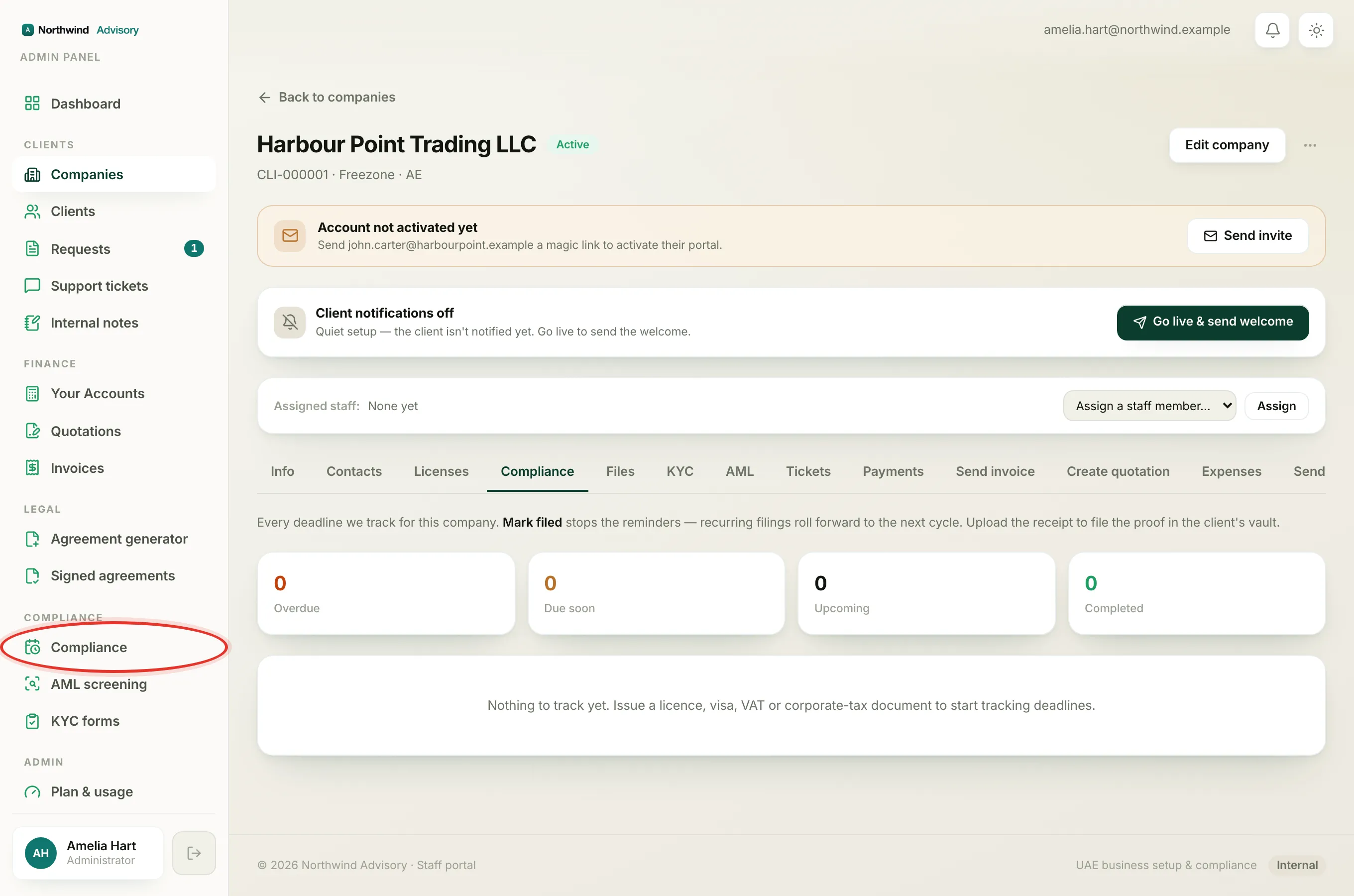
- Log in to your workspace.
- In the left menu, under Clients, click Companies.
- Click the company to open it.
- Click the Compliance tab.
The four count tiles
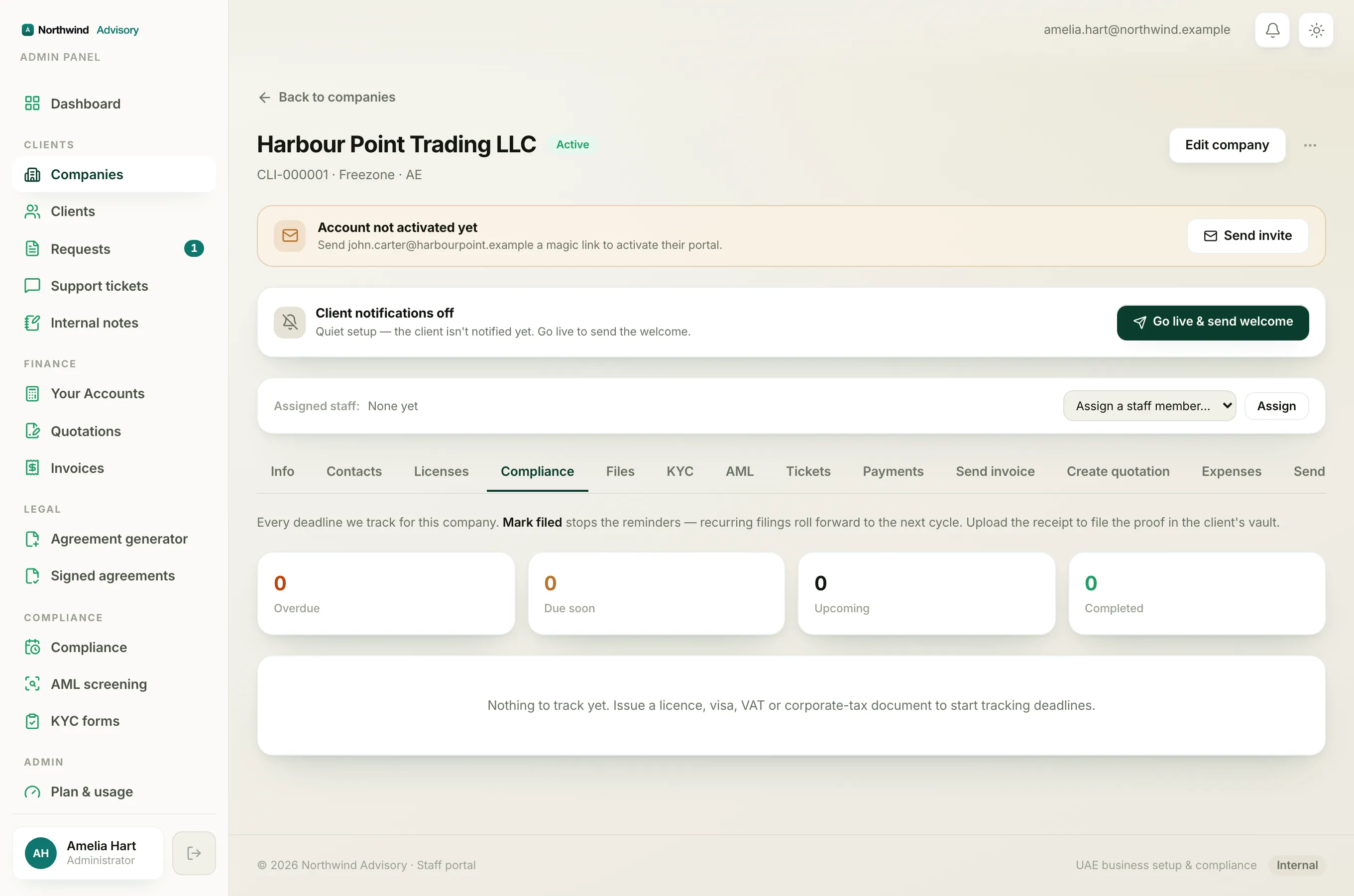
Across the top you will see four numbers:
- Overdue: deadlines that have already passed. These need action first.
- Due soon: deadlines within the next 30 days.
- Upcoming: deadlines more than 30 days away.
- Completed: deadlines you have already marked done.
Reading each deadline row
Every deadline is listed as its own row. Each row shows:
- The title of the item, for example a trade licence renewal or a VAT filing.
- A small tag: Filing for recurring returns like VAT and corporate tax, or Expiry for a licence, visa or Emirates ID that renews on a date.
- The due date.
- A coloured status chip. Red means it is overdue by a number of days, amber means it is due in a number of days, grey means it is further out, and green means it is completed.
A Filing row rolls forward on its own. When you mark it filed, it moves to the next quarter or the next year automatically, so the next deadline is already waiting for you.
Acting on a deadline
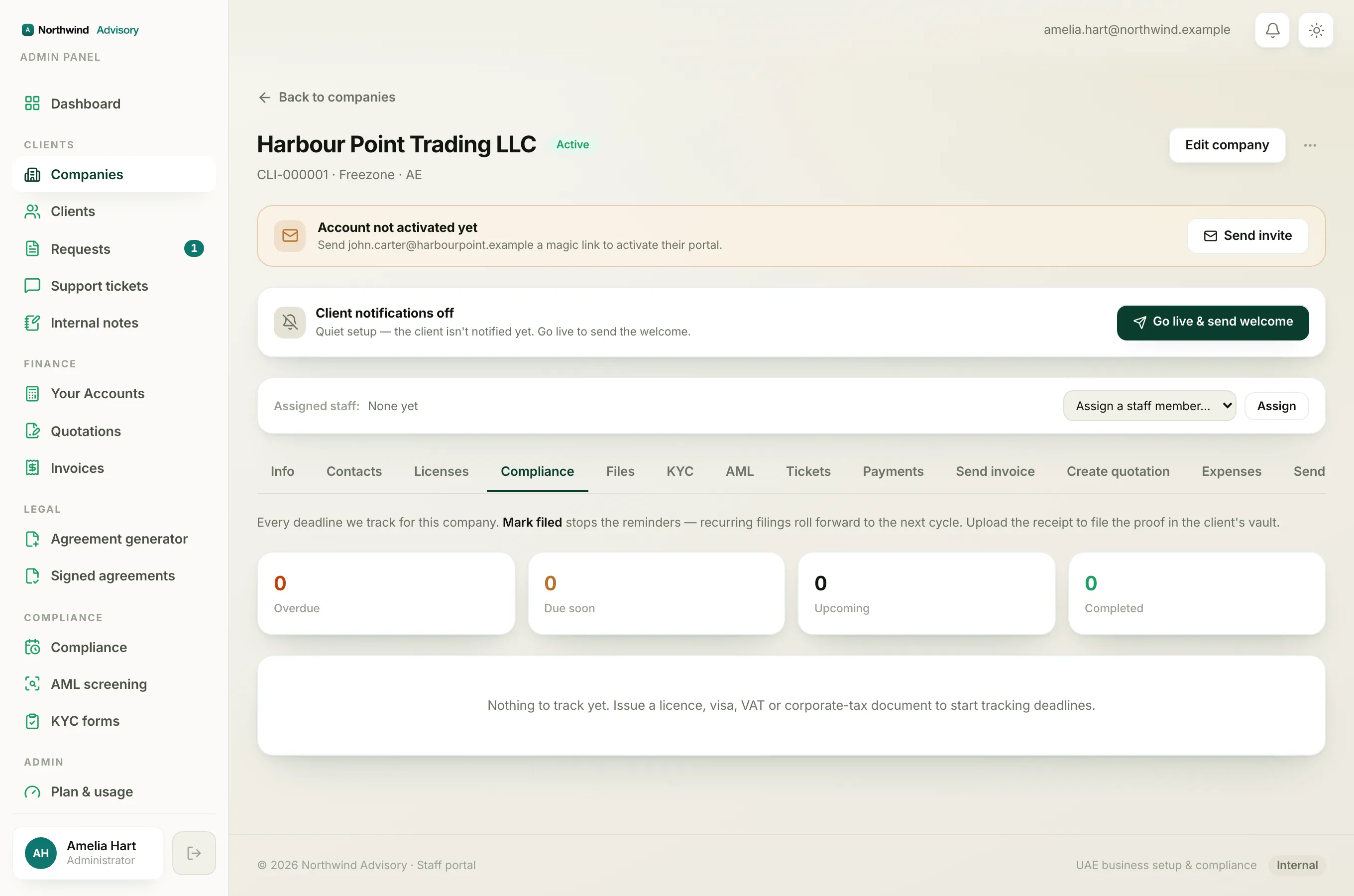
- Click a row that is not yet completed to expand it.
- Click Mark filed or Mark renewed. This stops the reminders for that deadline.
- Below the button, upload the receipt or proof. The file lands in the named folder in the client's vault, so your evidence is filed alongside the record.
For a step-by-step on this, see Mark a filing or renewal complete.
Where the deadlines come from
Deadlines are not typed in here by hand. They appear when you issue a document to a client that carries a rule, for example a licence with an expiry date or a VAT certificate with a period end. If the tab says nothing is tracked yet, issue a licence, visa, VAT or corporate-tax document to start the clock.
Tip
For licences and visas specifically, the Licenses tab shows a live countdown chip next to each one. See Track licence and visa expiry.