What "balanced" means
When you finish reconciling a month, IzzyTap checks one thing. The Cleared balance in your books has to match the closing balance printed on your real bank statement. Only when the two agree does IzzyTap lock the month.
The cleared balance is your opening balance plus every line you have ticked off (matched or categorised) so far. If even one line on your statement is still waiting, the two numbers will not line up, and IzzyTap will not let you finish. This is on purpose. It stops a half-finished month being locked with the wrong figure.
Where you see the message
- Log in to your workspace.
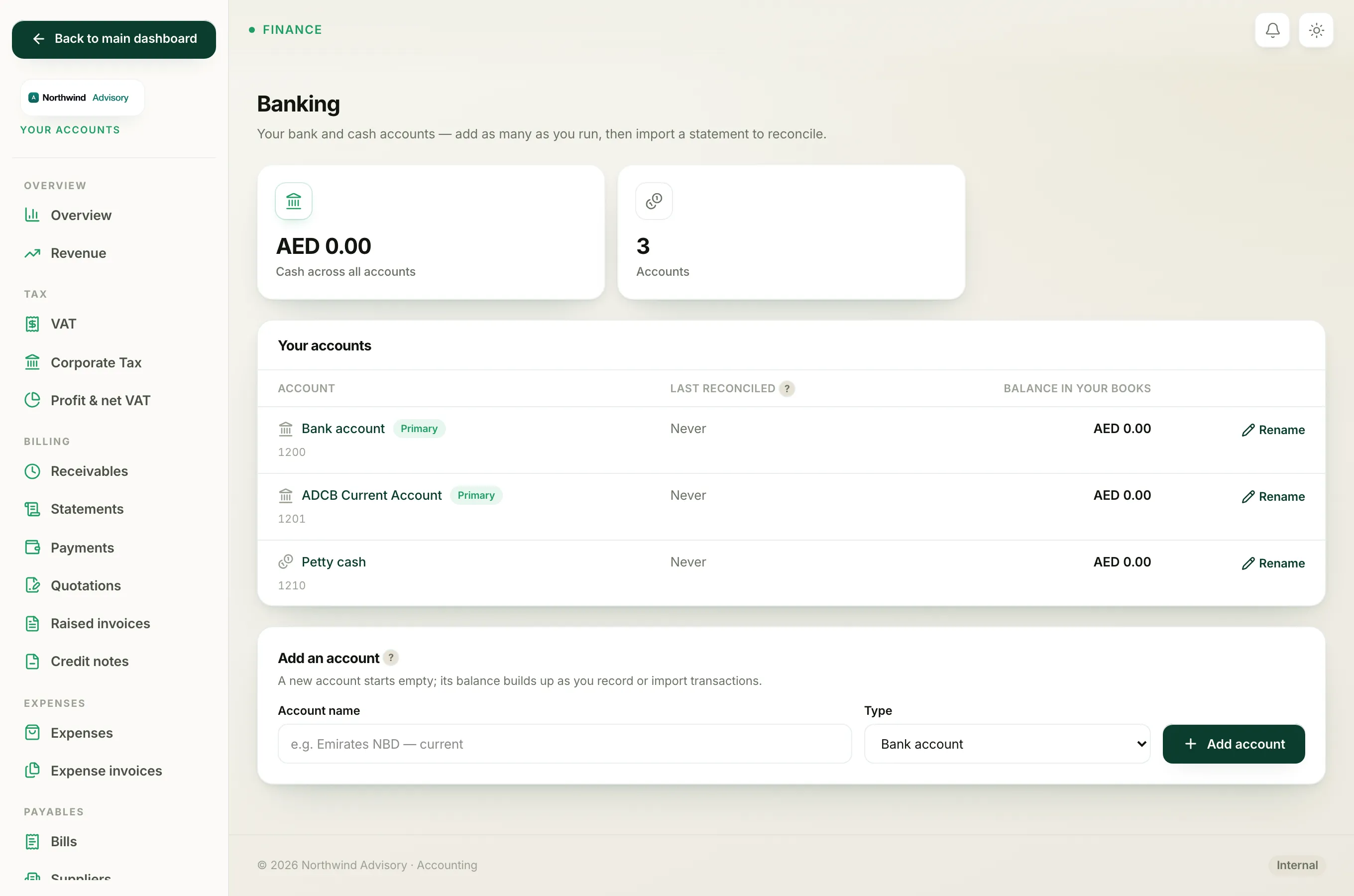
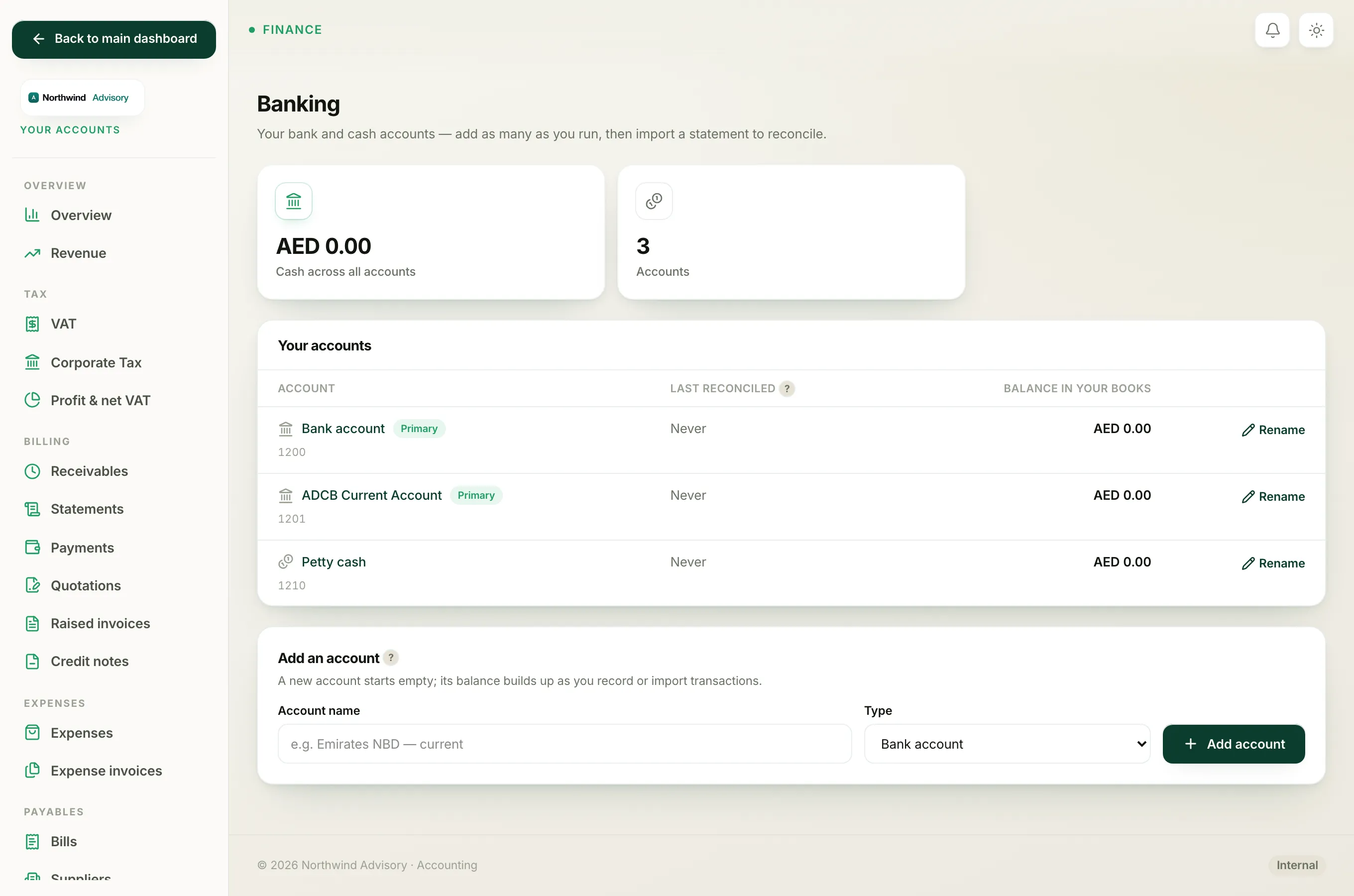
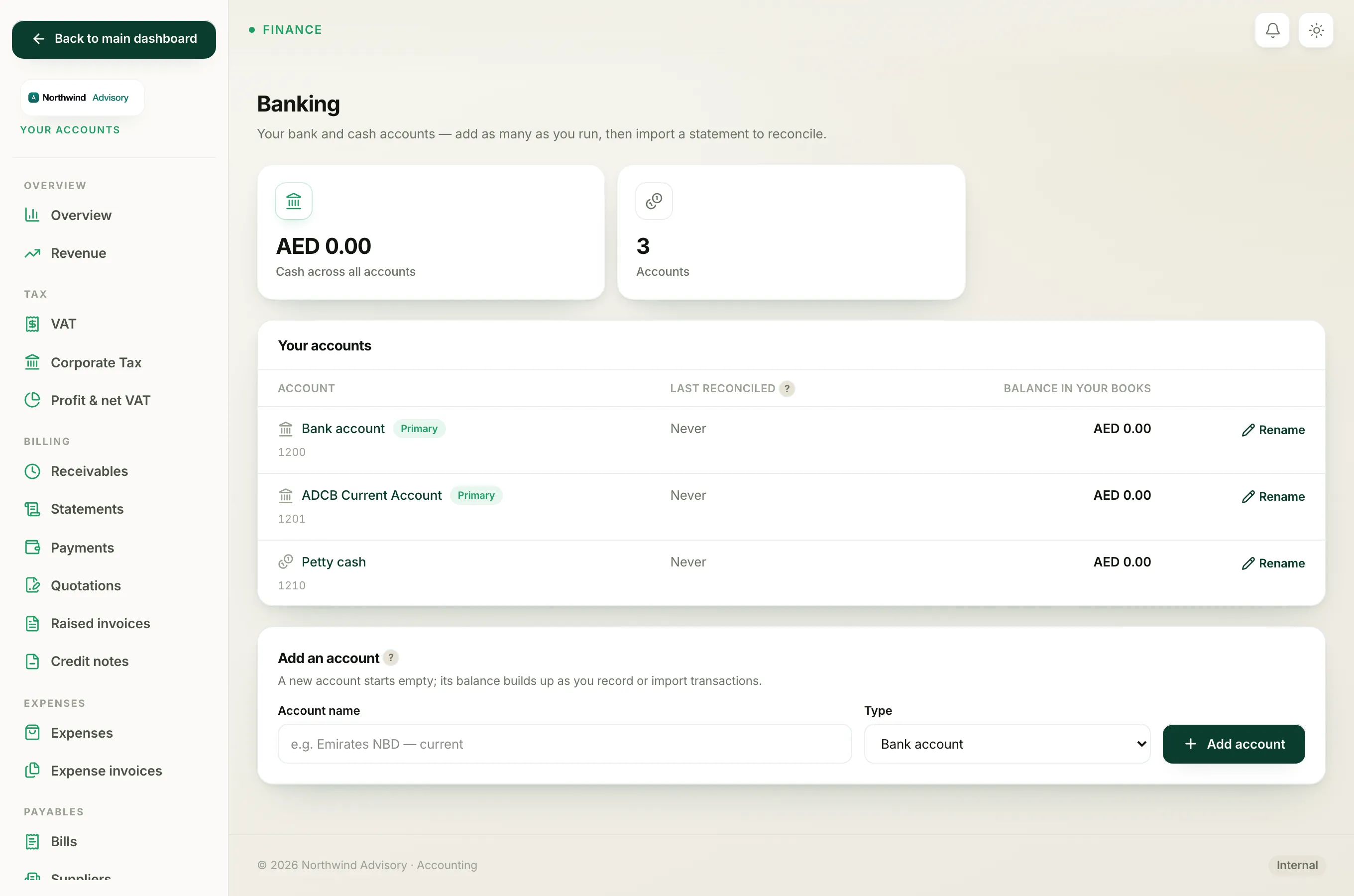
- In the left menu, under Finance, click Your Accounts.
- In the accounts menu, under Banking, click Bank accounts.
- Click the name of the account you are working on.
- Click Reconcile.
At the top of the Reconcile screen you will see two tiles: Still to reconcile (how many lines are left) and Cleared balance in your books.
Lower down, in the Finish this month card, you enter your Statement closing balance (AED) and click Finish & lock. If the numbers do not agree, IzzyTap does not lock the month. Instead it shows a red message like:
Not balanced yet, your books are AED 120.00 under the statement. Tick or categorise the remaining lines first.
How to read under and over
The message tells you which way the gap goes.
- Under means your books show less than the statement. Usually money came in that you have not ticked off yet, such as a client payment or bank interest.
- Over means your books show more than the statement. Usually money went out that you have not ticked off yet, such as a bank fee or a supplier payment.
The amount shown is exactly how far apart you are. If it says AED 120.00 under, there is AED 120.00 of money-in still sitting unreconciled.
How to clear the last lines
- Look at the To reconcile list on the same screen. Every line there is still waiting.
- For a line that is already in your books (a client payment you recorded, a bill you paid), use Match. IzzyTap suggests the likely match for you.
- For a line that only exists on the bank statement (a bank charge, interest earned), choose a category and click Record to categorise it.
- As you clear each line, the Cleared balance in your books updates.
- When the To reconcile count reaches zero, or the cleared balance equals your statement, enter the Statement closing balance (AED) again and click Finish & lock.
Tip
If you are close but not exact, the gap is usually one or two lines. Compare the amount in the red message to your statement. A gap of AED 30.00 over is very often a single bank fee you have not categorised yet.
Note
Make sure you are typing your statement's real closing balance for the same date, not the balance from a different day. Entering the wrong closing figure is a common reason the month refuses to balance even when every line is ticked.
For the difference between matching a line and categorising it, see Match a line vs categorise it when reconciling. To learn what each line state means, see What Open, Matched, Posted and Locked mean.