The first time you sign in with a login your firm created for you, or right after your password has been reset, the system takes you straight to your profile and shows an amber banner. This article explains that prompt and how to clear it.
What you will see
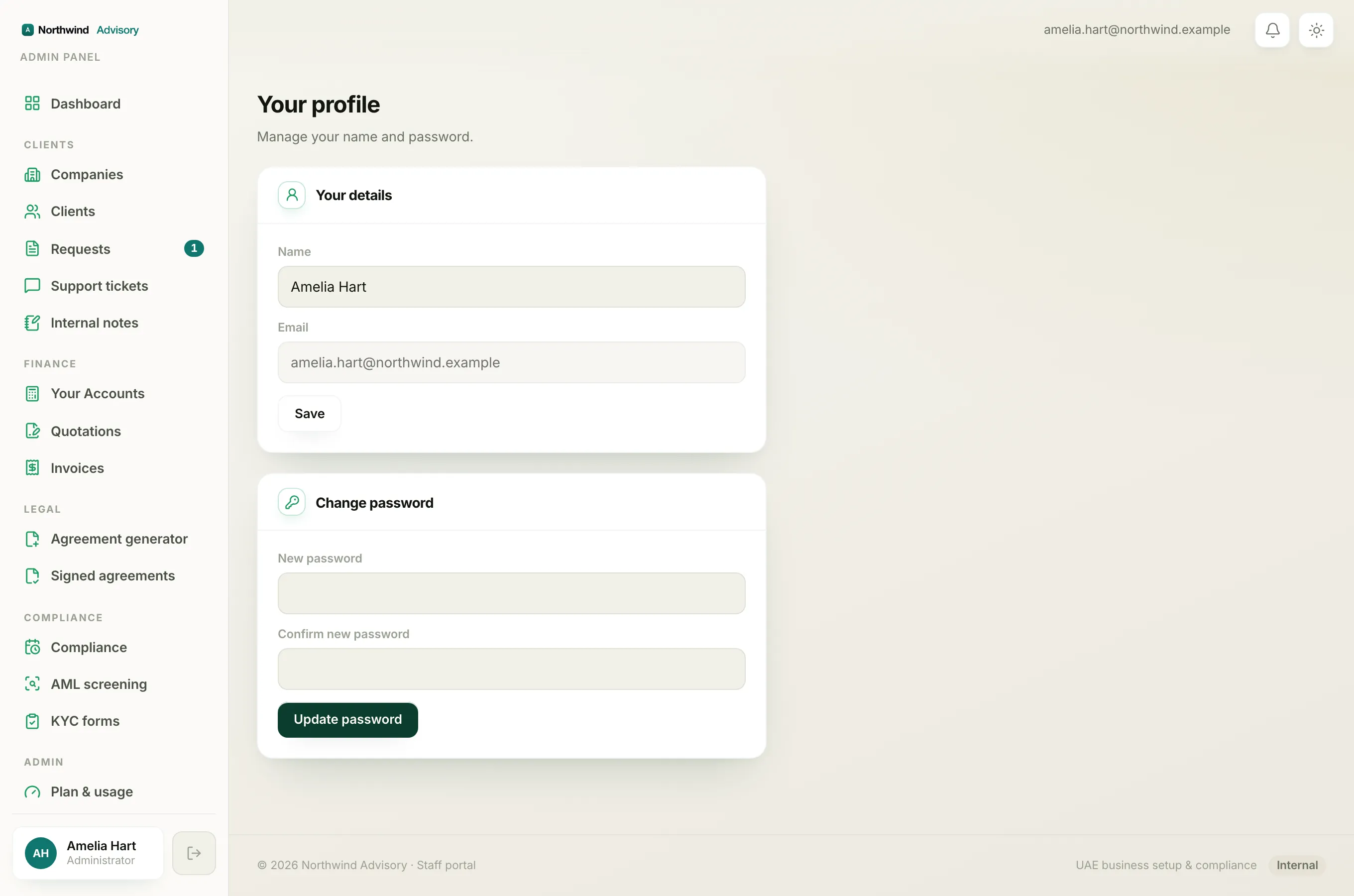
After you sign in, you land on Your profile with an amber banner at the top that reads:
Please set a new password below to finish securing your account.
This happens for one reason: your account is marked as needing a fresh password. The most common cases are:
- Your firm's admin created your login and emailed you a temporary password. That temporary password is only meant to get you in once.
- Someone reset your password, so the old one no longer works and you need to choose your own.
Until you set your own password, the banner will keep appearing when you sign in.
Clear the prompt
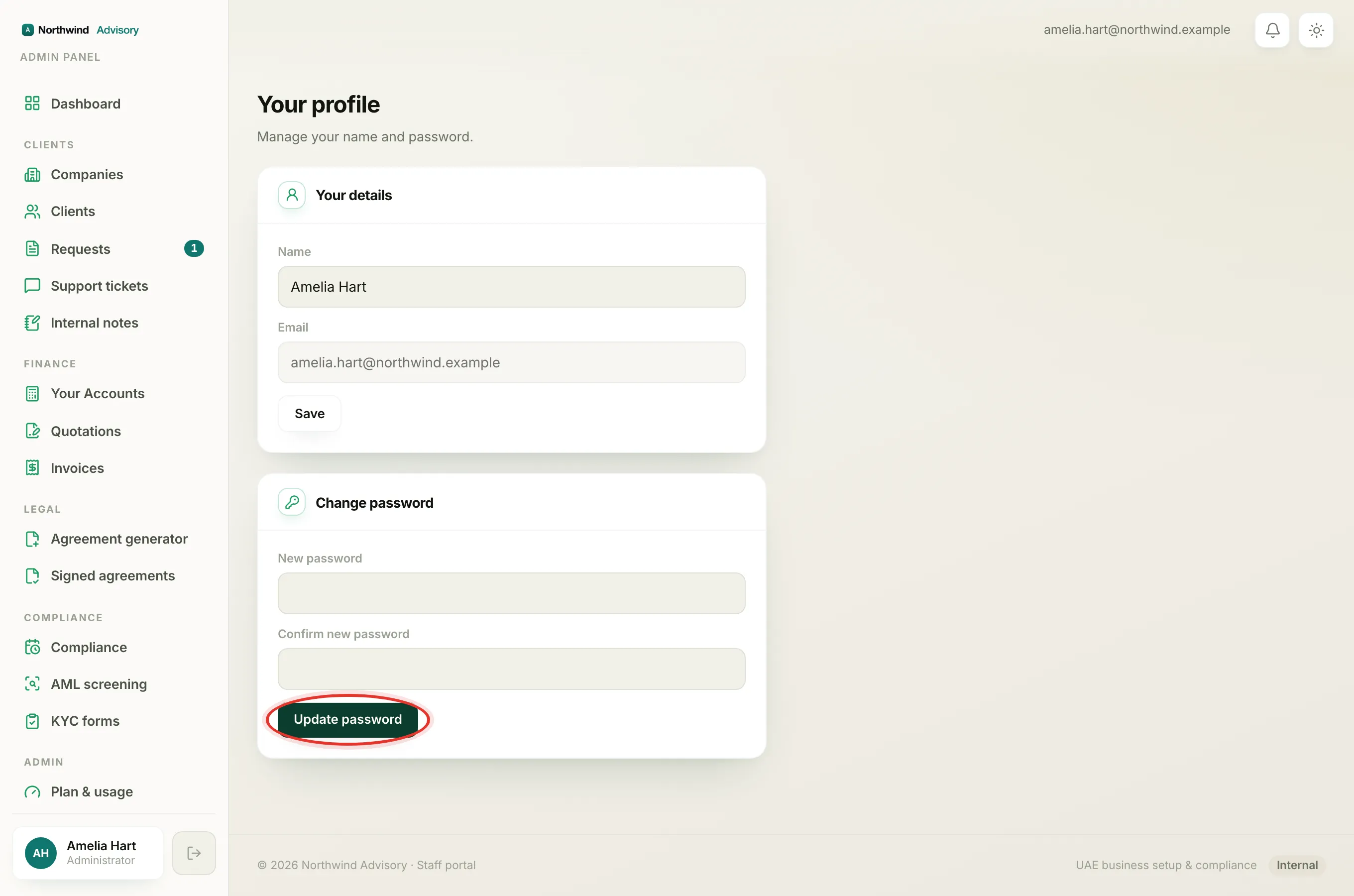
- Log in to your workspace with the temporary password you were given. You will be taken to Your profile automatically.
- Find the Change password box (it is right below the amber banner).
- In Current password, type the temporary password you just used to sign in.
- In New password, type a new password that only you know. It must be at least 8 characters.
- In Confirm new password, type the same new password again.
- Click Update password.
When you see Password updated. in green, you are done. The amber banner will not come back, and from now on you sign in with the password you just chose.
Tip
Choose something you have not used anywhere else, and store it somewhere safe. The temporary password stops working the moment you set your own.
If the current-password box is not there
If you were set up to sign in by email link only, there is no temporary password, so the Current password box does not appear. Just fill in New password and Confirm new password and click Update password.