What your brand colour is
Your brand colour is the single accent colour that IzzyTap uses on everything your clients see: their portal, the invoices and quotations you send, and your emails. It is your firm's colour, not a background. IzzyTap keeps most of the layout clean and simply uses your colour to pick out the important buttons, links and highlights.
Note
Your brand colour only paints the surfaces your clients see. Your own admin workspace stays in its standard theme, so changing the colour here does not repaint your menus or dashboard.
Open the brand settings
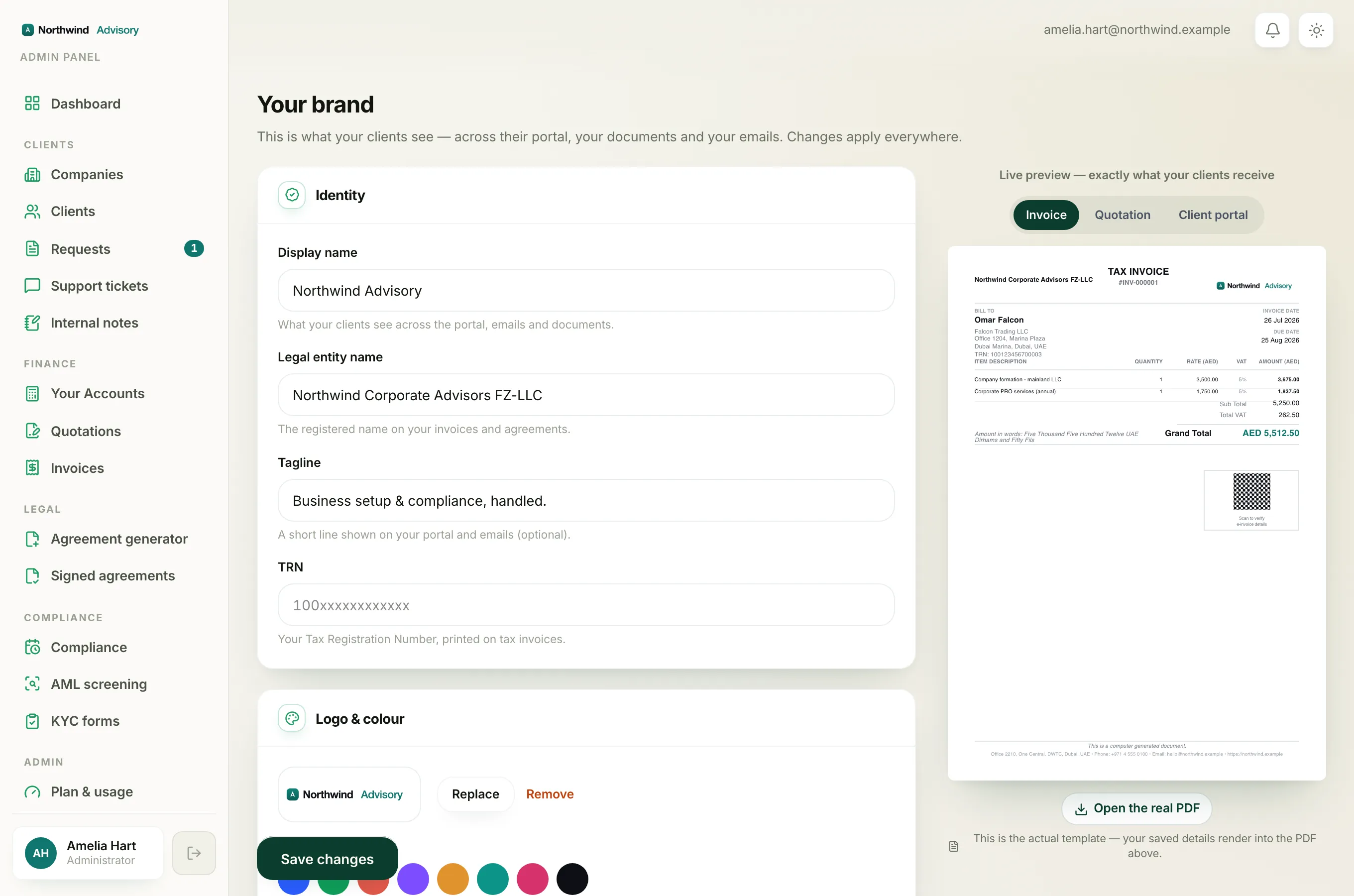
- Log in to your workspace.
- In the left menu, under Admin, click Brand.
- Find the Logo & colour card.
The field you want is Brand colour, with the hint "Your accent across the portal and documents."
Pick a colour
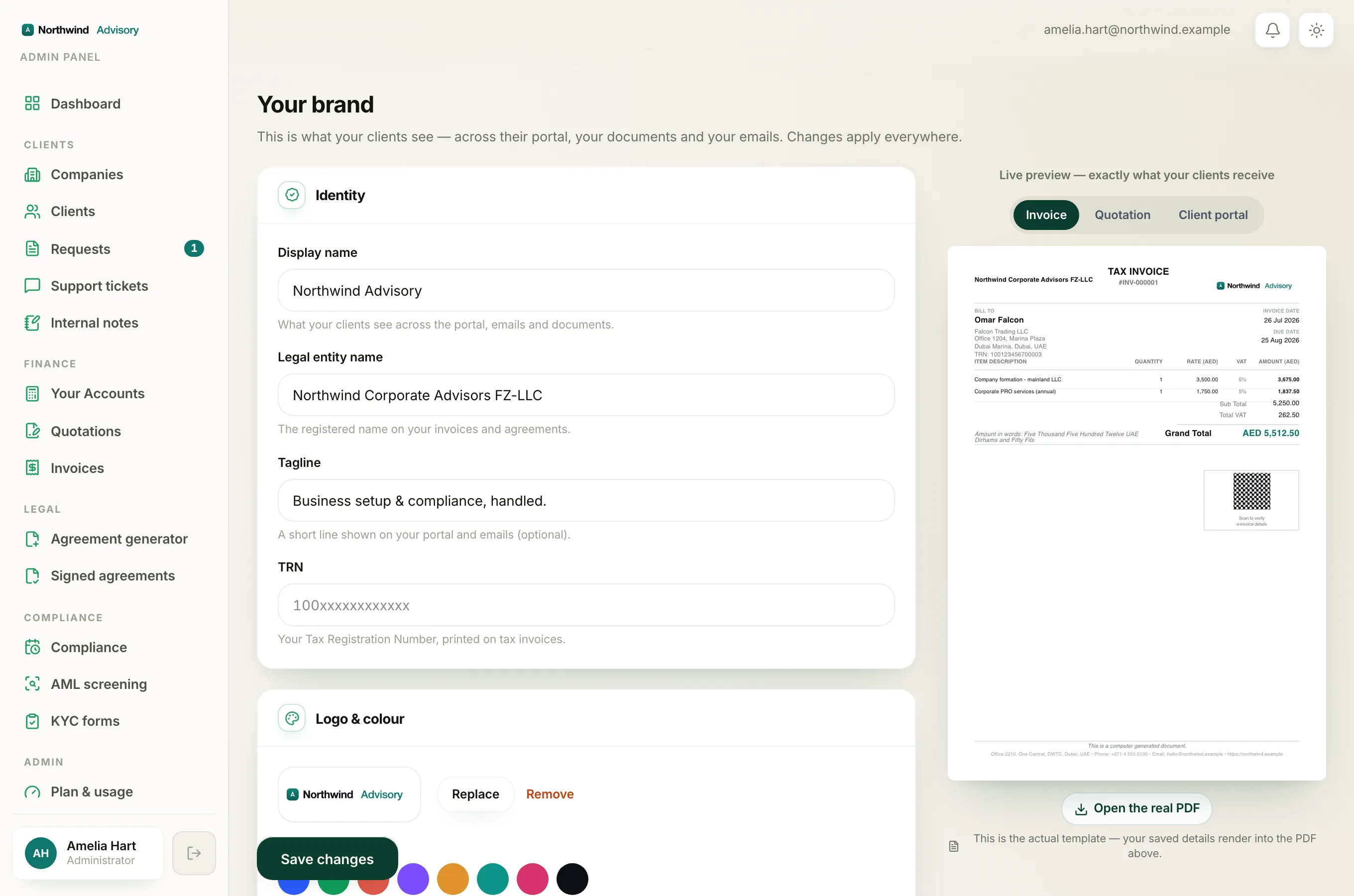
You have two ways to set it.
- Use a preset swatch. A row of ready-made colour circles sits at the top. Click any one to select it. The selected swatch shows a ring around it.
- Enter your own colour. Below the swatches there is a small colour square and a text box. Click the square to open your device's colour picker, or type an exact six-character hex code into the box (for example
#2b5cff).
Tip
If you have a brand guide, use the exact hex code from it in the text box so your IzzyTap colour matches your website and stationery precisely.
A hex code must be a # followed by six characters, like #0f9d58. If you type something that is not a valid hex code, IzzyTap falls back to its default blue rather than saving a broken colour.
See where it shows before you save
On the right of the page is a Live preview panel titled "exactly what your clients receive." It has three tabs so you can check every surface:
- Invoice and Quotation show your accent on the real document template. Your colour appears on the key totals and headings.
- Client portal shows your accent on the selected menu item and the New request button your client taps.
On the Invoice and Quotation tabs you can also click Open the real PDF to build the genuine document with sample data, so you can confirm the colour on a true-to-scale page.
Save the change
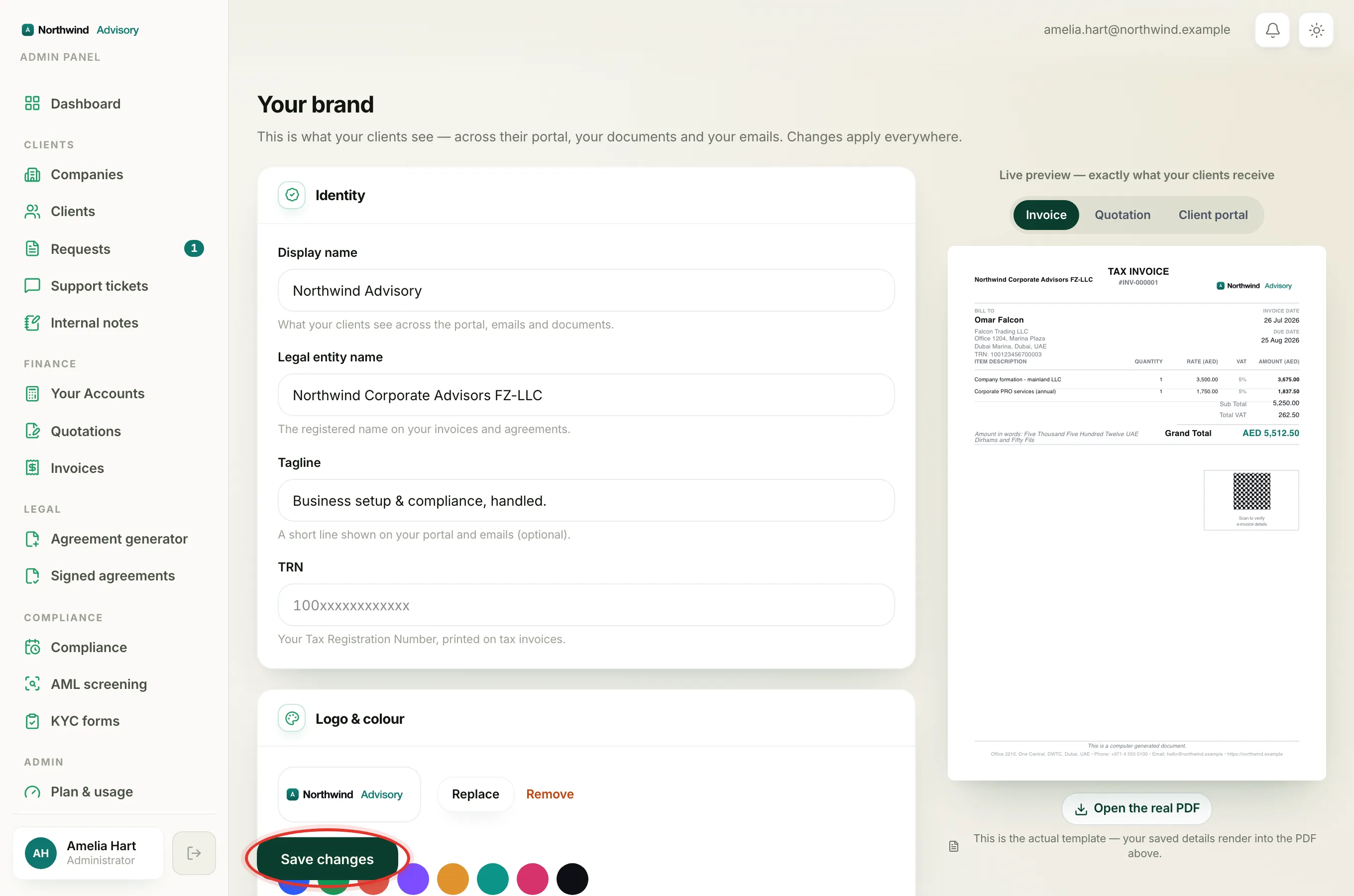
- Scroll down and click Save changes.
- A green Saved confirmation appears.
Your new colour applies everywhere straight away. Any invoice, quotation or portal page a client opens after you save uses it.
Related
Colour is one part of your brand. See also Upload your firm logo and Set up your invoice and document letterhead.