Where you upload the logo
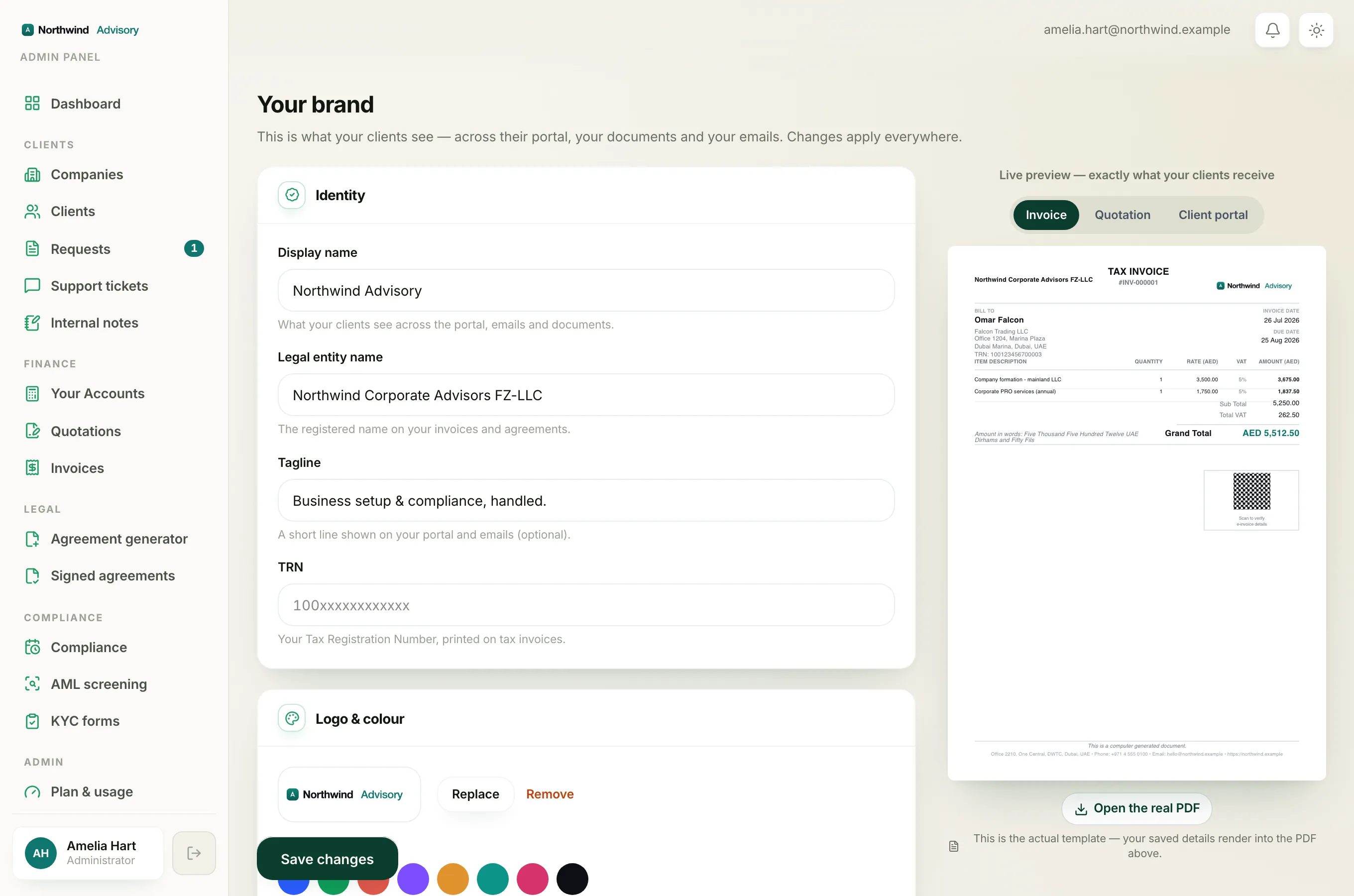
- Log in to your workspace.
- In the left menu, under Admin, click Brand.
- In the Logo & colour card, click Upload logo (or Replace if you already have one).
- Choose your image file. A cropping window opens so you can frame the logo, then click to save it.
If the upload does not go through, IzzyTap shows a short message in red under the buttons. Here is what each one means and how to fix it.
"Please choose a PNG or JPG image"
IzzyTap only accepts two picture formats for your logo: PNG and JPG (also called JPEG). If you see this message, your file is a different type.
Common files that will not upload:
- SVG vector files
- PDF files
- HEIC photos straight from an iPhone
- WebP images saved from a website
How to fix it: open your logo in any image tool or a free online converter and export it as a PNG or a JPG. A PNG is best if your logo has a transparent background. Then upload the new file.
"That image is over 2 MB"
Your logo file is too big. The limit is 2 MB. High-resolution exports and photos often go over this.
How to fix it: save a smaller version. A logo does not need to be huge. An image around 600 to 1000 pixels wide is plenty and will sit well under 2 MB. Re-export at a smaller size, or run it through a free image compressor, then upload again.
Note
Even if you pass the check in the browser, IzzyTap runs the same two checks again when it saves. So a file that is genuinely a PNG or JPG and genuinely under 2 MB is what you need.
Why a transparent or oddly shaped logo can look wrong
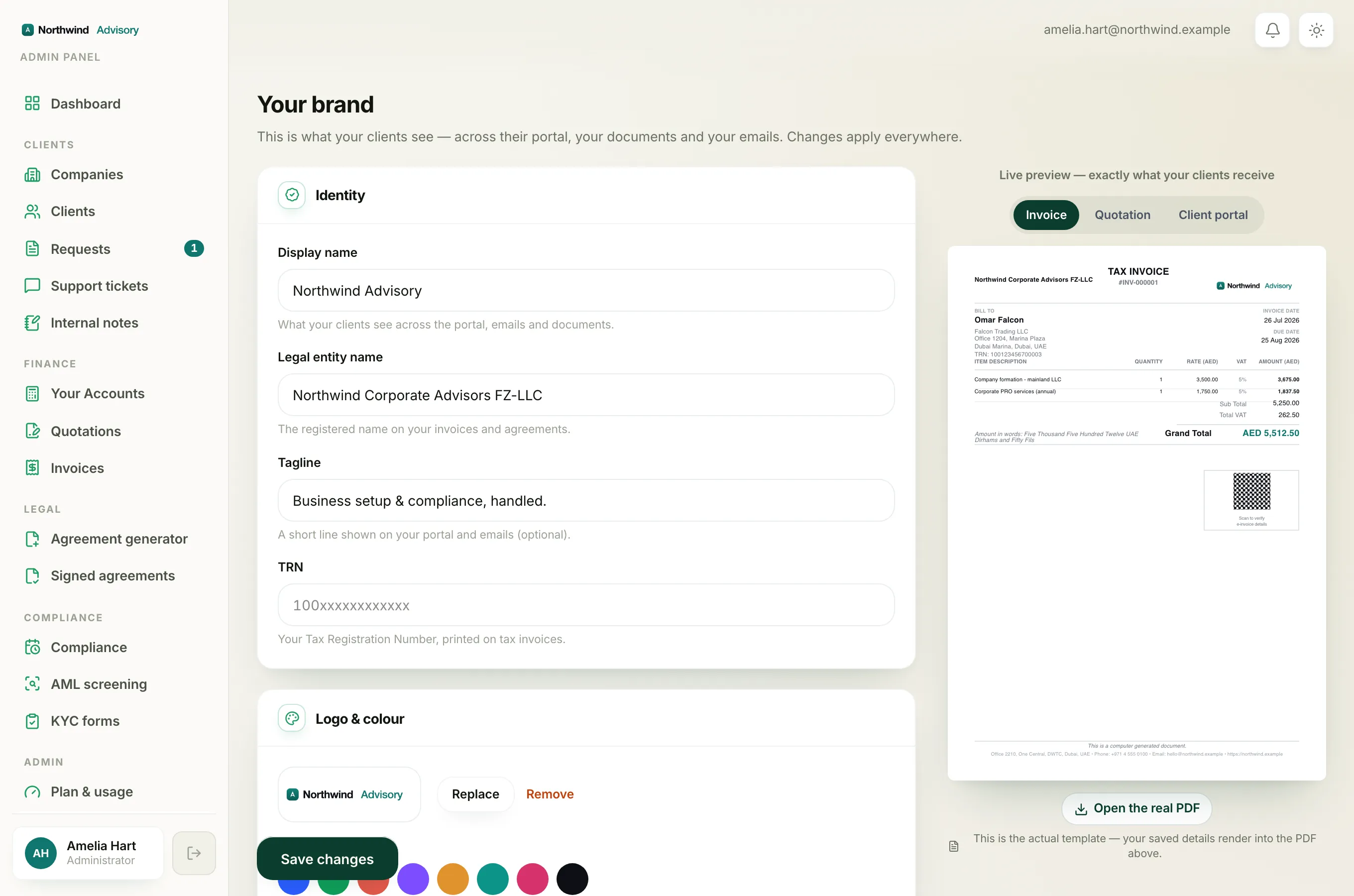
Uploading successfully is one thing. Looking good on your documents is another.
- Logo shape. The logo sits in a wide, landscape space, roughly two and a half times wider than it is tall. A long, horizontal logo fills it nicely. A tall or perfectly square logo has to shrink to fit the height, so it can look small with empty space beside it.
- Transparent backgrounds. A PNG with a transparent background is placed on a white area in your portal and documents. If your logo has white text or very pale detail, it can disappear against that white. For a transparent logo, use dark or coloured artwork so it stays readable.
How to fix it: use the cropping window to trim away extra empty space around your logo, or prepare a horizontal version of your artwork before you upload. Check the Live preview panel on the right to see how it lands on an invoice, a quotation and the client portal before you rely on it.
Remove a logo
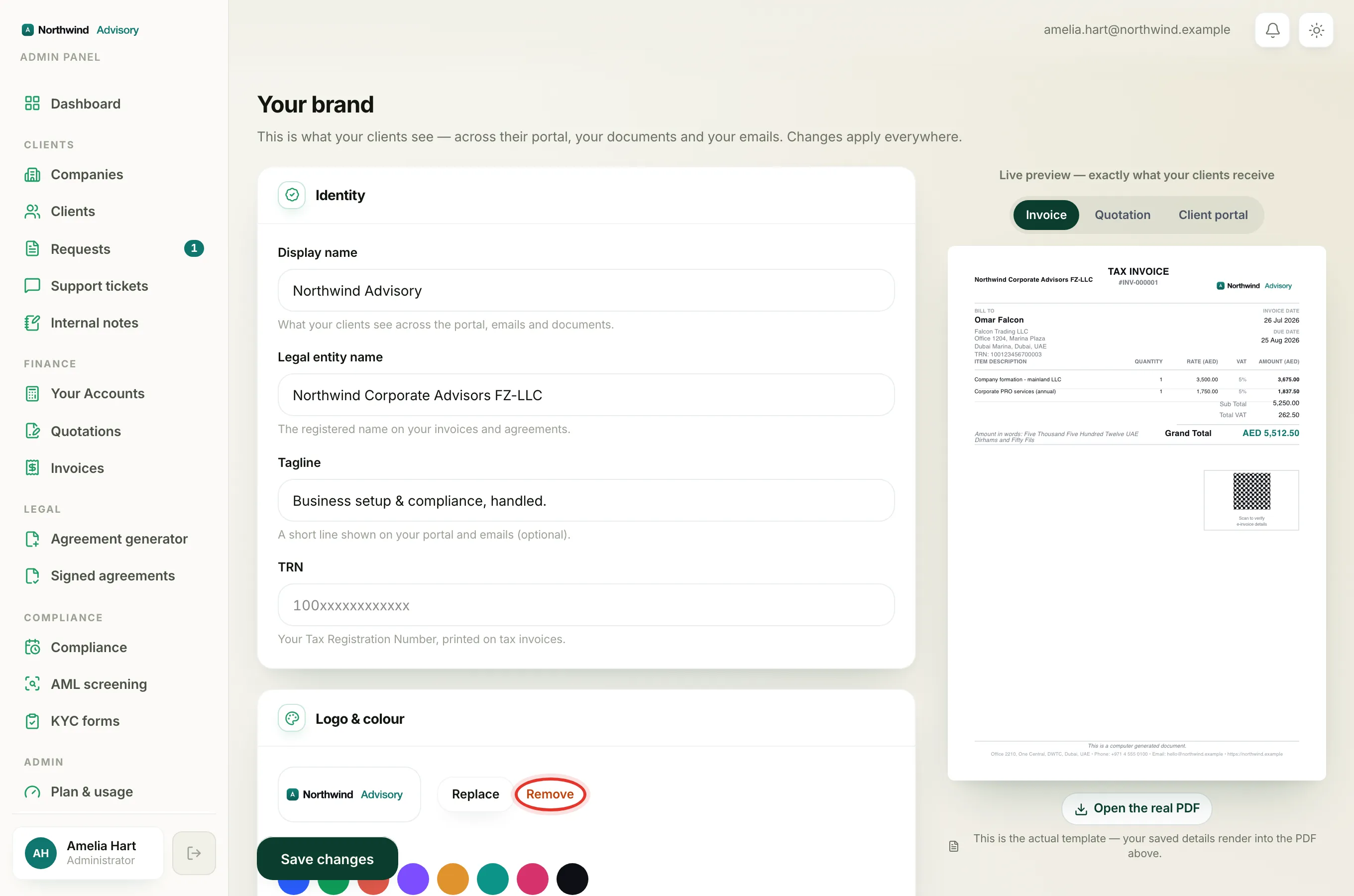
If you want to go back to showing your firm name as text instead of a logo, click Remove next to the logo, then confirm. Your firm name then shows in place of the image.
Related
Once the logo is right, see Upload your firm logo for the full setup.