Why tag a line to a service
When you raise an invoice you often bundle several things onto one document. For example one invoice might cover a company formation fee and a separate visa fee. To your client that is one invoice. To your reports, though, that is income from two different services. Tagging each line to a service is how IzzyTap knows which service earned which part of the money, so your per-service revenue and profit figures are accurate instead of all landing in one lump.
The tag is internal. It never prints on the client's invoice PDF. It only feeds your reports.
The two places a service is chosen
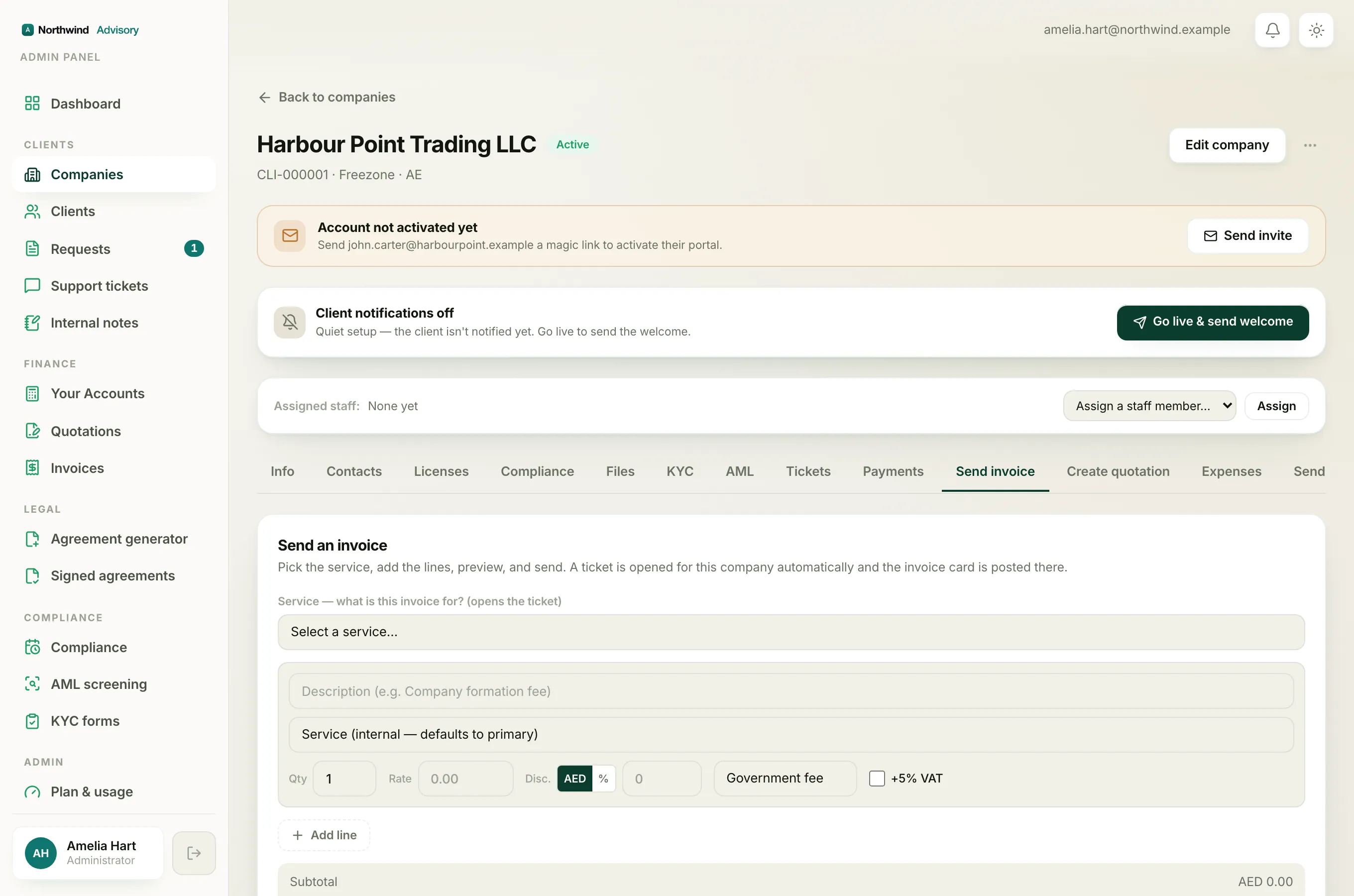
There is a service picked for the whole invoice, and a service that can be set on each individual line.
- The invoice's main service. Near the top of the invoice builder you pick the service the invoice is mainly for. On a company invoice this is the Service dropdown that also decides which ticket is opened. On a standalone invoice to a new lead it is the Service dropdown used for the request that opens when they pay.
- The per-line service. Each line has its own small dropdown labelled Service (internal, defaults to primary). This is where you set a different service for just that line.
If you leave a line's own dropdown alone, that line falls back to the invoice's main service. So a single-service invoice needs no per-line tagging at all. You only reach for the per-line dropdown when a line belongs to a different service from the rest of the invoice.
How to tag a line
- Log in to your workspace.
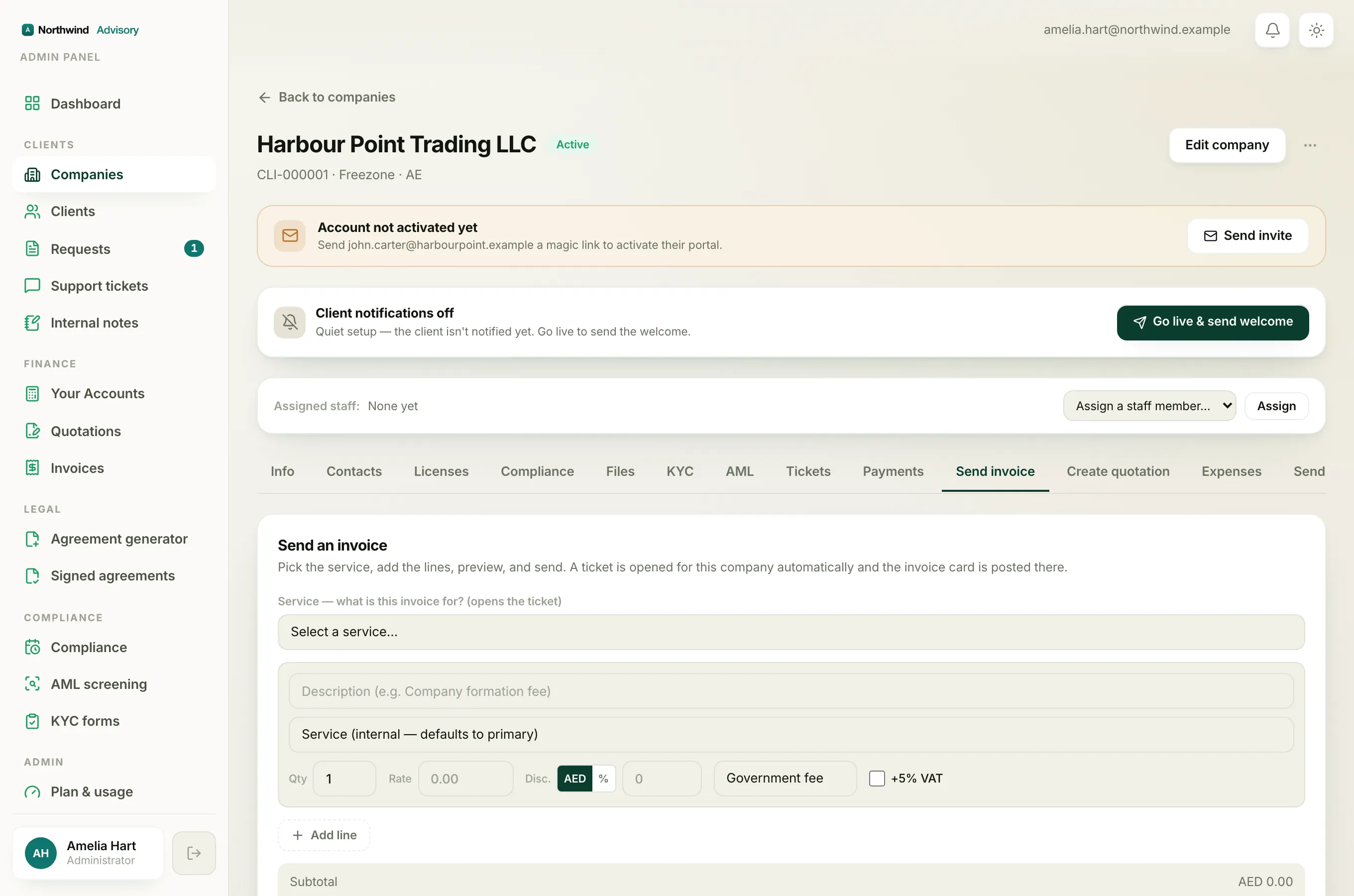
- Open the invoice you are building, either from Finance then Invoices using New invoice, or from a company's Send an invoice tab.
- Add your lines as usual.
- On any line that belongs to a different service, open its Service (internal, defaults to primary) dropdown and choose the correct service.
- Leave the dropdown untouched on every line that belongs to the invoice's main service.
- Preview and send.
What tagging changes
When the invoice is paid, IzzyTap counts each line's net amount (after any discount on that line) toward the service you tagged it to. A bundled invoice therefore splits cleanly: the formation line counts toward formation revenue, the visa line counts toward visa revenue, and so on. Untagged lines all count toward the invoice's main service.
Note
Only your own fee lines count as service revenue. A line set to the Government fee type is treated as pass-through money you collect for an authority, so it is not counted as revenue even though it still carries a service tag. See the invoice line types for the difference.
Tip
The service list you choose from is your firm's service catalogue. If a service you expect is missing, it is not set up in your catalogue yet. Pick the closest match, or add the service first so future invoices can tag to it.
Getting the tags right is what makes your revenue-by-service and profit reports trustworthy, so it is worth the extra few seconds on a bundled invoice.